How to Duplicate Hard Drive in Windows 10/11
Quick Navigation:
- Recommended Tool to Duplicate Hard Drive in Windows 10/11
- Your Reliable Duplicate Drive Software for Windows 10/11
- Step-by-Step Guide on How to Duplicate Hard Drives in Windows 10/11
- Effective Way to Use Automatic Backup Feature
Upgrading is a constant aspect of technology, applicable to operating systems, applications, files, and hardware devices, including hard drives. Many people opt to duplicate their hard drive on Windows 10/11 due to various reasons.
For a tool-focused comparison, see free disk cloning software for Windows 10/11.
- Low space on the existing hard disk
- Upgrading the mechanical hard drive to a Solid State Drive (SSD) can significantly improve performance by reducing loading times, increasing responsiveness, and enhancing overall system speed. This upgrade can be particularly beneficial for applications that rely heavily on disk I/O, such as video editing, gaming, and other resource-intensive tasks.
- Upgrading to a new hard drive that supports UEFI (Unified Extensible Firmware Interface) can provide several benefits, including improved performance, enhanced security, and better support for newer operating systems. UEFI hard drives can take advantage of features such as secure boot, faster boot times, and improved hardware compatibility.
Upgrading a system can be problematic, particularly when it comes to migrating the operating system and data. Without sufficient experience and the right tools, there is a risk of losing data or corrupting the hard drive, making the process more complicated than necessary.
Recommended Tool to Duplicate Hard Drive in Windows 10/11
Qiling Disk Master is a user-friendly program that allows for effortless backup of selected contents or an entire hard drive. With its numerous options and features, creating a duplicate disk from a Windows PC is a straightforward process, even for those unfamiliar with duplicating software. The program enables quick replication of existing hard drive content in just a few simple steps.
The data backup software allows for hard drive cloning without data corruption, protecting existing files, partitions, and operating system files. It also enables the creation of a backup file that can be restored when needed or used to transfer data to a new hard drive, facilitating a smooth migration process.
Qiling Disk Master allows for an easy Windows 10/11 duplicate hard drive with its key features, including the ability to clone entire hard drives, including operating systems, programs, and data, with just a few clicks. The software supports various disk formats, including MBR and GPT, and can clone disks to larger or smaller sizes, making it a versatile tool for users.
Your Reliable Duplicate Drive Software for Windows 10/11
- This tool creates a backup of files from various storage devices, including hard drives, external storage units, and USB sticks.
- Clones an existing hard drive or USB with high efficiency and assists in creating a system backup, making it easy to clone HDD to SSD in Windows 10 and 11.
- The software offers multiple backup modes, including full, incremental, and differential, and allows users to schedule backups at a preferred time.
- This software enables users to create a standalone backup of files and folders without interrupting existing operations, allowing for a secure and corruption-free clone of the hard drive.
- It can also clone RAID to a Single Drive.
Step-by-Step Guide on How to Duplicate Hard Drives in Windows 10/11
You can download a free trial of the software from the official website, and the installation process is quick and easy, taking only a couple of minutes. Once installed, you can proceed with the steps to duplicate a disk on Windows 10/11.
Qiling Disk Master allows you to create duplicate drives for Windows 10/11, as well as external and portable hard drives. A more efficient way to create a backup is by connecting an external device with sufficient storage space, where the software packages the backup file in a convenient and easily accessible format, enabling you to download needed data whenever and wherever necessary.
- The Windows 10/11 duplicate hard drive tool's main screen offers the "Drive Backup" option, which allows users to browse for the needed disk or partition from the computer's directory by selecting this option.
- The software displays all computer drives and external storage units, allowing users to select the hard drive that needs backup. Upon clicking "Start", the software creates a backup of the selected disk from the chosen destination, and users can also specify the storage path, backup file name, and enable automatic backup feature in the same window.
- When the duplicate process is complete, Qiling Disk Master displays a screen showing the file name and date of the backup.

To create a disk image of the contents from an external storage device, connect the device to the computer.
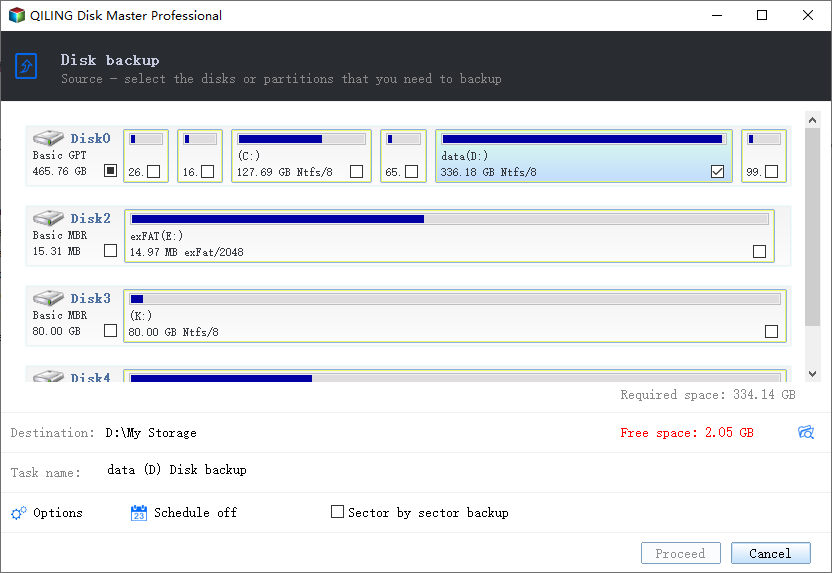
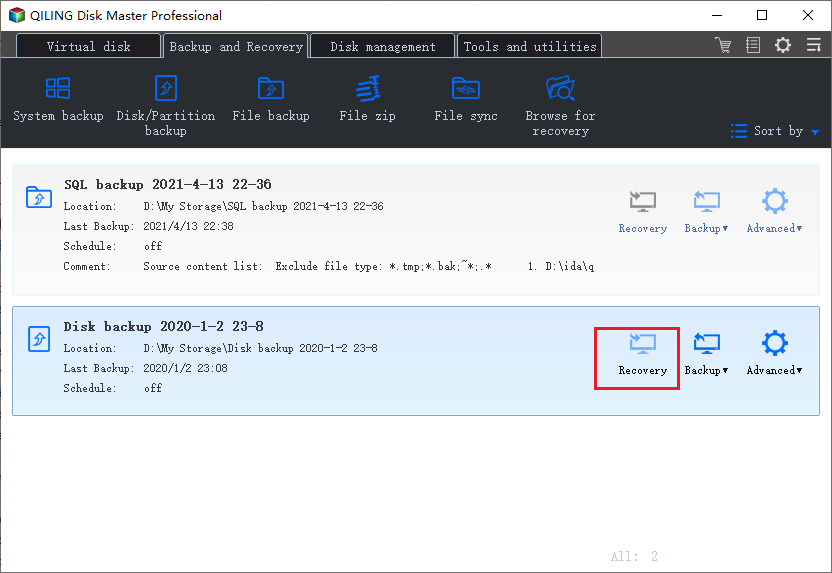
The backup settings in Qiling Disk Master allow users to choose the right option based on their needs, enabling them to make informed decisions about their data.
- A full backup is a safe method that creates an image file containing all the files and data of the hard disk by copying each sector, but it requires more storage space.
- The incremental backup feature in the duplicate hard drive Windows 10 software creates a backup only if there are changes to selected data, resulting in a new version of the file, which is not visible manually.
- Qiling Disk Master allows users to perform a differential backup, which only backs up files that have changed since the last full backup, resulting in a more efficient backup process. If no changes have occurred, no backup is created. This option is ideal for users who want to minimize storage space and reduce the time spent on backups.
Effective Way to Use Automatic Backup Feature
The software's Automatic Backup feature is beneficial for those who frequently update folders and files. It allows scheduling, enabling the software to create backups automatically without affecting computer performance. The process also deletes previous back up files, freeing up space for new versions.
Related Articles
- How to Clone Hard Drive in Windows 10
- How to Clone HDD to SSD in Windows 10
- How to Transfer Windows 10 to SSD
- How to Clone HDD to SSD with Free Hard Drive Clone Software
- How to Clone HDD to Western Digital SSD
- Easily Migrate Windows 10 from One PC to Another in 2022
If you're looking for a suitable Windows 10 migration software, you've come to the right place. Read this post, you will get the most effective method.
Products
Articles & Tutorials
- Data Recovery
- Data Backup
- File Recovery
- File Backup
- File synchronize
- System Backup and Restore
- Disk and Partition Clone
- Technical articles
- Disk Master Help
- Windows Deleted File and Disk Recovery Tutorials
- Windows File and Data Recovery Tutorials
- More Windows Tutorials for Install, Security, Files, and PC Tips
- Windows Boot, Repair, and Recovery Environment Tutorials
- Windows Backup Tutorials
- Windows Restore Tutorials
- Windows Clone and Migration Tutorials
- Windows Server Backup, Recovery, and Management Tutorials
- Windows Disk, Partition, and Storage Management Tutorials