Sector-by-Sector Clone or Not? Get Clear Ideas Here!
Quick Navigation:
- Sector-by-sector clone or not?
- Best free sector-by-sector clone software
- How to sector by sector clone an SSD/HDD in Windows 11/10/8/7
- Before cloning
- Steps to perform sector-by-sector copy
- Verdict
Sector-by-sector clone or not?
Many users are confused about the "sector-by-sector clone" option in advanced cloning software. Understanding what this option does can help you decide whether to use it or not. Sector-by-sector clone is a feature that allows you to clone a hard drive or SSD by copying each sector of the source drive to the destination drive, rather than just copying the files and folders. This option can be useful in certain situations, but it's not always necessary, and using it may not always be the best choice.
Sector-A sector-by-sector clone, also known as bit-by-bit copy, is a type of clone where all sectors on a hard drive are cloned, including blank or logically bad sectors. This results in a cloned drive that is an exact replica of the source drive. Such a clone is typically needed when:
✔ Switching from a traditional Hard Disk Drive (HDD) to a Solid-State Drive (SSD) without reinstalling the operating system and applications is possible when the target and source drives are of equal size. This process involves cloning the existing HDD to the new SSD, ensuring a seamless transition with minimal disruption to your system.
✔ To prepare a cloned drive for replacement, back up your existing data to an external drive or cloud storage. Next, use a cloning software like Qiling Disk Master to create a copy of your main drive onto the cloned drive.
Nevertheless, you may not use sector-by-sector clone if:
✖ The cloning process will fail if the destination drive is smaller than the source drive.
✖ The source drive has bad sectors that will be copied to the destination drive if not addressed.
Now that you know whether to use sector-by-sector copy or not, you need reliable bit copy software to help you.
Best free sector-by-sector clone software
Want to run sector-Qiling Disk Master Standard is a free sector-by-sector clone software that supports all Windows PC operating systems, making it a suitable option for cloning a disk.
🌟 This software provides the functionality of both "Disk Clone" and "Partition Clone", allowing users to clone either an entire disk or a specific partition.
🌟 When cloning a hard drive, it automatically skips bad sectors, but you can also choose to clone sector by sector if desired.
🌟 Qiling Disk Master supports nearly all common hard drive brands, allowing users to clone HDDs or SSDs from various brands such as Samsung, SanDisk, WD, Crucial, and Kingston.
🌟 You can continue working on your computer while the cloning process runs in the background.
Then, how to use Qiling Disk Master for sector-by-sector clone on SSD/HDD? Please move on to the next part.
How to sector by sector clone an SSD/HDD in Windows 11/10/8/7
Before cloning
- To ensure a smooth transition, prepare a destination disk that is at least as big as the source disk. This will provide enough space for all the data to be transferred and ensure that the entire process completes without any issues.
- Connect the destination disk to your PC using a screwdriver, power cable, SATA cable, or a USB-to-SATA adapter, depending on the type of connection required.
- When cloning files to a destination drive, it's essential to back up the files on the destination drive first, as the cloning process will delete all data on the destination drive.
Steps to perform sector-by-sector copy
Step 1. You need to download Qiling Disk Master and install it by following the wizard. The installation process will be completed in a short time.
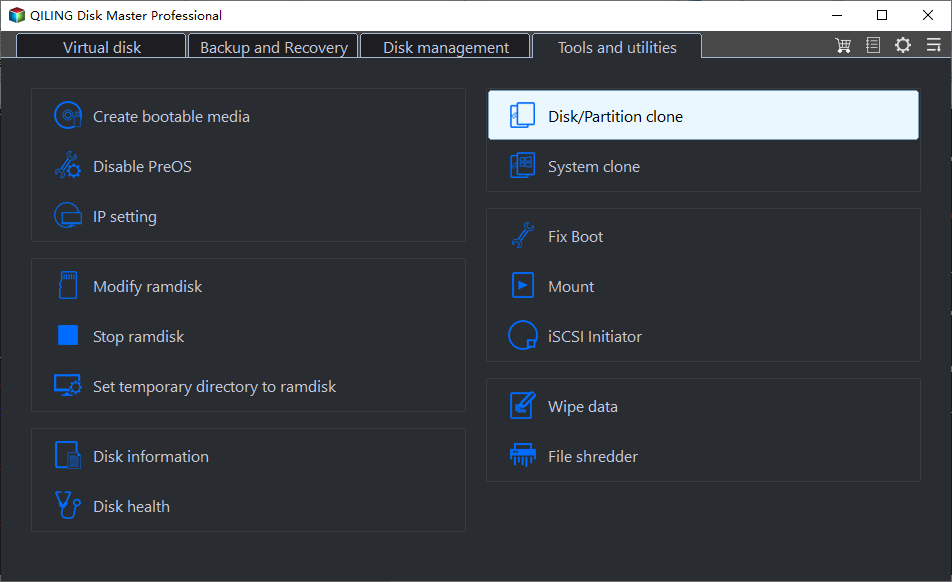
Step 2. Launch Qiling Disk Master, click "Clone" on the left pane, select the clone type, and choose "Disk Clone" as an example.
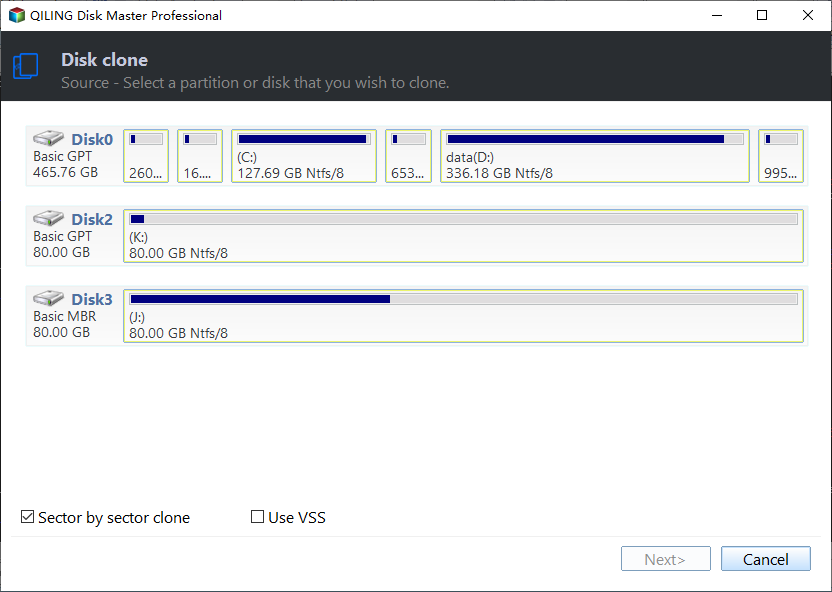
Step 3. Select the source disk that you want to clone, tick "Sector by sector clone", and click "Next".
Step 4. Choose the disk where you want to store the cloned data and click "Next".

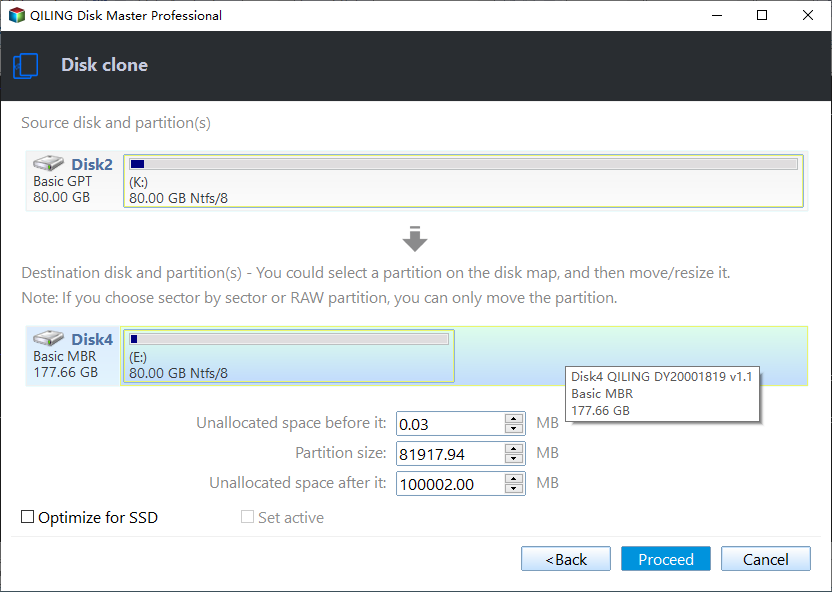
Step 5. Confirm the operation and click "Proceed". If cloning to an SSD, tick "SSD Alignment" to improve its reading and writing speed.
Step 6. When the cloning process is complete, click "Finish". Note that a sector-by-sector clone will take longer than the default intelligent clone, which skips blank and bad sectors. Be patient.

Notes:
- The Standard edition only supports cloning a data disk. To clone a system disk, please upgrade to Qiling Disk Master Professional, which also allows cloning only the OS with the System Clone feature.
- If the source disk is the system disk, you'll need to change the boot order in the BIOS or replace the source drive with the cloned one to boot from it after cloning.
- To get the best performance from a disk after cloning, it's recommended to transfer Windows 10 to an NVMe drive, which offers the fastest transfer speed.
- This software is an M.2 SSD cloner that allows users to migrate Windows 10 to an M.2 SSD, clone an M.2 SSD to another M.2 SSD, and perform other similar tasks.
Verdict
Whether to choose sector-If you're deciding whether to clone your hard drive sector by sector, this article has provided a clear guide. However, you can also take advantage of Qiling Disk Master's backup and recovery features. This tool allows you to create backups before reinstalling Windows 10, and it also enables automatic backup management by Windows 10. Give it a try!
Related Articles
- Best Way to Copy Disk to SSD in Windows 10 (Secure Boot)
This guide explains Best Way to Copy Disk to SSD in Windows 10 (Secure Boot) with clear steps, key checks, and practical tips. - Best Way to Migrate Hard Drive to SSD in Windows 10/8/7
This guide explains Best Way to Migrate Hard Drive to SSD in Windows 10/8/7 with clear steps, key checks, and practical tips. - Fix SSD Slow Boot on Windows 10 with 8 Effective Methods
This article tells you how to fix SSD slow boot on Windows 10. 8 methods are provided. Try them individually and get your computer back to normal. - Best Free Windows 11 Migration Tool
You will know the best Windows 11 migration tool and learn how to migrate the operating system, files or data to a new drive easily using this tool. - 4 Best Alternative Cloning Software to Samsung Data Migration (2024 Pick)
Samsung Data Migration is a tool that allows you to transfer data from one Samsung drive to another, but it only supports Samsung drives. To transfer data from one drive to another, regardless of the manufacturer, alternative cloning software can be used instead. - How to Clone EFI Partition to Another Drive on Windows 11/10/8/7
If you're looking for a reliable way to clone your EFI partition to another drive, Qiling Disk Copy is a great option. This tool allows you to easily clone your EFI system partition and securely copy it to another drive, making it a convenient solution for your needs.
Products
Articles & Tutorials
- Data Recovery
- Data Backup
- File Recovery
- File Backup
- File synchronize
- System Backup and Restore
- Disk and Partition Clone
- Technical articles
- Disk Master Help
- Windows Deleted File and Disk Recovery Tutorials
- Windows File and Data Recovery Tutorials
- More Windows Tutorials for Install, Security, Files, and PC Tips
- Windows Boot, Repair, and Recovery Environment Tutorials
- Windows Backup Tutorials
- Windows Restore Tutorials
- Windows Clone and Migration Tutorials
- Windows Server Backup, Recovery, and Management Tutorials
- Windows Disk, Partition, and Storage Management Tutorials