The Best Windows 11 Migration Tool
User Case
The best Windows migration tool to move an existing OS, software, and data from an old hard drive to a new solid-state drive is Qiling Disk Master. It's a user-friendly and efficient tool that can migrate all permissions, associations, caches, and settings from the old drive to the new one, preserving the original environment and minimizing downtime. Simply connect both drives, select the old drive as the source and the new drive as the destination, and the software will handle the rest, ensuring a seamless transition.
Migrating a system, files, and data using a disk clone is the most convenient method, as it allows you to transfer everything from the old disk to the new one without having to reinstall anything. This approach is particularly useful and doesn't require reinstalling the system, making it a seamless process. The following sections will introduce you to the best data migration tool in Windows 11, providing you with a detailed overview. Please read on.
About Window 11
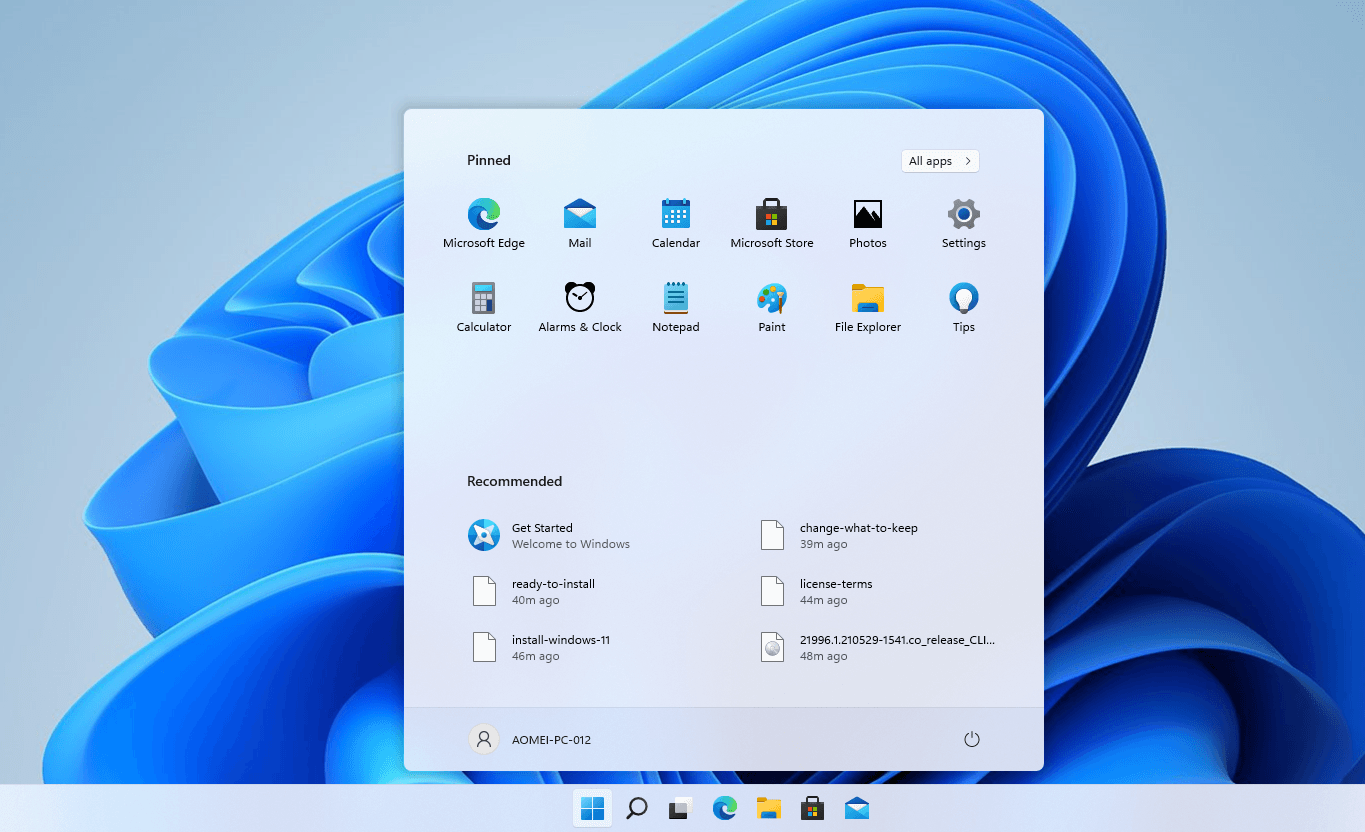
Microsoft announced Windows 11, with a free upgrade in early 2022, featuring improved start menu, notification center, system tray, task bar, and rounded corners.
When Do You Need Windows 11 Migration Tool?
You will need to use the Windows 11 migration tool with 2 common situations.
- Migrate data to a new Windows 11 computer: If you're planning to upgrade to Windows 11 or buy a new Windows 11 computer, the migration tool can help you keep all your previous data. It makes it easy to migrate everything you need.
- Upgrade your disk: With the preference for faster performance, many users now opt for SSDs over HDDs, as they offer quicker read and write speeds, as well as faster startup times, significantly enhancing user experience. To make the transition seamless, a reliable and safe migration tool is essential, allowing users to effortlessly transfer their OS, installed programs, and data to the new SSD, saving them valuable time.
The Best Windows 11 Migration Tool
Qiling Disk Master Professional is a practical Windows 11 migration tool for moving everything to a new disk. It supports disk clone, system clone, and partition clone, and it can help transfer Windows, apps, settings, and data while keeping the target drive bootable.
- Secure boot: You can directly boot your computer from the cloned disk after cloning.
- Intelligent clone: This software will clone used sectors under the default mode, allowing you to easily clone a larger HDD to a smaller SSD.
- Live clone: The clone task can run in the background, allowing you to use your computer normally while it completes the cloning process.
- SSD alignment: Upgrading to a solid-state drive (SSD) can significantly boost your computer's performance by speeding up the reading and writing of data, making it an ideal option when transferring an operating system and software to a new drive.
- Different systems: It supports various Windows versions, including Windows 11, 10, 8, 8.1, 7, XP, and Vista.
How to Migrate Everything You Want in Windows 11 Easily
To migrate your operating system, installed applications, and data to a new disk, follow the tutorial below using a reliable Windows 11 migration tool. Before starting the cloning process, some preparation work is required.
- Backup your important files In advance, because all the data on the target disk will be erased during the cloning process.
- Connect your destination disk to your computer via a USB to SATA adapter or a disk bay, making sure it's properly secured.
- Ensure the destination disk can be detected by your computer.
- Download To migrate to Windows 11 with ease, I recommend using Qiling Disk Master Professional, a top-notch tool for the job. This powerful software can help you create a bootable USB drive with Windows 11, clone your existing Windows installation to a new drive, and even migrate your system to a new computer.
You can use a reliable Windows 11 migration tool to clone everything you want to the new disk, making the process easy and efficient.
Step 1. Launch Qiling Disk Master Professional and Click Clone > Disk Clone.

Tip: The Professional edition allows cloning of both data and system disks from MBR to MBR/MBR to GPT, or GPT to GPT/GPT to MBR, while the Standard edition supports only data disk cloning.
Step 2. Choose your previous disk as the source disk, then click Next.

Step 3. Select the new disk as the destination disk, and click Next.

Step 4. If your target disk is an SSD, please tick SSD Alignment to accelerate the reading and writing speed of the SSD. Then, click Proceed.

- Notes:✎...
- Edit Partitions: It enables automatic or manual partition size adjustments.
- Sector By Sector Clone: Clone all sectors, including unused ones, and copy the source disk to the target disk if it's the same size or larger.
How to Upgrade Windows 10 to Windows 11
Microsoft's new operating system, Windows 11, is set to be released on October 5. To experience the latest Windows system and its new features, users may need to upgrade their existing Windows 10 to Windows 11.
As a Windows 10 user, you can upgrade to the new system for free, as long as your device is compatible and meets the minimum requirements, allowing you to update it the same way you usually update Windows 10.
To upgrade to Windows 11, go to the System Updates section of your existing Windows 10, search for new updates, and Windows 11 will appear in your upgrade area if it is available. You can then click the "Download and Install" option and follow the on-screen instructions to complete the upgrade.

Summary
The best Windows 11 migration tool helps you seamlessly upgrade to Windows 11 or upgrade your disk by migrating all OS, applications, and data to the new disk without the need for reinstallation.
After cloning, you can boot your computer successfully and use your previous system and software directly, with access to all your data at any time. For Windows server users, try Qiling Disk Master Server.
You can use Clonezilla to clone dynamic disks, clone and resize partitions, and explore more features by downloading the software.
Related Articles
- Best Windows 10 Data and OS Migration Tool (2 Ways)
You will use the best Windows 10 migration tool to migrate Windows 10 to SSD or new computer without reinstalling Windows. Hurry up and learn the step by step guide below. - Easily Migrate Windows 11 to SSD without Reinstalling
You can learn an easiest way of migrating Windows 11 to SSD. It's using a professional disk clone software. - How to Make a Bootable Backup on Windows 11 (2 Free Ways)
A bootable backup allows you to restore a bootable system image when your computer falls into serious system errors. Scroll down to learn how to make Windows 11 bootable backup easily in 3 free ways. - [Get the Answer!] Can I Safely Clone an HDD to an SSHD?
Description: Have you been stuck by a question like - Why My PC Suddenly Slow and How to Fix it?
Why My PC Suddenly Slow and How to Fix it?: this guide summarizes the key steps, practical tips, and safer options so you can finish the task clearly and avoid common mistakes. - Fixed: Samsung Data Migration Not Working with Windows 11, 10, 8, 7
This guide explains Fixed: Samsung Data Migration Not Working with Windows 11, 10, 8, 7 with clear steps, key checks, and practical tips.
Products
Articles & Tutorials
- Data Recovery
- Data Backup
- File Recovery
- File Backup
- File synchronize
- System Backup and Restore
- Disk and Partition Clone
- Technical articles
- Disk Master Help
- Windows Deleted File and Disk Recovery Tutorials
- Windows File and Data Recovery Tutorials
- More Windows Tutorials for Install, Security, Files, and PC Tips
- Windows Boot, Repair, and Recovery Environment Tutorials
- Windows Backup Tutorials
- Windows Restore Tutorials
- Windows Clone and Migration Tutorials
- Windows Server Backup, Recovery, and Management Tutorials
- Windows Disk, Partition, and Storage Management Tutorials