Best Windows 10 Data and OS Migration Tool (2 Ways)
Quick Navigation:
- Why use Windows 10 migration tool?
- Does Windows 10 have a migration tool?
- Best Windows 10 transfer tool - Qiling Disk Master
- How to migrate Windows 10 to SSD in different situations?
- Summary
Why use Windows 10 migration tool?
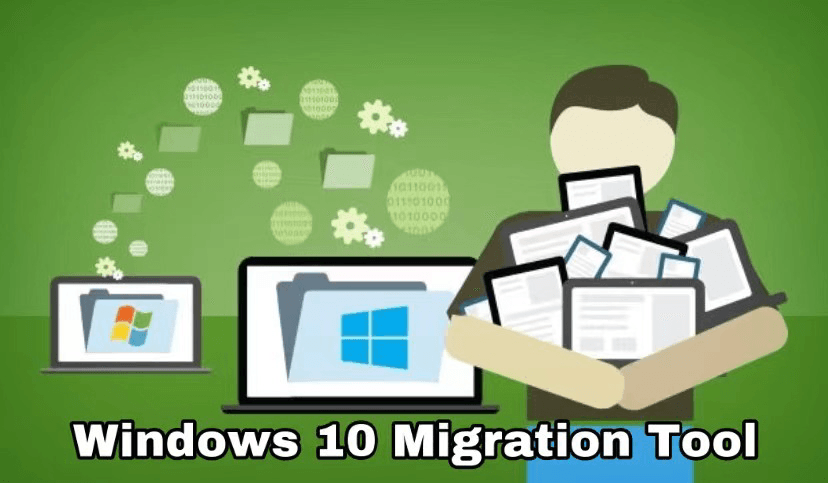
Windows 10 migration refers to the process of upgrading or transferring the operating system and associated data from one device to another. Many users opt to replace their traditional hard disk drives (HDDs) with solid-state drives (SSDs) for improved performance. The migration process can be approached in two ways: a clean install, which involves completely reinstalling the operating system and reconfiguring settings, or system migration, which allows for a more seamless transfer of the existing operating system and settings to the new device.
▶ Clean Install Windows 10: To install Windows 10, you'll need to download the Media Creation tool, create a bootable installation package on a USB drive or CD, and then follow a series of practical steps to complete the installation.
☞ It is an error-prone process, especially for computer green hands. However, if you are interested in that way, you may refer to the tutorial of installing Windows 10 to SSD for detailed steps with screenshots. Besides the complicated progress, all settings, installed applications and user profiles of previous Windows 10 are gone. You need to configure everything from scratch.
▶ Use Windows 10 migration tool: With this tool, you can easily transfer Windows 10 and its user profile to a target disk without reinstalling. This process can be completed within a few clicks, allowing you to maintain your familiar operating environment. By booting off the target disk, you'll be able to access your Windows 10 setup as if you had performed a clean install. This feature helps overcome the limitations of a clean install, providing a seamless transition to a new disk.
Does Windows 10 have a migration tool?
Windows Easy Transfer is a tool that helps migrate settings and local user profiles from an old PC to a new PC, first introduced in Windows Vista and inherited in subsequent versions including Windows XP, 7, 8, and 8.1.
Since Windows 8, signing in with the same Microsoft account on different devices has transferred many settings. However, in Windows 10, this feature is no longer available and has been replaced by Laplink, which only transfers user profiles, files, and applications.
If you're looking for a cost-effective solution that not only migrates Windows 10 profiles but also the entire OS, you'll need to find a more comprehensive migration tool.
Best Windows 10 transfer tool - Qiling Disk Master
There are several aspects to consider when looking for the best Windows 10 migration assistant, including the ability to detect and remove existing malware, the capacity to upgrade to Windows 10 without losing data, the option to transfer files and settings, and the ability to troubleshoot and resolve any issues that arise during the migration process.
◑ Supporting a full system migration. The script should move all system-related drives to the target location, taking into account that some Windows systems may have additional partitions like System Reserved Partition, Recovery partition, or EFI system partition.
◑ Cloning a large hard drive to a smaller solid-state drive (SSD) can be done without obstacles by using intelligent sector clone, which is particularly useful when the smaller SSD is even smaller than the system drive for Windows 10 OS, making it essential for efficient storage.
◑ Transferring Windows 10 to a new computer, even with different hardware, can be a bit tricky. By default, Windows 10 doesn't natively support cloning hard disks from one computer to another with dissimilar hardware. However, there are specialized Windows 10 migration tools available that can help clone hard disks, making it easier to move your operating system and data to a new computer.
Qiling Disk Master Professional is a Windows 10 OS migration tool that can perform Windows 10 migrations to SSD and migrate Windows 10 to a new computer, utilizing features such as System Clone and Dissimilar Hardware Restore.
To try the Windows migration tool, download the Qiling Disk Master Professional 30-day free trial.Clone features in the free-trial version can only be demonstrated, you could upgrade to enjoy)
How to migrate Windows 10 to SSD in different situations
Following parts will show you how to transfer Windows 10 in the same computer and to a different computer separately. The two situations will make use of different features in this software.
For the same computer, you don't have hardware and license problem. Thus, both backup & restore (free way to transfer Windows 10 to new hard drive) and system clone (free-trial) feature can help you, but the clone feature is much easier. With it, you just need a few clicks and then boot off the new SSD after cloning. And I'll introduce the later one in detail.
For a new computer with different hardware, use the backup and restore feature with Universal Restore to ensure all necessary drivers are installed and the computer is bootable. This feature can install the required drivers to start Windows on the new hardware.
Situation 1: Migrate Windows 10 to SSD in the same computer
To migrate Windows 10 to an SSD on the same computer, you can use the built-in Windows tool, Windows 10's built-in tool, or a third-party cloning software. The process involves creating a backup of your current system, cloning the system to the new SSD, and then booting from the SSD.
- Connect or install the SSD to your computer. Install and launch Qiling Disk Master Professional.
- Click "Clone" and then "System Clone".

- Select the system drive (s) by default and choose the SSD as the destination disk, but make sure to back up important files first as all partitions and data on the SSD will be erased.

- Preview the Operation Summary. Check "SSD Alignment" option to improve the performance of the destination SSD. Click "Proceed".

>> The sector by sector clone method requires the destination disk to be equal to or larger than the source drive, and should not be used when moving Windows 10 to a smaller disk. This method takes significantly more time than the default clone only used part method.
- When the cloning process is complete, click "Finish" to exit. Shut down your computer. You can either replace the old hard drive with the new SSD or change the boot priority to the cloned SSD in the BIOS to boot from the SSD.
Situation 2: Migrate Windows 10 to new computer with dissimilar hardware
To migrate Windows 10 to a new computer, start by creating a system image of your current Windows 10 using Qiling Disk Master Professional. Once the image is created, restore it to the new computer, effectively transferring your operating system and settings to the new device, completing the OS migration.
#1. Create Windows 10 system image backup
- In Qiling Disk Master, click "Backup" and then "System Backup" to select the operating system and boot-related partitions required to start Windows automatically.

- In the System Backup window, select a path to store the image, preferably on a NAS, cloud drive, shared folder, or external storage for easy access on the new computer. Then, click "Proceed".
#2. Restore Windows 10 image to new computer
Before taking further steps, you need to do some preparations accordingly for this task.
▶ The new computer is able to start normally: Download and install Qiling Disk Master on the new computer.
▶ The new computer cannot boot up: Create a bootable USB drive with Qiling Disk Master on the original computer. After you boot the new computer off the bootable USB drive, Qiling Disk Master will load up automatically.
To restore Windows 10 to a new computer, follow these steps:
- To start the new computer and use Qiling Disk Master, start the computer, launch Qiling Disk Master, change the boot order in the BIOS to boot from the USB drive, and connect the external storage device if the system image is stored there.
- In Qiling Disk Master, click "Restore" and "Select Task" to automatically detect all created backup tasks, or click "Select Image File" to manually navigate to the system image.

- Select the system backup task and click "Next".

- Tick "Restore system to other location" below and click "Next" to restore your computer. Select "Restore this system backup" to restore your computer.

- Select a partition on your new computer to restore the system image to and click "Next".

- If your new computer has different hardware, select the "Universal Restore" option. Then, click "Proceed" to initiate the restoration process.

Tips:
>> Be sure to back up crucial data before overwriting the destination disk/partition.
>> Some drivers, like those for video/sound cards, NICs, and displays, are not installed by Qiling Universal Restore, as they don't impact system startup and can be manually installed in Windows after restoration.
>> To restore Windows Server to dissimilar hardware, use Qiling Disk Master Server.
Summary
Qiling Disk Master is a reliable tool for migrating to a new computer or SSD, and can also be used for Windows 7 to new computer migration.
You can use this software for data protection by enabling features like file backup, sync, and scheduled backups, excluding migration. Try it out for yourself!
Related Articles
- Move Data from Windows 7 to Windows 10[5 Ways Included]
- Migrate OS with Best Free OS Migration Software
- Get the Best Free SSD Migration Tool for Windows Here!
- 4 Solutions to SanDisk SSD Slow in Windows 11, 10, 8, 7
Learn the key steps, checks, and practical tips for Move Data from Windows 7 to Windows 10 Migrate OS with Best Free OS Migration Software Get the Best Free SSD Migration Tool for Windows Here! 4 Solutions to SanDisk SSD Slow in Windows 11, 10, 8, 7. - How to Clear A USB Stick on Windows 10/8/7 Permanently?
In this post, you will know how to clear a USB stick on Windows 10 via Command Prompt, or a free partition manager. Choose a proper method to wipe clean your USB stick now. - Easy Steps to Create New Logical Partition in Windows 11/10/8/7
To create a logical partition in Windows 10, there are two methods. One way is to combine Windows Disk Management and Diskpart, which allows you to create a new logical partition. Alternatively, you can use a third-party tool to achieve the same result.
Products
Articles & Tutorials
- Data Recovery
- Data Backup
- File Recovery
- File Backup
- File synchronize
- System Backup and Restore
- Disk and Partition Clone
- Technical articles
- Disk Master Help
- Windows Deleted File and Disk Recovery Tutorials
- Windows File and Data Recovery Tutorials
- More Windows Tutorials for Install, Security, Files, and PC Tips
- Windows Boot, Repair, and Recovery Environment Tutorials
- Windows Backup Tutorials
- Windows Restore Tutorials
- Windows Clone and Migration Tutorials
- Windows Server Backup, Recovery, and Management Tutorials
- Windows Disk, Partition, and Storage Management Tutorials