(2 Methods) How to Clear A USB Stick on Windows 10, 8, 7 Permanently?
When need to clear a USB stick?
A USB flash drive is a convenient device for storing thousands of files, but after long-term use, you may need to wipe it clean. To permanently erase a USB drive on Windows 10/8/7, you can use built-in tools like Disk Cleanup, Disk Management, or third-party software like DBAN or KillDisk, which can overwrite the entire drive with zeros, making it impossible to recover any data. This ensures that your sensitive information is completely erased and the drive is ready for reuse.
● ReuseIf your USB stick is faulty or has a virus, you can clear it to remove the errors or infection.
● Sell or giving to othersTo protect your sensitive data, remove all personal information from your old USB drive before selling or giving it away. This prevents unauthorized use.
● Get some more spaceWhen you need more free space for new data, but deleting unnecessary files doesn't make a difference, you can consider compressing your existing files to free up space. This approach can help you make the most of your storage capacity without having to delete files that are still useful.back up required files and clean out your USB stick to get full space.
When clearing data from a USB pen drive, formatting or deleting the partition on Windows 10/8/7 may not completely delete data, as it can still be recovered by a data recovery tool.
To clear a USB stick on Windows 10/8/7 completely and minimize the chances of data recovery, you can either use the built-in Disk Cleanup tool or the Command Prompt. The Disk Cleanup tool can be accessed by right-clicking on the USB drive in File Explorer, selecting "Properties", and then clicking on the "Disk Cleanup" button.
Two methods to clear USB drive completely on Windows 10/8/7
To permanently clear a USB thumb drive, you can write zeros to it, replacing regular data with zeros. There are two methods available for this task.
✍Note: If you have necessary data on your USB stick, please back it up first. After that, you can choose one of the following methods to completely wipe your USB stick.s.
Method 1. Clear USB with Command Prompt
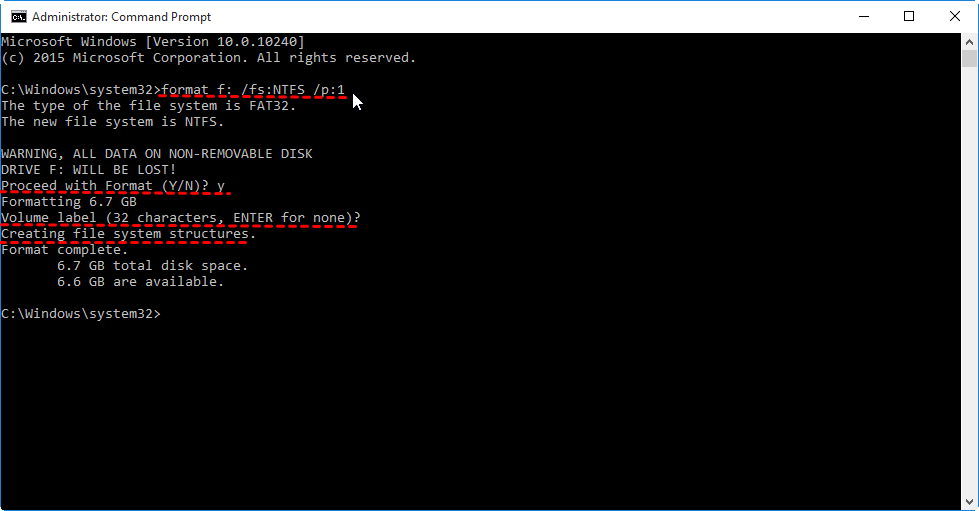
You can clear all data from your USB drive by writing zeros to it using the Command Prompt. To do this, follow the instructions:
Step 1.Type "CMD" in the search box, right-click the search outcome, and click "Run as administrator".
Step 2. Type format X: /fs:NTFS /p:1To format a USB drive with the NTFS file system and write zeros to every sector, open the Command Prompt window, type `X:` (where X is the drive letter of your USB), and press Enter. You can change the file system to your needs.
Step 3. Type "y" and press Enter to confirm. And wait for the process to finish, it may take a long time.
Step 4. You can type a name for the drive as volume label, or don't and then press Enter.
Step 5. Wait for the "Creating file system structures" to show.
Step 6. When the prompt returns, you can repeat the above steps for other partitions on USB.
Step 7. Type exit and press Enter to exit Command Prompt.
Method 2. Wipe USB device via freeware
As you can see, it is time-Consuming and complicated to clear USB with Command Prompt, especially for those who are not good at running complicated commands. Those commands cannot be undone, requiring careful input in the Command Prompt. Alternatively, you can choose a different method.
You can easily clear a USB device using Qiling Disk Master Standard, which allows you to quickly and securely erase all data on your USB stick with just a few clicks. This software supports popular Windows systems, including Windows 10/8/7 and Windows XP, and can be downloaded by clicking the button below. Once installed, simply follow the guide to delete all partitions and data on your USB.
Step 1. Install and open Qiling Disk Master, right-click the USB drive you are going to wipe and click "Wipe Hard Drive".
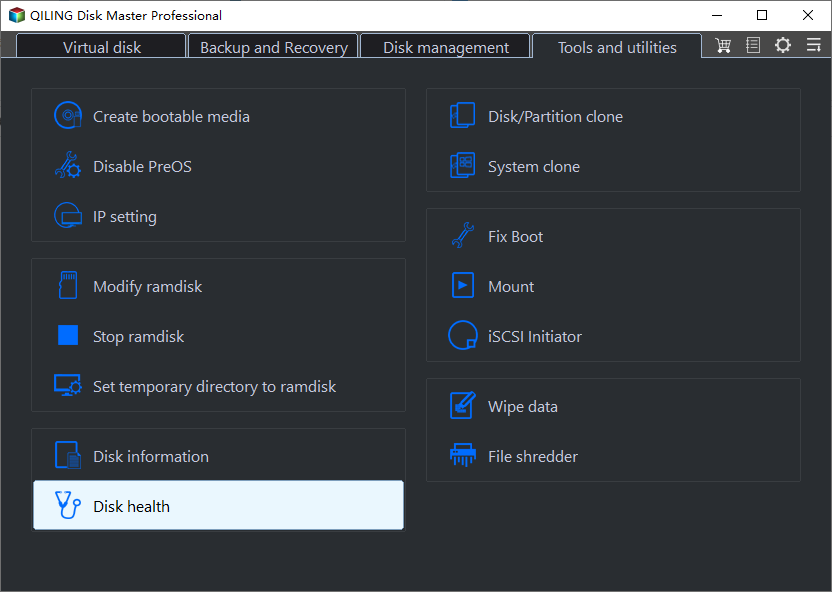
Step 2. In this window, you can choose a wiping method. Here we choose "Fill sectors with Zero (Safe, Quick)".
Tip: You can upgrade to Professional To enhance security, consider adopting one of the alternative wiping methods that offers higher protection. This could involve using a more secure method to permanently erase data, such as a multi-pass overwrite or a specialized wiping tool that meets specific security standards.
● Fill sectors with random data (Safe, Quick)This method involves writing random data to all sectors on the USB drive, making it safer than option 1.
● DoD 5220.22-M (Very Safe, Slow): The Department of Defense (DoD) first published a wiping standard that involves three passes to ensure maximum security. The process involves wiping a drive with zeros, then ones, and finally random data, making it extremely difficult for unauthorized individuals to recover any information from the drive.
● Gutmann (35 passes, Very Safe, Very Slow): This is also a software-A safe but time-consuming data wiping method is to overwrite existing information on a hard drive through 35 passes. This approach ensures that all data is completely erased, but it takes significantly longer to complete compared to other methods.
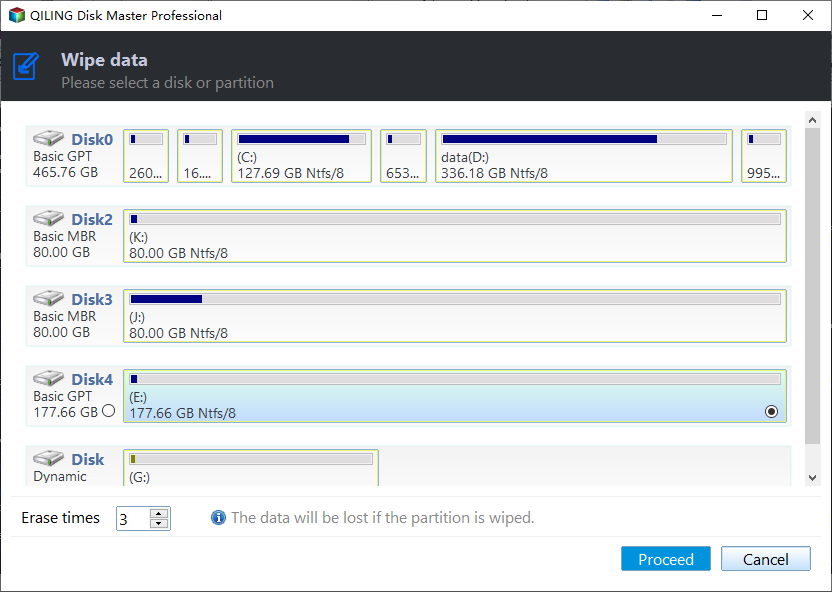
Step 3.You'll After clicking "Proceed", the operation will be executed, and the result can be previewed on the main interface.

The steps to wipe a hard drive, memory card, or external hard drive can be applied to other types of storage devices. These devices can be completely erased and restored to their original factory settings, ensuring that all data is removed and the device is ready for reuse.
Conclude
To permanently and securely clear a USB stick on Windows 10/8/7, you can use either of two methods. Both methods will erase the data on your USB, but the second method is safer and more user-friendly.
Qiling Disk Master is a powerful partition manager that goes beyond just clearing or wiping a USB stick. It also allows you to partition a USB drive, giving you more control over your storage devices.Professional Edition to unlock other advanced functions like erase SSD drive, recover deleted partitions, etc.
Related Articles
- Move Program Files (x86) to Another Drive Safely and Easily
To move program files (x86) to another drive safely and easily, you can use the built-in Windows feature called "System" or a third-party software like Qiling Disk Master. These tools will help you transfer the files without affecting the programs - How to Move Steam Games to Another Drive without Redownloading 2021?
Learn how to Move Steam Games to Another Drive without Redownloading 2021 with clear steps, key checks, and practical tips. - Best Free Norton Ghost Alternative for Windows 10 or 11
Qiling Disk Master Standard is the best free Norton Ghost alternative for Windows 10 or 11, allowing you to easily create a ghost of your hard drive within Windows or from a boot device. - Best Alternative to Norton GoBack in Windows
This guide explains Best Alternative to Norton GoBack in Windows with clear steps, key checks, and practical tips. - How to Perform Windows Scheduled Disk Defragmentation?
Learn how to Perform Windows Scheduled Disk Defragmentation with clear steps, key checks, and practical tips. - Windows Server 2019: Bare Metal Backup and Recovery
Learn how to create a Windows Server 2019 bare metal backup in this article to perform bare metal recovery in the event of an unexpected situation on your server.
Products
Articles & Tutorials
- Data Recovery
- Data Backup
- File Recovery
- File Backup
- File synchronize
- System Backup and Restore
- Disk and Partition Clone
- Technical articles
- Disk Master Help
- Windows Deleted File and Disk Recovery Tutorials
- Windows File and Data Recovery Tutorials
- More Windows Tutorials for Install, Security, Files, and PC Tips
- Windows Boot, Repair, and Recovery Environment Tutorials
- Windows Backup Tutorials
- Windows Restore Tutorials
- Windows Clone and Migration Tutorials
- Windows Server Backup, Recovery, and Management Tutorials
- Windows Disk, Partition, and Storage Management Tutorials