Move Program Files (x86) to Another Drive Safely and Easily
- Can you move Program Files (x86) to another drive?
- About move Program Files (x86) to another drive - You should know
- ▶ What is Program Files (x86)?
- ▶ Why move Program Files (x86) to another drive?
- ▶ Is it safe to move Program Files (x86) to another drive?
- How to move Program Files (x86) to another drive on Window 10 safely
- Further tips: Move installed programs to another drive
- Conclusion
Can you move Program Files (x86) to another drive?
To move the Program Files x86 folder from your system drive to your D drive without deleting and redownloading, you can use the built-in Windows feature called "System Properties" and the "Move" option. To do this, go to System Properties (Press the Windows key + Pause/Break), then click on the "Advanced" tab, and select "Settings" under the "Performance" section. This will open the Performance Options window, where you can click on the "Data" tab and select the "Move" option. Then, browse to the D drive and select the destination folder. This will move the Program Files x86 folder without deleting and redownloading it, saving you time and effort. However, please note that you may need to restart your system after the move to ensure all applications are updated with the new path.
About move Program Files (x86) to another drive - You should know
Before changing Program Files (x86) location, you should know this information.
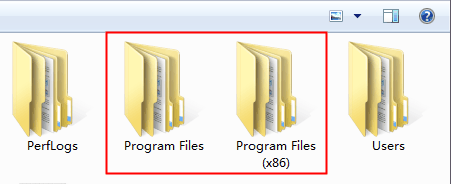
▶ What is Program Files (x86)?
"x86" now refers to the pre-64-bit architecture refers to computers that can use either 16-bit or 32-bit programs, while the newer x64 architecture is specifically for 64-bit programs, with "Program Files (x86)" being the folder for older x86 CPU architecture programs.
▶ Why move Program Files (x86) to another drive?
The default download path on Windows is usually the system drive (often the C drive), which can lead to a buildup of downloaded programs and files in the Program Files (x86) folder. Over time, this can cause the system drive to become increasingly full, resulting in Windows slowdowns, system crashes, and low disk space warnings.
▶ Is it safe to move Program Files (x86) to another drive?
If the files in the Program Files (x86) folder are system-related, it's best not to move them as it may cause issues with Windows. However, if they're related to a specific application, you can safely move them.
How to move Program Files (x86) to another drive on Window 10 safely
If you plan to copy applications or folders in Program Files (x86) from C drive to D drive one by one, it may cause the applications or folders not to run normally. A better approach is to use a more efficient method.
Qiling Disk Master Professional is a tool that allows users to transfer applications and folders from one drive to another without losing data, and also enables them to restore them to their original path.
Warning: Qiling Disk Master Professional does not support moving the entire Program Files (x86) folder, but allows moving individual installed programs or subfolders within it, enabling users to selectively move applications and folders not related to the system.
Further tips: Move installed programs to another drive
As we mentioned above, "App Mover" also allows users to move installed programs to another drive without boot issue. The process involves using the tool to relocate installed programs to another drive, ensuring a smooth transition without any boot-related problems. The whole process will be shown in the following steps.
Conclusion
With the help of Qiling Disk Master Professional, moving installed programs or folders becomes easy. This guide shows you how to move program files (x86) to another drive.
There are also advanced features available, including allocating free space from one drive to another, merging partitions, cloning a hard drive to a larger one, and deleting large files by type to save space, among others. For Windows Server users, a server version is available.
Related Articles
- Can I Move the Program Files Folder to Another Drive
This guide explains Can I Move the Program Files Folder to Another Drive with clear steps, key checks, and practical tips. - Can I Move Users Folder to Another Drive
This guide explains Can I Move Users Folder to Another Drive with clear steps, key checks, and practical tips. - 4 Easy Ways to Change Program Files to D Drive Quickly
This guide explains 4 Easy Ways to Change Program Files to D Drive Quickly with clear steps, key checks, and practical tips. - Easy But Effective Hard Disk Not Initialized Fixes for Windows 10, 8, 7
If you find your hard disk is not initialized in Windows 10, 8, 7, you can try the following methods to fix "hard disk not initialized" issues like "hard disk unknown not initialized unallocated", or "disk unknown not initialized no size" on Windows. - Restoring MBR System Image to GPT/UEFI (Safe Boot)
MBR cannot satisfy users' storage demand with the development of internet. Restoring MBR system image to GPT/UEFI is necessary to rescue MBR disk. - How to Restore Multiple Databases in SQL Server (3 Methods)
To restore multiple databases in SQL Server at once, you can use a T-SQL script that utilizes a loop to apply the restore process to each database, or opt for a software solution that can handle the task with fewer restrictions.
Products
Articles & Tutorials
- Data Recovery
- Data Backup
- File Recovery
- File Backup
- File synchronize
- System Backup and Restore
- Disk and Partition Clone
- Technical articles
- Disk Master Help
- Windows Deleted File and Disk Recovery Tutorials
- Windows File and Data Recovery Tutorials
- More Windows Tutorials for Install, Security, Files, and PC Tips
- Windows Boot, Repair, and Recovery Environment Tutorials
- Windows Backup Tutorials
- Windows Restore Tutorials
- Windows Clone and Migration Tutorials
- Windows Server Backup, Recovery, and Management Tutorials
- Windows Disk, Partition, and Storage Management Tutorials