4 Easy Ways to Change Program Files to D Drive Quickly
You can move the Program Files folder to another drive, but it's not a straightforward process. You'll need to use the built-in Disk Cleanup tool and the System Properties to relocate the folder. However, keep in mind that some programs might not function properly if their installation directories are moved. It's also worth considering other options, such as deleting unnecessary files, uninstalling unused programs, or upgrading your storage capacity.
Why change Program Files to D Drive?
When downloading apps or programs from the internet, they are often stored in the Program Files or Program Files(X86) folder on the C drive by default. Over time, the storage space on the system drive can become increasingly limited, leading to issues such as slow system speed, frequent system crashes, and low disk space warnings.
To avoid running out of space on the system partition, it's essential to free up space on the C drive. This can be achieved by relocating the Program Files to the D drive, especially when the system partition is running low. Here, I'll provide some techniques to help change Program Files to D drive efficiently.
How to change Program Files to D drive?
Moving Program Files to a different drive, such as D:, is a great way to free up space on the system drive. However, manually copying programs from C: to D: one by one can be a tedious and error-prone process that may lead to missing data. Fortunately, there are more efficient alternatives to achieve this goal.
Note: Be cautious when performing operations on your system drive, as mistakes can lead to serious system errors. Before proceeding, make a backup to ensure your data's safety.
Part 1. Move the Program Files folder to D drive
To move the entire Program Files folder to the D drive once for all, you can use the built-in Windows features, such as the "Move" feature in File Explorer, or the "System Properties" feature in the Control Panel, which allows you to change the default location of the Program Files folder to the D drive. This way, all new programs installed in the future will be installed on the D drive, and you can also move existing programs to the D drive using the "Move" feature.
Send the Program Files folder to D drive using Registry Editor
Using Windows Registry Editor allows you to easily transfer the entire Program Files folder to the D drive with just a few clicks. This is a convenient method for relocating the Program Files folder to a different drive, making it a useful tool for those who want to free up space on their primary drive.
Warning: If you proceed, you may experience a range of problems, including system crashes, instability, malware infections, data loss, and other issues, which may lead to frustration, stress, and lost productivity, potentially resulting in financial losses
1. Microsoft hotfixes, updates, and security updates may not be installed correctly, potentially leaving systems vulnerable to security threats.
2. New versions of Microsoft Internet Explorer or Microsoft Windows Media Player may not be installed correctly.
Step 1. To copy the folders of Program Files and Program Files (x86) from the system drive to the D drive, follow these steps: Copy the Program Files folder and its contents from the system drive (usually C:) to the D drive. Then, copy the Program Files (x86) folder and its contents from the system drive to the D drive. This process may take several minutes to complete, so be patient.
Step 2. To open the Registry Editor, press the Windows key + R to open the Run dialog box, type "regedit" and click "OK".
Step 3. To access the Windows Registry Editor, follow the path "HKEY_LOCAL_MACHINE\SOFTWARE\MICROSOFT\Windows\CurrentVersion" in the main window.
Step 4. Right-click on "Program Files" and then, hit "Modify".
Step 5. To change the letter "C" into "D" in the "Value data" field, simply click on it, replace the "C" with a "D", and then click "OK".
Step 6. Right-click on "Program Files(X86)" and hit "Modify".
Step 7. Under "Value data", still change the letter "C" into "D" and hit "OK".
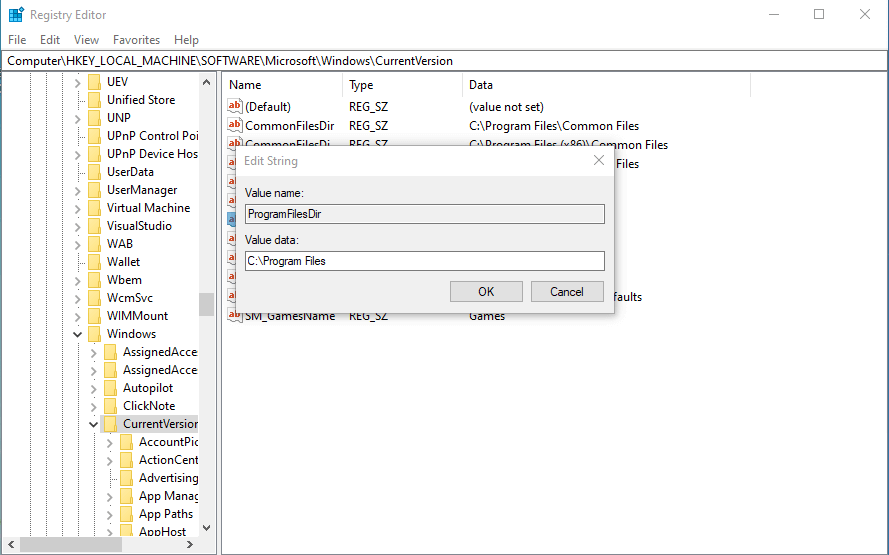
The Program Files and Program Files(X86) directories have been successfully relocated to the D drive.
Move Program Files folder to D drive using mklink
You can move Program Files to another drive using the mklink command in Command Prompt, creating a symbolic link or hard link to redirect Program Files to the D drive.
1. First, copy the entire "Program Files" and "Program Files (x86)" folders from the system drive to the D drive.
2. To open Command Prompt as an administrator, go to the search box on the lower left of the desktop, type "cmd", and select "Run as Administrator" under "Command Prompt" to bring up the Command Prompt window.
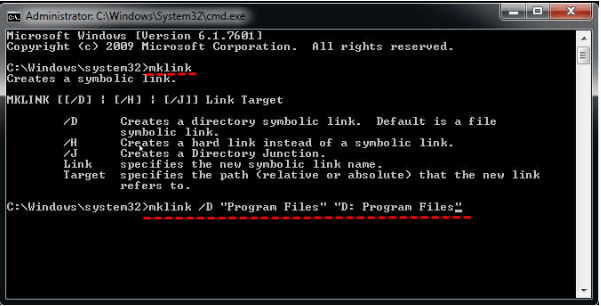
3. To create a symbolic link in the Command Prompt, type "mklink" and hit "ENTER", then type the command "mklink /D "Program Files" "D: Program Files"" and hit "ENTER" again. This will create a symbolic link to the "Program Files" directory on the D: drive.
Part 2. Send an individual or multiple apps from Program Files to D drive
If moving the entire Program Files folder to D drive is not what you want or you think it's too difficult, you can still transfer individual or several programs from the folder to D drive.
Transfer apps in Program Files to D drive in App & Features
To move single or multiple apps from Program Files to the D drive, you can use the Windows feature "Apps & Features" in the Control Panel. This feature allows you to change the installation location of apps, making it easy to relocate them from the Program Files directory to the D drive.
1. Open Windows start menu and select "Settings".
2. In the window of Windows Settings, click on "Apps".
3. Click on "App & features" on the left side.
4. Scroll down and select the program you wish to move, then click on "Move".
5. Select the D drive as the destination drive and click on "Move" to transfer the selected program to the D drive.
Note: If there's only a "Modify" option next to the selected program, or the "Move" and "Modify" options are greyed out, it might be because the publisher has restricted the ability to move the program to a different location. This could be due to various reasons, such as the program requiring a specific location for its functionality or the publisher wanting to maintain control over the program's placement. In such cases, the "Modify" option might be available, allowing you to make changes to the program, but not move it to a different location.
Relocate apps in Program Files to D drive using third-party software
When you can't transfer apps from Program Files to the D drive, consider using a third-party software like Qiling Disk Master Professional. This software can transfer apps like Microsoft Office and games to the D drive with minimal effort and no data loss. It also allows you to restore moved applications to their original location. Additionally, it offers features to clone partitions or disks, making it a versatile tool for managing your computer's storage.
Yes, you can transfer program files from C drive to D drive. This can be done using a disk management software that allows you to move files and programs from one drive to another. You can download the demo of such software to get it done easily.
Conclusion
In this tutorial, you've learned how to change the Program Files directory from the default C drive to the D drive, a practical method to free up space on your system drive. Four methods are introduced in detail, but if you're looking for the best one, I recommend using Qiling Disk Master Professional, which is easier, safer, and more feature-rich. However, if you need to use this software on Server computers, you may want to try Qiling Disk Master Server instead.
Related Articles
- Safely Copy Partition to another New Drive in Windows 7/8/10
Qiling Disk Master Standard supports to easily copy partition to another hard drive with most ease in Windows 11, 10, 8, 7, including cloning OS partition without reinstalling. - My C Drive Is Full Without Reason-5 Ways to Solve It
Sometimes, you may find your C drive is full without reason. Here we will explain this issue and share 7 effective methods to help resolve it in Windows 11,10,8, 7. - C Drive Full, D Drive Empty-What Should You Do?
When your C drive is full and your D drive is empty, it's recommended to transfer free space from D drive to C drive to free up space, or move applications from C drive to D drive to optimize storage. - How to Boot Windows 7 from External Hard Drive Successfully?
There are chances that you need to boot Windows 7 from external hard drive. This article demonstrates how to create bootable media and boot Windows 7 from the drive. - QILING Affiliate Program
Join the QILING affiliate program, promote QILING software, and earn commissions from qualified sales through your website, blog, or review channel. - Deep Data Recovery
Deep Data Recovery software can help you completely recover deleted/lost files from PC, HDD, SSD, external hard disk, SD card, USB drive, and more.
Products
Articles & Tutorials
- Data Recovery
- Data Backup
- File Recovery
- File Backup
- File synchronize
- System Backup and Restore
- Disk and Partition Clone
- Technical articles
- Disk Master Help
- Windows Deleted File and Disk Recovery Tutorials
- Windows File and Data Recovery Tutorials
- More Windows Tutorials for Install, Security, Files, and PC Tips
- Windows Boot, Repair, and Recovery Environment Tutorials
- Windows Backup Tutorials
- Windows Restore Tutorials
- Windows Clone and Migration Tutorials
- Windows Server Backup, Recovery, and Management Tutorials
- Windows Disk, Partition, and Storage Management Tutorials