Can I Change Program Files Location & How to do it?
Scenario
You can change the Program Files location in Windows 10, but it requires some adjustments. To do this, you'll need to create a new directory and then set the environment variables to point to it. This can be done by going to System Properties > Advanced > Environment Variables. Then, under System Variables, click New and set the variable name to "ProgramFiles" and the value to the new directory path. After that, you'll need to restart your computer for the changes to take effect. As for the programs running well, most of them should work fine, but some might require additional configuration or updates to work properly with the new directory path. It's also worth noting that some programs might not work at all if they rely heavily on the default Program Files location.
Why do you need to change program files location?
In a Windows operating system, the Program Files folder on the C drive is a requirement due to the need for the system to correlate installed apps with the operating system.
32-bit software is typically installed in the Program Files (x86) folder, whereas 64-bit programs are often installed in the Program Files folder.
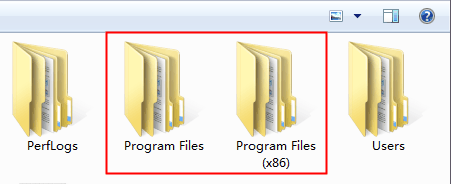
Program Files is a crucial folder on the C drive that can quickly become bloated with installed applications, taking up valuable space. One way to free up space on the C drive is to change the default configuration destination of Program Files, thereby relocating the folder to a different drive or partition. This simple tweak can help alleviate storage concerns and keep the C drive running smoothly.
How to change program files location in Windows
Changing the Program Files location is not a straightforward process, and copying and pasting files is not a proper solution. The files stored in these folders contain directory data, so attempting to move them incorrectly can cause programs to fail to boot and result in missing data.
To ensure the security of your programs and data, we'll show you how to change the installation directory. This will help keep your sensitive information safe.
Method 1. Using Registry Editor
To move the Program Files folder to another drive, you can use the Windows Registry Editor. This allows you to redirect the default installation path for programs to a different drive, effectively moving the Program Files folder.
1. Microsoft hotfixes, updates, and security updates may not install correctly.
2. New versions of Microsoft Internet Explorer or Microsoft Windows Media Player may not be installed correctly.
Step 1. Copy the folders of Program Files and Program Files(X86) from the system drive to another drive with sufficient space, which may take several minutes.
Step 2. To open the Registry Editor, press the "Win" key and the "R" key at the same time to bring up the Run dialog box, type "regedit" and click "OK" to launch the Registry Editor.
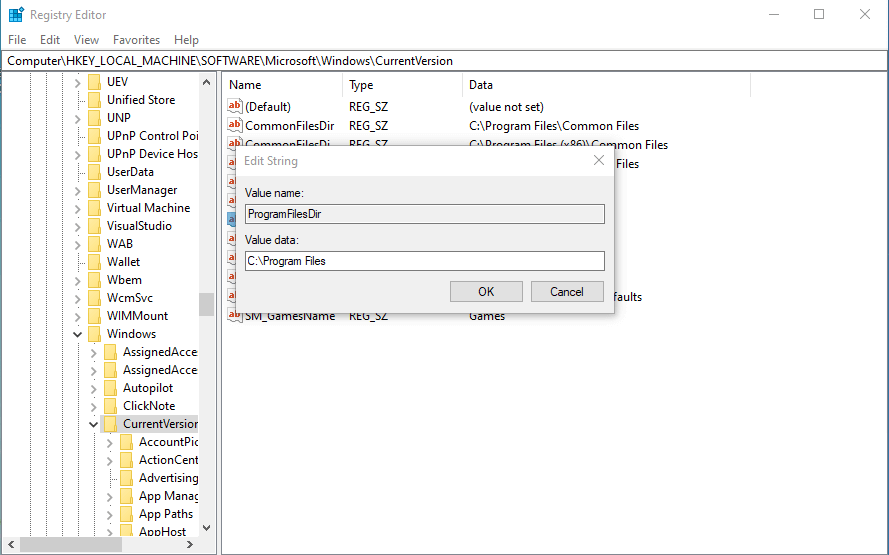
Step 3. After the main window of Registry Editor appears, follow this path: HKEY_LOCAL_MACHINE\SOFTWARE\MICROSOFT\Windows\CurrentVersion.
Step 4. Right-click on "Program Files" and then, click "Modify".
Step 5. To update the value data, change the letter "C" to the drive letter of the newly created folder, then click "OK".
Step 6. Right-click on "Program Files(X86)" and click "Modify".
Step 7. Under "Value data", still change the letter "C", and click "OK".
Method 2. Using mklink command in CMD
The Command Prompt in Windows has some commands that can be used to change the location of the Program Files folder. These commands allow users to move the Program Files folder to a different drive or partition, which can be useful for managing disk space or organizing files on a computer.
Step 1. Copy the folder of Program Files and Program Files(X86) from the C drive to the D drive.
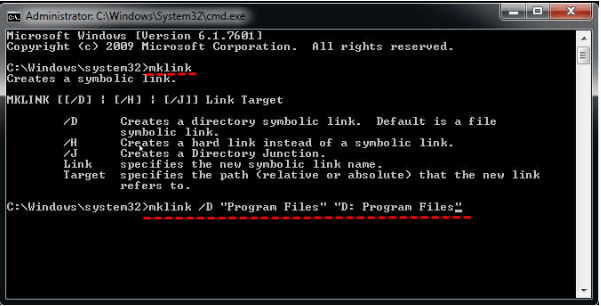
Step 2. To access Command Prompt, type "cmd" in the search box on the lower left of the desktop, select "Run as Administrator" from the results, and then click on "Command Prompt" to bring up Command Prompt.
Step 3. To create a symbolic link in the Command Prompt, type `mklink` and hit Enter, followed by the command `mklink link_name target_name` and press Enter again, replacing `link_name` and `target_name` with the desired names. For example, `mklink my_link C:\Users\username\Documents\file.txt` creates a symbolic link named `my_link` that points to the file `file.
mklink /D "Program Files" "D: Program Files"
Method 3. Using the professional folder move tool
If you find the Registry Editor operation complex, consider using Qiling Disk Master Professional to easily and securely change the Program Files location, making it accessible to all users.
Qiling Disk Master is a versatile Windows disk manager with a helpful tool called "App Mover". This utility has two functions: moving installed apps and moving folders. With just a few clicks, you can move the Program Files folder, and all programs will continue to run normally.
1. To ensure the folders can be operated normally, please refrain from moving or deleting files in the source and target directories.
2. This feature only runs between NTFS drives, meaning it won't work if you're trying to move folders from or to a FAT32 drive, and you'll need to use a different method for those cases.convert to NTFS at first.
Further knowledge: Move installed programs from C to D
The "App Mover" utility has another function that allows users to move installed programs to another drive or disk, automatically detecting and relocating related data files to ensure the moved apps can boot and run as before.
Ending lines
If you want to change the location of Program Files, you now have three options. Qiling Disk Master allows you to move folders and programs, and after doing so, you can use a PC cleaner to remove more junk files and keep your PC healthy.
If you need, you can try cloning a disk to quickly set your new disk as a system disk, convert partition type without data loss, and allocate more free space to the C drive.
Related Articles
- Can I Move Users Folder to Another Drive
Move the Users folder to another drive in Windows safely and understand what can be moved without breaking user profiles. - Best Free Arq Backup Alternative - Qiling Disk Master
Need an Arq Backup alternative for Windows? Compare backup choices and create automatic file or cloud backups with Qiling Disk Master. - How to Enable Windows 11 Automatic Defrag?
To automatically defrag Windows 11 hard drives and boost your PC - Simple Steps to Backup Xbox 360/One HDD for Free
It's important to back up Xbox 360 or Xbox One hard drive (HDD) in case of data loss due to system crashes, hard drive failure or replacement. - 10 Tips for SSD Optimization in Windows 7 - Part 1
One can optimize ssd in Windows 7. Here we have 10 tips about SSD optimization. The first part is about the preparations of SSD optimization. - 10 Tips for SSD Optimization SSD in Windows 7 - Part 2
One can optimize ssd Windows 7 in ways. Here we have 10 tips about SSD optimization. The second part is about the paging files and defragmentation on SSD. - Copy Programs from One Disk to Another in Windows 10
Copy or move programs from one disk to another in Windows 10 by using app settings, reinstalling, or protecting program data first.
Products
Articles & Tutorials
- Data Recovery
- Data Backup
- File Recovery
- File Backup
- File synchronize
- System Backup and Restore
- Disk and Partition Clone
- Technical articles
- Disk Master Help
- Windows Deleted File and Disk Recovery Tutorials
- Windows File and Data Recovery Tutorials
- More Windows Tutorials for Install, Security, Files, and PC Tips
- Windows Boot, Repair, and Recovery Environment Tutorials
- Windows Backup Tutorials
- Windows Restore Tutorials
- Windows Clone and Migration Tutorials
- Windows Server Backup, Recovery, and Management Tutorials
- Windows Disk, Partition, and Storage Management Tutorials