10 Tips for SSD Optimization in Windows 7 - Part 2
Tips: Since Windows 10, Windows 8.1, or Windows 8 is an adaptation of Windows 7, this guide also applies for SSD optimization for Windows 10, Windows 8.1, and Windows 8, with additional tips on SSD optimization and partition management.
4. Disable Disk Indexing
Enabling disk indexing on a Solid-State Drive (SSD) is unnecessary, as SSDs already have a significantly shorter response time than Hard Disk Drives (HDDs), typically around 0.1 ms. This means that indexing won't provide any noticeable speed improvement, and could potentially shorten the lifespan of the SSD for no benefit.
How to disable Disk Indexing?
- Click Computer to open Windows Explorer.
- Right click on the SSD partition and choose Properties.
- Uncheck the box that says "Allow files on this drive to have contents indexed in addition to file properties" at the bottom of the General tab.

5. Turn Off Scheduled Defragmentation
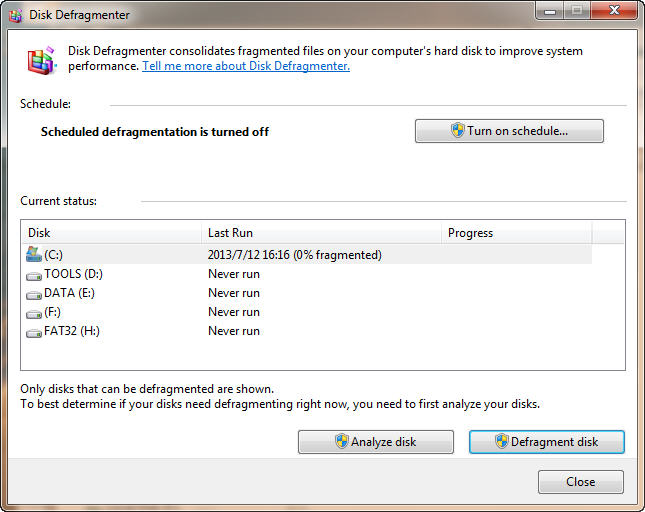
In Windows 7, scheduled defragmentation is disabled by default. However, it may be enabled automatically in certain situations. Since SSDs do not experience disk fragmentation, running defragmentation on them can actually shorten their lifespan.
How to turn off Scheduled Defragmentation?
- In Windows Explorer, right click on the SSD partition and then select Properties.
- In the Tool Tab, click on Defragment now, then access Disk Defragmenter.
- In Disk Defragmenter, if the scheduled defragmentation is on, click on Configure Schedule and uncheck the scheduled defragmentation option.
6. Turn Off System Protection
Windows built-in system protection function is not strong enough to fully safeguard your computer and can also reduce the lifespan and speed of your SSD. Therefore, it's recommended to turn it off. For system protection, consider using professional backup and recovery software. Regularly backing up important data and having multiple backups is also highly recommended.
It is very easy to turn off System Protection, please follow the step-by-step guide below:
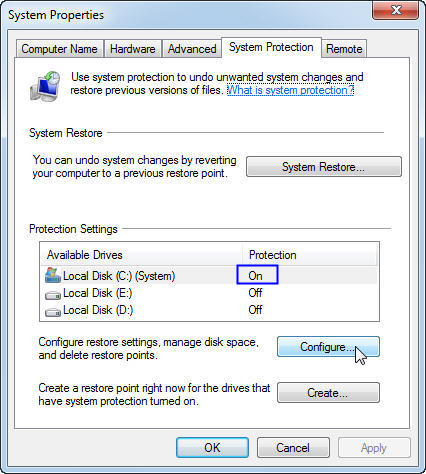
- Right-click Computer and choose Properties.
- Click System protection at the top left corner.
- In the pop-up window, the default status of system protection is shown, where you will find it enabled by default. To disable it, click on "Configure".
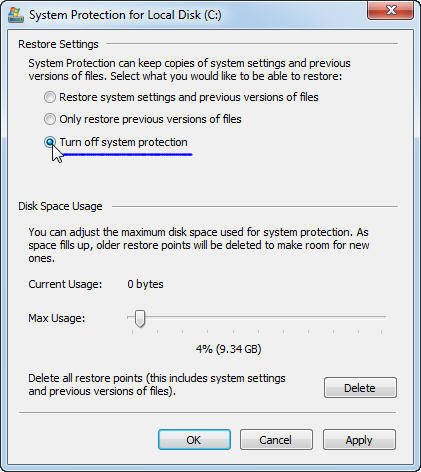
- Choose "Turn off system protection" and click "OK".
After turning off system protection, your computer will be left unprotected. To rectify this, you can utilize free backup software like Qiling Disk Master Standard, which offers a range of features including system, disk, partition, and file/folder backup and restore options, as well as schedule backup, incremental, and differential backups. This software is compatible with 32-bit or 64-bit versions of Windows 10, Windows 8.1/8, Windows 7, Vista, and XP, providing a reliable solution to protect your data.

7. Disable Paging Files
The effect of paging files is a topic of debate, but for users with a RAM larger than 4GB, disabling them can free up an additional 3.5GB to 4GB of storage. This can be beneficial, especially for those with limited SSD storage.
How to disable Paging Files?
- Right click on Computer and select Properties.
- Click Advanced system settings.
- To change the performance settings, select the Advanced tab and click the Settings button. In the Performance Options window, click the Change button.
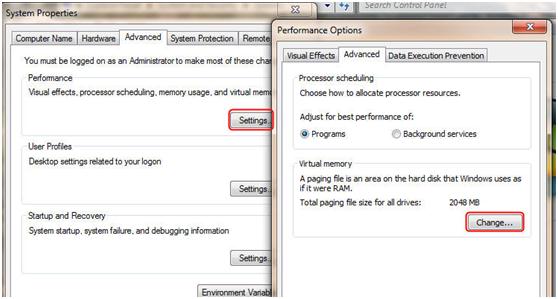
- To adjust the page file size, uncheck the box next to "Automatically manage paging file size for all drivers." Then, select "No paging file" and click on the "Set" button.
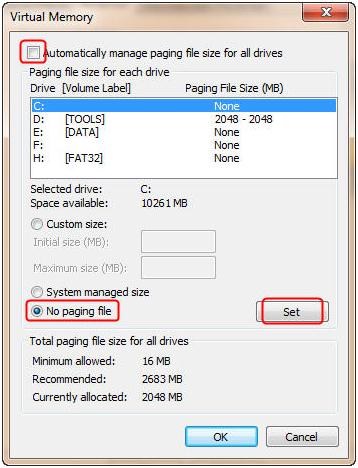
- Disable paging files on all disks in the same way.
Related Articles
- Three Ways to Safely Move Programs to Another Drive on Windows 11
When the C drive is full and makes your PC run slow, moving programs to another drive on Windows 11 can be a good idea. Here, we'll share the process to do it via Settings, Steam Mover and a third-party software. - 3 Ways: Set up OneDrive Automatic Backup Windows 11
In this post, you can learn three simple ways to set up OneDrive automatic backup on Windows 11. Follow the graphical tutorial to easily complete the task. - Stepwise Guide to Run PC Health Check for Windows 11 Upgrade
This tutorial provides a step-by-step guide on how to run the PC Health Check app for a Windows 11 upgrade. For a proper upgrade process, you can also refer to the instructions on upgrading to Windows 11, which can be found elsewhere. - How to Resize/Move Partition Windows 11 without losing data?
Learn how to Resize/Move Partition Windows 11 without losing data with clear steps, key checks, and practical tips. - 3 Ways to Defrag Hard Disk on Window 7 PC
Learn to defrag hard disk in Windows 7 in 3 ways with two Windows tools and a free defrag tool. - How to Defragment Hard Drive Windows 10?
Learn how to defragment hard drive Windows 10 to make your computer run faster and smoother.
Products
Articles & Tutorials
- Data Recovery
- Data Backup
- File Recovery
- File Backup
- File synchronize
- System Backup and Restore
- Disk and Partition Clone
- Technical articles
- Disk Master Help
- Windows Deleted File and Disk Recovery Tutorials
- Windows File and Data Recovery Tutorials
- More Windows Tutorials for Install, Security, Files, and PC Tips
- Windows Boot, Repair, and Recovery Environment Tutorials
- Windows Backup Tutorials
- Windows Restore Tutorials
- Windows Clone and Migration Tutorials
- Windows Server Backup, Recovery, and Management Tutorials
- Windows Disk, Partition, and Storage Management Tutorials