3 Ways: Set up OneDrive Automatic Backup Windows 11
- User case: How do I automatically save files to OneDrive on Windows 11?
- Things to know about OneDrive
- How to Create OneDrive automatic backup on Windows 11 in 3 easy ways
- Way 1. Access OneDrive automatic backup via Windows 11 Settings
- Way 2. Auto backup Windows 11 files to OneDrive with OneDrive client
- Way 3. Auto backup Windows 11 to OneDrive with third-party tool
- In the end
User case: How do I automatically save files to OneDrive on Windows 11?
Can you set OneDrive to automatically backup?
To set up OneDrive automatic backup on Windows 11, go to Settings > Accounts > OneDrive, toggle the switch to On, and select the folders you want to sync. This will automatically back up the selected folders, including new files saved, to your OneDrive cloud storage. You can also set up automatic backup for specific folders by right-clicking on them, selecting "Always keep on this device" and "Sync with OneDrive".
- Question from Microsoft Community
Things to know about OneDrive
OneDrive is a storage service provided by Microsoft, offering 5GB of free storage and access to free Microsoft Office versions, with the option to upgrade to a higher plan for additional storage.

It allows you to sync folders from your computer to OneDrive, protecting them from local computer and external hard drive failures, and making them accessible from anywhere.
OneDrive is a file syncing tool that automatically updates files and folders across devices when internet access is available, allowing for real-time synchronization and offline access.
You may wonder what is the best solution for creating Windows 11 cloud backup to OneDrive. Well, in the following content, I'll show you the easiest 3 ways to accomplish how to backup Windows 11 to OneDrive with just a few mouse clicks. Let's check them in turn now.
How to Create OneDrive automatic backup on Windows 11 in 3 easy ways
To enable Windows 11 backup to OneDrive easily, you have three options: access OneDrive in Windows 11 Settings, download its desktop app, or use a professional backup software. Each method offers a suitable solution, so you can choose the one that best fits your needs.
👉 Way 1. Access OneDrive automatic backup via Windows 11 Settings
👉 To auto backup Windows 11 files to OneDrive with OneDrive client, download and install the OneDrive client from the official Microsoft website. Once installed, sign in with your Microsoft account. Then, open the OneDrive client, go to the "Settings" icon, and select "Backup".
👉 You can also use a third-party tool, such as Qiling Backup, to automatically back up your Windows 11 to OneDrive. This tool allows you to schedule automatic backups to OneDrive, ensuring that your files are safely stored in the cloud. With Qiling Backup, you can customize your backup settings, including the frequency of backups and the files and folders to include.
Way 1. Access OneDrive automatic backup via Windows 11 Settings
To set up OneDrive automatic backup on Windows 11/10, you can use the built-in OneDrive app or download and install the new OneDrive sync app. If the built-in app is available, you can follow the steps to set up automatic backup, otherwise, download and install the new app and follow the specific steps provided.
Step 1. To access Windows backup settings, click on the Windows Start icon and select Settings from the list, then click on Accounts, followed by Windows backup, and finally Manage sync settings.
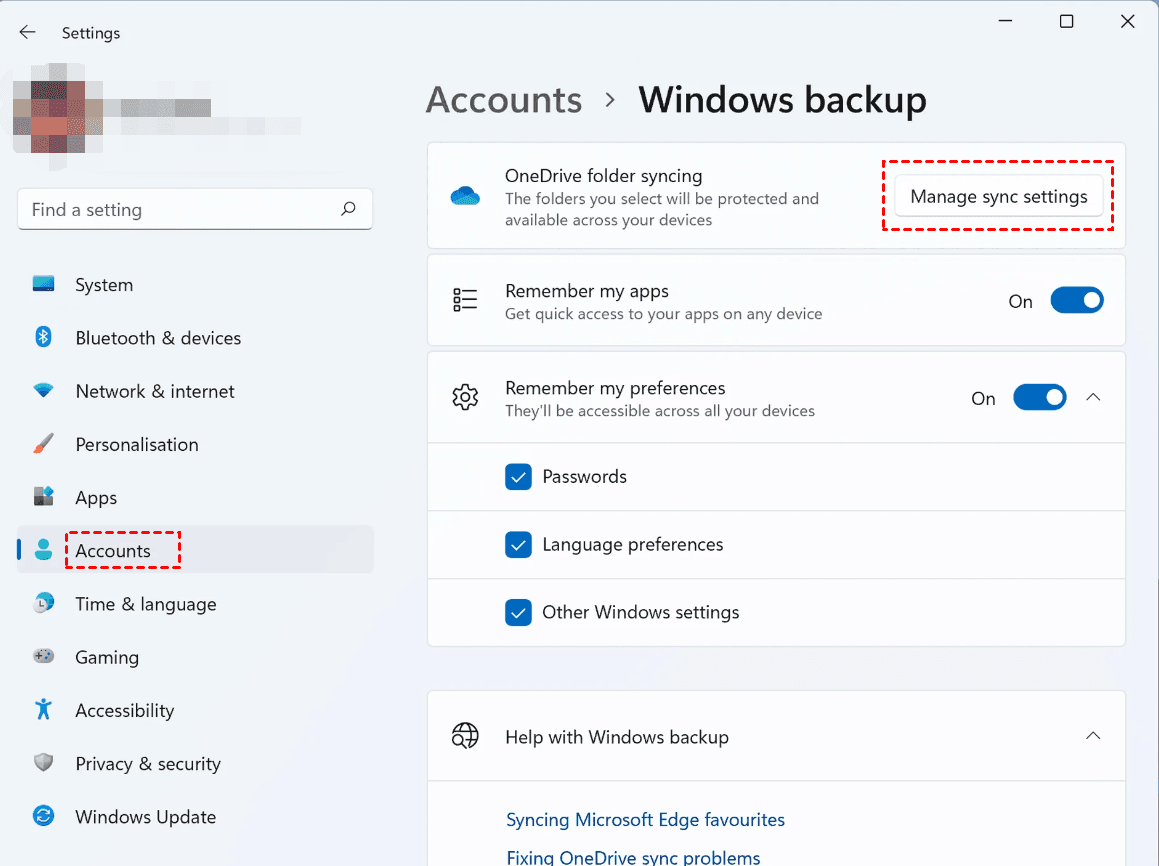
Step 2. The following steps are the same as steps 3-4 in the second method.
Way 2. Auto backup Windows 11 files to OneDrive with OneDrive client
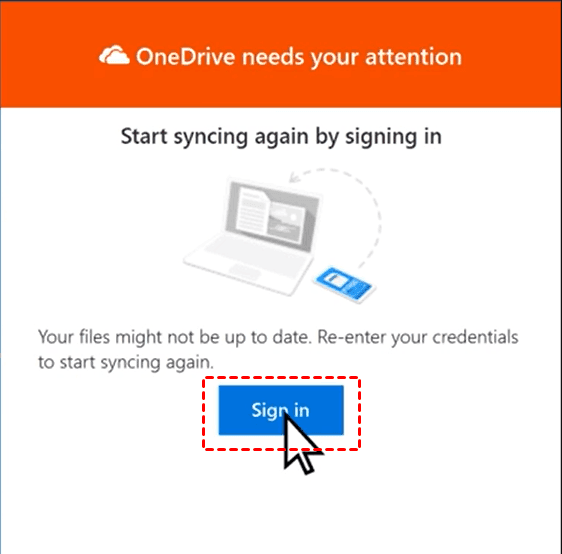
Step 1. To access OneDrive settings in Windows 11, click the OneDrive icon in the taskbar corner, sign in to your account, and select the "Help & Settings" icon, followed by "Settings".
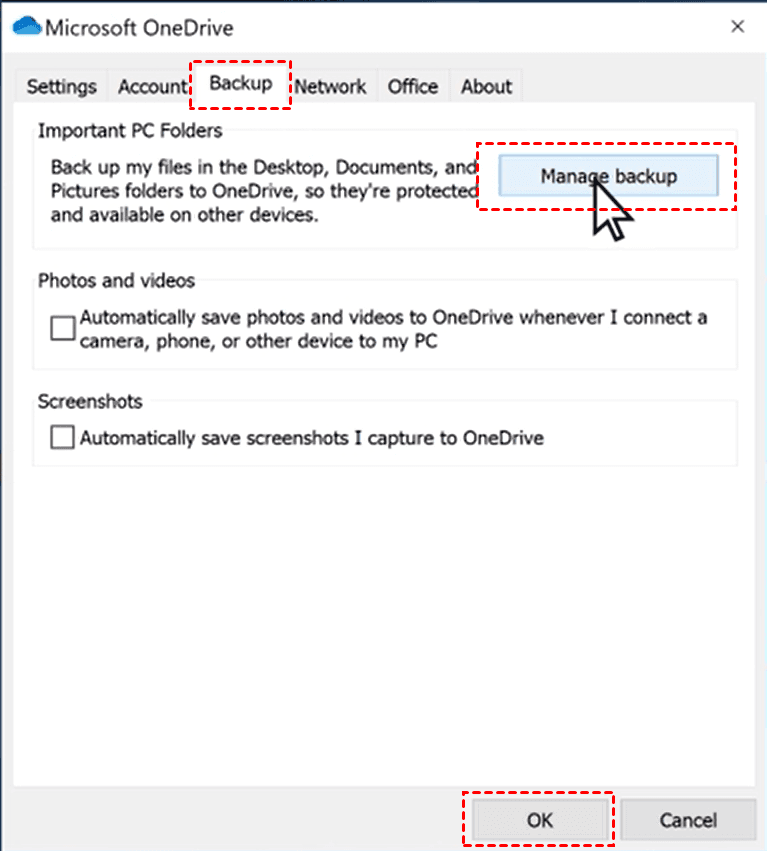
Step 2. To create a backup, go to the Backup tab, tap the Manage backup button, and then click OK.
Step 3. A new window will pop up where you can choose which local folders (Desktop, Documents, Pictures) to back up to OneDrive cloud, and then click Proceed to save the settings.
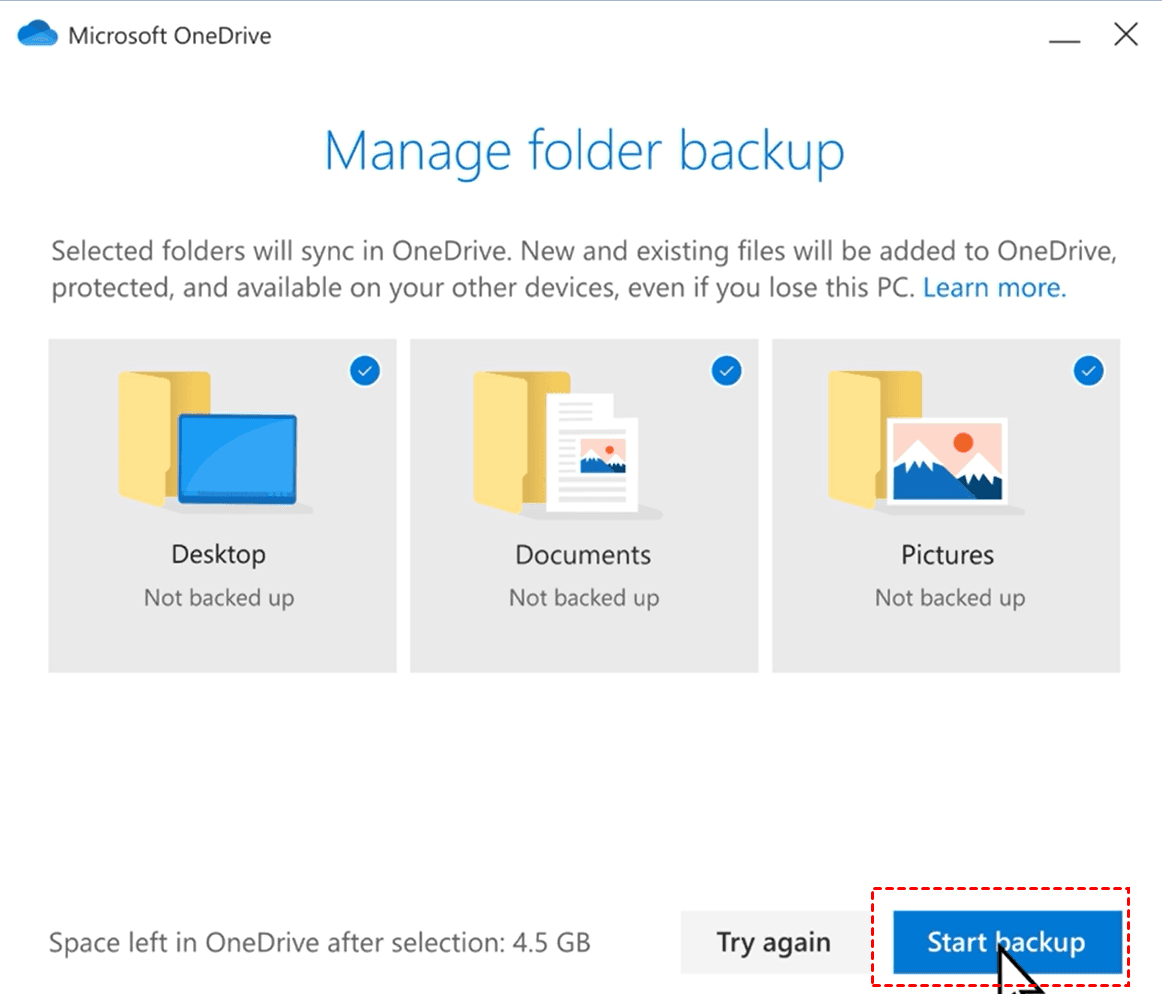
Step 4. After completing the backup process, access File Explorer, click on OneDrive from the left panel, and view the folders backed up to OneDrive.
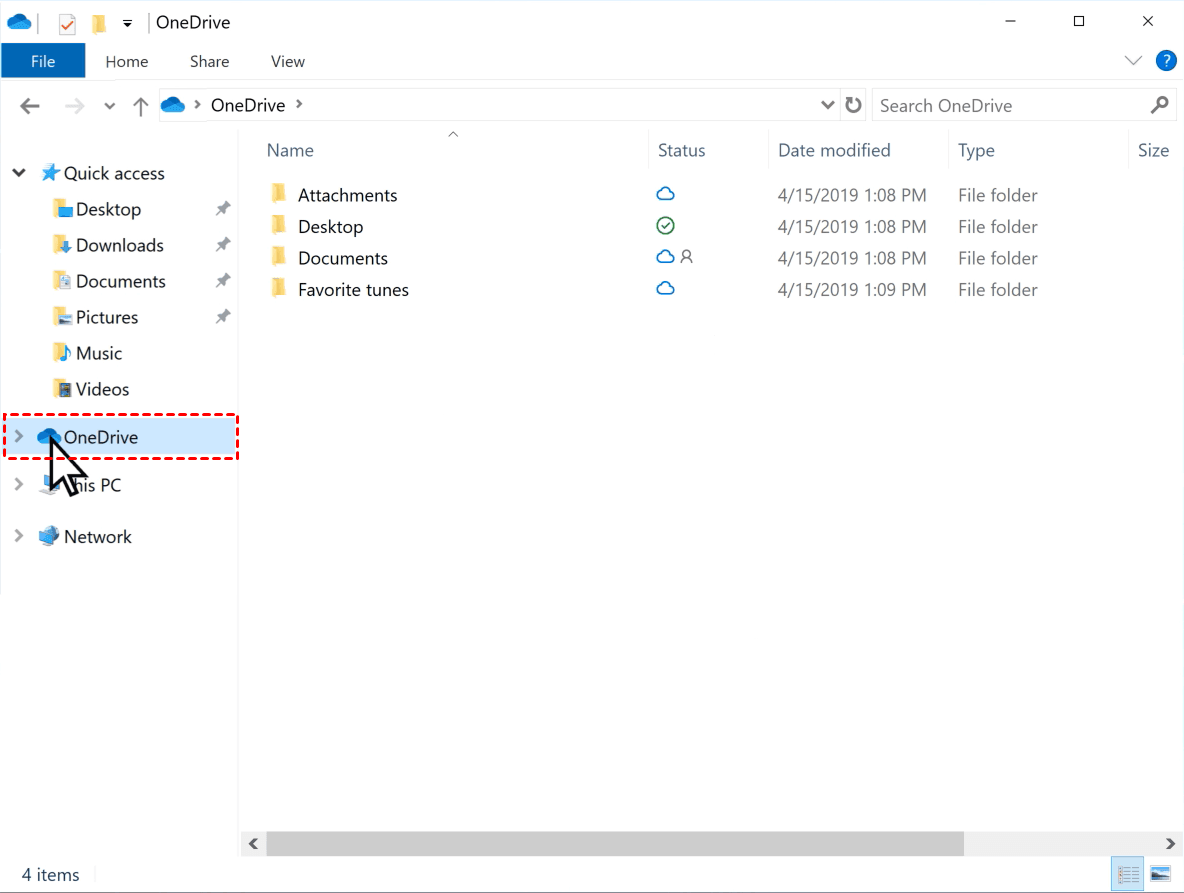
Tip: To backup other files or folders to OneDrive, you can copy and paste them directly or drag and drop them into the OneDrive folder.
Way 3. Auto backup Windows 11 to OneDrive with third-party tool
To set up Windows 11 auto backup to OneDrive, consider using a third-party backup tool like Qiling Disk Master Standard, which is the best free backup software for creating PC backup to cloud devices. This tool allows you to automatically backup your important files and operating system data to the cloud, freeing your hands and ensuring you never forget to back up regularly.
It is designed to be extremely humanized, with clear and straightforward operating pages and novice-friendly instructions that do not require relevant skills, featuring a range of powerful tools that include clear and concise operating pages and instructions that are easy to follow, making it accessible to users of all skill levels.
✵Support 4 backup types. 4 types of backup are provided: System Backup, File Backup, Disk Backup, and Partition Backup.
✵Support multiple backup locations. You can backup Windows 11 to various locations, including cloud drives like OneDrive, Google Drive, and Dropbox, as well as local disks, external hard drives, network locations, and NAS, allowing for easy backup to Synology NAS.
✵Support flexible schedule backup. This tool allows you to schedule backups at various intervals, including daily, weekly, and monthly frequencies, ensuring your data is regularly backed up and safe.
✵Support all Windows editions. It supports Windows 11/10/8.1/8/7/Vista/XP, and for Windows Server users, Qiling Disk Master Server is recommended.
To enable OneDrive automatic backup on Windows 11, download Qiling Disk Master Standard and the OneDrive client to your PC. Ensure you have sufficient cloud storage in OneDrive to store your backup image.
Step 1. Open this tool, click Backup then choose System Backup.

Step 2. The program automatically selects the system-related partition(s) as the source data, and you only need to choose the OneDrive folder to store your system backup image, typically located in C:\Users\UserName\OneDrive.

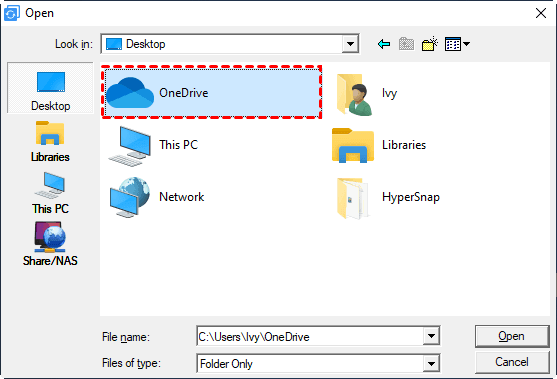
Step 3. To enable automatic backup of your Windows 11 to OneDrive, go to the Schedule Backup option on the left bottom and choose a backup frequency that suits your needs, such as daily, weekly, monthly, or set up triggers for specific events like USB plug in.

✨ Other personalized settings:
Options: You can make changes to the backup settings, including adding comments and adjusting the compression level, and once you upgrade to the paid version, you can also encrypt your backups.
Backup Scheme: It can automatically remove old backup images to free up storage space and improve backup efficiency, available in the Professional version.
Step 4. After confirming your personalized settings, click Proceed to create automatic backup to OneDrive in Windows 10/11.
In the end
You can easily set up OneDrive automatic backup on Windows 11 using three free methods: through Windows 11 Settings, the OneDrive client, or a reliable cloud backup software. However, for a more reliable and hassle-free experience, it's recommended to use a professional software like Qiling Disk Master, which has been approved by many users.
AIT has a good reputation due to its professional and powerful features, including Backup, Restore, Clone, Sync, and more. It allows users to transfer files between computers on Windows 11/10, making it a top choice for those who value data security.
Related Articles
- Backup Files to External Hard Drive in Windows 11 Easily (3 Solutions)
You can easily learn 3 methods to backup files to external hard drive in Windows 11. They are built-in tool "File History", "Backup and Restore" and a free backup software "Qiling Disk Master". - How to Automatically Sync Files with OneDrive in Windows 11
You can learn OneDrive in Windows 11, how to use OneDrive in Windows 11 settings and better way to perform Windows 11 OneDrive sync. Please keep reading to learn detailed information. - How to Backup and Restore Files in Windows 11
You will learn the difference of Windows 11 Backup and Restore and Windows 10 and how to use it to backup files as well as its best alternative way. - QILING Disk Master Server
QILING Disk Master Server is not only a reliable and award-winning server backup software, but also a best partition mananger and ramdisk software. - How to Upgrade to Windows 11 and Keep Files (4 Ways)
Learn how to Upgrade to Windows 11 and Keep Files (4 Ways) with clear steps, key checks, and practical tips. - Fixed: Windows 11 Black Screen After Update
Recently, some users have encountered Windows 11 black screen after update. Microsoft is changing the screen color of BSOD error from Blue to Black. You can find the cause and 7 solutions of this error in this tutorial.
Products
Articles & Tutorials
- Data Recovery
- Data Backup
- File Recovery
- File Backup
- File synchronize
- System Backup and Restore
- Disk and Partition Clone
- Technical articles
- Disk Master Help
- Windows Deleted File and Disk Recovery Tutorials
- Windows File and Data Recovery Tutorials
- More Windows Tutorials for Install, Security, Files, and PC Tips
- Windows Boot, Repair, and Recovery Environment Tutorials
- Windows Backup Tutorials
- Windows Restore Tutorials
- Windows Clone and Migration Tutorials
- Windows Server Backup, Recovery, and Management Tutorials
- Windows Disk, Partition, and Storage Management Tutorials