Best Windows Server Cloud Backup Software 2023︱Qiling Disk Master
Quick Navigation:
- Why should you backup Windows Server to cloud?
- Prime Windows Server cloud backup software
- Automatically backup Windows Server to cloud
- Conclusion
Why should you backup Windows Server to cloud?
In recent years, Windows Server systems like Server 2008 (R2), Server 2012 (R2), and Server 2016 have gained popularity in medium to large-sized businesses. With the massive amount of data in these companies, a professional Windows Server cloud backup solution is necessary to ensure data protection. As a result, many Server users are now creating Windows Server cloud backups for various reasons, including to safeguard against data loss, ensure business continuity, and meet regulatory compliance requirements.
- Data protection: Consider choosing a backup storage that ensures data safety, such as cloud storage, to prevent loss or damage from physical media or office disasters.
- Unlimited storage: Cloud storage offers virtually unlimited space, allowing users to store a large number of files, including purchased programs, music, photos, and documents.
- Multiple cloud services available: There are numerous cloud services available, including Amazon Drive, Google Drive, and Amazon Cloud, which offer free storage in GBs. Many companies can afford the annual fees, which are relatively low.
- Anytime, anywhere access: Having data in the cloud allows customers to access their files anytime and anywhere, as long as they have internet access, through a computer or smartphone app, making it easily accessible without the need to carry a laptop or return to the office.
Cloud backup for Windows Server is a smart move, but you'll need a reliable Windows Server cloud backup software to make it happen.
Prime Windows Server cloud backup software
Qiling Disk Master Server is a user-friendly and cost-effective Windows Server backup software that offers comprehensive cloud backup solutions for Windows Server. Its main features include:
- It offers the functions of system backup, disk backup, partition backup, file backup, and file sync. All the backup types support backing up to local/external disks and network locations. As for backing up to cloud, you may pick file backup or file sync.
- The cloud storage service supports various cloud clients, including Google Drive, Dropbox, OneDrive, Box, SugarSync, hubiC, and Cloudme.
- Windows Server Backup allows you to schedule automatic backups for your Windows Server, enabling you to run backups at regular intervals such as once a week.
- Windows 10/11/8.1/8/7/Vista/XP can be installed on both Windows Server operating systems (Windows Server 2019/2016/2012/2008/2003, etc) and Windows PC operating systems.
With its user-friendly interface, even beginners can easily manage backups. Want to try a user-friendly interface that makes it easy to manage even if you're new to the process? Click the button below to download it and give it a try!
Automatically backup Windows Server to cloud
To backup files to Google Drive in Windows Server 2012, you can use the built-in Windows Server Backup feature to create a backup of your files and then use the Google Drive Backup and Sync tool to sync the backup with your Google Drive account. First, create a new backup in Windows Server Backup by selecting the files you want to backup and choosing the backup location. Then, download and install the Google Drive Backup and Sync tool on your server.
Step 1. Install and run Qiling Disk Master, then click on "Backup" and select "File Backup" from the options.

Step 2. Click on the task name to give it a unique name, then click on the "Files" or "Folder" option to select the specific files or folders you want to backup.

Step 3. Click the inverted triangle at the right edge of the second column and choose "Select a cloud drive".
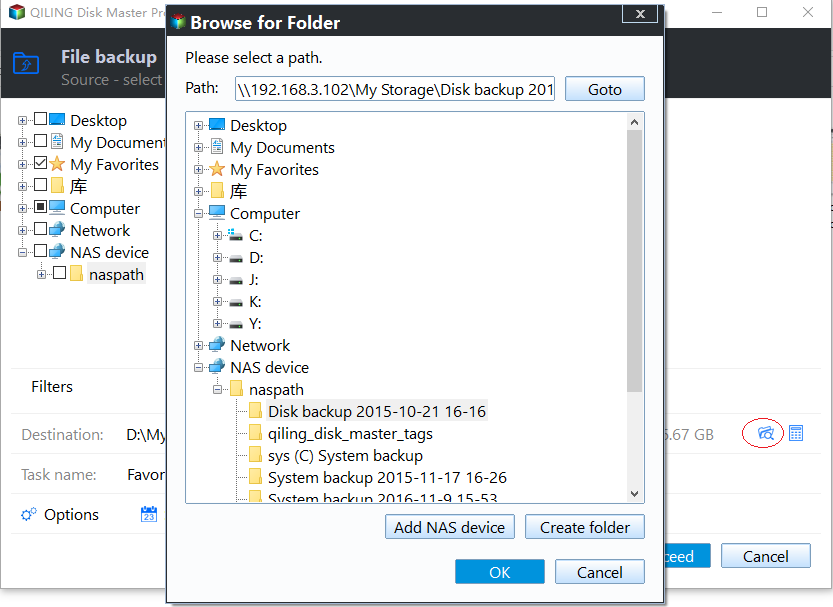
Step 4. To schedule a backup task, click on the "Schedule" option located at the bottom of the page, and select a frequency for the task. This frequency can be set to "Daily", "Weekly", "Monthly", or even triggered by specific events, such as a USB device being plugged in or a file synchronization.

Step 5. Confirm the operations and click "Proceed".
>> Options: You can enable password protection for backups by selecting "Enable encryption for backups", set a password here. Additionally, you can use "Email Notification" to receive an email after the backup is completed, and also configure settings for compressing and splitting backup images.
>> This script will automatically delete old backups when the backup version exceeds the value you set, thus saving disk space for you.
Conclusion
Creating a Windows Server cloud backup with Qiling Disk Master is a breeze, requiring only a few clicks. This user-friendly tool also offers a range of other features that make it even more appealing.
This tool allows for incremental and differential backup, saving space by only backing up changed data, while keeping backups up-to-date. It can also be used to create a bootable USB for Server 2019, serving as a boot option in case of boot failure.
Related Articles
- Best Windows Server Backup Software for Server 2019/2016/2012/2008/2003
Windows Server data backup is pretty important for business or IT experts. Find the most suitable solution from these 4 backup software. - 2 Best Server Backup Solutions to Backup Server Safely 2020
Try the following 2 server backup solutions to less downtime and recovery faster. Perform disaster recovery if something bad happened to your Windows Server. - How to Backup Files in Windows Server 2019 Easily? (2 Ways)
Set up backup Files in Windows Server 2019 Easily (2 Ways) with practical backup or sync options, storage checks, and safer ways to protect files. - How to Schedule Backup Files and Folders in Windows 11/10/8/7
Schedule backup files and folders that you don't want to lose, so you can keep important data safe and always reserve the possibility to retrieve an older version. Here's how you can do it in Windows 11, 10, 8, 7. - 3 Ways to Backup Large Files in Windows 10/8/7
This guide explains 3 Ways to Backup Large Files in Windows 10/8/7 with clear steps, key checks, and practical tips. - Automatically Backup and Recover Word Documents in Windows 10
This article illustrates how to save, backup and recover (unsaved or deleted) word documents in Windows 10 automatically. Thus, you don't need to worry about data loss.
Products
Articles & Tutorials
- Data Recovery
- Data Backup
- File Recovery
- File Backup
- File synchronize
- System Backup and Restore
- Disk and Partition Clone
- Technical articles
- Disk Master Help
- Windows Deleted File and Disk Recovery Tutorials
- Windows File and Data Recovery Tutorials
- More Windows Tutorials for Install, Security, Files, and PC Tips
- Windows Boot, Repair, and Recovery Environment Tutorials
- Windows Backup Tutorials
- Windows Restore Tutorials
- Windows Clone and Migration Tutorials
- Windows Server Backup, Recovery, and Management Tutorials
- Windows Disk, Partition, and Storage Management Tutorials