Top 2 Server Backup Solutions to Backup Server 2019 Safely
- About Windows Server
- Windows Server Backup Solutions
- Server backup Solution 1: Windows Server Backup
- Server Backup Solution 2: Qiling Disk Master Server
- Summing Up
About Windows Server
Windows Server is a series of operating systems developed by Microsoft for enterprise and small business use, providing a platform for running services over a network, including enterprise-level management, data storage, applications, and communications. The Windows Server family includes versions such as Windows Server 2003, 2008, 2012, 2016, and 2019 (including R2), with popular brands including Microsoft, Dell, and HPE (HP Enterprise servers).
With time, data accumulation and numerous background programs can slow down your Windows Server. To address this, consider backing up your server to another location. This essay will provide you with the best server backup solutions.
Windows Server Backup Solutions
The typical Windows Server backup solutions include Windows Server Backup, which is a built-in tool that provides a straightforward way to back up and restore data on Windows Server systems.
However, the different Windows versions provide different server backup software:
- For Windows Server 2003 (R2), NTBackup allows you to backup system state, files and folders to various storage devices such as tape, ZIP drives, floppy disks, and hard drives.
- For Server 2008 (R2), 2012 (R2), 2016, 2019, Windows Server Backup and the WBAdmin command line tool can help. WBAdmin is the command line version of Windows Server Backup.
Windows Server 2019, the latest version of the operating system, offers various new features, such as the Storage Migration Service, Windows Admin Center for managing storage, and synchronization with Azure file servers. This makes it easy to backup Windows Server 2019 to Azure, and third-party backup software is also available for creating backups of Windows Server systems.
Server backup Solution 1: Windows Server Backup
You can install Windows Server Backup by following these steps:
1. To add roles and features on a Windows Server, click on Server Manager on the Desktop Taskbar, and then select Manage from the top menu, followed by Add Roles and Features.
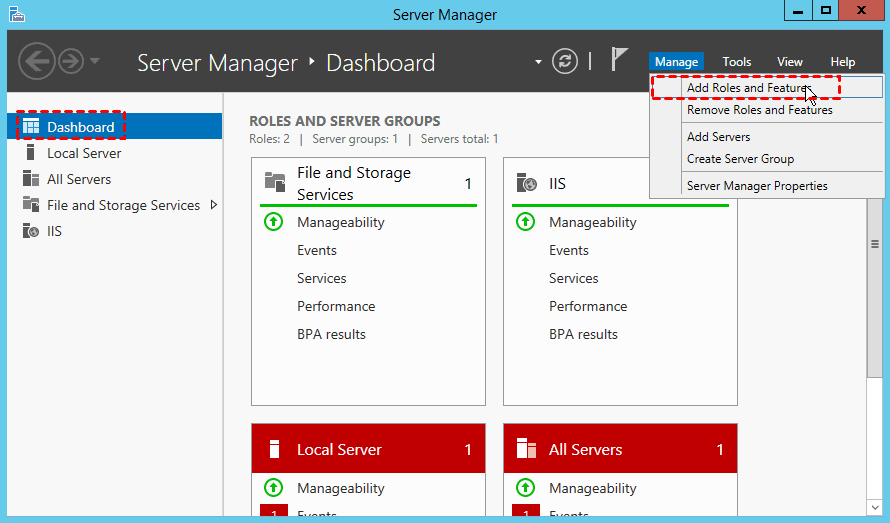
2. Hit Next >.
3. Choose Role-based or feature-based installation in Installation Type.
4. Choose Select a server from the server pool, and click Next.
5. Hit Next > in Server Roles window.
6. To install Windows Server Backup, select the checkbox next to the option and click "Next" three times, culminating in the "Install" button.
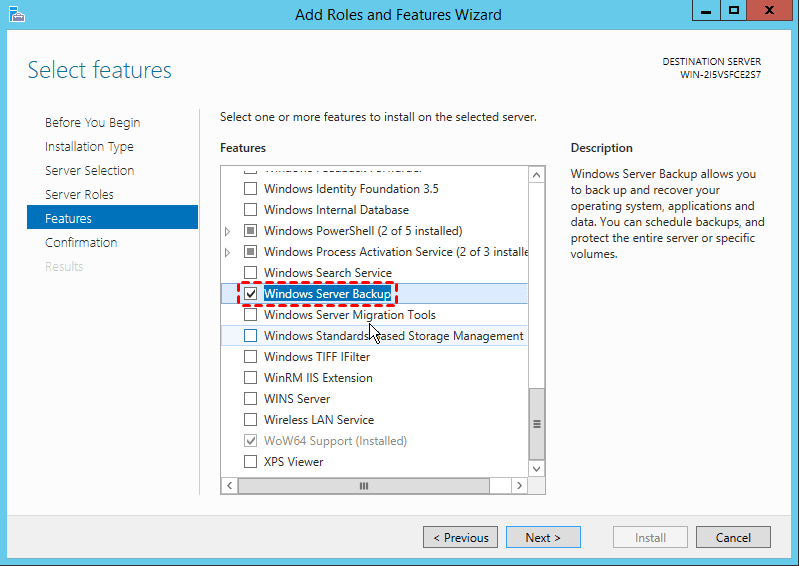
Then backup Windows Server now, refers to these steps below:
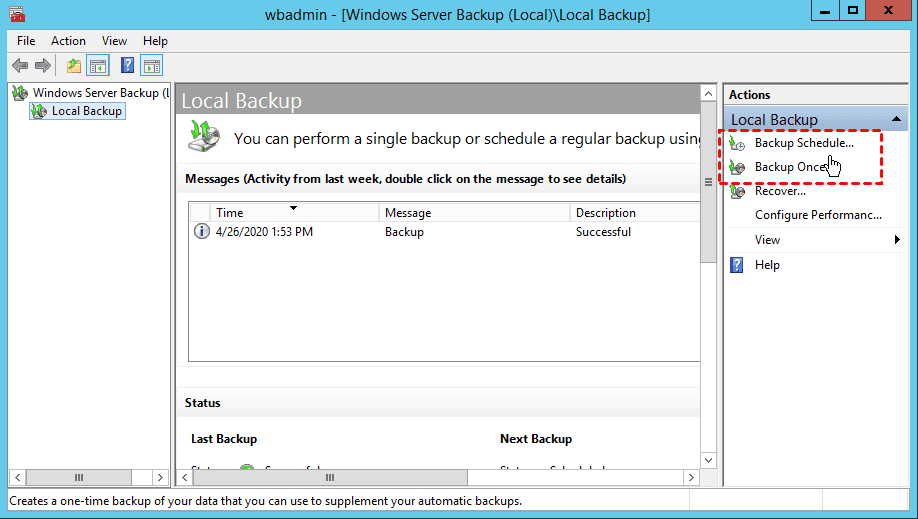
1. Open Server Manager, Dashboard -> Tools -> Windows Server Backup.
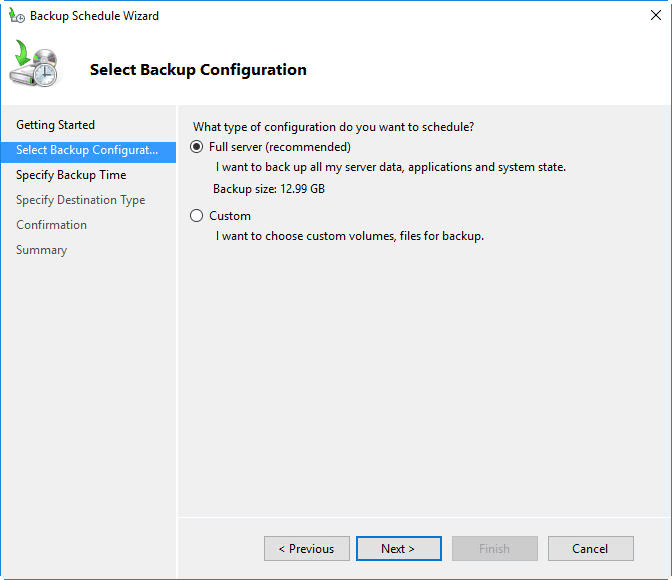
2. At the right panel, click Backup Schedule to create a Windows server backup task, or choose Backup Once to backup.
Server Backup Solution 2: Qiling Disk Master Server
Compared to Windows Server Backup and other built-in tools, Qiling Disk Master Server is a more flexible and user-friendly third-party server backup solution that offers an intuitive interface for backing up and restoring Windows Server. With Qiling Disk Master Server, backing up files on Windows Server 2019 is a simple process that can be completed in just a few steps.
You can try Qiling Disk Master Server for free for 30 days by downloading a trial version.
1. After installing Qiling Disk Master Server, execute it and then navigate to Backup -> File Backup.

Tips:
- If you have a Qiling account, you can choose to backup files to Qiling Cloud using the Cloud Backup feature, which offers 1TB of free cloud storage for 15 days.
- If you need to back up the entire hard disk in Windows Server 2019, try using the built-in disk backup feature.
2. To add the Windows Server 2019 files and folder, click on the "+" icon next to "Folder" or "Files".

3. To save the Windows Server 2019 file image backup, choose a destination location that has sufficient storage capacity to hold the backup file. This location can be a local drive, a network share, or an external hard drive.

☞Tip: This software enables users to back up their data to various external storage devices, such as hard disks, USB drives, and network-attached storage (NAS), as well as optical discs like CDs and DVDs. Additionally, it supports cloud storage services like Google Drive, Dropbox, OneDrive, Box, and others, providing users with flexibility and convenience in their data backup needs.
4. To create a Server 2019 backup task, tap the "Schedule" option. This allows you to set up a backup task based on daily, weekly, or monthly intervals, as well as trigger it via specific events or when a USB device is plugged in.

5. To backup Windows Server 2019 files and folders, proceed by clicking on "Proceed" in the Windows server backup solutions interface, which will initiate the backup process. This will ensure the safe and secure storage of important data.

Tips:
✍Options: With this option, you can comment, encrypt, compress, split the backup image file, and even enable email or SMS notification when the backup is finished.
✍Scheme: This option allows you to easily delete old backup images in Windows Server and manage your storage space by choosing from 5 different schemes: Full Backup, Incremental Backup, Differential Backup, Space Management, and Other Backup.
The selected files and folders will be backed up in Windows Server 2019, and the same steps can also be applied to Windows Server 2003 (R2), 2008 (R2), 2012, 2016, and Small Business Server (SBS) 2003, 2008, 2011. This process is also used for Dell server backup solutions. If you'd like to backup data to the cloud, you may want to consider Windows Server cloud backup solutions.
You could also consider creating incremental or differential backups that only save the changed or created data since the last backup, or try real-time syncing to sync the modified files as soon as possible.
Summing up
Windows Server backup solutions make it easy to backup data on various Windows Server versions, including 2003, 2008, 2012, 2016, and 2019, including R2. Options like Windows Server Backup, NTBackup, Wbadmin, and Qiling Disk Master cater to different needs, with Qiling Disk Master being a popular choice among IT technicians due to its advanced features, such as managing dynamic volumes, universal restore, and command line utility. Additionally, it allows for deploying images to multiple computers simultaneously within a LAN.
Related Articles
- Best Windows Server Cloud Backup Software
- Best Windows Server Backup Alternative - Qiling Disk Master
This article will introduce you to Windows Server Backup and the best Windows Server Backup alternative - Qiling Disk Master Server as well as steps to backup Windows Server 2019 or 2022 in simple steps. - How to Do Windows Server 2012/2016 Offsite Backup Easily?
Windows Server offsite backup saves a lot of troubles that may happen with onsite backup. This article tells how to perform offsite backup on Windows Server 2012/2016 with reliable software. - How to Format SD Card for Nintendo 3DS (XL) with Freeware?
To format an SD card for 3DS usage, you can use the built-in formatting tool on the device. Simply insert the SD card into the 3DS, go to the Homebrew Launcher, and select the "Format SD Card" option. Follow the on-screen instructions to complete the formatting process. - Best Free Software to Format SD Card to exFAT on Windows
This tutorial shows how to format SD card including micro SD card of Android phone like Galaxy S4 to exFAT file system on Windows 7/8/10 in easy and simple steps.
Products
Articles & Tutorials
- Data Recovery
- Data Backup
- File Recovery
- File Backup
- File synchronize
- System Backup and Restore
- Disk and Partition Clone
- Technical articles
- Disk Master Help
- Windows Deleted File and Disk Recovery Tutorials
- Windows File and Data Recovery Tutorials
- More Windows Tutorials for Install, Security, Files, and PC Tips
- Windows Boot, Repair, and Recovery Environment Tutorials
- Windows Backup Tutorials
- Windows Restore Tutorials
- Windows Clone and Migration Tutorials
- Windows Server Backup, Recovery, and Management Tutorials
- Windows Disk, Partition, and Storage Management Tutorials