How to Do Windows Server 2012/2016 Offsite Backup Easily
Onsite backup vs offsite backup
Onsite backup and offsite backup are two types of backup methods used for data protection on server operating systems, providing users with a reliable way to safeguard their data.
Onsite backup refers to storing data on a local device, such as hard drives or USB drives, while offsite backup involves storing data remotely, either via the internet or in another physical location, like a cloud drive or network share.
Both onsite and remote backups have their own advantages and disadvantages, and they can complement each other. Onsite backups are easier to set up and provide quick access, but can be easily lost. Remote backups are more complex, but offer extra protection for important data.
In need of Windows Server offsite backup
Onsite backups are stored near the source and can be vulnerable to computer viruses, system failures, and physical disasters, making them unreliable.
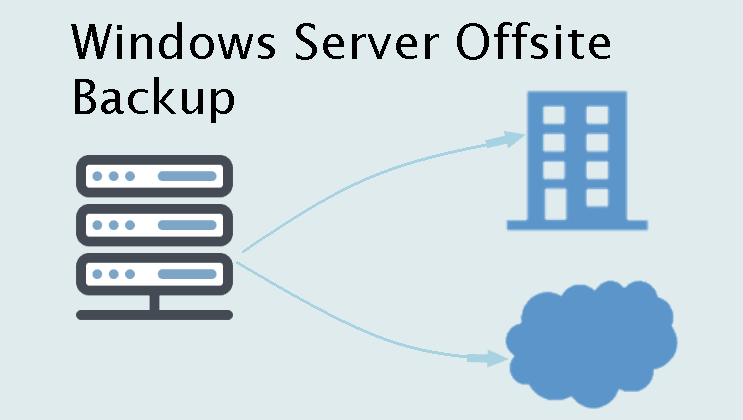
From another perspective Offsite backup provides stronger security for servers by storing crucial business data and customer information remotely, minimizing downtime and economic losses in case of server failure.
Reliable tool for Windows Server remote backup
To create a remote backup, you can use the Windows Server Backup utility, which involves creating a VHD or VHDX file using Disk Management. For a detailed guide, you can visit the Windows Server backup incremental to network share page, but note that this method can only keep one backup copy on the network drive.
To make the process easier and keep multiple backups, it's suggested to use third-party backup software such as Qiling Disk Master Server, which offers advantages.
- The software can easily back up files from a server computer to NAS, network share, or cloud drive, making file management a breeze.
- This software enables daily, weekly, monthly, event-triggered, and USB plug-in scheduled backups, allowing for customizable backup dates, times, and intervals.
- It can back up only changed files with an incremental or differential backup feature, with the previous option being the default.
- It intelligently manages backup disk space by regularly deleting old backup images.
In addition, it has a user-friendly interface and is popular among thousands of users worldwide, making it a great choice to download and try out.
How to perform Windows Server offsite backup step by step
To back up a Windows Server 2012 to a network drive or external storage, ensure that the source machine and target network share are on the same LAN. Connect the external storage in advance if you're backing up to physical devices. This setup is for file backup purposes.
1. Install and run Qiling Disk Master Server edition. Click the Backup tab and select File Backup.

Tip: You can also backup files to Qiling Cloud with the help of the Cloud Backup feature, which comes with 1TB of free storage for 15 days after registering a Qiling account.
2. Edit the task name if you wish to. Then, click Files or Folder to select files.

3. To add files, you can select them from your local disk, network share, or NAS. If you choose NAS or share, you'll need to have the stored path and password. Selecting NAS or share will take you to a page where you can click "Add Share or NAS Devices" to proceed.
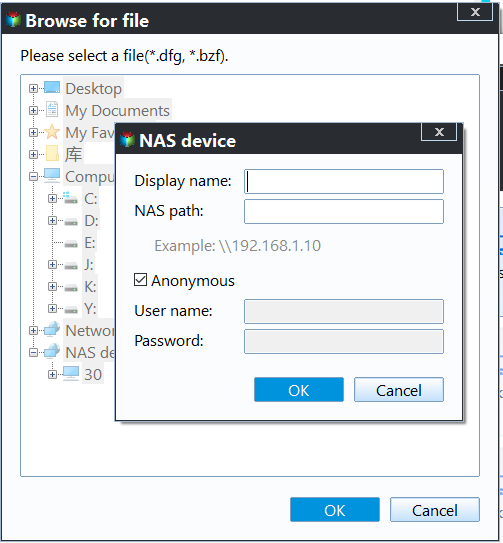
4. To add a destination path, click the second box and select a location such as a local hard drive, network drive, NAS, or cloud drive. You will be prompted to enter a username and password.

5. To specify custom settings, select the desired options from the three available choices, and then click the "Proceed" button to add or run the task.
- Backup Options: To enhance the task, I suggest enabling password encryption to ensure secure login credentials. Additionally, setting up email notifications will keep stakeholders informed about task progress and completion.
- Schedule Backup: Choose a backup basis from daily, weekly, monthly, event trigger, or USB plug in, with the last one being recommended for USB target disks that don't need to be constantly connected.
- Backup Scheme: To ensure data integrity and efficient storage, consider implementing a combination of full, incremental, and differential backup methods. Full backups should be performed periodically (e.g., weekly or monthly), while incremental and differential backups can be run more frequently to capture changes.

Tips:
- To restore files in the future, click the Restore tab to start the process. Alternatively, you can perform a selective file restore using the Explore image feature.
- To backup to or from a cloud drive, you need to install the related desktop app on the machine first.
Special recommendation:
Qiling Centralized Disk Master allows creating backup tasks and managing tasks for all remote computers on the same LAN from a central console, typically a server.
The system supports backing up systems, disks, partitions, and files for all client computers, and allows for automatic backup tasks to run daily, weekly, or monthly. Its key feature is the ability to back up SQL servers.
If you need to ensure business continuity, implement a best practice for business backup and create backups for all of your computers. This will protect your data and prevent losses in case of unexpected events or system failures.

Summary
Windows Server offsite backup provides better protection for stored data on the hard drive, simplified by Qiling Disk Master Server. It allows automatic backup of files, systems, disks, or partitions, minimizing backup image size with incremental or differential backup, and automatic cleanup.
This software can clone a Server 2003, 2008, 2012, 2016, or 2019 hard drive to a new one without reinstalling, making it a great option for backing up servers or upgrading hard drives.
Related Articles
- Backup Data Offsite on Windows 10 to Protect Data | 3 Ways
You will learn how to backup data offsite in Windows 10 with the best offsite storage and 3 practical ways. - Top 2 Server Backup Solutions to Backup Server 2019 Safely
Try the following 2 server backup solutions to less downtime and recovery faster. Perform disaster recovery if something bad happened to your Windows Server. - How to Backup Files in Windows Server 2019 Easily (2 Ways)
Learn how to Backup Files in Windows Server 2019 Easily (2 Ways) with clear steps, key checks, and practical tips. - How to Restore VHD File in Windows 2008 (R2) Server
If you want to restore VHD file in Windows 2008 (R2) server, but Microsoft does not find the backup image on network, please continue to see below and this article offers you 2 helpful methods. - How to Speed up Dell (Inspiron) Laptop on Windows 11/10/8/7?
Learn how to Speed up Dell (Inspiron) Laptop on Windows 11/10/8/7 with clear steps, key checks, and practical tips. - How to Transfer Files from PC to Hard Drive Faster in Windows 11/10/8/7
You can read this article to learn how to transfer files from PC to hard drive faster in Windows 11/10/8/7.
Products
Articles & Tutorials
- Data Recovery
- Data Backup
- File Recovery
- File Backup
- File synchronize
- System Backup and Restore
- Disk and Partition Clone
- Technical articles
- Disk Master Help
- Windows Deleted File and Disk Recovery Tutorials
- Windows File and Data Recovery Tutorials
- More Windows Tutorials for Install, Security, Files, and PC Tips
- Windows Boot, Repair, and Recovery Environment Tutorials
- Windows Backup Tutorials
- Windows Restore Tutorials
- Windows Clone and Migration Tutorials
- Windows Server Backup, Recovery, and Management Tutorials
- Windows Disk, Partition, and Storage Management Tutorials