Backup Data Offsite on Windows 10 to Protect Data | 3 Ways
Quick Navigation:
- What is offsite data backup?
- Use File History to backup data offsite in Windows 10
- Use Backup and Restore(Windows 7) to backup data offsite in Wndows 10
- Use Qiling Disk Master Standard to backup data offsite in Windows 10
What is offsite data backup in Windows 10?
Offsite data backup involves collecting data from the computer you're currently using to a different location, such as tapes, external hard drives, USB flash drives, cloud drives like Microsoft OneDrive, network drives, or another computer, which is a crucial part of the 3-2-1 backup strategy.
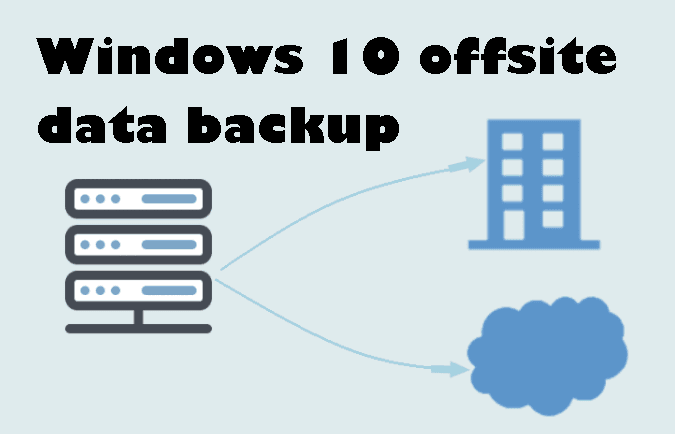
Onsite data backup creates a copy of data on the current computer, allowing for quick file restoration if deleted accidentally. However, if the system disk is corrupted or crashes, onsite backup may not protect against data loss.
Why create offsite data backup in Windows 10?
The offsite data backup is a crucial part of the 3-2-1 backup strategy, which ensures maximum data security. This strategy involves creating three copies of your data, storing two of them on different local media, and keeping one copy offsite. The main causes of creating offsite backup are to protect your data from physical disasters, such as floods, fires, or theft, and to ensure business continuity in case of a disaster. By storing a copy of your data offsite, you can rest assured that your data is safe and can be recovered even if your primary data storage is compromised. This applies to Windows 10 and other systems.
👍 Avoid onsite disasters, such as, a fire, flood, tornado, earthquake, or hurricane.
👍 Prevent a complete system crash. If the Windows disk or partition is completely corrupted, you'll get an error message saying "No operating system found" when trying to boot from it, resulting in the loss of all installed programs, personal data, and other files.
👍 Preserve space for system disk. Creating an onsite backup can consume a significant amount of disk space, particularly when scheduled, as the backup image grows in size.
To create offsite data backup in Windows 10, you need a reliable offsite storage service and utilize Windows 10's built-in backup utility. This utility allows you to schedule automatic backups of your files and system to an external drive, cloud storage, or network location. You can also use third-party backup software to automate the process and ensure your data is safely stored offsite.
Best offsite data backup solutions to protect files
Microsoft provides various offsite backup storage options, including external disks, network drives, NAS, and cloud drives. The best option depends on your specific situation. You can consider factors such as data size, security, and accessibility when choosing the best backup solution for your needs.
| Advantages | Disadvantages | |
| External or USB hard disk | This product can be taken home or to the office and used on any PC without the need for a network. | The disk space is fixed. |
| Network location or NAS | You can access files from any location as long as you have a PC. | You can only access files with a network connection. |
| Cloud storage | Files can be accessed from a variety of devices, including desktops, laptops, tablets, and phones, making it easy to stay organized and productive. Additionally, cloud storage is scalable, allowing users to easily increase their storage capacity as needed. | Google Drive requires a network to function and you need to pay for the extra cloud storage you use. |
Backing up files to a network location, NAS, or cloud storage is a good option, but if you don't have either, backing up to an external disk is still a viable choice.
How to create offsite backup in Windows 10 step by step
To create an offsite backup in Windows 10, you can use File History, Backup and Restore, or third-party software like Qiling Disk Master. These options allow you to backup user files by default, but you can also customize to backup specific folders.
Use File History to backup data offsite in Windows 10
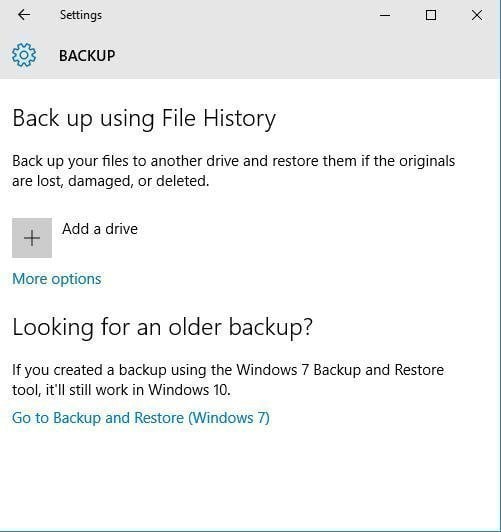
1. To access the "Back up using File History" section, go to Start > Settings > Update & Security > Backup.
2. Click the "+" Add a drive button and select external hard drive or network location as backup destination.
3. The "Automatically Back Up My Files" feature is enabled by default, which will automatically back up all user folders every hour and retain backup versions indefinitely.
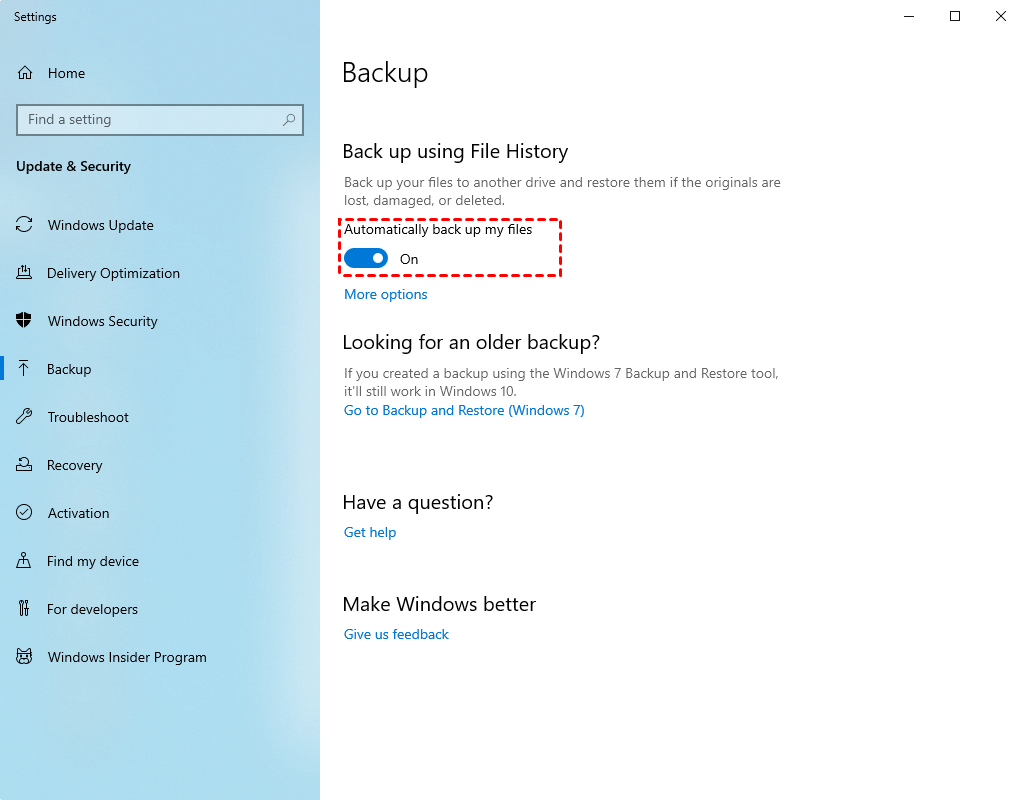
4. To set up a backup, click on the "Backup" button. You can also click on "More options" to customize your backup settings.
- Backup frequency: 9 options are available, from every 10 minutes to daily, with the default being hourly to track changes in real-time.
- Backup retention: To avoid running out of disk space, you can change the default backup retention policy from "Forever" to either "Until space is needed" or a specific retention time, such as 1 year. This will automatically delete older backup files to free up space for new backups.
- Include/Exclude folder: To back up and exclude specific folders, click "Add a folder" under the "Back up these folders" and "Exclude these folders" sections, allowing you to select any folder on your computer.
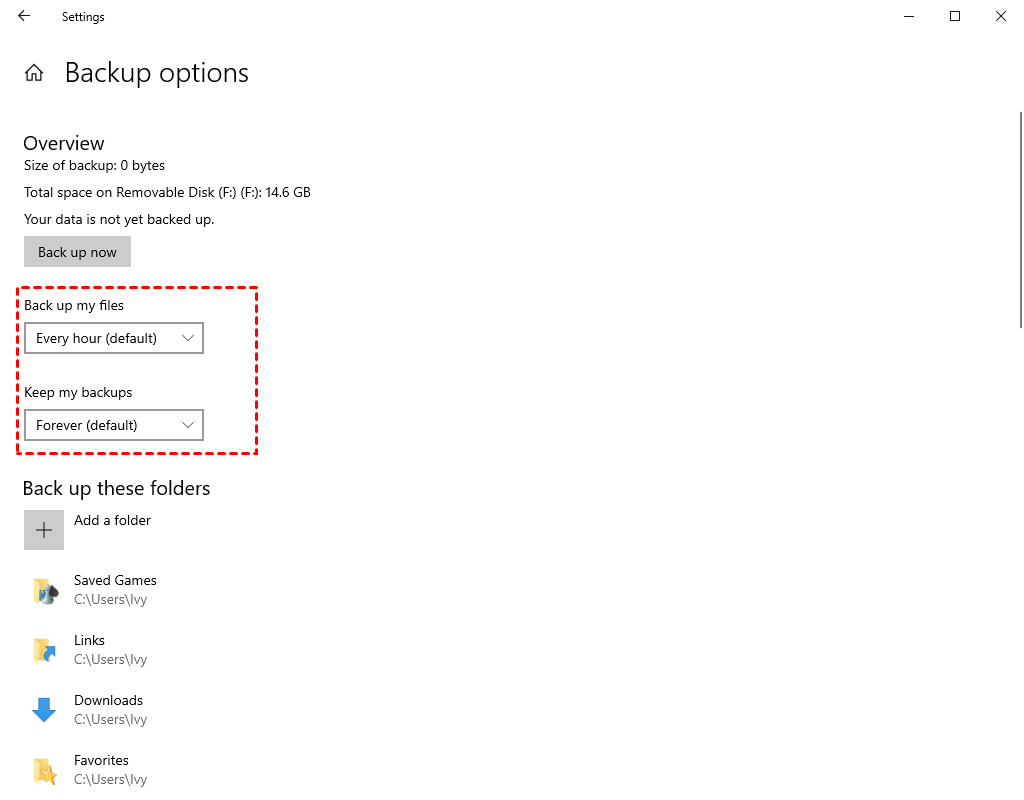
5. In the Overview section, click "Back up now" to initiate a manual file backup.
Restore your Files using File History:
Now, you can restore files to a previous version or recover deleted or corrupted files in the event of a disaster.
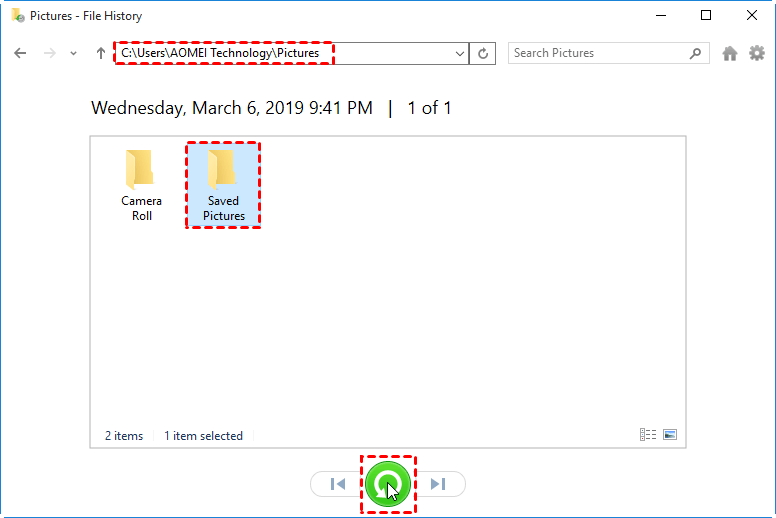
To restore files, type "Restore files" and select "Restore your files with File History", which will display a window showing all backed up data.
At the lower location, you can see forward and backward buttons that allow you to find different file versions. Click the green "Restore" button to restore files to their original location, or click the settings icon to manually choose a different location.
Use Backup and Restore(Windows 7) to backup data offsite in Wndows 10
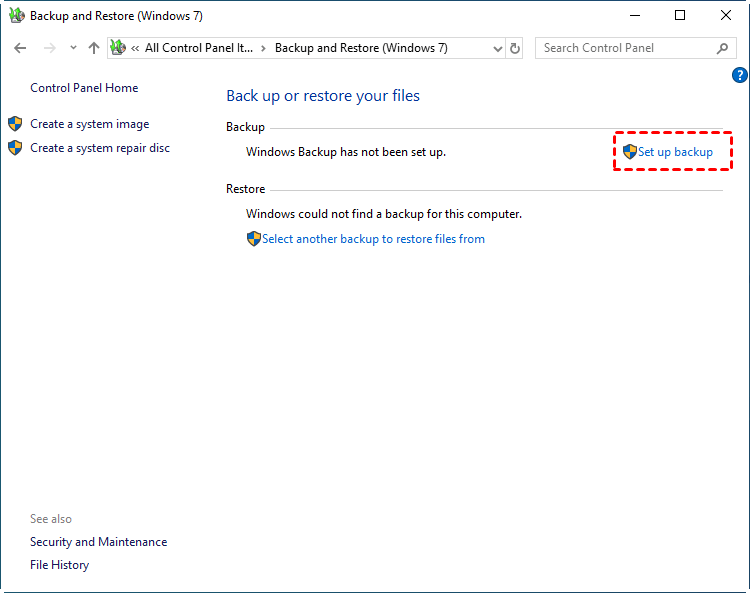
1. To access the backup settings window, go to the Backup settings window and scroll down to the "Looking for an older backup" section, click "Go to Backup and Restore (Windows 7)", and then click "Set up backup" under the "Back up or restore your files" section.
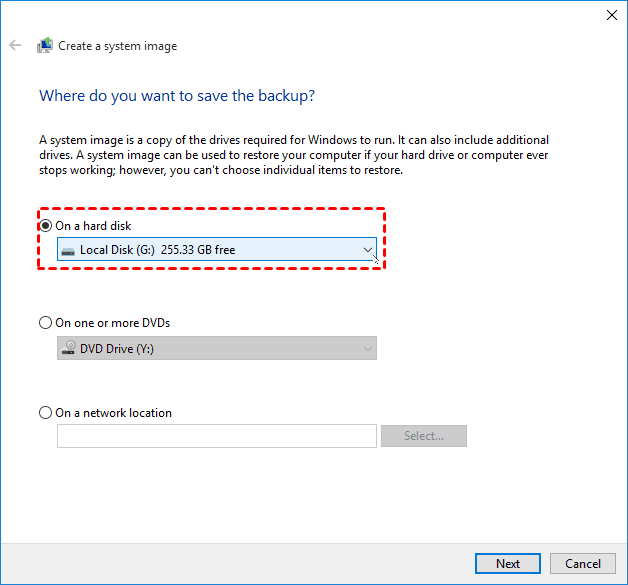
2. Choose an external hard drive or network location to save your Windows 10 backup.
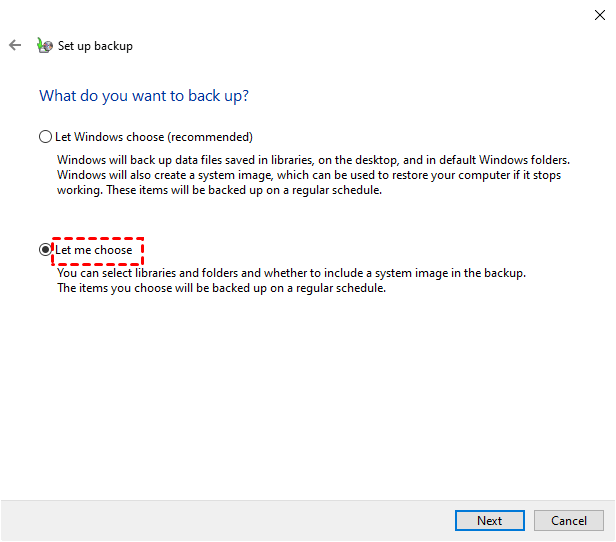
3. tick "Let me choose" to select libraries and folders per your needs. The "Let Windows choose (recommended)" option is a more worry-free way, you can tick it if you want to include the system image backup.
4. Select files under Data Files and Computer and click "Next"
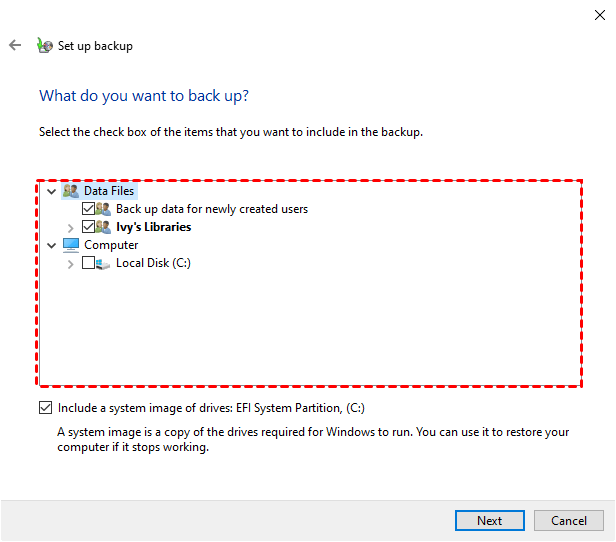
5. Review the backup settings, click "Save settings and run backup", and it will start the first backup. Then, it will automatically backup files every Sunday at 7:00PM. To make it back up more frequently, click the "Change schedule" link and select daily backups. The backup date and time can be adjusted accordingly.

Restore your files with "Backup and Restore(Windows 7)"
To restore files from a backup, go to the main page of Backup and Restore (Windows 7), scroll down to the Restore section and click "Restore my files". If you want to restore files from a backup created on a different computer, click "Select another backup to restore files from".
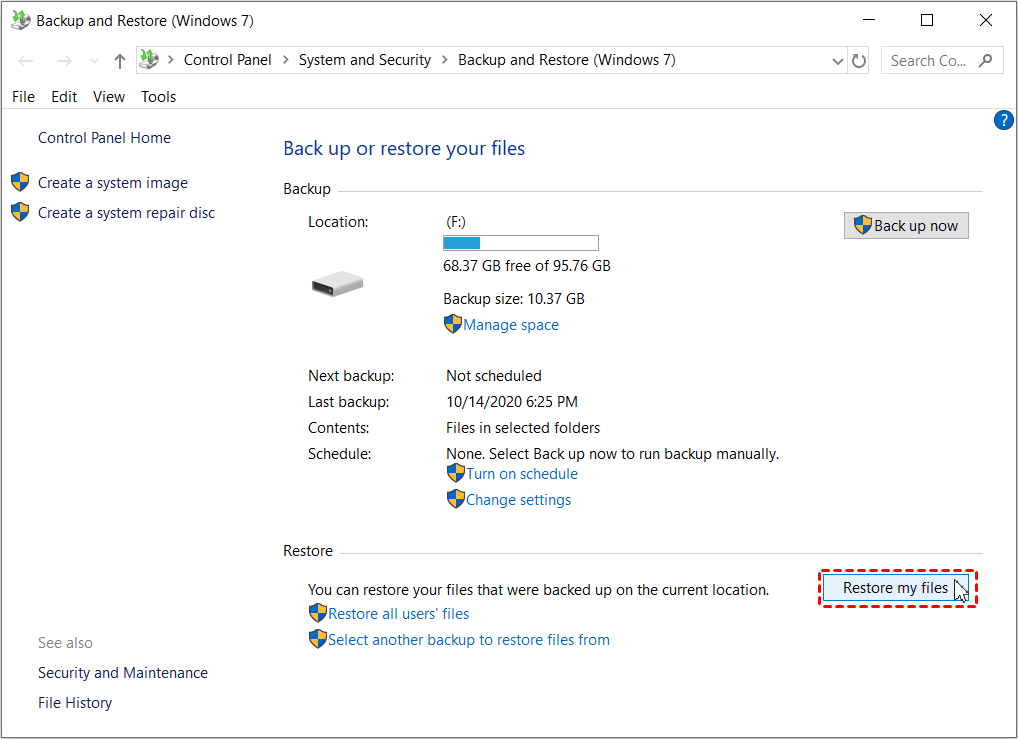
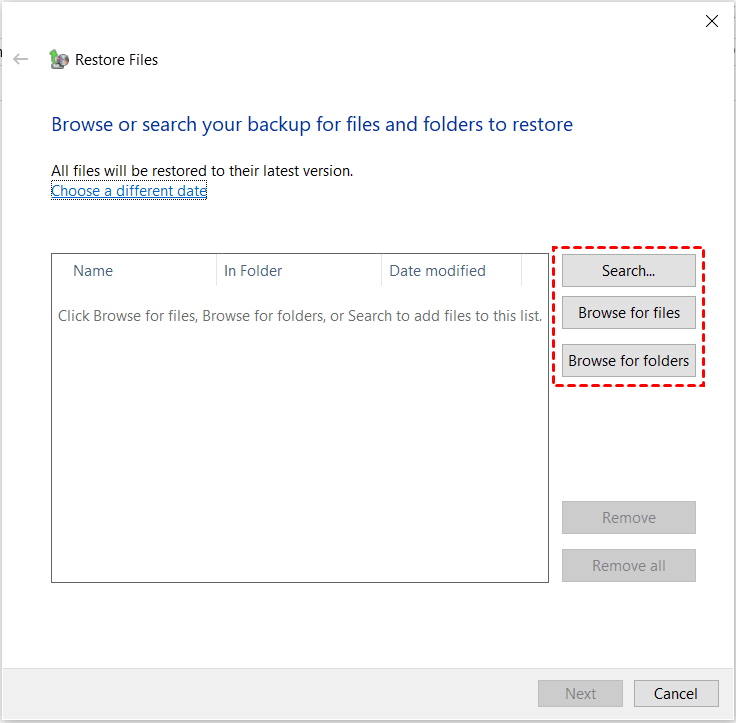
Click on the "Restore" button to restore files. You can browse or search for files or folders to restore, and choose to restore them to their original location or a different one.
- Search: Simply type the name of the files you want to restore and select them from the list. You don't need to type the full name, just a part of it.
- Browse for files: You can search for the folder containing the files you want to restore, select it, and then click "Files".
- Browse for folders: You can add entire folder to be restore.
You can back up your system and restore a system image to a new hard drive in case of a disaster, by booting Windows 10 from the recovery environment and selecting System Image Recovery in the Advanced options window, including system backups.
Use Qiling Disk Master Standard to backup data offsite in Windows 10
Qiling Disk Master Standard is an all-in-one backup and restore software that allows users to backup files to various storage devices, including external hard drives, USB flash drives, network drives, cloud drives, and NAS, making it a convenient and comprehensive solution.
1. Download and install Qiling Disk Master Standard first, then launch it. On the main page, click on "Backup" > "File Backup" to proceed.

Tip: If you have a Qiling account, you can also backup files to Qiling Cloud using the Cloud Backup feature, which offers 1TB of free cloud storage for 15 days.
2. To enter the file backup main page, change the task name to clearly distinguish it from other tasks. Then, select data by clicking on either "Folders" or "Files" to choose the files on the current computer being used.

3. You want me to click the inverted triangle at the second bar and select a destination path from the options provided. Is that correct?
Add Share or NAS DevicesTo backup files to a network location or NAS, click the option to add it, then type the network path.
Select a cloud drive: It allows you to backup files to Google DriveOneDrive and Dropbox are cloud storage services that can be installed on a computer, allowing users to store and access their files from anywhere.

4. Set backup settings to create offsite backup in Windows 10, then click "Proceed" to create a backup that only includes items existing at this point in time.
Backup Options: You can enable email notification, compress backups with normal or high compression level, and set pre/post commands.
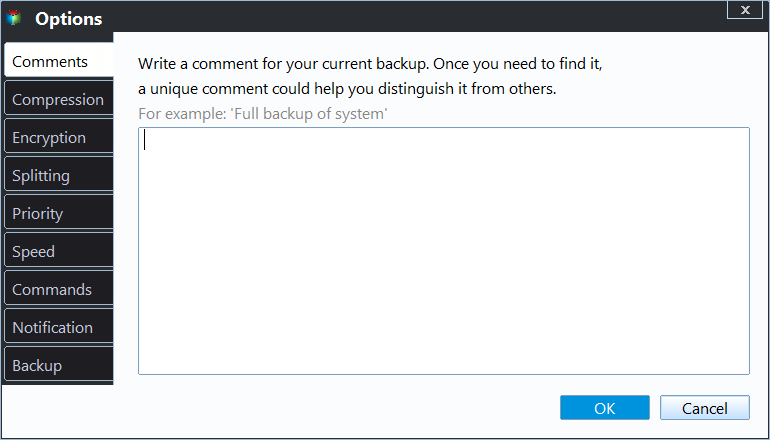
Schedule Backup: You can also enable daily/weekly/monthly schedule backup, which will automatically backup only changed files with incremental backup.
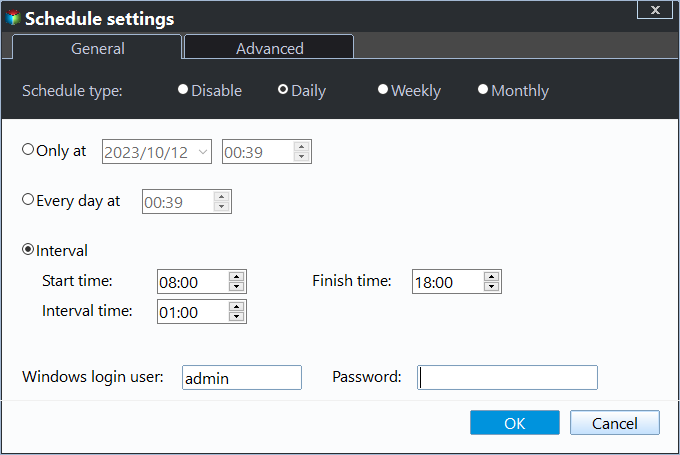
The professional version offers features such as "USB Plug in" and "Event triggers", which allow for automatic file copying when a USB drive is plugged in, eliminating the need for constant connection. This is particularly recommended for USB drives as a target disk, ensuring seamless file transfer without manual intervention.
You can set differential backups and automatically delete old backup images to prevent disk issues, available with the professional version.

Restore your files with Qiling Disk Master Standard:
Launch Qiling Disk Master Standard, click "Restore", select "Select Task", choose the backup image and files or folders to restore, select the restore location and click "Proceed".

Summary
To prevent data loss, Windows 10 users can choose from various offsite data backup solutions to securely store their data. These solutions enable users to backup their data and restore it when needed, making it essential to start backing up data immediately to avoid losing precious information. By selecting a solution that suits their needs, users can ensure their data is protected and easily recoverable.
25% of PC users experience data loss annually, and 70% of small businesses that suffer a major data loss go out of business within a year, according to Gartner and DTI/Price Water House Coopers, respectively.
Related Articles
- 3 Methods to Backup/Copy User Profile in Windows 10
You will learn how to backup and restore user profile in Windows 10/11, without spending hours customizing the new computer. - Best Free Way to Backup PC to Cloud in Windows 10/8/7
Backing up PC to cloud drive like Google Drive automatically with Qiling Disk Master is the best free way to protect computer and data on it. Scroll for more details. - Two Solutions to Backup Windows 10 to QNAP NAS
Here we will explain two great solutions to backup Windows 10 to QNAP NAS: the Windows 10 in-built backup tool and the specialist software Qiling Disk Master. - How to Install Work Folders and Create Multiple Sync Shares
In this article, you are going to learn how to install work folders and create multiple sync shares in Server 2012 R2/2016/2019. The details are below. - WD SmartWare Pro Continuous Backup Not Working (5 Fixes)
You will learn the causes and fixes to WD SmartWare Continuous Backup not working as well as how to perform continuous backup with easier alternative. - What Is the Best Free WD Sync Alternative? - Qiling Disk Master
This article will show you how to fix WD Sync not working and two WD sync alternatives to sync files from or to WD My Cloud.
Products
Articles & Tutorials
- Data Recovery
- Data Backup
- File Recovery
- File Backup
- File synchronize
- System Backup and Restore
- Disk and Partition Clone
- Technical articles
- Disk Master Help
- Windows Deleted File and Disk Recovery Tutorials
- Windows File and Data Recovery Tutorials
- More Windows Tutorials for Install, Security, Files, and PC Tips
- Windows Boot, Repair, and Recovery Environment Tutorials
- Windows Backup Tutorials
- Windows Restore Tutorials
- Windows Clone and Migration Tutorials
- Windows Server Backup, Recovery, and Management Tutorials
- Windows Disk, Partition, and Storage Management Tutorials