WD SmartWare Pro Continuous Backup Not Working (5 Fixes)
The problem: WD SmartWare Continuous Backup not working
I'd like to create an auto-backup with my WD SmartWare, but I have encountered some backup issues.
Here are the steps to enable and set up automatic backups: Open the app, select a drive as the backup target, click on the Backup tab, enable backup, set the backup frequency to continuous, and finally run a backup now to start the process.
Actually, the first backup process completes well. However, it did not update any changes inside the files later, nor the new files I added. What is the problem? Is there any better way to fix WD SmartWare not backing up automatically?
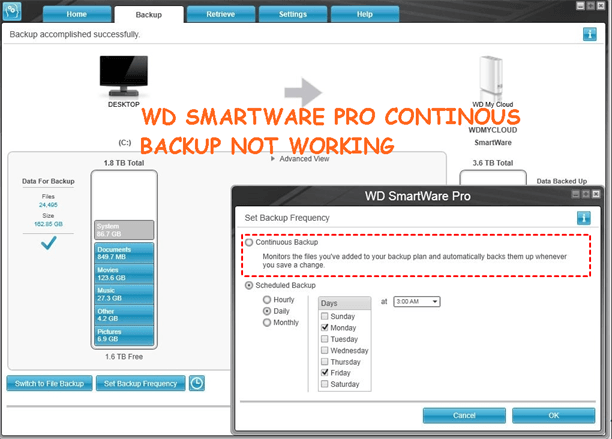
In fact, WD SmartWare backup does not always work well, not only WD external auto backup, but also similar backup problems with WD SmartWare like WD SmartWare backup source cannot be found or WD SmartWare backup greyed out. Don't worry about it much! And I'll introduce you to more about WD SmartWare, several possible causes and fixes to WD SmartWare Pro continuous backup not working.
What is WD SmartWare?
WD SmartWare is a program developed by Western Digital that enables users to manage data backups from their computer to an external hard drive or Cloud.
The WD SmartWare software allows for customizable backup settings, including continuous and scheduled backups, and the ability to backup to a network drive or multiple drives.
- Continuous Backup: The script will continuously monitor the files you've added to the backup task and automatically back them up whenever there is a change.
- Scheduled Backup: This system allows for data backups to be performed at different intervals, including hourly, daily, and monthly, enabling users to choose the frequency that best suits their data modification needs.
Although WD SmartWare has reached its end-of-life, you can still use it if it was previously installed on your computer. However, if you're experiencing issues, such as it stopping to work, you can try the fixes below. Alternatively, you can consider using a free backup software to continuously backup your data.
Possible reasons and fixes for WD SmartWare Backup not working
If Western Digital backup software isn't working on your Windows PC, there are several remedies you can try.
- Check if there is any other backup or sync software on your computer. If another backup or sync tool is running before WD SmartWare, it may overwrite new content with its older version from the cloud, resulting in unexpected changes.
- Check if your WD SmartWare is up-to-date. To create a scheduled backup with WD SmartWare, update the software to the latest version, as the current version 1.6.X does not support scheduled backups.
- Check if you've selected system files as the backup item. WD SmartWare is a file-level backup software that only copies individual files, but does not back up entire programs or the Windows operating system itself.
- Check if the backup items are in use. WD SmartWare is unable to back up files that are currently in use, which means it can't back up files that are open in a program or being written to at the time of the backup. This is a common limitation with many backup software programs, including WD SmartWare.
- If you're running Windows 10, please get the WD SmartWare software for Windows 10.
If you're experiencing issues with WD SmartWare, you can try switching to Scheduled Backup mode to complete the backup task. However, if problems persist, it may be best to consider alternative backup and sync tools.
Easier Alternative to Perform Continuous Backup
Besides WD SmartWare, you can also use other backup software like Qiling Disk Master Standard to automatically backup data, offering more flexibility and compatibility.
- You can backup files to external hard drive, USB drives, flash drives, network share, cloud drives, and NAS.
- You can schedule backups to run at various frequencies, including daily, weekly, or monthly, and even hourly within a day.
- Incremental backup allows users to back up only the files that have changed since the last backup, saving time and disk space by avoiding the need to re-back up unchanged files.
- You can also back up files by syncing them from one location to another, and this method supports all scheduled settings.
To get started, download and install Qiling Disk Master Standard, then connect an external storage device to continuously backup files and ensure it can be detected.
This version only supports Windows operating systems, including Windows 11, 10, 8, 8.1, 7, XP, and Vista. For server users, the Qiling Disk Master Server is recommended.
1. Launch this software, choose "Backup" and "File Backup" subsequently.

2. To start a backup, click on "Files" or "Folders" to select the files you want to backup, and optionally enter a new task name to differentiate it from other backup tasks.

3. Click the folder shaped button and then select the external storage on your computer.

4. To perform a continuous backup, click "Schedule Backup" and then select "Enable Schedule Backup". Next, choose "Daily" and set the backup to run every 1 hour.

5. To initiate the backup process, click "Proceed" after which the task will continuously back up all files initially and then only changed files every hour, utilizing incremental backup.

Other useful features you may need (available on the advanced editions):
- Besides incremental backup, you can also use differential backup on the premium version, which is indispensable and safer.
- The software's hourly backup only saves changed files, but this results in a growing number of backup images, which can fill the backup disk unless you regularly delete old backup files using a cleanup method.

- If you need to frequently modify, delete or use files, try the File Sync feature, which will automatically sync any changes as soon as they're detected.
Verdict
Although the WD SmartWare is no longer supported, you can still use it and resolve the WD SmartWare Continuous Backup not working issue using the provided solutions. Alternatively, you can try Qiling Disk Master Standard for a software with technician support and a more user-friendly experience.
With this feature, you can choose to perform continuous backup using File Backup or File Sync. The backup method focuses on data security by compressing all data into an image file, whereas the sync method does not compress data. Select the method that suits your needs.
Related Articles
- Western Digital Disk Cloning Free Software
In this article, you will find the best Western Digital (WD) disk cloning software to help you clone HDD to SSD easily and safely. The cloned drive will boot without any issues after cloning. - WD Smartware Files Pending Backup-Why Files Not Backed up
This guide explains WD Smartware Files Pending Backup-Why Files Not Backed up with clear steps, key checks, and practical tips. - Quick Fix to WD Backup Not Working in Windows 10/8/7
This guide explains Quick Fix to WD Backup Not Working in Windows 10/8/7 with clear steps, key checks, and practical tips. - Best Solution on Backing up Windows 7 PC to WD My Cloud
In this article, you will find the best way to backup Windows 7 to Western Digital (WD) My Cloud with everything included, operating system, installed programs, settings, personal files, etc. - Fixed: OneDrive Not Syncing in Windows 7, 8, 10 | 10 Ways
You will learn the reasons and 10 solutions to OneDrive to syncing problems in Windows 7, 8, 10 and 11. Learn more about this issue below! - How to Run PC to PC Sync for Folders in Windows 10/8/7?
Learn how to Run PC to PC Sync for Folders in Windows 10/8/7 with clear steps, key checks, and practical tips.
Products
Articles & Tutorials
- Data Recovery
- Data Backup
- File Recovery
- File Backup
- File synchronize
- System Backup and Restore
- Disk and Partition Clone
- Technical articles
- Disk Master Help
- Windows Deleted File and Disk Recovery Tutorials
- Windows File and Data Recovery Tutorials
- More Windows Tutorials for Install, Security, Files, and PC Tips
- Windows Boot, Repair, and Recovery Environment Tutorials
- Windows Backup Tutorials
- Windows Restore Tutorials
- Windows Clone and Migration Tutorials
- Windows Server Backup, Recovery, and Management Tutorials
- Windows Disk, Partition, and Storage Management Tutorials