Quick Fixes to WD Backup Not Working in Windows 10, 11
Scenario
"My WD My Passport Ultra, which is less than a year old, was set up for automatic backups but has suddenly stopped working. When I try to access the backup software, I get an error message saying 'WD Backup has stopped working' with the option to check online for a solution, but clicking on it doesn't yield any results or provide a solution."
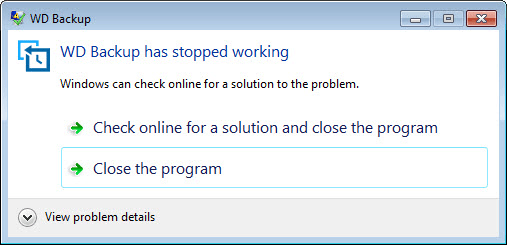
"I've uninstalled all the software and reinstalled all software with the latest. No luck. Anyone know how to fix it? Thank you!"
Overview of WD Backup not working
WD Backup is a backup application that automatically protects your files, documents, and photos for disaster recovery purposes. It runs on-premise backups to a WD drive as primary storage and off-premise backups to a cloud as secondary storage, and is compatible with Windows 10/11, 32-bit & 64-bit.
Users may encounter issues with WD Backup not working in Windows 10/11, particularly when trying to backup files, with two common scenarios being "Files cannot be backed up" and "WD Backup does not see my drive".
How to fix WD Backup not working in Windows 10/11
Next, I will walk you through these two situations and fix them one by one.
Files not being backed up
Files not being backed up can be caused by a variety of issues, including a fragmented disk, an infected computer, file permissions, long filenames, or folder paths that are too long. These problems can prevent backups from running successfully, leading to lost or incomplete data.
- Fragmented disk: Run a disk check to resolve issues with files not being backed up due to fragmentation by checking the disk and fixing any fragmented areas.
- Infected computer: A computer infected with a Virus or Malware may prevent a file from being backed up, so ensure the computer system is Virus and Malware free.
- File permissions: An operating system has methods for assigning permissions and rights to folders and files, controlling the ability to view, modify, change, and delete files, with the owner and system having permission to access them.
- Long filename/folder paths too long: To resolve the issue of overly long folder paths preventing files from being backed up, you can shorten the source folder path. This will help ensure that files can be successfully backed up.
Notes:
1. WD Backup will not backup files that are currently in use during the backup process. To resolve this, stop using the file until the backup is complete.
2. WD Backup will not back up files that are currently locked by the Windows operating system, running software, programs, or processes, preventing them from being accessed or written to during the backup process.
WD Backup does not see my drive
"WD Backup not seeing my drive" may be caused by various reasons, including local PC security software that needs to be configured to allow WD Backup, or the WD Backup Drive Helper process not running when WD Backup is opened.
To fix this issue, you should check the following things:
1. The WD Backup Drive Helper service starts when WD Backup is opened, as it is a required service for the program to function properly. This service is necessary for WD Backup to access and utilize the WD Backup Drive, which is a feature that allows users to create a backup of their important files and data.
2. To resolve the issue, ensure that WD Backup is allowed and not blocked by anti-virus software. This can be done by adding WD Backup to the list of allowed programs in your anti-virus software settings.
3. Ensure the WD drive is connected directly to the computer.
4. Ensure the drive firmware is up to date.
5. Ensure the drive can be detected and accessed by computer.
6. Make sure WD Backup can support this drive.
Quickly fix WD Backup not working with Qiling Disk Master
Users may encounter issues with WD Backup, such as it not opening or not installing, in addition to the two situations mentioned. To resolve these problems and have a more reliable backup experience, it is recommended to use a powerful third-party backup software.
Qiling Disk Master is a professional backup and restore software designed for Windows operating systems, including Windows 11/10/8/7/XP/Vista.
✭ With the hot backup feature, you can backup files even when they are in use, allowing for continuous operation and minimal disruption.
✭ Besides files backup, you can also backup system, disks, or partitions.
✭ Various backup devices are supported, including all branded HDD/SSD, USB flash drives, NAS devices, and cloud drives.
✭ The platform is user-friendly, free to use, and boasts a clean and tidy interface, making it easy to navigate and get started.
To automatically backup files, follow these steps and use Qiling Disk Master, which requires only a few clicks. The backup process is quick and won't take up much of your time.
Step 1. Download Qiling Disk Master Standard directly or learn more from the Download Page. Open the software, click Backup and select File Backup.

Step 2. Select the files or folders that need to be backed up.

Step 3. To backup to a WD drive, select a local path from the drop-down menu.

Step 4. To automatically backup files, click Schedule Backup and set it up.

Step 5. At last, click Proceed.
Note: If you want to make continuous protection for your data, you can upgrade to an advanced version to use the Real-time Sync feature.
Qiling Disk Master is a perfect alternative to WD Backup that can solve the "WD Backup not working" issue easily and quickly. Additionally, it is a free SSD migration tool that can be used to migrate data from HDD to SSD. Try it now to discover more!
Related Articles
- WD Smartware Software for Windows 10 not Compatible
- WD SmartWare not Backing up All Files in the Computer
- WD Backup Software and Its Free Alternative
- How to Transfer Programs to External Hard Drive in Windows 10?
In this page, I am going to show you how to transfer programs to external hard drive without reinstalling on Windows 11/10/8/7, and offer a step-by-step guide. - Best Free Syncthing Alternative to Sync Files Between PCs
This tutorial provides the best free Syncthing alternative for Windows and shows how to sync files between computers via Syncthing and its alternative step by step. - Best Free SyncToy Alternative for Windows 11, 10, 8, 7
This page offers you the best free SyncToy alternative for Windows 11/10/8/7 - Qiling Disk Master. Some other common file sync tools are also introduced here.
Products
Articles & Tutorials
- Data Recovery
- Data Backup
- File Recovery
- File Backup
- File synchronize
- System Backup and Restore
- Disk and Partition Clone
- Technical articles
- Disk Master Help
- Windows Deleted File and Disk Recovery Tutorials
- Windows File and Data Recovery Tutorials
- More Windows Tutorials for Install, Security, Files, and PC Tips
- Windows Boot, Repair, and Recovery Environment Tutorials
- Windows Backup Tutorials
- Windows Restore Tutorials
- Windows Clone and Migration Tutorials
- Windows Server Backup, Recovery, and Management Tutorials
- Windows Disk, Partition, and Storage Management Tutorials