Backup with WD My Passport in Windows 11, 10 [Top 2 Ways]
- Overview for WD My Passport backup software
- Can you still use WD Backup for My Passport drive?
- What other WD My Passport backup software can you use?
- Way 1. How to back files to My Passport drive with WD Backup
- Way 2. How to do WD My Passport backup with Qiling Disk Master👍
- 💡Bonus tip: Best enterprise data backup solution
- Conclusion
- WD My Passport backup FAQ
Overview for WD My Passport backup software
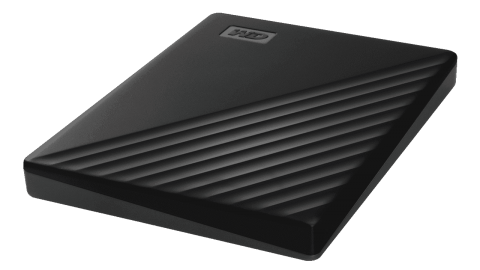
The My Passport drive is a portable storage device that allows users to store, organize, and share their computer data. It has a stylish design, high storage capacity, and comes with software that enables users to perform backups both on-premise and in the cloud.
The WD My Passport backup is done using the WD Backup application, which is user-friendly and can protect various file types. It allows you to set a schedule for automatic backups from your system to the My Passport drive, such as hourly, daily, or monthly.
However, due to some known limitations, you can also try other WD backup tools.
Can you still use WD Backup for My Passport drive?
WD Backup software will no longer be downloadable or supported from August 22, 2022, but existing users can still use the product and app without receiving future software updates.
If you've previously downloaded WD Backup, you can continue using it. There are two common scenarios for WD Passport backup: users who have already set up WD Backup and are looking to continue using it, and users who are new to WD Backup and need to set it up for the first time. In the first scenario, users can simply launch WD Backup and follow the prompts to continue backing up their data.
- To prevent data loss, back up important files to your My Passport drive regularly. This can be done using the built-in backup software on your computer or by manually copying files to the drive.
- Back up My Passport drive as double insurance
WD Backup software has limited device support, allowing you to set internal hard drives, supported external storage drives, or Dropbox as sources, and similarly supported external storage drives or Dropbox as targets, with specific supported drives including My Passport Family, My Passport Wireless Family, and My Book Family.
⛔ WD Backup software is designed to work specifically with Western Digital external drives, and may not be compatible with other brands of external drives. This means that if you want to back up your computer to an external drive from a different manufacturer, WD Backup may not be able to read or write to that drive.
What other WD My Passport backup software can you use?
If you're looking for a WD Passport backup software with higher compatibility and more professional backup options, Qiling Disk Master Standard is a good choice. It works on all Windows PCs and supports various locations, including internal/external hard drives, USB drives, NAS, network shares, and cloud.
The software isn't exclusive to WD products, allowing continued use even after replacing the device. It also offers more comprehensive schedule options than WD Backup, making it easier to plan automatic backups.
Best Backup Software for WD Drives and More
Automatically and flexibly back up free files and OS to local drive, external drive, network folder, cloud, etc. without brand and model restrictions.

Windows Backup and Restore can be an alternative to WD Backup, but it's not the most efficient option, as it can be slow and prone to errors. In contrast, WD Backup and Qiling Disk Master are more reliable options for backing up your My Passport drive, and the focus of this article will be on using these tools for a successful backup.
Way 1. How to back files to My Passport drive with WD Backup
WD Backup is a useful tool that allows you to schedule incremental backups of important files from your PC to your WD My Passport, ensuring your data is safely stored and easily recoverable.
Every time you disconnect and reconnect a backup target or source device, WD Backup software will rescan the source device for new or changed files and resume the automatic backup process.
Steps to set up WD My Passport backup with schedule
1. To use WD Backup in Windows 10, download the application from the official WD site or install it from the WD software installer included with the drive.
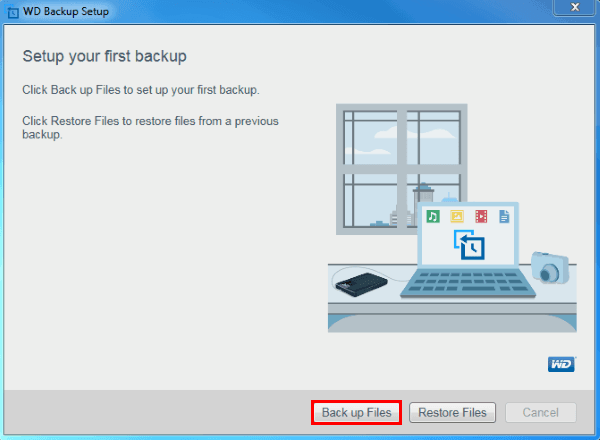
2. To back up files, connect the WD My Passport drive, then click Back up Files in the main interface.
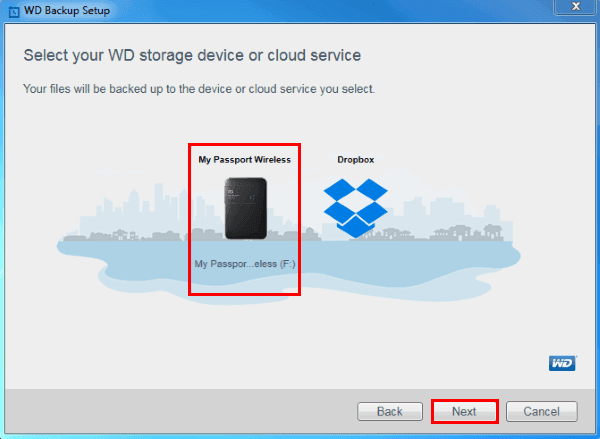
3. Select the WD storage device or cloud service you want to use as the backup target, then click the "Next" button.
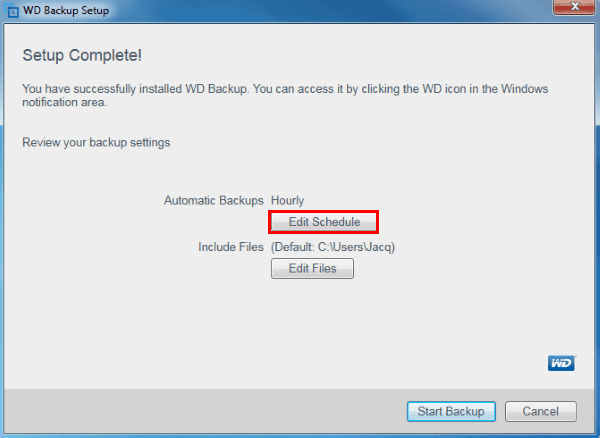
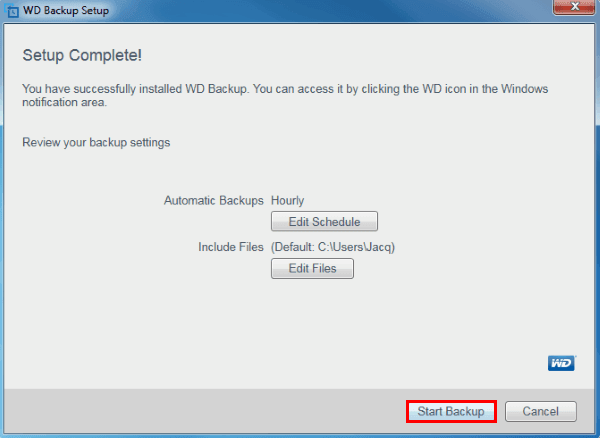
4. To set up My Passport auto backup, click Edit Schedule to choose from options like Hourly, Daily, or Monthly. You can then click Edit Files to select specific files from your PC or Dropbox to include in the backup.
5. After finishing, click Proceed and wait for it to complete.
What if WD My Passport backup not working?
There are chances that WD Backup cannot detect your device, or prompt you "WD Backup has stopped working".
To resolve the issue with the WD Backup Drive Helper not starting with WD Backup, check if your connected drive is supported by referring to the detailed list. If it is, try running the WD Backup Drive Helper process manually and see if it resolves the issue. If not, check the drive's power settings and ensure it is not set to turn off when idle. Also, verify that the drive is properly connected and recognized by the system.
- Check anti-virus and endpoint protection software to ensure that WD Backup is allowed to run on your PC. This will help prevent any potential threats from interfering with the backup process.
- Ensure the status of WD Backup Drive Helper services is Running when WD Backup is started.
- To ensure the WD Drive is connected directly to the computer instead of a USB Hub, you can simply unplug it from the hub and plug it directly into a free USB port on your computer. This will provide a more stable and reliable connection, reducing the likelihood of issues or errors.
- Ensure the drive firmware is up-to-date
- Download and install the latest version of WD Backup.
- Download and Install WD Drive Utilities.
If your WD Backup has stopped working, you can try resetting the WD Backup software by uninstalling and reinstalling it. This will ensure that the software is updated and functioning properly.
- Run a disk check and fix fragmented disk
- Ensure the computer system is Virus and Malware free
- Ensure the owner and system have permissions to access the files.
- Shorten the source folder path if it's too long.
- To back up your files, first ensure that the files you want to back up are not in use. If they are, stop the programs or processes using them before proceeding. This will prevent any potential conflicts or errors during the backup process.
If your WD My Passport backup is not working, there are some possible fixes to try. If these don't resolve the issue, you can also try alternative solutions.
Way 2. How to do WD My Passport backup with Qiling Disk Master👍
Qiling Disk Master Standard is a free Windows backup program that allows users to easily backup files from their PC and other devices to a WD My Passport drive, or vice versa.
◾ WD Backup offers comprehensive data protection options. Similar to WD Backup, you can schedule automated backups and back up only changed files each time using incremental mode by default.
◾ You can customize various settings such as backup compression level, image splitting, operation priority, adding comments, and setting up email notifications to suit your needs.
◾ It's a disk clone software that can clone a hard drive to a WD My Passport or clone a WD hard drive to another.
◾ Upgrading to the Professional edition unlocks advanced features such as file filtering, differential backup for enhanced recovery, backup schemes for automatic deletions, and dissimilar hardware restore capabilities.
To take the free Standard edition as an example, download it to proceed with the operation.
Steps to perform WD My Passport backup with Qiling Disk Master
1. Connect your WD My Passport drive to Windows, ensure it's detected, and then launch a disk backup software. Go to the Backup tab and select File Backup to back up specific files and folders on your WD My Passport drive.
You can choose System Backup for the entire OS, Partition Backup for a specific partition or volume, or Disk Backup to backup the entire computer with WD My Passport.

Besides on-site backup to backup files or folders, this software also comes with a cloud drive called Qiling Cloud and 1TB of free storage, and you have 15 days of free access after registration.
2. To back up PC files to a WD My Passport, select either "Folders" or "Files" to specify the data you want to protect, then choose the connected WD drive as the target.

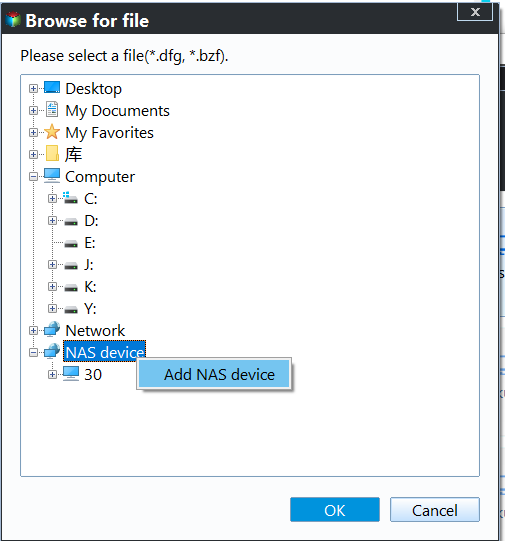
To back up files on NAS or network, choose Share/NAS, then Add Share or NAS Devices to add the path. For cloud drive files, select the local folder of the corresponding cloud service.
In advanced editions: You can click the funnel icon next to the selected path to include or exclude files with specific extensions.
3. To perform My Passport auto backup, click Schedule Backup to choose a backup frequency, such as Daily, Weekly, or Monthly, and set a specific time or interval. By default, it will run a scheduled incremental backup.
Afterward, click Proceed and wait for it to complete.

To backup computer files to your WD My Passport drive, simply select the source and target accordingly. If you want to backup to your PC, select your PC as the source, and if you want to backup to another external drive or cloud drive, select that as the target. This process allows you to easily transfer and store your important files on the WD My Passport drive.
Other advanced features you may need
✍To prevent accumulated backup files from filling up your storage space, you can enable automatic backup cleanup in the Backup Scheme, which will automatically delete old backups.
✍To automate the backup task based on specific events, you can select either Event triggers or USB plug in. This allows the backup to execute automatically when a certain event occurs, such as when the user logs in or out, or when a USB device is plugged in.
✍To summarize, differential backup uses more time and space but has a shorter recovery time, requiring only one full backup plus one differential backup.

✍To free up space on your WD My Passport or prevent data from being accessed by others, you can use the Disk Wipe feature in the Tools tab to completely erase all data on the drive.
💡Bonus tip: Best enterprise data backup solution
For enterprise users who want to protect data on multiple computers, Qiling Backup is a top option that offers all-around enterprise data backup solutions.
- This tool allows for centralized backup of system, disk, and partition for multiple Windows PCs and Servers from a single console.
- To ensure the safety of your data, you can save backup images on a local disk, external hard drive, network share, or NAS device. This allows you to store a copy of your important files in a separate location, protecting them from loss or damage in case of a hardware failure or other disaster.
- You can set up a backup schedule to automatically back up changed data.
- The program provides a flexible backup approach, allowing users to choose from full, incremental, or differential backup methods to suit their specific needs.
Don't hesitate to download this powerful enterprise backup software and try it yourself!
Conclusion
If you're not happy with the WD Backup software that comes with your WD My Passport drive, you can use Qiling Disk Master as an alternative to backup your files in Windows 11/10/8/7. This alternative software can pair with your WD My Passport drive to perform automatic file backup, offering a similar experience to the WD Backup software.
Qiling Disk Master offers features beyond backup and restore, including disk migration through its Clone feature. This allows users to clone a hard drive to a smaller solid-state drive (SSD), clone one SSD to another, or move the operating system to a new hard drive.
WD My Passport backup FAQ
- How do I backup my computer with WD My Passport?
To back up your computer with WD My Passport, use the WD Backup software to schedule automatic backups. Simply select the time and frequency you'd like to run the backup, and the software will automatically copy important files from your system to your My Passport drive.
- Can I recover files from WD My Passport backup if my computer crashes?
If your computer crashes or you need to recover files from backups, you can launch the backup software to restore files to a new or repaired computer. The software should provide a restore function to select the files and folders to recover.
- How do I password protect my WD My Passport?
To password protect your WD My Passport, use the WD Security software that comes with it to set a password for the drive, which can then be unlocked for access to your data. Alternatively, to password-protect the WD My Passport backup image, use the encrypt option of Qiling Disk Master.
- How much storage capacity does WD My Passport offer?
My Passport is available in various storage capacities, ranging from a few hundred gigabytes to several terabytes, with exact options varying by model and version.
- Can I back up multiple computers to a single WD My Passport drive?
You can back up multiple computers to a single WD My Passport drive, as long as it has enough capacity for the backup files. You can also use WD backup software like Qiling Disk Master to compress the backup and save space, or perform incremental backup to save only changed files.
- Can I use WD My Passport for purposes other than backups?
The WD My Passport can be used for purposes beyond backups, serving as a portable storage device to store and transfer files between computers, and also providing additional storage space for your computer to free up internal hard drive space.
- Is WD My Passport compatible with cloud backup services?
The WD My Passport can be used with cloud backup services, allowing users to manually upload backup files to providers like Dropbox, Google Drive, or OneDrive for added data redundancy and accessibility. Additionally, Qiling Disk Master enables direct backup to cloud drives.
Related Articles
- How to Retrieve Files from WD Passport Efficiently? (3 Ways)
Recover files from a WD Passport drive with practical steps for lost, deleted, or inaccessible data. - Best Free WD Elements Backup Software - Qiling Disk Master
You will find the best free WD Elements backup software - Qiling Disk Master and learn how to backup WD Elements hard drives automatically with simple steps. - WD External Hard Drive Automatic Backup in Windows 7/8/10
You can easily perform WD external hard drive automatic backup as long as you use the best backup software. - Samsung Data Migration Software for Windows 7/8/10 | Free Download
To transfer data from old HDD or SSD to Samsung SSD in Windows 7/8/10/11, you need the help of Samsung data migration software. Download it and have a try. - 2 Easy Ways to Run Synology Bidirectional Sync in Windows
If you are looking for easy ways to perform Synology 2-way folder sync between Synology NAS and Google Drive, OneDrive, etc., read this article patiently. - Synology Cloud Sync Not Syncing All Files – Solved Now!
This page demonstrates how to fix Synology Cloud Sync not syncing all files efficiently and provides another free sync tool to help with Synology NAS sync.
Products
Articles & Tutorials
- Data Recovery
- Data Backup
- File Recovery
- File Backup
- File synchronize
- System Backup and Restore
- Disk and Partition Clone
- Technical articles
- Disk Master Help
- Windows Deleted File and Disk Recovery Tutorials
- Windows File and Data Recovery Tutorials
- More Windows Tutorials for Install, Security, Files, and PC Tips
- Windows Boot, Repair, and Recovery Environment Tutorials
- Windows Backup Tutorials
- Windows Restore Tutorials
- Windows Clone and Migration Tutorials
- Windows Server Backup, Recovery, and Management Tutorials
- Windows Disk, Partition, and Storage Management Tutorials