Always Protect Windows 10 with Backup and Restore (Windows 7)
Overview of Windows 10 Backup and Restore
Backup and Restore (Windows 7) In Windows 10, the Backup and Restore feature, inherited from Windows 7, allows you to back up and restore files, as well as create system images, and you can still recover backups created in previous Windows versions.
Windows 10 has a backup and recovery tool called File History, which automatically backs up versions of files in the Documents, Music, Pictures, Videos, and Desktop folders, as well as OneDrive files available offline, by default. Users can also manually add specific folders from other locations to the backup.
The best two destinations to save the backups are external hard drive (such as USB flash drive) and network location or NAS. Since it completely avoids data loss due to system or disk crash, virus attack, etc. And I'll introduces you to both software and perform Windows 10 backup and restore.
How to Use Backup and Restore (Windows 7) in Windows 10
Backup and Restore in Windows 7 is a useful feature that allows you to backup either your system or all user files, with the option to choose the method that suits you best.
>> Create a system image in Backup and Restore (Windows 7). To avoid this, you can use a backup software like Qiling Disk Master. These programs create a compressed backup image of your entire system, including the operating system, programs, and data. They also allow you to schedule automatic backups at regular intervals, so you don't have to remember to create a backup manually.
To automatically back up user files, system files, or other non-system partitions, the scheduled backup settings are set to run every Sunday at 7:00 am, and the default backup method is incremental.
Create a backup image with Backup and Restore (Windows 7)
Here take the second way as an example.
1. You have two ways to backup and restore in Windows 7.
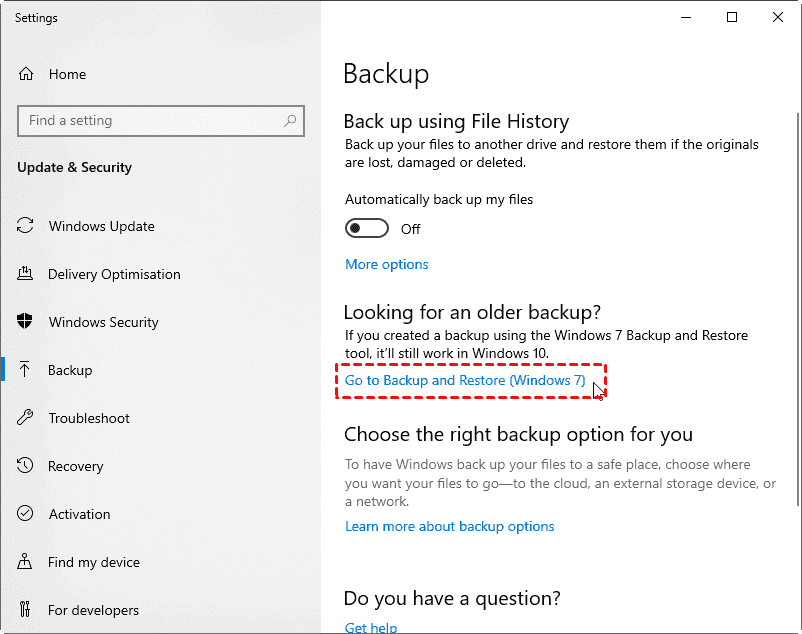
Way 1: Through backup settings. To access backup settings in Windows 10, type "Backup" in the search box and select "Backup Settings" from the list. Then, scroll down to the "Looking for an older backup" section and click "Go to Backup and Restore (Windows 7)".
Way 2: Through Control Panel. Go to the search box, type "control panel", select "System and Security", and then click on "Backup and Restore (Windows 7)".
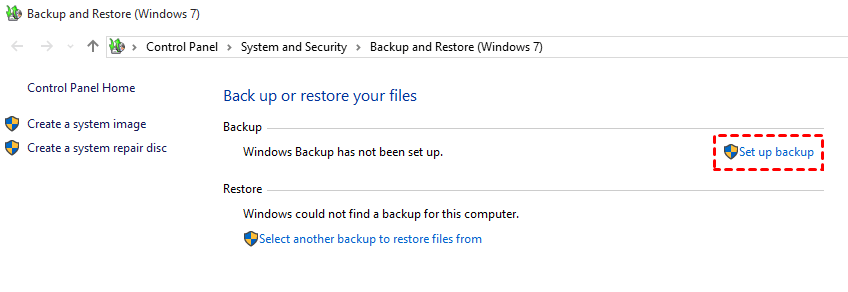
2. In the Backup and Restore (Windows 7) window, click "Set up back-up".
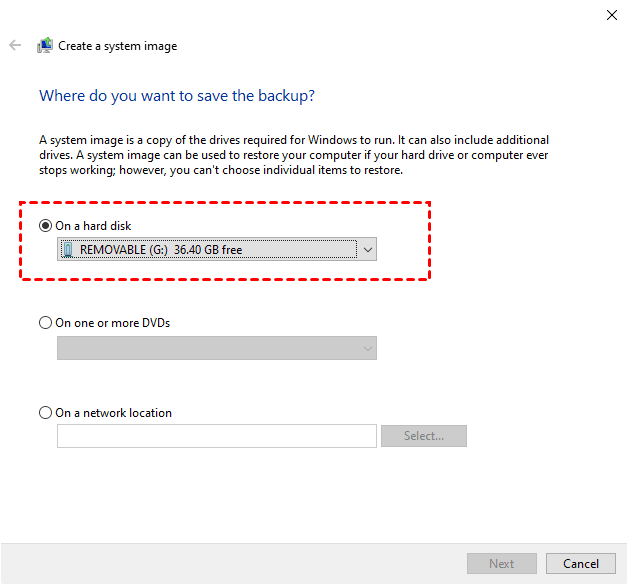
3. Select an external hard drive from the list to store the backup image.
4. Choose "Let Windows choose (Recommended)" to back up all user files and the system partition, or select "Let me choose" to customize the backup items.
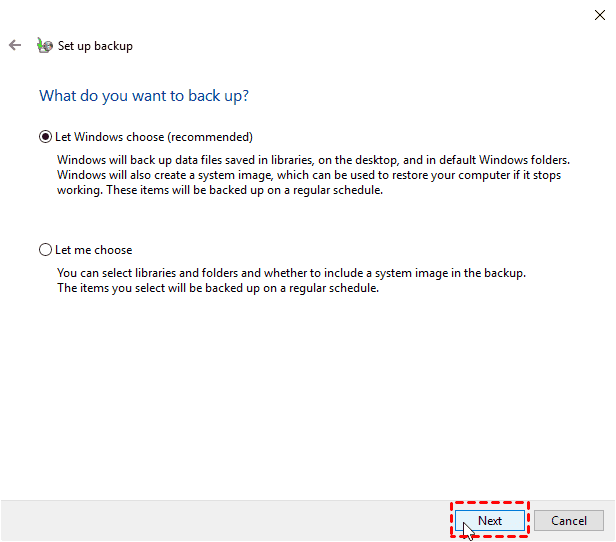
5. Review the backup settings and click Save settings and run backup to initiate the Windows 10 Backup and Restore (Windows 7) process.
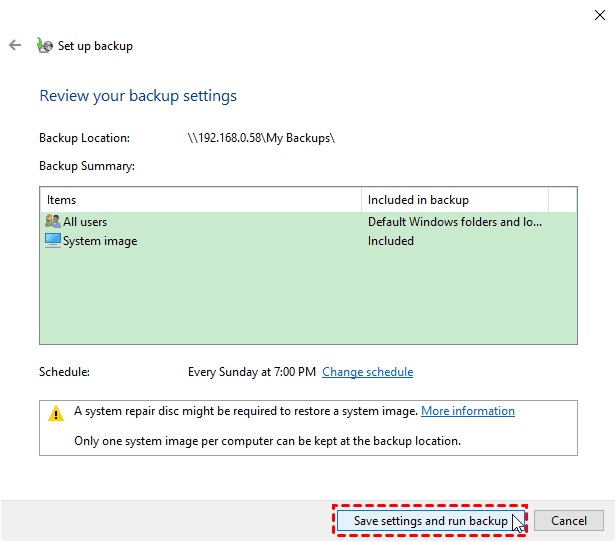
★Tips:
✍A system image can't be saved on the same drive that your computer boots from or where Windows is installed. This is because the system image will be saved to the same drive, which could cause conflicts and make it difficult to restore the image.
✍If you only need to backup your files, try using File History or select the "Let me choose" option during the Windows 10 backup and restore process.
To summarize, Windows 10 will keep multiple system image backups unless you save them to a network location, in which case only one backup will be kept. The backup process will take a couple of hours to complete. Once finished, you'll have a system image backup and a data backup on your Windows 10 system. The system image backup will be saved in a location of your choice, and the data backup will be saved in the default location.
Restore files from Windows 10 backup
If you've created a file backup in advance, you can easily recover your files if they get lost.
1. To restore your files, go to Backup and Restore (Windows 7), scroll down to the Restore section, and click "Restore my files".
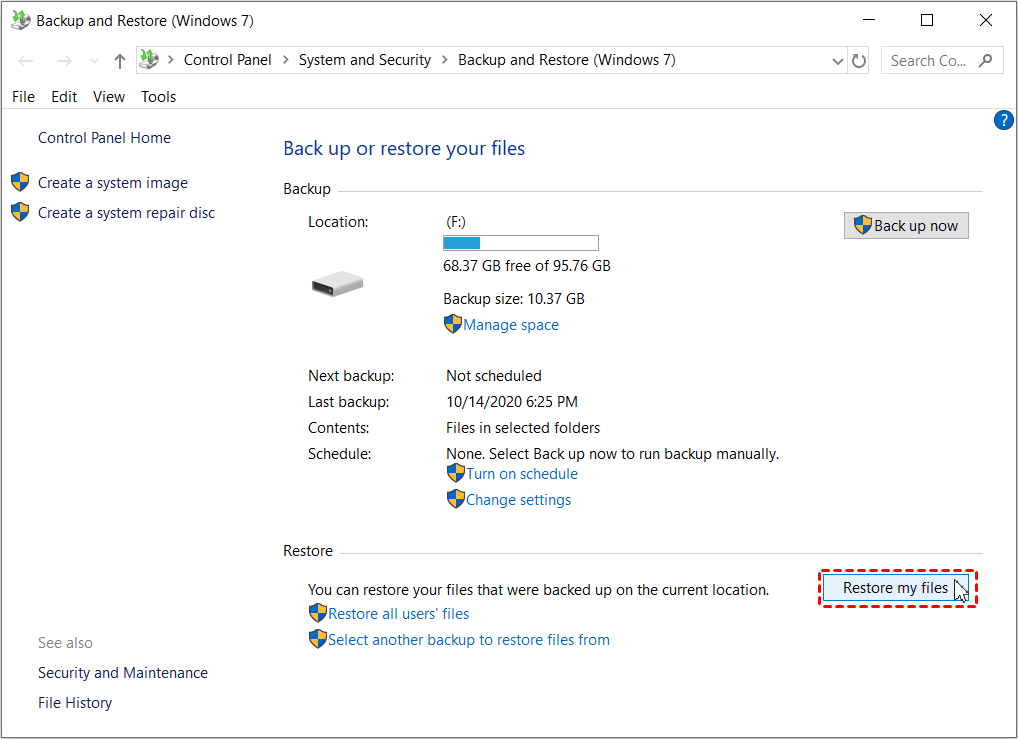
2. In the Restore files page, you can search or browse files or folders to restore, and you have three options to choose from.
Browse for filesSearch for the folder containing the files you want to restore, then select it and click on "Files" to proceed with the restore process.
Browse for folders: You can add entire folder to be restore.
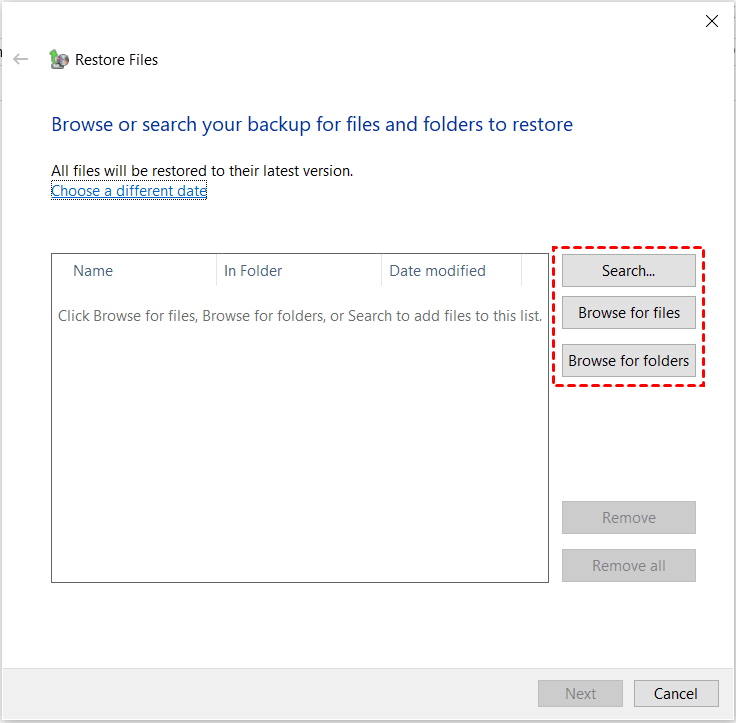
3. Choose a restore location, either the original location or a specified one, then click Restore to initiate the pending operation.
Perform system image recovery in Windows 10
Windows doesn't allow system image restoration to a new hard drive or SSD within the operating system, but you can use the System Image Recovery option in the recovery environment. This requires an installation disc or a recovery drive, which must be at least 16GB in size, and is specific to the computer it was created for.
To perform system image recovery in Windows 10, prepare a bootable media, such as a USB drive or CD/DVD, with the Windows 10 installation media. Boot from the media, select the system image you want to recover, choose the location to restore the system image, and let the recovery process begin.
1. Connect the installation disc or recovery drive to your computer and set the boot priority to it, then boot from it.
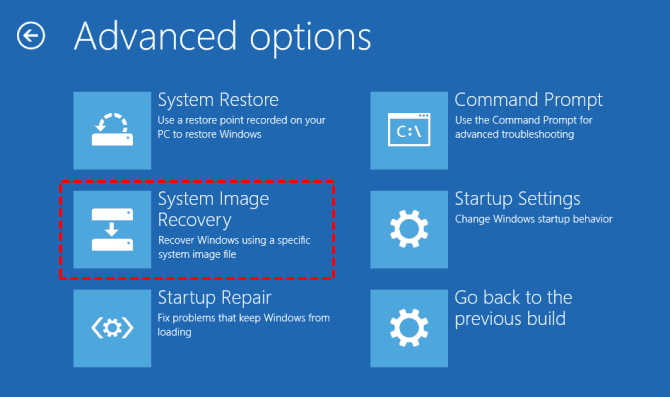
2. After loading files, click Next, then select Repair your computer, followed by Troubleshoot, Advanced options, System Image Recovery, and finally Windows 10.
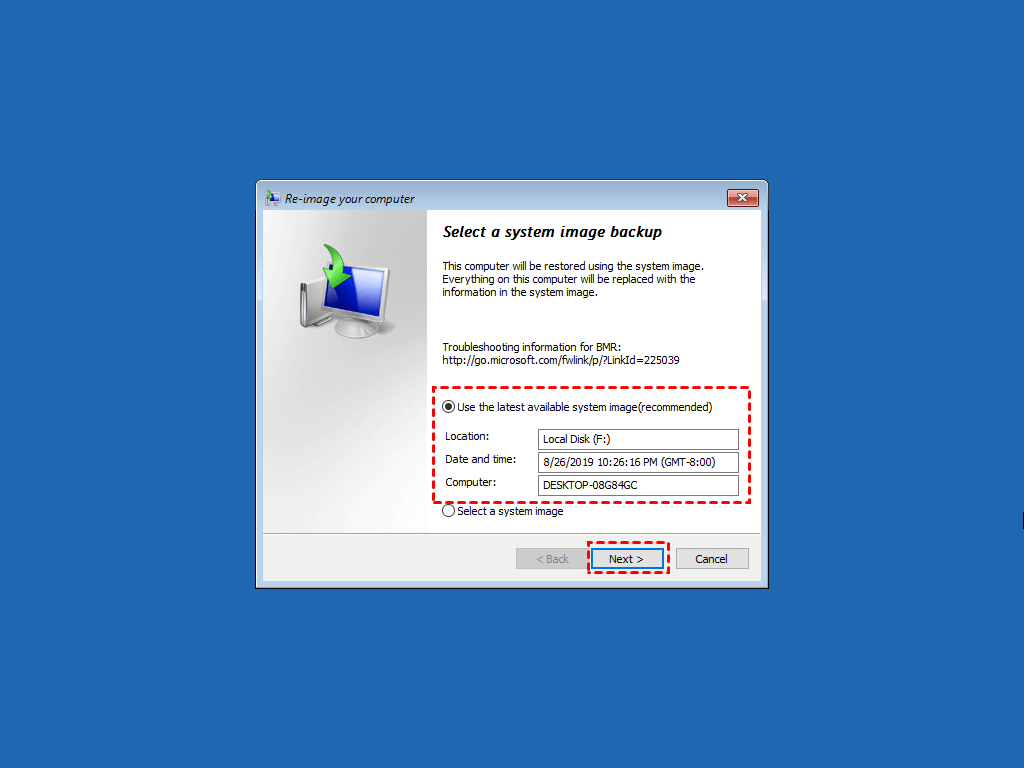
3. In the Re-image your computer window, select the option to use the latest available system image, then click Next and follow the on-screen instructions to complete the recovery process.
Windows 10 Backup Failed Error and Solutions
However, you may get Windows Backup failed error with Backup and Restore in Windows 10, like the following errors: 0x810002DE, 0x80780048, 0x810003A4, 0x80070005, 0x8007000E, 0x80070057, 0x8007000D, 0x8007000F, 0x8007000E, 0x80070003, 0x8007000D, 0x8007000E, and 0x8007000F. These errors can be caused by various factors, including corrupted system files, incorrect registry entries, or issues with the backup location.
- The backup application encountered an internal error due to a Volume Shadow Copy Service (VSS) component failure, resulting in error code 0x80042302.
- 0x81000019 is a Windows error code that indicates a problem with creating a shadow copy. This error can occur due to various reasons such as issues with the Volume Shadow Copy Service (VSS) or the System Protection (SPP) service. To resolve this issue, you can try checking the VSS and SPP event logs for more information about the error. Additionally, you can try running the System File Checker (SFC) tool to scan and replace any corrupted system files that might be causing the issue.
Solution 1: Enable Volume Shadow Copy
The Volume Shadow Copy service error 0x80042302 may be caused by disabled VSS, so enabling the Volume Shadow Copy service can resolve the issue.
1. To open the Services window in Windows 10, enter services.msc in the search box.
2. To enable the Volume Shadow Copy, scroll down to find it and double click it.
3. Change the Startup type from Disabled to Automatic.
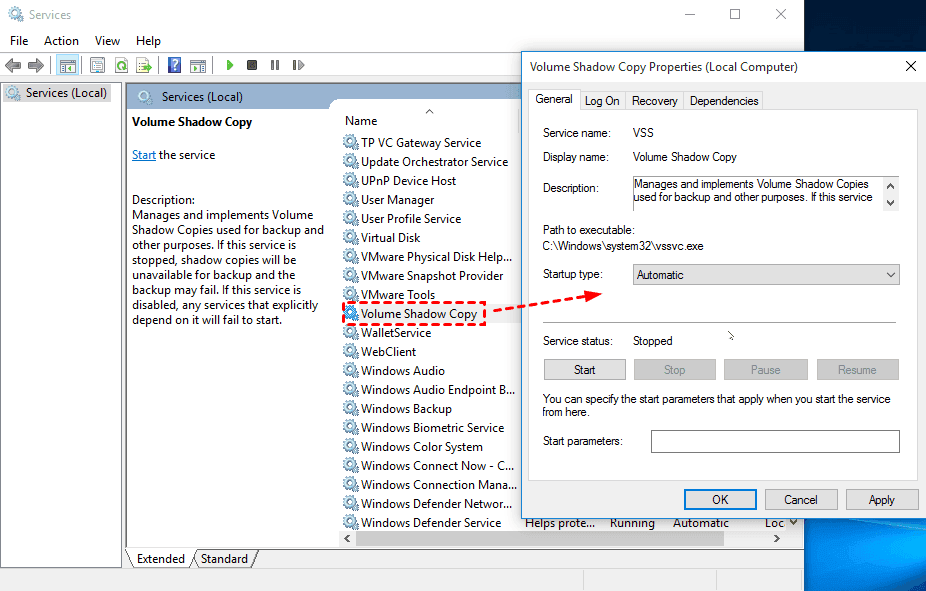
Then it will be solved quickly.
Solution 2: Restart SPP (Software Protection) Service
1. To open the Registry Editor, press the Windows key + R to open the Run dialog, type "regedit" and press Enter.
3. Go to HKEY_LOCAL_MACHINE\SYSTEM\CurrentControlSet\Services\sppsvc in the left pane
4. Click on the sppsvc folder, then double-click on Start, change the Value data to 4, and press OK to disable the SPP service.
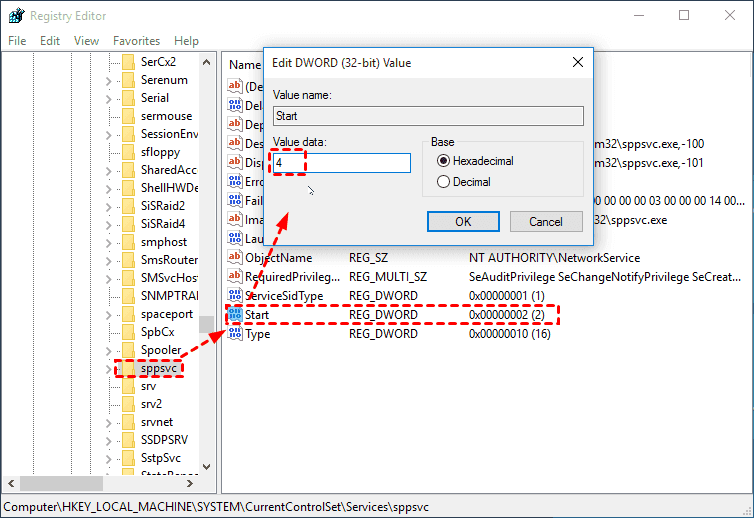
5. And then change the Start Value data to 2 (automatic) to restart SPP service.
To fix the SPPsrc.exe uses too much CPU problem, restart the SPP service, which may resolve the issue. This should be followed by attempting to create a Windows 10 backup to verify if the problem is resolved.
If you're experiencing backup failed errors in Windows 10, such as There was a failure in preparing the backup image of one of the volumes in the backup set. (0x807800C5), The system cannot find the file specified (0x80070002), or Windows 10 backup disk cannot be found (0x80780081), you can try various solutions. These may include checking the backup disk, verifying the backup set, and troubleshooting the backup process. You can also refer to other Windows 10 backup failed solutions for more specific guidance.
Reliable Way to Perform Windows 10 Backup and Restore
Considering the limitations and instability of Windows Backup and Restore in Windows 7, a more reliable option is Qiling Disk Master Standard, a free Windows backup software that has been highly recommended by millions of users. This professional tool offers easy-to-use features and reliable performance, making it a great choice for protecting your data.
- It can back up the entire Windows operating system, along with the entire hard disk, partition (s), and personal files.
- It supports daily, weekly, and monthly schedule backups, ensuring your data remains intact.
- This tool minimizes backup image size and disk space by utilizing features such as incremental backup, normal compression, and automatic splitting.
- This tool can restore files or system backups within Windows, at any time, even to a smaller drive.
- It supports a quick recovery solution by cloning hard drive or system partition.
This software supports Windows XP, Vista, 7, 8, 8.1, 10, 11, and is compatible with both 32-bit and 64-bit operating systems. It is available for download if you are currently using one of these operating systems. Additionally, server users may want to consider the Qiling Disk Master Server.
Create a Windows 10 System Image
To use Backup and Restore (Windows 7) on Windows 10, you first need to create a backup image of your system. This backup image can then be used to restore files or the entire system from it.
1. Perform Qiling Disk Master Standard, select Backup > System Backup in sequence.

2. To save the Windows 10 system backup file, choose a destination such as an external hard drive, USB drive, network drive, or NAS, and optionally give the task a unique name to distinguish it from other backups.

3. To create a Windows 10 system image, press Proceed and set more advanced settings for daily use.
✍ Schedule BackupQiling Disk Master allows you to schedule backups on a regular basis, with three free options: daily, weekly, and monthly. Additionally, you can utilize Event Triggers and USB plug-in capabilities.professional version.
✍ Backup SchemeIt has 3 backup methods (full/incremental/differential) and the last two options backup only changed files. Additionally, you can schedule backups to run automatically at specific times.automatically delete old backup images If you enable automatic backup cleanup, most features in it are only available on the professional version.

After the Windows 10 system image was created successfully, it took around 30 minutes or more to complete, depending on the size of your data.
Windows 10 Restore from Backup (within Windows)
To recover a system image in Windows 10, you have two primary options. You can either use the built-in Windows Recovery Environment (WinRE) or a third-party recovery tool.
- If your computer is bootable, you can directly launch this software and perform system restore within Windows.
- If your computer is unbootable, you'll need to create a WinPE bootable rescue media, which contains the necessary software to boot from a recovery environment for system image recovery.
Connect the disk containing the system image to your computer and ensure it's recognized.
1. Launch Qiling Disk Master Standard, click Restore, then Select Image File to locate the backup image manually.

2. To restore a Windows 10 system backup, select the "Restore this system backup" option and click "Next". If you're restoring to a new hard drive, you'll also need to connect the drive you want to save the image to and select the "Restore system to other location" option.

3. To restore the system to another location, select a partition or the entire disk and click Next, then press Proceed to complete the system image recovery in Windows 10.

This software will verify the Universal Restore option when restoring a system image to a new computer with different hardware, prompting an upgrade after clicking Proceed.
This software allows you to deploy a system image to multiple computers, even with different hardware, and also provides a technician or techplus edition that integrates image deployment software to restore the system, presenting the IP address and computer name, making it a one-stop solution.

In the End
Windows 10 Backup and Restore (Windows 7) can create a system image and backup user files for data protection, but it has many restrictions and sometimes doesn't work. A better alternative is Qiling Disk Master Standard, a professional yet free backup software.
This backup solution supports all backup features and solutions, making it automatic. Its most significant advantage is the use of multiple disk space-saving features by default, preventing the common issue of a full backup disk. It also includes automatic backup cleanup, a feature available on the professional version, allowing for complete file or system restoration at any time.
Related Articles
- Backup and Restore with Windows 10 Backup Utility (3 Ways)
This article is written for Windows 10 users who want to backup and restore OS, programs, and personal files in order to transfer files or protect data. - 4 Steps to Perform Disk Backup for Windows 10
You will learn two practical ways to create disk backup for Windows. If you want to simply backup important files, this article also helps. - Restore Windows Backup to New Computer | Same or Different Hardware
You will learn how to restore Windows 10 backup to new computer with the same or dissimilar hardware easily and quickly. Follow the method below and restore your computer now!. - 5 Methods to Fix Windows 11 Taskbar Not Working After Update
If you encounter Windows 11 taskbar not working after update, this article can help you easily solve this problem. Remember to back up your computer in advance to prevent unexpected data loss when changing device settings. - New Protection Strategy: Protect Backups from Ransomware
Ransomware not only targets data and disks but also attacks local backup files, making it impossible to restore data from a backup after an attack. To protect backups from ransomware, we will introduce a method to do so in this article. - Free Download PXE Boot Server to Boot Multiple Computers on Network
Download Qiling PXE Boot Server, a powerful tool that allows you to boot multiple computers on a network or install Windows 10/8/7/Server 2012 via PXE boot.
Products
Articles & Tutorials
- Data Recovery
- Data Backup
- File Recovery
- File Backup
- File synchronize
- System Backup and Restore
- Disk and Partition Clone
- Technical articles
- Disk Master Help
- Windows Deleted File and Disk Recovery Tutorials
- Windows File and Data Recovery Tutorials
- More Windows Tutorials for Install, Security, Files, and PC Tips
- Windows Boot, Repair, and Recovery Environment Tutorials
- Windows Backup Tutorials
- Windows Restore Tutorials
- Windows Clone and Migration Tutorials
- Windows Server Backup, Recovery, and Management Tutorials
- Windows Disk, Partition, and Storage Management Tutorials