Encrypt Backup with Password Easily with Qiling Disk Master
What Is Backup Encryption?
In cryptography, encryption is used to encode messages or information to prevent unauthorized access. Encrypting a backup image file with a password can also safeguard the backed up data, protecting individual or group privacy.
Encrypting backups ensures that only authorized individuals can access and restore the encrypted data, protecting confidential information from unauthorized access and leakage.
However, the built-in Windows backup utility does not support encrypting backups, so if you want to add a password to an image file, you may need to use a third-party backup program.
Best Encryption Backup Software - Qiling Disk Master
Qiling Disk Master is an all-in-one Windows backup and restore software that offers rich functionality to protect your important data, providing a comprehensive solution for safeguarding your files, folders, and system. With advanced features, this software enables users to create backups of their entire system, including operating system, programs, and data, allowing for quick and easy restoration in case of data loss or system failure.
- This software allows users to perform various types of backups, including file backup, partition backup, disk backup, and system backup, catering to different needs and requirements.
- It enables you to back up data to various devices, such as internal/external hard drives, USB drives, network-attached storage (NAS), cloud storage, and more.
- This software offers a range of practical features, including the ability to save comments, send email notifications, and compress images, among other options.
In the advanced version Qiling Disk Master Professional, you can find the backup encryption feature in Options and add a password to protect the image file. Free download Qiling Disk Master to have a try!
How Do I Encrypt My Backup Data in Windows 11/10/8/7?
To create an encrypted backup, you can use Partition Backup as an example. First, you'll need to create a backup image of your partition using Partition Backup.
Step 1. Launch Qiling Disk Master, and select Partition Backup under Backup.
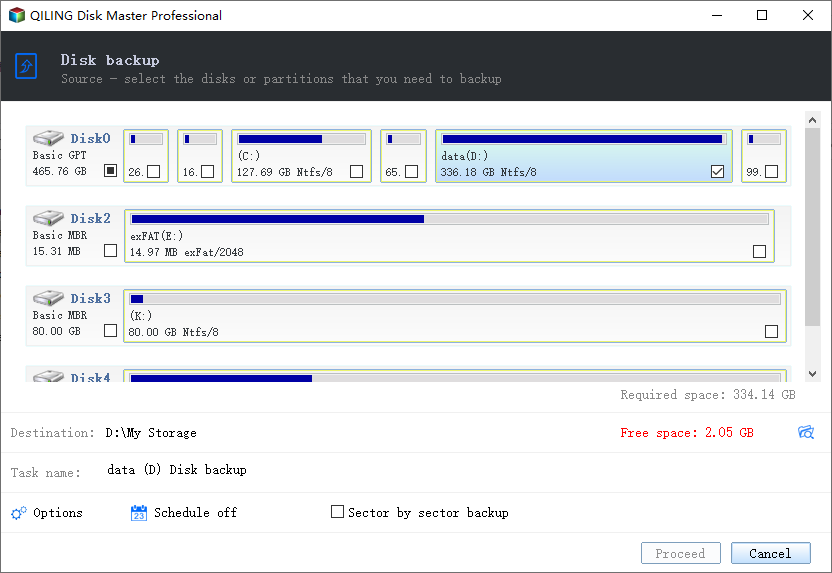
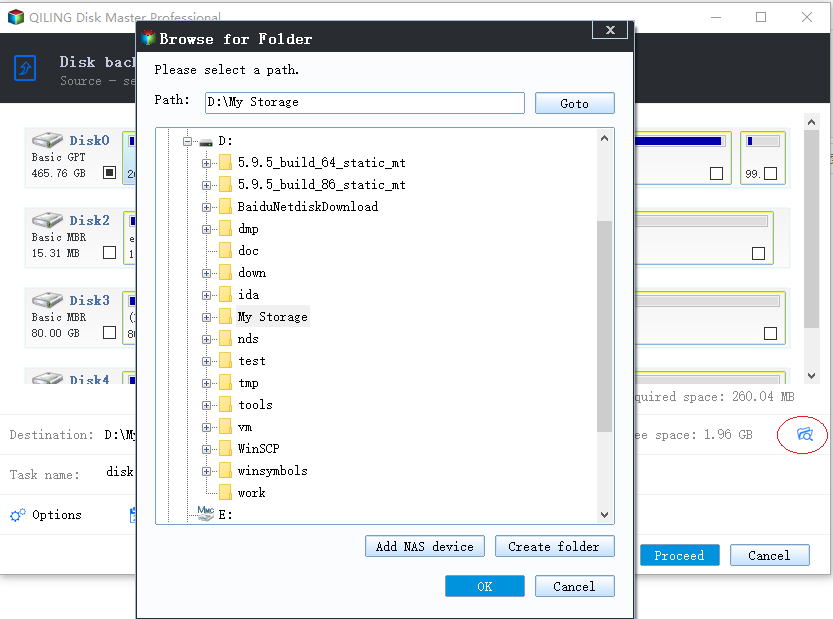
Step 2. Click Add Partition or Volume to select the partition you want to back up. Then, choose a destination path where the backup image will be stored, such as an external hard drive, USB drive, or network location.
Step 3. To encrypt the backup with a password, click on Options at the bottom, toggle Enable encryption for backups on under the General tab, enter and confirm a password, and then click OK.
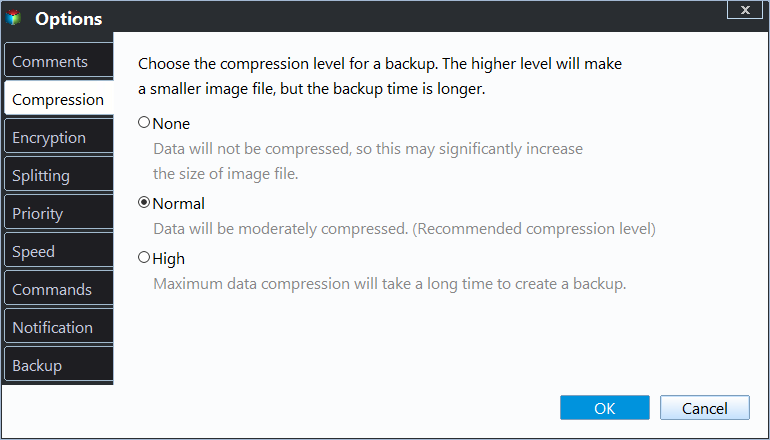
You can configure backup encryption in addition to other settings in the Options menu. This allows you to customize various aspects of the program, such as encryption settings for backups, in a centralized location.
Backup mode The default intelligent backup will only save space by backing up used sectors, whereas sector-by-sector backup makes an exact copy of all sectors.
Compression The higher the compression level, the smaller the image file size, but the longer the backup time.
Splitting To split a large image file into smaller ones for backup purposes, you can use image editing software or command-line tools. The process typically involves opening the large image file, selecting the desired output size and format, and then saving the image in multiple smaller files.
Comment backup - Write a comment for backup to make it easy to distinguish.
Step 4. Confirm your operation and click Proceed.
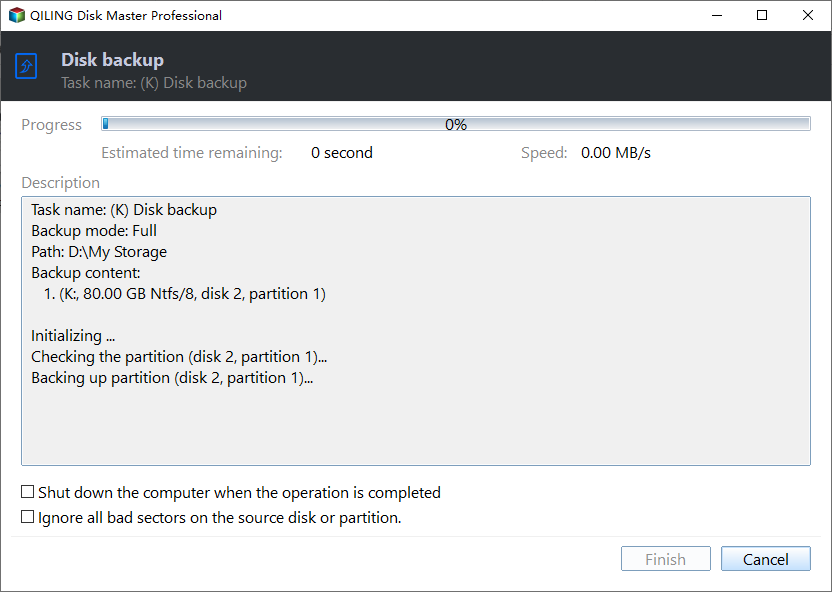
To restore an encrypted image file, you'll need to enter the correct password, which serves as the key for the AES algorithm that fully encrypts the image data. It's essential to remember or record the password, as it's the only way to recover the encrypted backup.
💛 Other features to optimize the backup
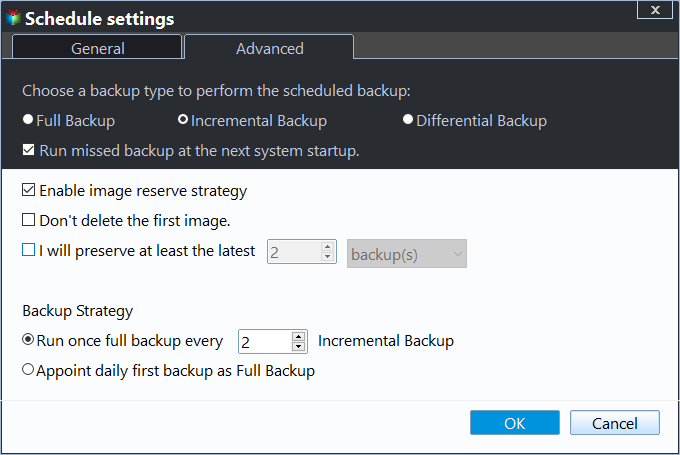
Schedule Backup: To frequently modify source files and keep the backed up image file up to date, you can set up a schedule to automatically backup, which includes options for daily, weekly, monthly, event triggers, or USB plug-in triggers.

Backup Scheme: Set up a rule to automatically delete old backups to prevent storage space from being filled up with accumulated image files, and choose between full, incremental, or differential backup options.
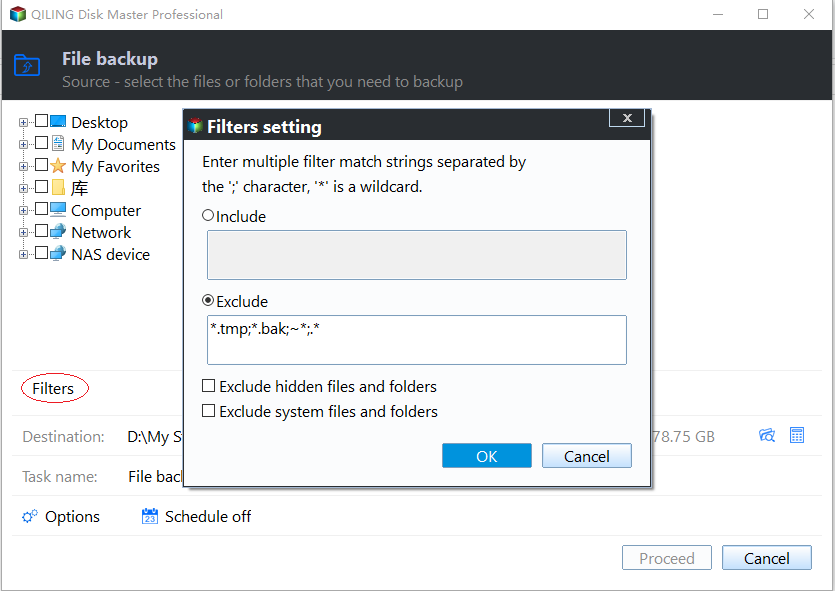
Filter: When performing a File Backup, you can click the funnel icon within the source data box to selectively include or exclude files based on specific formats.
Related Articles
- Clone BitLocker Encrypted Disk Drive in Windows 10/8/7
- Windows Server 2008/2012/2016 Backup Encryption Guide
- Best Way to Do Windows 7 Backup Encryption Easily
- How to Backup Encrypted Hard Drive with Best Free Software
- Two Ways to Backup PS3/4 Hard Drive Step by Step
Learn the two simple methods to backup PS3 or PS4 hard drive to removable storage device or PC in case of hard drive failure. - Guide | Backup and Restore SQL Database with Command Line
You can backup and restore SQL database via command line, which is especially useful in Express editions that lack schedule backup capabilities. Here's a quick guide for you to backup database using SQLCMD.
Products
Articles & Tutorials
- Data Recovery
- Data Backup
- File Recovery
- File Backup
- File synchronize
- System Backup and Restore
- Disk and Partition Clone
- Technical articles
- Disk Master Help
- Windows Deleted File and Disk Recovery Tutorials
- Windows File and Data Recovery Tutorials
- More Windows Tutorials for Install, Security, Files, and PC Tips
- Windows Boot, Repair, and Recovery Environment Tutorials
- Windows Backup Tutorials
- Windows Restore Tutorials
- Windows Clone and Migration Tutorials
- Windows Server Backup, Recovery, and Management Tutorials
- Windows Disk, Partition, and Storage Management Tutorials