How to Comment on Backups for Clear Distinction
Write a Note for Your Backup
To avoid confusion when managing multiple backup files, consider adding a brief description, or "backup comment," to each file. This can include details about the included data, such as the date, time, or specific files saved, allowing for easier identification and organization of your backups.
Windows built-in backup utilities have limitations, including not supporting multiple backup tasks with different settings at the same time. To manage and protect your data more flexibly, a third-party backup software is necessary. For instance, Qiling Disk Master is a comprehensive backup solution that allows you to create multiple backups with different comments and settings.
Easily Create Backup Comments with Qiling Disk Master
The backup comment feature has been integrated in all editions of Qiling Disk Master. In this post, I'll show you the completely free version - Qiling Disk Master Standard.
The software works on various Windows versions, from XP to 11, and enables backing up files, partitions, system, and entire disks. It allows users to add notes to their backup tasks and customize various settings to optimize the process.
How to create a backup with comment:
Step 1. To create a backup task, go to the Backup tab and select the desired backup option, such as File Backup.

Tip: If you have a Qiling account, you can back up files to Qiling Cloud using the Cloud Backup feature, which offers 1TB of free cloud storage for 15 days.
Step 2. Select the source data and destination directory, and optionally modify the Task Name for easier identification.

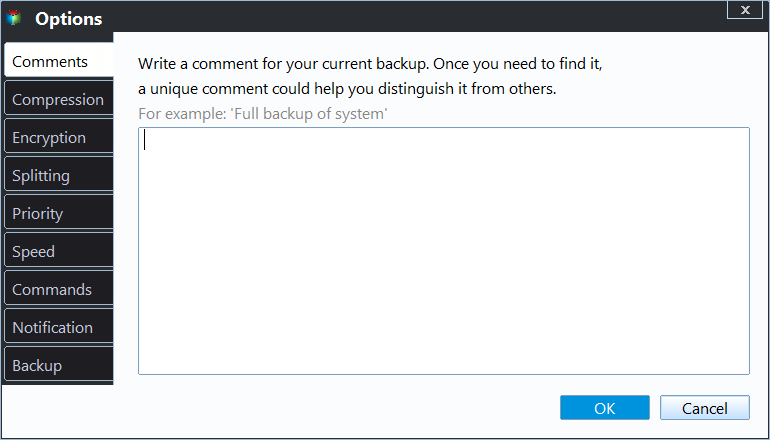
Step 3. To customize the task, click on the "Options" button at the bottom left corner, then add a note under "General" > "Comments" for the backup, such as "Photo 3/23/2019", and finally click "OK" to confirm.
◆ You can customize settings for image splitting, compression, email notifications, and other features in this section.
◆ For Partition/System/Disk Backup, you can select between two backup modes: intelligent backup and sector-by-sector backup. Intelligent backup saves space by only backing up used sectors, whereas sector-by-sector backup creates an exact copy of all sectors.
Step 4. Click Proceed to execute the task.
When the backup process is complete, you can find the task in the Home page and read the comment you wrote in Properties, making it easy to locate a backup task with specific data.

Others Practical Options of Qiling Disk Master
Qiling Disk Master has many practical features, including backup, that you can expect.
- The comments feature is not only used for data backup, but also for file syncing.
- There are three main types of backup methods: full backup, incremental backup, and differential backup. Each type serves a specific purpose and offers varying levels of data protection.
- For an existing backup task, you can locate, check, or explore the image file to verify its integrity and contents.
- You can set up a schedule to run the backup automatically on a daily, weekly, or monthly basis, and with the Professional edition, you can also choose Event triggers and USB plug in. Additionally, there's an advanced feature to auto delete old backups with Backup Scheme.
- In addition to backup, the software provides a cloning feature. When creating a cloning task, users can choose to perform a sector-by-sector clone or stick with the default intelligent mode.
- For server environments, Qiling Disk Master Server edition provides comprehensive backup and restore capabilities tailored for Windows Server systems.
Related Articles
- Best User Profile Migration Tool for Windows 7/8/10
This guide explains Best User Profile Migration Tool for Windows 7/8/10 with clear steps, key checks, and practical tips. - Recover Files from Accidentally Formatted External Hard Drive
Learn how to Recover Files from Accidentally Formatted External Hard Drive with clear steps, key checks, and practical tips. - Perform Auto Backup with Batch File in Windows 10 (2 Ways)
This article introduces how to create backup batch file in Windows 10 and how to automate the task. If you have further backup needs, here's also a reliable program with GUI - How to Easily Backup Buffalo NAS to External Hard Drive?
You will learn how to backup Buffalo NAS to external hard drive to protect your data with best free Buffalo backup software. - Top 2 Ways to Sync Local Folders to Synology NAS on Windows
It is a good idea to backup/share files to Synology NAS. Learn how to sync your PC folders to Synology NAS easily from this page. - Synology Sync Folders to External USB Drive with 4 Steps
This article introduces you to how to run Synology sync folder to external drives and provides you with 2 helpful ways. Just try the NAS sync software!
Products
Articles & Tutorials
- Data Recovery
- Data Backup
- File Recovery
- File Backup
- File synchronize
- System Backup and Restore
- Disk and Partition Clone
- Technical articles
- Disk Master Help
- Windows Deleted File and Disk Recovery Tutorials
- Windows File and Data Recovery Tutorials
- More Windows Tutorials for Install, Security, Files, and PC Tips
- Windows Boot, Repair, and Recovery Environment Tutorials
- Windows Backup Tutorials
- Windows Restore Tutorials
- Windows Clone and Migration Tutorials
- Windows Server Backup, Recovery, and Management Tutorials
- Windows Disk, Partition, and Storage Management Tutorials