Recover Files from Accidentally Formatted External Hard Drive
User case
Formatting a partition is the process of deleting all data on it, which can be a problem if you accidentally format an external hard drive with important files on it.
"I was going to format only the flash drive, but my external hard drive has been accidentally formatted. All my files were stored in this drive since last year and I didn't back up these files. Can I recover files from the formatted external drive? I need your help please!"
Can l recover data on external hard drive after formatting?
Formatting a disk, such as an external drive, does not erase the actual data, but rather makes it inaccessible. The data remains on the drive until it's overwritten or deleted, allowing for potential data recovery after formatting.
You must pay attention to the following things before you do.
- Avoid adding new files to the external hard drive to prevent overwriting old files and occupying their space.
- Do not reformat the external hard drive, the process will make it impossible to recover your files.
- Stop using the external hard drive until your files are recovered.
How to recover files off a formatted external hard drive?
The Command Prompt is a powerful inbuilt utility that can help recover deleted files from external hard drives, flash drives, memory cards, and other storage devices. However, its effectiveness is limited to situations where no secondary operations are performed on the disk after formatting, such as adding new files or reformatting, which can result in permanent data loss.
To use the Command Prompt, you need to prepare a few things beforehand. First, ensure that you have a Windows operating system installed on your computer, as the Command Prompt is a built-in feature.
- Connect your external hard drive to your computer and ensure it can be detected by the system.
- Check the drive letter of your external hard drive via Computer/This PC or Disk Management.
Step 1. To open the Command Prompt as an administrator, click Start and type "cmd" in the search box, then right-click on the result and select "Run as administrator".
Step 2. To run a disk check on a specific drive, open the Command Prompt, type `chkdsk F: /f/r`, replacing "F" with the actual drive letter where you lost files or data, and press Enter. This command will initiate a disk check with the /f and /r options, which means it will fix any errors it finds and recover any readable data it can.
✎Note:/r refers to repair attribute: tell command prompt to repair problems when it finds any.
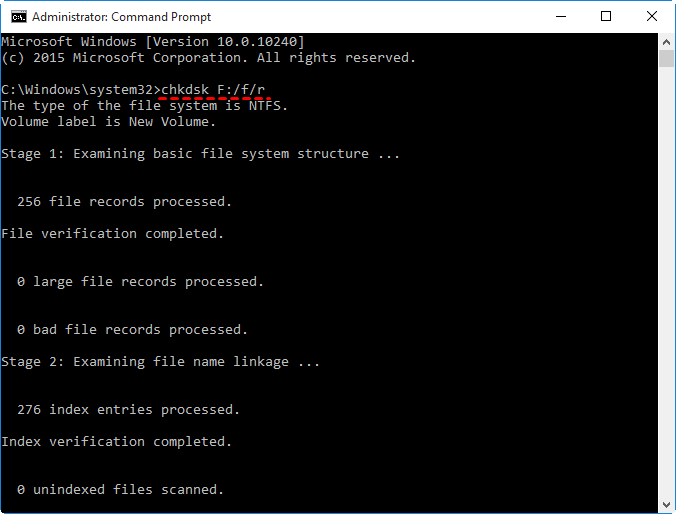
After scanning the external hard drive, the system will repair the file and recover your lost files, which will then be saved back to the external hard drive.
To recover data from a formatted external hard drive using the CMD command line, it is crucial to be extremely cautious to avoid further data loss. This process can be risky, and any mistake can lead to permanent data loss. Consider creating a backup using a reliable tool like Qiling Disk Master beforehand to prevent such situations.
Protect your data with Qiling Disk Master
Qiling Disk Master Standard is a free backup and restore software that enables users to perform various tasks, including backups and restores.
- This software can help you backup files to various destinations, including external hard drives, USB drives, and network locations.
- This software allows you to schedule regular backups, such as daily, weekly, or monthly, which are automatically executed once set.
- It allows you to automatically backup files to Qiling Cloud and offers 1TB of free storage for 15 days after registering a Qiling account.
- This software is a powerful restore tool that allows users to recover lost files, serving as a reliable backup solution.
To protect your data with Qiling Disk Master, download the software, install it, and launch it. Then, follow the steps provided by the software to ensure your data is secure.
✎To backup files to an external hard drive or other external devices, you'll need to connect the device to your computer and ensure it's detected by your system. This allows you to access and transfer files to the external device.
Step 1. Click "File Backup" under the "Backup" tab.

Step 2. Click Files or Folders to select them according to your needs.

Step 3. Select backup destination to store your files.

Step 4. To schedule backups, click on the "Schedule" option, which allows you to select daily, weekly, or monthly backups under the "General" tab, or incremental or differential backups under the "Advanced" tab, according to your preferences.

Step 5. Click Proceed to execute the task.

Summery
Accidentally formatting an external hard drive is a common issue, and unfortunately, data recovery is not always successful. To avoid this problem, it's essential to back up your files in advance using a reliable tool like Qiling Disk Master. Having a backup at hand ensures that you can restore files or folders at any time when they're lost, providing peace of mind and minimizing potential data loss.
Qiling Disk Master Standard is a software for Windows Vista/XP/7/8/10, but if you're a Windows Server user, you can try Qiling Disk Master Server instead.
Related Articles
- Top Two Ways to Recover Files from Formatted SD Card
You can easily recover files from a formatted SD card after formatting with reliable data recovery software. To prevent this error from happening again, please backup files immediately after recovery. - Easiest Way to Recover Data after Initializing Disk
This guide explains Easiest Way to Recover Data after Initializing Disk with clear steps, key checks, and practical tips. - How to Recover Deleted Files in Windows 7 without Backups?
Learn how to Recover Deleted Files in Windows 7 without Backups with clear steps, key checks, and practical tips. - How to Recover Deleted User Profile in Windows 10/11 [3 Ways]
If you are looking for methods to recover deleted user profile in Windows 10, 11, you can read this article to learn 3 effective methods. - How to Schedule Backup Files and Folders in Windows 11/10/8/7
Schedule backup files and folders that you don't want to lose, so you can keep important data safe and always reserve the possibility to retrieve an older version. Here's how you can do it in Windows 11, 10, 8, 7. - Perform Two Synology NAS Server Synchronization Effortlessly
You will learn how to perform 2 NAS server synchronization with the best free NAS synchronization software - Qiling Disk Master. Just follow the steps to sync NAS to NAS safely.
Products
Articles & Tutorials
- Data Recovery
- Data Backup
- File Recovery
- File Backup
- File synchronize
- System Backup and Restore
- Disk and Partition Clone
- Technical articles
- Disk Master Help
- Windows Deleted File and Disk Recovery Tutorials
- Windows File and Data Recovery Tutorials
- More Windows Tutorials for Install, Security, Files, and PC Tips
- Windows Boot, Repair, and Recovery Environment Tutorials
- Windows Backup Tutorials
- Windows Restore Tutorials
- Windows Clone and Migration Tutorials
- Windows Server Backup, Recovery, and Management Tutorials
- Windows Disk, Partition, and Storage Management Tutorials