Sync Two Synology NAS Server Effortlessly
Quick Navigation:
- What is NAS server?
- How do I perform 2 NAS server synchronization?
- What is best free NAS Synchronization Software
- Step by step guide: sync two NAS servers with Qiling Disk Master
- Summing It up
What is NAS server?
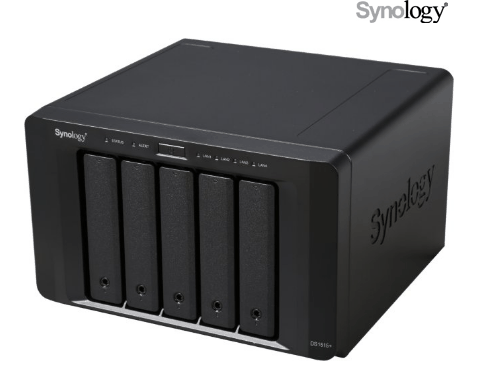
A NAS (Network-Attached Storage) server is a means to store data on a computer network, accessible by any computer on the same network. Synology NAS is a popular choice among home users and small businesses, often used in pairs. You can either install a NAS device directly or build your own NAS server.
How do I perform 2 NAS server synchronization?
You're looking to set up a server system for your design studio with two NAS devices mirroring each other over the internet in real-time. You want any changes or new files made on NAS A to be synced to NAS B, and vice versa, without any manual intervention. This is a common requirement for businesses with multiple offices. You can achieve this using a cloud-based file syncing service or a peer-to-peer syncing solution. Some popular options include Google Drive, Dropbox, and Microsoft OneDrive, which offer real-time syncing across devices. Alternatively, you can use a dedicated syncing software like Synology's Cloud Sync or Bvckup2, which are designed specifically for NAS devices.
Syncing between two NAS servers can be a convenient way to share files with colleagues or get timely updates, making it a popular choice among users. To achieve this, you'll need a reliable free NAS synchronization software that can help you easily share and update files between the two servers.
What is the best free NAS synchronization software?
There are many NAS to NAS sync software available online, such as Synology Cloud Station and Qiling Disk Master Standard. However, they are typically used in different scenarios.
Synology Cloud Station: To sync multiple Synology NAS devices, computers, and mobiles with a single host Synology NAS server, you can use Synology's cloud station sync feature, which allows you to sync between two NAS servers if you have them.
Qiling Disk Master Standard: Sync folders between different NAS devices, including Synology, Buffalo, QNAP, and Netgear, as well as to external hard drives, flash drives, cloud storage, and network drives, using this feature.
Qiling Disk Master offers users a range of powerful features, including [insert features here].
- The software is designed to sync multiple folders at once, allowing users to easily update two folders in different locations.
- The schedule sync feature allows for regular updates based on daily, weekly, or monthly intervals. It can also be set to run at any time, including midnight, with the option to wake the computer 2 minutes prior to the scheduled start time.
Overall, Qiling Disk Master Standard can be a greater choice. And I will introduce this way in detail below.
Step-by-step guide: sync two NAS servers with Qiling Disk Master
To sync two Synology NAS devices over the internet, you'll need to make some preparations in advance.
- Ensure 2 Synology NAS devices are on the same network and remember their IP address for future use.
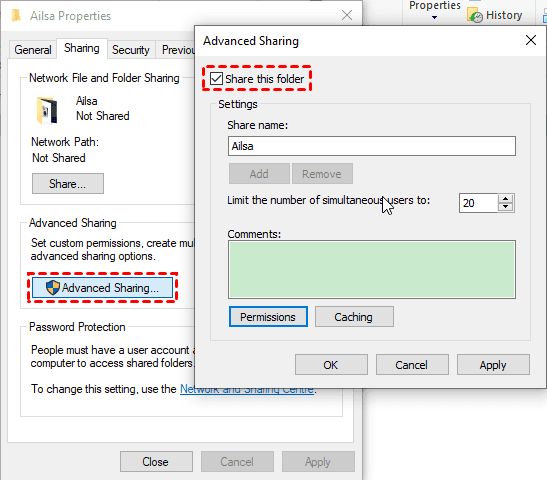
- If the folder you want to sync isn't shared, share it and set permissions.
Right-To sync a folder, click on the folder you want to sync, then go to Properties > Advanced Sharing. Check the box next to "Share this folder" and click on Permissions to add the shared user. Set the permission to "Full", "Read", or "Write" as needed.
- Download the best free NAS synchronization software - Qiling Disk Master Standard, and install it on your computer. For server users, try Qiling Disk Master Server.
To sync files between two Synology NAS, follow these steps: First, ensure that both NAS devices are connected to the same network and that the DSM (DiskStation Manager) is running on both devices. Next, enable the File Station service on both NAS devices and set up the sync settings.
Step 1. Launch Qiling Disk Master Standard, click Sync -> Basic Sync in order.

Sync methods on the premium version:
✍ To perform Synology real-time sync instead of schedule sync, try using the "Real-Time Sync" feature.
✍ To prevent unwanted changes to your files on the destination, try using "Mirror Sync" to create a duplicate copy of your files without any modifications.
✍ To sync changes on both sides, try Two-Way Sync, which is a good way to perform Synology photos two-way sync.
Step 2. To sync files or folders between two Synology NAS devices, start by selecting the desired files or folders on the source NAS. This is typically done using the Synology DiskStation Manager (DSM) interface, where you can browse and choose the specific items you want to sync. Once you've selected the files or folders, you can proceed with the syncing process, which will copy the chosen items to the destination NAS.
On the main page of Basic Sync, click "Folder" and then "Share/NAS".
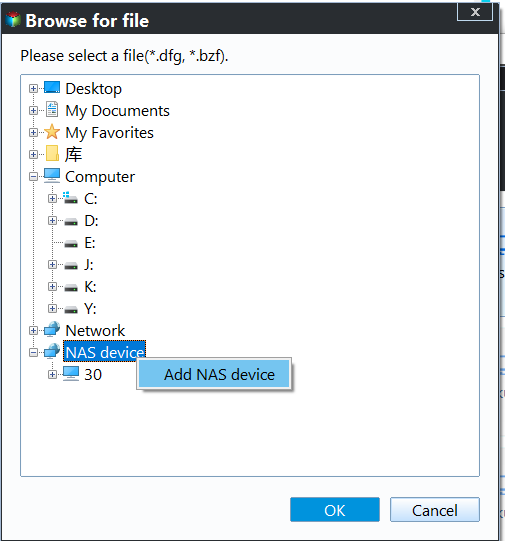
To add NAS devices, click the "Add NAS Devices" button, input the network path (IP address of the host Synology NAS), and select shared folders containing the files you want to sync.
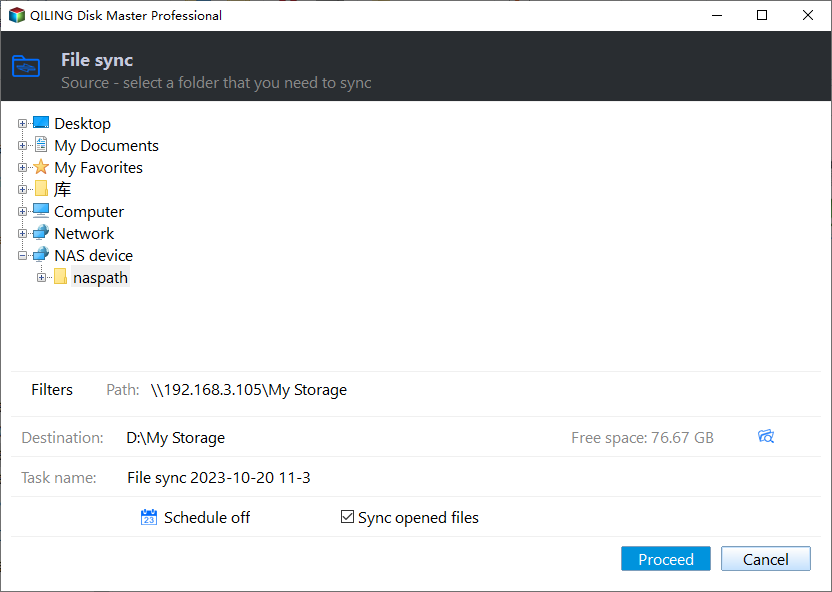
Step 3. To add a shared folder on the destination server, click the inverted triangle icon, select "Add NAS Devices", and enter the network path in the field provided. Once you've entered the path, click "OK" to add the shared folder.

Step 4. To sync data between two Synology NAS servers, go to the synchronization page, preview the information, and click "Proceed" to sync the data. For automatic syncing, click "Options" and select "Schedule Sync" to set up the NAS to NAS synchronization.

There are some optional settings you could specify before syncing:
✍Options: You can set up notifications, run programs or scripts before/after sync, and comment on sync tasks.
✍Schedule Sync: You can set up automatic synchronization of a 2 NAS server with daily, weekly, monthly, or event-based triggers, or with a USB plug-in. Upgrading to Qiling Disk Master Professional or other editions allows you to access the last two options.
The data sync process will take a while, depending on the amount of data you want to transfer. Once it's complete, you can check the target server to ensure your content is intact.
This software provides a free file backup option, offering continuous protection of your data. It's safer than sync because file backup creates an image file containing all files or folders, requiring restoration before use, making it a better choice for those with higher safety requirements.
Summing It Up
With the help of Qiling Disk Master Standard, a top-notch free NAS synchronization software, synchronizing two NAS servers is a breeze. You can choose to sync files or folders manually or automatically, and even comment on the task to clearly distinguish it from others.
In addition to syncing features, this tool can also be used for various other tasks, such as backing up a NAS to another NAS, copying files from one hard drive to another, and more. Its capabilities extend to migrating operating systems and making cloned SSDs bootable, making it useful for tasks like replacing a laptop's HDD with an SSD, cloning Windows 10 to an NVMe drive, and other similar operations.
Related Articles
- How to Sync Data between 2 Servers Automatically?
- How to Sync Folders to NAS Automatically in Windows 10/8/7?
- How to Comment on Backups for Clear Distinction
A backup comment enables you to distinguish a backup image from other easily. Qiling Disk Master allows you to create a backup with a note within several steps. - How to Schedule Backup Files and Folders in Windows 11/10/8/7
Schedule backup files and folders that you don't want to lose, so you can keep important data safe and always reserve the possibility to retrieve an older version. Here's how you can do it in Windows 11, 10, 8, 7. - Windows Copy Large Files Over Network in Windows 10/7 (Best Way)
You will learn the fastest way of Windows copy large files over network. And it also works for large amount of files. - Sync Two Folders with Robocopy Command Line in Windows 11, 10, 8, 7
You will learn more about Robocopy and examples to perform Windows sync two folders via command line - Robocopy. Meanwhile, this article offers an easier way.
Products
Articles & Tutorials
- Data Recovery
- Data Backup
- File Recovery
- File Backup
- File synchronize
- System Backup and Restore
- Disk and Partition Clone
- Technical articles
- Disk Master Help
- Windows Deleted File and Disk Recovery Tutorials
- Windows File and Data Recovery Tutorials
- More Windows Tutorials for Install, Security, Files, and PC Tips
- Windows Boot, Repair, and Recovery Environment Tutorials
- Windows Backup Tutorials
- Windows Restore Tutorials
- Windows Clone and Migration Tutorials
- Windows Server Backup, Recovery, and Management Tutorials
- Windows Disk, Partition, and Storage Management Tutorials