Windows Server 2008/2012/2016 Backup Encryption Guide
Why use Windows Server backup encryption? Get double protection
Having a single backup is not enough, as it can be vulnerable to unauthorized access, modification, or destruction. To protect your server, you should also set Windows Server backup encryption, ensuring that your data is secure and can't be accessed or tampered with by others, even if the backup itself is compromised.
Encryption can protect the confidentiality of data, but it's not enough. You also need to back up your files, especially those containing sensitive information, to ensure double protection. This way, even if your encrypted files are compromised, you'll still have a backup to fall back on.
To encrypt Windows Server backups, you can either use the traditional method of BitLocker to encrypt the backup drive or opt for a more flexible approach by using a third-party tool to set encryption for each backup task.
Method 1. Perform Windows Server backup encryption using BitLocker
BitLocker is a data protection feature in Windows Server that encrypts the hard drive, including Windows Server 2022/2019/2016/2012 R2/2012/2008. However, this process takes longer than regular backups as it modifies every byte of an encrypted file. To use BitLocker for Windows Server backup encryption, follow the steps.
🎇 Note: BitLocker, a feature in Server Manager, is not enabled by default and requires preparation of source and destination locations to function, otherwise backup will fail.
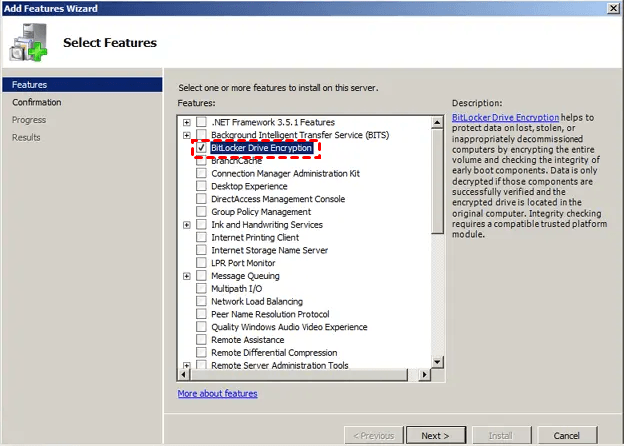
- To add BitLocker Drive Encryption to your server, go to Start, then Administrative Tools, then Server Manager, then Features, and click Add Features. In the Select Features window, select BitLocker Drive Encryption and click Next, then Install. You may be prompted to restart your server, so click Yes.
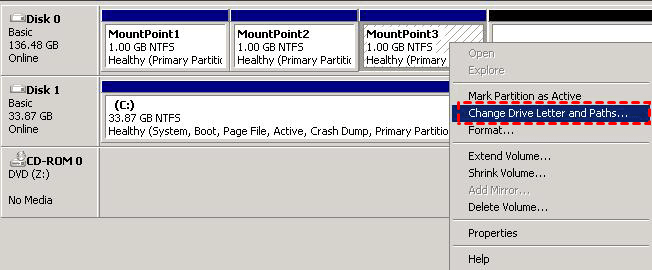
- To assign a drive letter to the backup hard disk drive, open the Disk Management window in Server Manager, right-click the backup drive, select "Change Drive Letter and Path", click "Add", choose a drive letter from the menu, and then click "OK" and "Yes".
- To turn on BitLocker, follow these steps: On your Windows device, click on the Start menu and select "Settings." In the Settings window, click on "Update & Security," and then click on "Backup" on the left side.
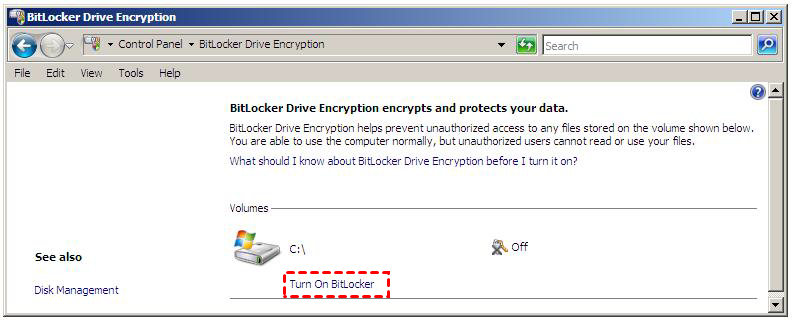
- To enable BitLocker, click on Start, then select Control Panel, followed by Security, and finally choose BitLocker Drive Encryption.
- To protect a drive with BitLocker, click on the "Turn on BitLocker" option for each drive you want to secure, and then confirm your choice by clicking "Yes".
- Choose the unlock method After encrypting your drive, you will be prompted to enter the password or insert a USB drive. Then, you will be asked to back up your recovery key, and you can select to save it to a USB flash drive, save it to a file, or print it. Make sure to keep the key safe and click Next.
- Select how much of your drive to encrypt, only the used space or entire drive, click Next.
- In the "Are you ready to encrypt this drive" window, tick "Run the Bitlocker system check" and click "Continue", then restart and verify the drive is encrypted.
- When encryption is complete, unlock the backup drive using the BitLocker password you created, then server backup and file/folder restore should function normally.
✨ Tips:
- BitLocker Drive Encryption is only available in some editions of Windows 7/8/8.1/10, Windows Server 2008 and later.
- Setting up Windows Server 2012/2012 R2 backup encryption is similar to the 2008 edition, making it a relatively straightforward process.
To install and turn on Windows Server 2016/2012/2008 disk encryption, follow these steps: First, ensure BitLocker is enabled on the server. Next, create a backup of the server using Windows Server Backup. Then, create a system image and a system repair disc. Finally, enable BitLocker on the server's disk.
Method 2. Encrypt Windows Server backup easily with third-party software
Qiling Disk Master Server, a professional server backup utility, offers a built-in feature to encrypt backup images, allowing users to securely set up backup jobs with encryption in a single step.
When backing up your system, file, disk, or partition, you can find the "Enable encryption for backups" feature under the "Options" menu. This allows you to easily set a password for your backups.
This software offers additional powerful features, including daily/weekly/monthly schedule backup, event trigger, USB plug in, incremental & differential backup, and automatic backup cleanup, among others. You can download a 30-day free trial to experience these features firsthand.
Step 1. Select a backup type under the "Backup" tab. Set Partition Backup as an example.
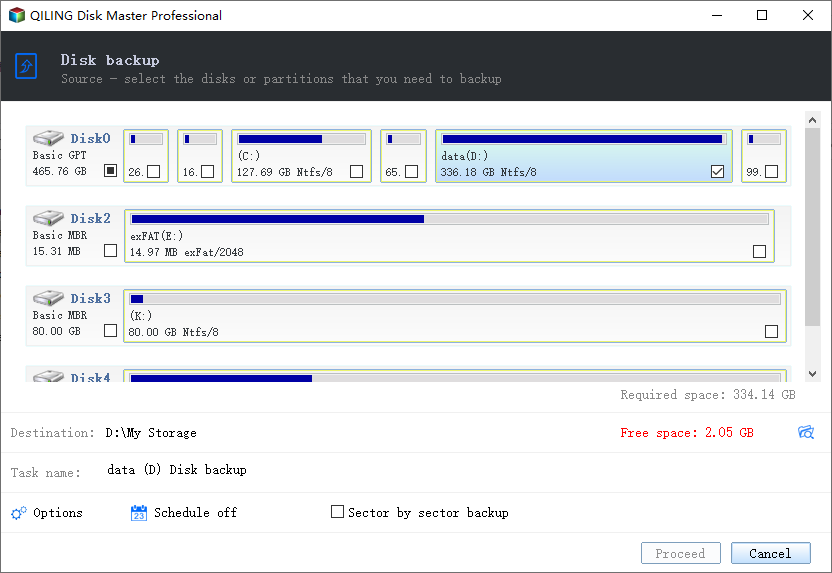
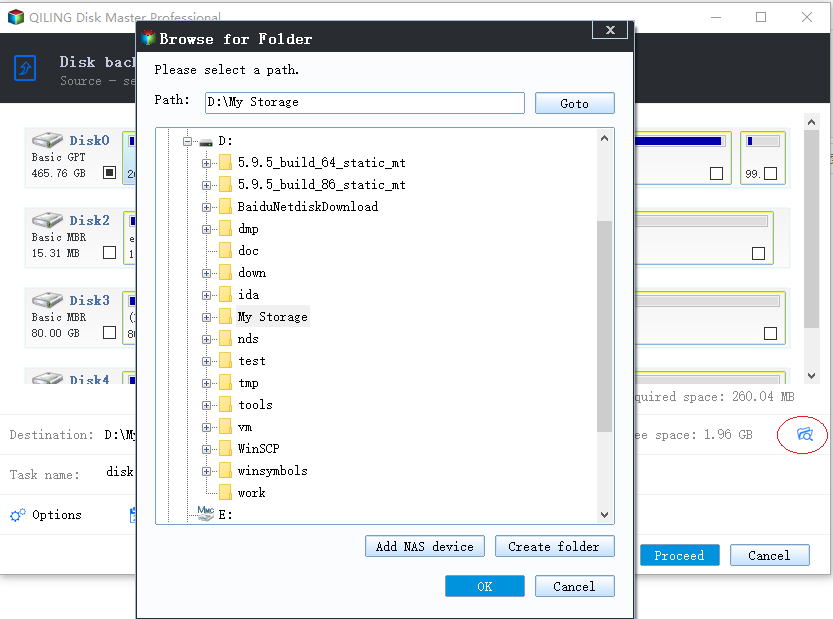
Step 2. Set the source partition(s) and the destination path respectively.
Step 3. To enable encryption for backups, go to Backup Settings, click on General, select Enable encryption for backups, enter a password, and confirm it.
Tips:
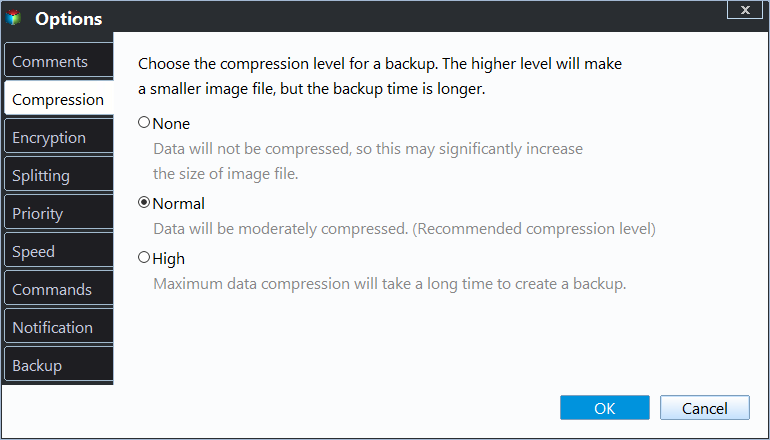
- To save space, you can set compression by clicking Options > Advanced.
- If you have an encrypted drive and want to make a backup, you may encounter issues due to the encryption. Qiling Disk Master can help by allowing you to back up a BitLocker encrypted drive using the sector by sector method, making an exact backup by selecting "Make an Exact Backup" under Options > Backup Mode.
Step 4. Confirm all the items and click Proceed to backup Windows Server 2008 with password encryption.
More powerful features to manage Windows Server backups
Qiling Disk Master offers two key features to simplify backup management on Windows Server systems: Schedule Backup and Backup Scheme. These features enable you to automate backup processes, making it easier to maintain data integrity and ensure business continuity.
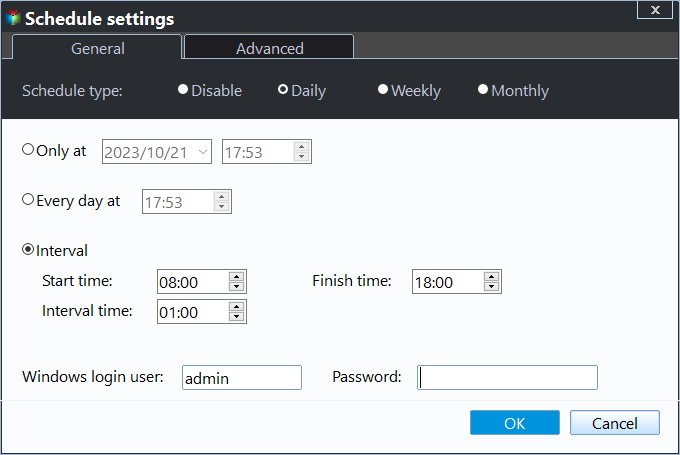
>>> The schedule backup settings have 5 options listed here:
- Daily/Weekly/Monthly: To automate the backup process on a Windows Server, you can set up a regular backup schedule, such as daily, weekly, or monthly, to ensure that your data is constantly backed up and easily recoverable in case of a system failure or data loss. This reduces the need for manual backups and saves time.
- Event Triggers: Trigger the backup event by User logon, User logoff, System startup, System shutdown.
- USB plug in: Qiling Disk Master automatically backs up data to a USB drive when it detects the device is plugged in.
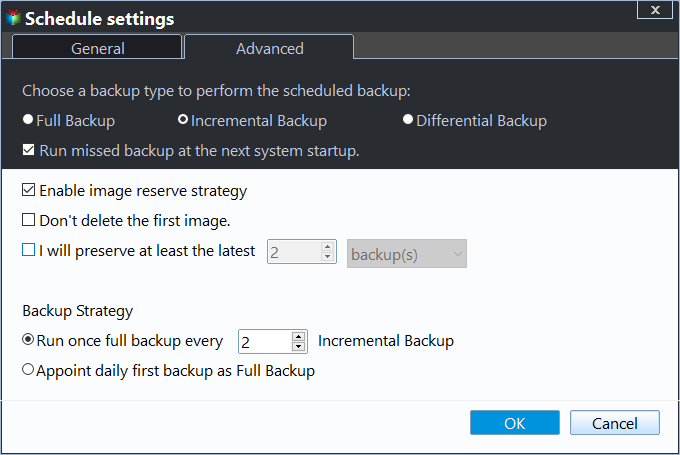
>>> To set a backup method or free up space by deleting old backup images, click Backup Scheme.
Select "incremental or differential backups" under "Backup Method". To delete backups, enable "automatic backup cleanup" and choose a cleanup method: "By quality", "By time", or "By daily/weekly/monthly".
Conclusion
Setting Windows Server backup encryption provides an additional layer of protection for your data, ensuring it is double protected. You can set encryption using the Windows Server Backup tool or by using the Windows Server Backup Configuration Wizard, both of which provide a secure way to safeguard your backups. This added security measure gives you peace of mind knowing your data is well-protected.
To back up a server, you can use either BitLocker or a third-party server backup software. If you prefer a more straightforward approach, you can use a third-party software like Qiling Disk Master Server, which offers a simple option called "Enable encryption for backup" that can be enabled during the backup process, eliminating the need for BitLocker installation and drive encryption.
Additionally, this software can restore your computer to different hardware and even create a bootable USB to boot a non-bootable server computer.
IT technicians can use Qiling Disk Master Technician Plus to protect unlimited PCs and servers within one company, offering unlimited billable technical services and enabling portable version creation.
Related Articles
- Encrypt Image File, Volume Backup
This guide explains Encrypt Image File, Volume Backup with clear steps, key checks, and practical tips. - Create Incremental and Differential Backup in Windows Server 2016
This guide will show you how to create incremental and differential backup in Windows Server 2016 with Windows Server Backup step by step. You will also learn the method to set multiple incremental or differential backup tasks with powerful third-party software. - Create Backups with Windows Server Backup Command Line
You will learn how to use Windows Server Backup command line with Wbadmin or third-party tool. Besides, you can use the GUI version of backup software if you want a simpler way. - Toshiba HDD Recovery Not Working – How to Repair Your PC Then?
This guide explains Toshiba HDD Recovery Not Working – How to Repair Your PC Then with clear steps, key checks, and practical tips. - No Free Memory-How to Increase Memory of C Drive?
This guide explains No Free Memory-How to Increase Memory of C Drive with clear steps, key checks, and practical tips. - How to Initialize SSD on Windows 10/8/7?
Here, you can learn how to initialize SSD on Windows 10, 8, 7 computer. If you cannot initialized SSD drive as expected, this article also provides effective methods to help you out.
Products
Articles & Tutorials
- Data Recovery
- Data Backup
- File Recovery
- File Backup
- File synchronize
- System Backup and Restore
- Disk and Partition Clone
- Technical articles
- Disk Master Help
- Windows Deleted File and Disk Recovery Tutorials
- Windows File and Data Recovery Tutorials
- More Windows Tutorials for Install, Security, Files, and PC Tips
- Windows Boot, Repair, and Recovery Environment Tutorials
- Windows Backup Tutorials
- Windows Restore Tutorials
- Windows Clone and Migration Tutorials
- Windows Server Backup, Recovery, and Management Tutorials
- Windows Disk, Partition, and Storage Management Tutorials