Easiest| Backup Flash Drive Automatically When Plugged In
Need to Backup USB Drive When Plugged In
You can use the built-in Windows feature called "File History" to automatically backup your USB drive. To set it up, go to Settings > Update & Security > Backup, and select the drive you want to backup. You can also set a schedule for the backups. This way, your important files will be backed up automatically every time you plug in your USB drive. Additionally, you can also consider using a cloud backup service like OneDrive or Google Drive to store your backups, so you can access them from anywhere.
You can use a simple script to achieve this. Here's a one-liner that you can add to your Windows Task Scheduler: `powershell -Command "robocopy C:\Source D:\Destination /mov /minage:1"`. This will copy files from your flash drive (C:\Source) to your backup location (D:\Destination) when the flash drive is plugged in. You can adjust the source and destination paths to match your setup. Just save this as a batch file and add it to your Task Scheduler to run automatically when the flash drive is plugged in.
Tiny USB sticks are useful for transferring files between computers, but their small size also makes them vulnerable to loss or theft, making backup a priority.
- Flash drive failing. Due to frequent plugging and unplugging, as well as its composition, flash drives are prone to failure, regardless of capacity or brand.
- Tiny sticks get lost easily. Losing a USB drive can be frustrating, especially when it contains important data. If you misplace it, all the files on the drive will be gone, making it difficult to recover them. This can be a significant setback, especially if the drive contained critical information or files that were not backed up.
Some users need to automatically backup a folder to a USB drive when it's connected, and there are other scenarios where automatic copying to USB is required. To achieve this, a professional tool is needed to efficiently accomplish the task.
Copy USB Data Secretly via Easy-to-use Tool
Qiling Disk Master Professional allows for automatic file copying from a USB drive when it's connected, making backup easy and hassle-free. By creating a backup task and selecting the "USB plug in" trigger option, the software will run automatically and discreetly every time the USB drive is connected, ensuring that your files are safely backed up.
The software allows for both backup and auto sync of USB drives, with the key difference being that synced files can be used directly, whereas backed up files are for security. While backup is ideal for frequently used files, auto sync is recommended for files that need to be used immediately.
Windows 11/10/8/8.1/7/XP/Vista supported. You can get a free trial to try it out.
Backup Flash Drive Automatically When Plugged In Step by Step
Note: To let Windows recognize and assign a drive letter to your USB drive properly, assign a drive letter to your USB drive permanently first. For detailed steps with screenshots, please refer to the guide on permanently assigning a drive letter.
To backup flash drive, use the following steps:
1. Connect the flash drive to your computer. Assign a drive letter to it. Take auto copy files from USB to computer for example.
2. Install and run Qiling Disk Master Professional, then click Backup and select File Backup.

Tip: You can backup files to a flash drive using the Cloud Backup feature, which also comes with a cloud drive called Qiling Cloud and 1TB of free storage for 15 days after registering a Qiling account.
3. To access files from a flash drive, click on "Folders" or "Files" and navigate to "This PC" > "Devices and drives" to locate the flash drive, then add files from it.

Tips:
- You can add more than one file or folder.
- You can exclude files from backup by specifying file extensions in the Filter settings, allowing you to choose which files from selected folders to back up.
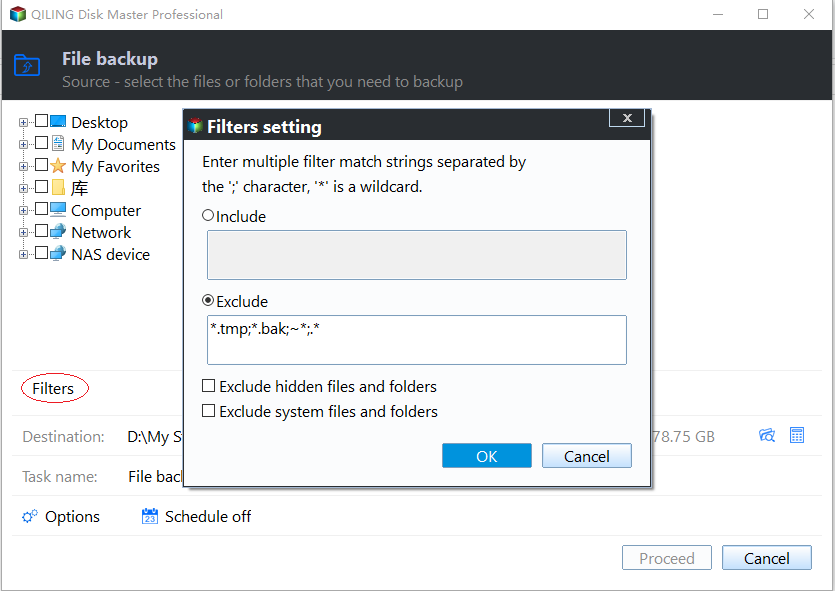
4. Choose a destination path to save the backup images, which can include network paths and cloud drives.

5. To schedule a task, click on the "Schedule" button and select "USB plug in" from the drop-down list. This will allow you to choose whether to run the task immediately or add it to a schedule only.

Tips:
- To enable daily backups, check the "Run one time everyday" option. This ensures the tool backs up once a day, even if the device is frequently plugged in and out throughout the day.
- The backup type can be set in the Advanced section, where full, incremental, or differential backup options are available, with incremental being the default choice.
- You have options to encrypt, compress, or split backup images in the Options section.
- Scheme ensures deleting old backups automatically.
- You can manage all tasks under Home tab.
Qiling Disk Master Professional will automatically backup files from a USB flash drive every time it is plugged in, providing a convenient and hands-off experience.
Conclusion
With this method, you can easily backup your flash drive automatically whenever it's plugged in, eliminating the risk of data loss. This process can be completed with just a few simple clicks, and if you need more advanced backup options, you can explore the various modes available in the Schedule section.
Qiling Disk Master not only serves as backup software, but also offers additional functionality in cloning a bootable USB drive to a hard drive, making it a useful tool for upgrading and backup purposes. Having it installed can provide an added layer of protection for your computer, allowing for system and disk backup.
Related Articles
- Solved: Windows 10 Bootable USB Not Working
- Free USB Clone Tool for Cloning Bootable USB Drive
- How to Fix a Corrupted Flash Drive without Formatting?
- 4 BestBackup Software for Synology NAS[Pros and Cons]
This passage introduces the five best backup software for Synology NAS, including its functions, pros, and cons. Then, you can choose one backup software according to your budget and needs. - Best Synology File Recovery Tools to Recover Files on/from NAS
Synology file recovery tools help you recover deleted files on Synology NAS and lost data on a PC from Synology NAS. Learn how to do it from this article. - Solutions to System Image Restore Failed No Disk That Can Be Used
Sometimes, when you try to do system image restore, an error may occur: system image restore failed no disk that can be used. Learn how to fix it from this page.
Products
Articles & Tutorials
- Data Recovery
- Data Backup
- File Recovery
- File Backup
- File synchronize
- System Backup and Restore
- Disk and Partition Clone
- Technical articles
- Disk Master Help
- Windows Deleted File and Disk Recovery Tutorials
- Windows File and Data Recovery Tutorials
- More Windows Tutorials for Install, Security, Files, and PC Tips
- Windows Boot, Repair, and Recovery Environment Tutorials
- Windows Backup Tutorials
- Windows Restore Tutorials
- Windows Clone and Migration Tutorials
- Windows Server Backup, Recovery, and Management Tutorials
- Windows Disk, Partition, and Storage Management Tutorials