WD External Hard Drive Automatic Backup Guide | Download
WD external hard drive automatic backup
Western Digital, one of the world's largest computer hard disk drive manufacturers, produces widely used external hard drives, including WD Elements Portable and My Passport Ultra, for computers like HP and Acer.
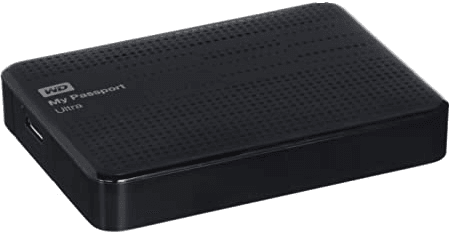
To ensure continuous data protection, it is not enough to manually back up your system or files to a WD external hard drive only once. A manual backup captures data at that moment but misses later changes. If your computer fails after a long period, you may lose everything created after the last backup, so automatic WD external hard drive backup is essential.
The best WD auto backup software
Western Digital's WD Smartware software allows for automatic file backups, but it does not include programs or the Windows operating system. Users should be prepared for situations where files are pending backup.
The software has limitations, including not supporting Windows 10, being unable to back up files currently in use, and consuming excessive CPU resources when backing up large files, which can slow down the computer. Additionally, WD Smartware support has ended.
We recommend Qiling Disk Master as a practical WD auto backup software. It offers automatic backup, disk cloning, and disk partition management, helping you protect data, clone hard drives, and manage storage in one place.
✍Auto backup file, system, disk and partition: It allows daily, weekly, and monthly backups, with customizable backup dates, times, and intervals.
✍Incremental backup: The backup software backs up only changed files, significantly reducing the size of the backup image and the disk space required. It is often used in conjunction with a schedule backup option.
✍Multiple backup devices supported: This software supports backing up to various storage devices, including internal and external hard drives, SSDs, USB drives, DVDs/CDs, and NAS devices from multiple brands.
The software is compatible with all Windows systems, including Windows 11/10/8/7/XP/Vista, and features an intuitive interface that makes tasks easy to achieve. It can be used to automatically back up Western Digital external hard drives.
How to do WD external hard drive automatic backup
To ensure your Windows operating system is always backed up in case of a disk failure or system crash, you can automatically save it to a WD external hard drive. This way, you'll have a reliable backup of your system, including all the latest changes, which you can use to restore your computer to its previous state if needed.
Step 1. Download and install WD auto backup software.
For personal users, just install Qiling Disk Master Standard. For server users, try Qiling Disk Master Server.
Step 2. Choose the backup type.
Launch Qiling Disk Master, and choose the desired backup type (System Backup, Disk Backup, File Backup) under the Backup tab.

Step 3. Specify the backup destination.
When you click "System Backup" in the previous step, system-related partitions will be selected automatically. Then, click the destination arrow and choose the WD external hard drive as the backup location.

Tip: Connect your WD external hard drive to the computer before choosing the destination. Otherwise, the drive will not appear as an available backup location.
Step 4. Set up the schedule for automatic backup.
To set up automatic backups on a WD external hard drive, click on the "Schedule Backup" option. This will open a pop-up window where you can choose to run the backup daily, weekly, or monthly, and select an exact time for it to occur.

You can also try Event-trigger and USB plug-in backup in Qiling Disk Master Professional.
Step 5. Complete the setup and execute the backup.
Click "Proceed" to execute the WD automatic backup operation.
The program creates one full backup and 6 incremental backups by default, which can fill the backup disk if not managed. To avoid this, use the automatic backup cleanup methods in the Backup Scheme, but note that an upgrade is required to use this feature, with discounts available for multiple computer purchases.

- You can also use it to sync files to an external hard drive apart from the system auto backup to a WD external hard drive.
- If you want to restore an image file without booting Windows, you can create a recovery environment with Qiling Disk Master in advance.
Summary
Using a WD external hard drive for automatic backup is a reliable way to protect your data, and free Qiling Disk Master is a professional software that can help with this. It allows you to schedule backups of your system, disk, partition, or files to the external drive, with options ranging from daily to monthly. The software also defaults to backing up only changes, which means you won't have to worry about running out of space on your backup disk.
To avoid running out of disk space on your backup, it's recommended to automatically delete old backups. Manually deleting them can invalidate subsequent backups, especially if you delete a middle backup. Consider using differential backups instead, which are a premium feature on the advanced version. You can check the edition comparison page for more information.
Related Articles
- Free Western Digital Disk Cloning Software (Securely Boot)
In this article, you will find the best Western Digital (WD) disk cloning software to help you clone HDD to SSD easily and safely. The cloned drive will boot without any issues after cloning. - How to Retrieve Files from WD Passport Efficiently? (3 Ways)
Recover files from a WD Passport drive with practical steps for lost, deleted, or inaccessible data. - Best Free WD SmartWare Alternative - Qiling Disk Master
You will find the best free WD SmartWare alternative in this article to backup files easily and safely, just find the step by step guide to backup. - Best Free WD Elements Backup Software - Qiling Disk Master
You will find the best free WD Elements backup software - Qiling Disk Master and learn how to backup WD Elements hard drives automatically with simple steps. - How to Do Partition / Volume Clone?
This article explains what partition or volume clone is, why you may need to clone a partition, and how to perform partition clone. - How to Backup Partition/Volume?
During partition backup, all the data on this partition will be packaged into an image file.
Products
Articles & Tutorials
- Data Recovery
- Data Backup
- File Recovery
- File Backup
- File synchronize
- System Backup and Restore
- Disk and Partition Clone
- Technical articles
- Disk Master Help
- Windows Deleted File and Disk Recovery Tutorials
- Windows File and Data Recovery Tutorials
- More Windows Tutorials for Install, Security, Files, and PC Tips
- Windows Boot, Repair, and Recovery Environment Tutorials
- Windows Backup Tutorials
- Windows Restore Tutorials
- Windows Clone and Migration Tutorials
- Windows Server Backup, Recovery, and Management Tutorials
- Windows Disk, Partition, and Storage Management Tutorials