How to Retrieve Files from WD Passport Efficiently? (3 Ways)
Case: recover data from WD Passport
The WD Passport (WD My Passport) is a series of portable external hard drives from Western Digital, trusted for storing large collections of photos, videos, files, and music due to its reliability and portability. However, as time passes, issues may arise.
Hello, I lost my files on my WD Passport external hard disk. And I don't know how to get them back. And also I can't click the backup and retrieve button on WD SmartWare display. Please help, need my files back. Ps: I use Windows XP.
Even with a reliable storage device like the WD Passport, losing files is still a possibility due to system errors, accidental deletion, or a formatted hard drive.
To avoid the inconvenience or disaster caused by the loss of files, you can learn how to retrieve files from WD Passport, which is a portable storage device that allows you to store and transfer files easily. By following the steps outlined in the contents, you can recover your lost files and get back to work or other activities without any hassle.
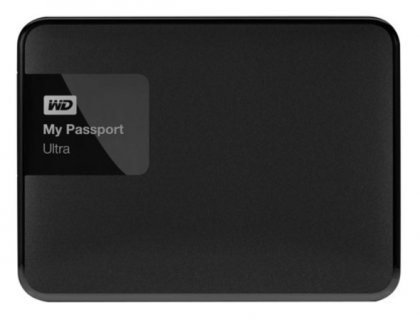
How to retrieve files from WD Passport in Windows
To recover files from a WD Passport, there are three efficient methods to try. Firstly, you can use the WD Backup software to restore files from the drive. If you're unable to access the drive, you can try using a data recovery software such as Deep Data Recovery Wizard or Disk Drill to scan the drive and recover your files.
Way 1: Use WD SmartWare to retrieve WD Passport files
To retrieve files from a WD Passport using WD SmartWare, you must have backed up your files in advance. If you have, you can easily recover them by following a few simple steps.
Step 1. Open this software. Select Retrieve from the list above.
Step 2. Select the files backup that is to be recovered from the box. Then click Select Destination.
Step 3. To retrieve files, click "To the Original Places" to restore them to their original locations, or "In a Retrieved Content Folder" to move them to a different folder, and then select the files to be retrieved.
Step 4. You can choose Retrieve All Files or Retrieve Some Files by your needs. Then click Start Retrieving.
Step 5. When the file is retrieved, a message will appear saying "File Retrieval Complete" along with a blue check mark in the top left corner.
WD Smartware End of Support
WD Smartware's support has ended, and it's no longer covered by WD's software support lifecycle, but you can still use the product and related apps if you have them, and no further software purchases, licenses, updates, or technical support will be provided.
Instead of using the built-in Windows Backup, Apple Time Machine, or Western Digital's Acronis True Image, you can use a third-party backup utility as an alternative.
Way 2: Use Deep Data Recovery to recover data from WD Passport
Although WD SmartWare can help users retrieve files from WD Passport, some users reported that they couldn't click the backup and retrieve button on WD SmartWare display. A useful alternative for restoring files from WD Passport is Deep Data Recovery.
Deep Data Recovery is a reliable data recovery software that supports all file types, including photos, videos, and other files, allowing you to retrieve your data from various data loss scenarios in Windows 11/10/8/7/Vista.
To use Deep Data Recovery, follow these steps:
Step 1. Download, install, and launch the software. Connect the WD Passport to your computer and ensure it's detected by your PC.
Step 2. Select the WD Passport and then click "Start Scan".
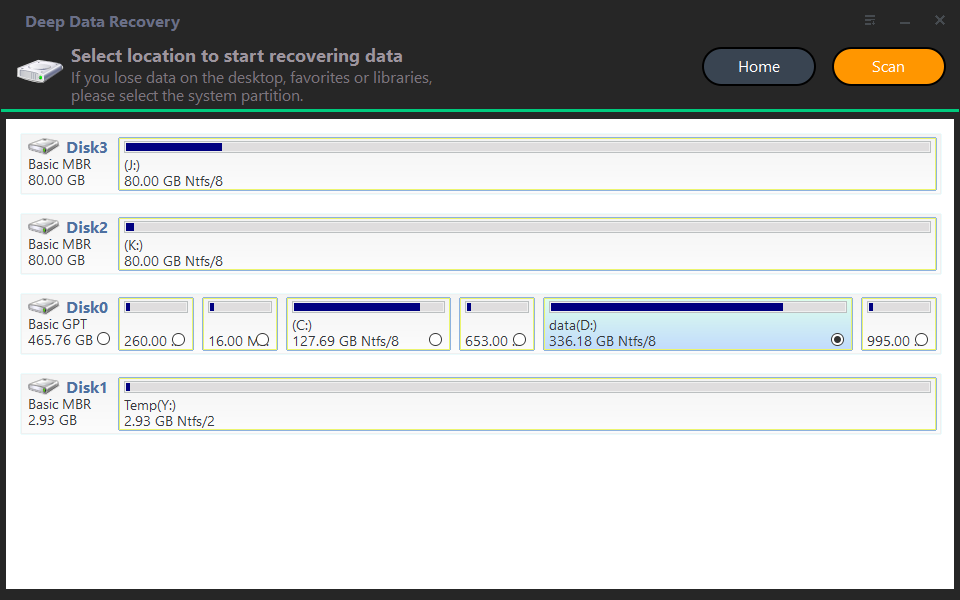
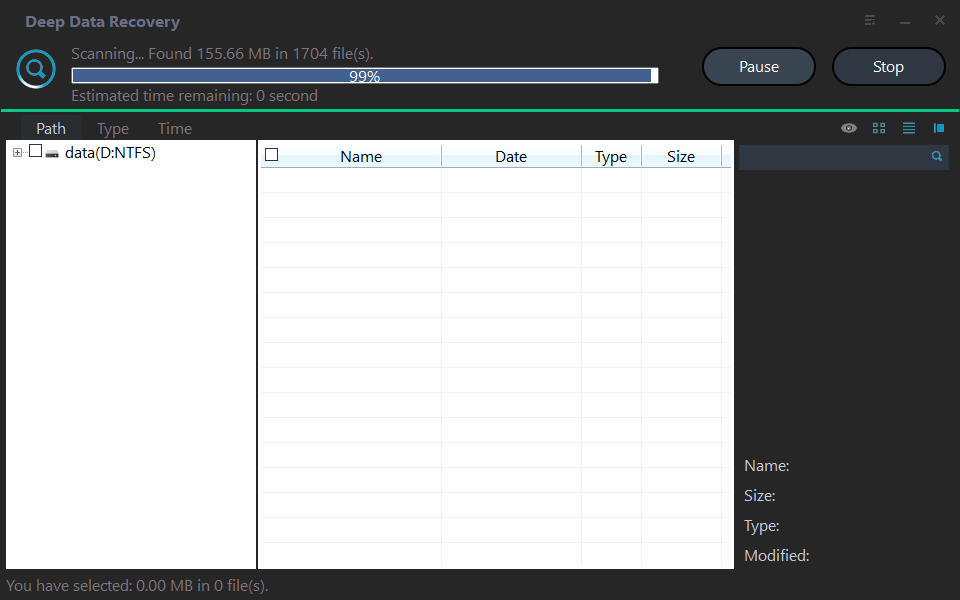
Step 3. The software performs a fast scan and a deep scan of the WD Passport, allowing you to preview recoverable files after the scan.
Step 4. Choose the files that are to be retrieved. Then click "Recover".
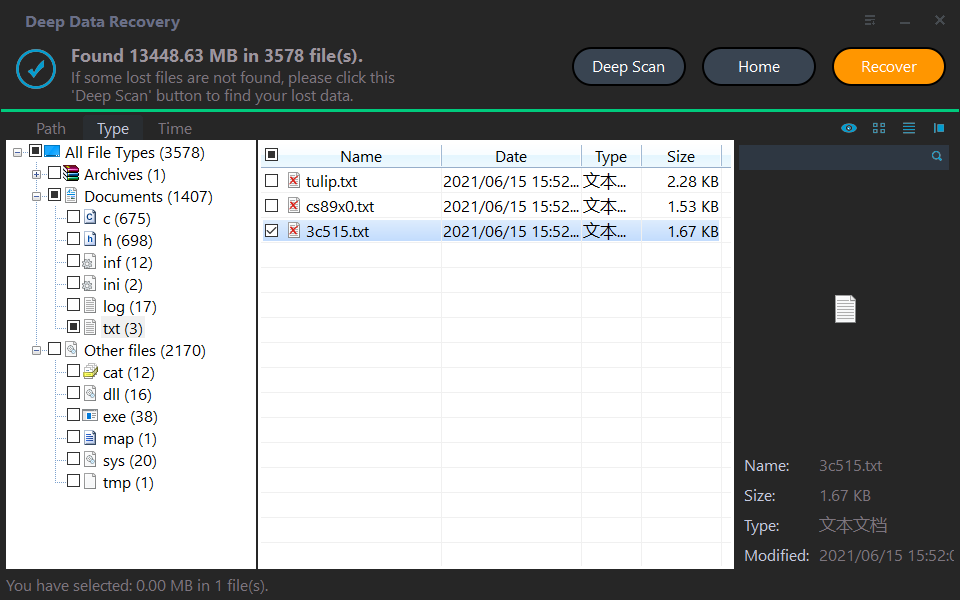
Tips:
1. You can recover deleted files you want during the scanning process.
2. Searching file names or filtering files by type, size, and date modified can be a quick and efficient way to locate lost files.
Way 3: Use Qiling Disk Master to recover files from WD Passport backup
Qiling Disk Master Standard is a good option for recovering files from a WD Passport hard drive, allowing users to easily restore files from a backup image, and it's completely free.
This freeware can recover deleted files from PS4, restore files from formatted SD card, and supports various operating systems including Windows 10, 8.1/8, 7, Vista, and XP.
To use Qiling Disk Master Standard, start by backing up your files in advance. Then, download and install the freeware, or upgrade to the professional version. With this quick guide, you'll be ready to go!
Step 1. Connect the WD Passport to the PC, open the software, choose the "Backup and recovery" tab, click "Select Task" or "Select Image Files" and then click "Next".

Step 2. Select a task or image to restore.
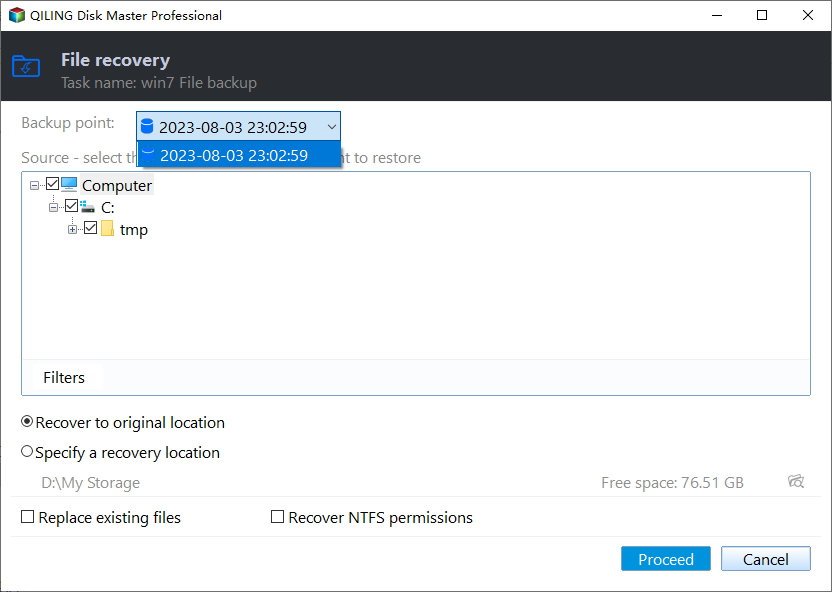
Step 3. You can retrieve files from the location where you backed up files (take C: for example).
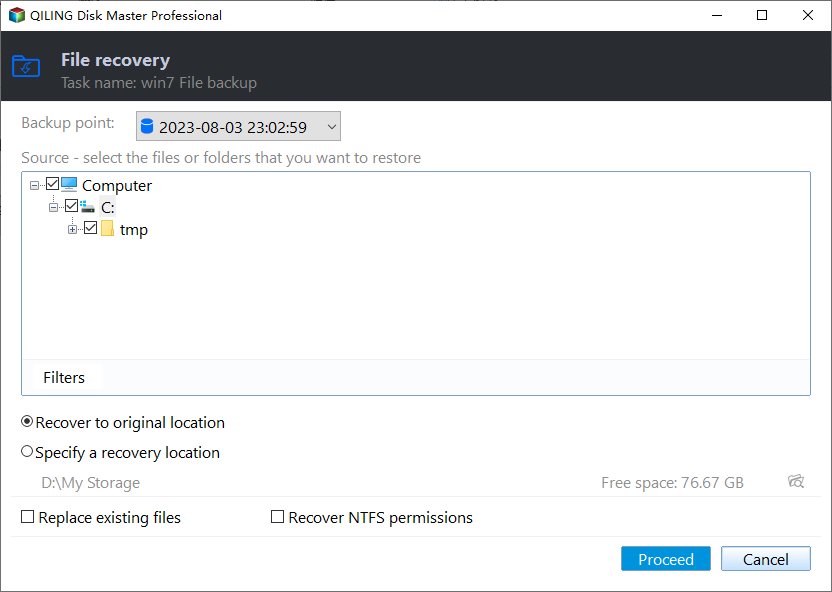
Step 4. Select a destination path to recover files, choosing "Restore to original location" to recover files to the WD Passport, then press "Proceed".
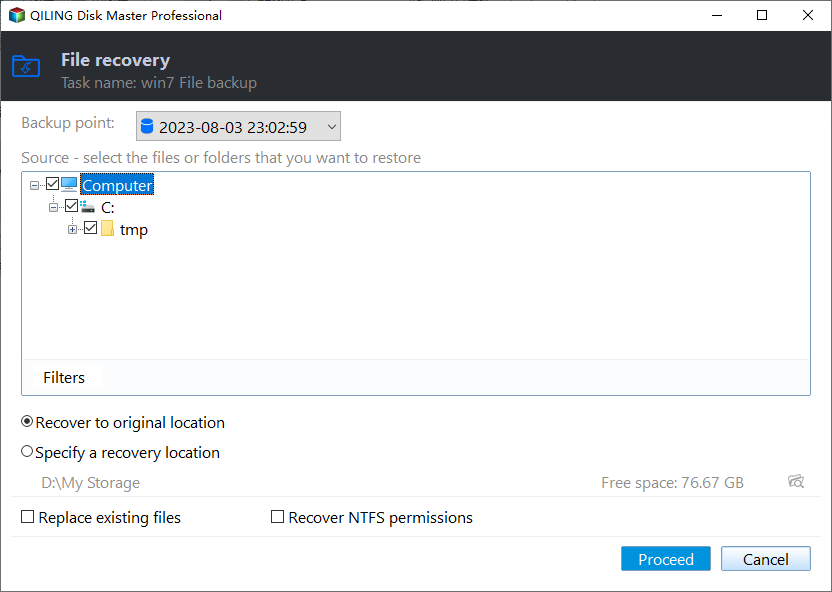
Tips: You can click the settings icon in the lower-left corner to set more options. This will open a menu that allows you to customize your experience, such as changing the layout, adding or removing features, or adjusting the display settings.
- Restore NTFS permissions: The tool maintains the original permission rights for the files. It should be noted that NTFS permissions can only be retrieved to NTFS formatted drives. The advanced version can be upgraded to enjoy this feature.
- Replace existing files: overwrite the files with the same file name.
Step 5. After restoring files, you can click Finish.
Note: When WD Passport data recovery is in progress, you can click the settings icon in the lower-left corner to select options such as Shut down PC, Restart PC, Hibernation, or Sleep on completion.
Summary
To retrieve files from a WD Passport, you can use one of three efficient solutions. The restore process in Qiling Disk Master won't interrupt your work, allowing you to continue as usual. Additionally, Qiling Disk Master is a disk clone software that can help you perform disk clone in Windows 10/8/7 with secure boot, making it a useful tool for various tasks.
To backup, restore, clone, or sync data across different computers without installing the software, you can create a portable version of the software on a USB flash drive. This allows IT maintenance and support engineers to run the software directly from the USB drive, making it convenient for their work. Upgrading to the technician or techplus edition is recommended.
Related Articles
- How to Restore Files from Backup in Windows 10/8/7?
The best time to create a file backup is when your computer is working properly, then you can restore files from backup in Windows 11, 10, 8, 7 easily and quickly. - How to Recover Files from a Crashed Hard Drive in Windows 7/8/10?
You will learn how to recover files from a crashed hard drive quickly using hard drive data recovery software - Qiling Disk Master Standard or TextDisk. - How to Recover Files from External Hard Drive without Formatting?
Want to know how to recover files from external hard drive without formatting, see this article and find the solution. - 2 Simple Ways to Backup Gmail to Google Drive
There are many reasons to backup Gmail to Google Drive. So if you are looking for a reliable way to complete the task, you have come to the right place. On this page, we will explain the detailed procedures to help you save Gmail to Google Drive with no hassle. - Workaround | Samsung Laptop Recovery Not Working in Windows
You can try alternatives to restore system when your Samsung laptop recovery not working due to deleted or damaged recovery partition. - Use Toshiba Restore Point to Do Toshiba Factory Reset Easily
The Toshiba restore point helps to restore your computer to a previous date. If the system or disk is damaged, you can also factory reset it or restore from system backup.
Products
Articles & Tutorials
- Data Recovery
- Data Backup
- File Recovery
- File Backup
- File synchronize
- System Backup and Restore
- Disk and Partition Clone
- Technical articles
- Disk Master Help
- Windows Deleted File and Disk Recovery Tutorials
- Windows File and Data Recovery Tutorials
- More Windows Tutorials for Install, Security, Files, and PC Tips
- Windows Boot, Repair, and Recovery Environment Tutorials
- Windows Backup Tutorials
- Windows Restore Tutorials
- Windows Clone and Migration Tutorials
- Windows Server Backup, Recovery, and Management Tutorials
- Windows Disk, Partition, and Storage Management Tutorials