2 Quick Methods to Recover Files from a Crashed Hard Drive
Quick navigation:
- How to recover files from a crashed hard drive quickly
- Method 1: Restore files from backup with free backup and restore software
- Method 2: Recover files from a crashed hard drive with data recovery software
- Useful tips: Avoid data loss from hard drive
- How to fix a crashed a hard drive
- Conclusion
How to recover files from a crashed hard drive quickly
Losing data can be a painful experience, especially for those living in the digital lifestyle. It's often only realized when it's too late, and data is lost due to either physical damage or logical damage.
The physical damage is not easy to fix due to hardware failure, which can involve circuit board short circuits, chip burning, overheating, or collisions.
Logical damage to a hard drive can be easily repaired and may be caused by a lost or damaged partition table, MBR damage, system information error, logical section error, virus attack, or human error.
Here are some symptoms that may indicate your hard drive is on the verge of crashing or becoming damaged:
- Invalid media type reading drive.
- Abort, Retry, Fail?
- The file system is displayed as "RAW".
- When Windows encounters an unformatted drive, it may prompt the user with the message "disk not formatted. Do you want to format now?" indicating that the drive needs to be formatted before it can be used.
- File names contain "weird" characters.
- "Sector not found" messages.
- The hard drive is not detecting.
If you've lost files due to a crashed hard drive, you can try recovering them using hard drive data recovery software if you don't have a backup. Otherwise, restoring files from a backup with the help of backup and restore software is the simplest solution.
Method 1: Restore files from backup with free backup and restore software
Here, you will use free backup and restore software - Qiling Disk Master Standard to restore files from backup, which only supports restoring backup images created by itself and requires pre-creation of backup images.
▶ If you use built-in Backup and Restore, please refer to the following articles:
- To restore files from a backup in Windows 7, go to the Control Panel, click on System and Security, and then click on Backup and Restore. Select "Restore my files" or "Restore all users' files" from the left menu, and then click on "Next".
- For Windows 8, 8.1, and 10 users, restoring files from a backup is a straightforward process.
▶ If you don't have any kind of backup, please use the data recovery software to recover files. This method will be included later.
If your hard drive has crashed, don't panic! You can still recover files from it.
Step 1. To prevent further damage or permanent data loss, download Qiling Disk Master Standard on another computer, install it, and then plug in the USB flash drive containing the backup image to ensure it can be detected.
Step 2. Launch Qiling Disk Master, click Backup and recovery -> Select Task to find file backup image on its main screen.

Step 3. Select file backup in the following list and then click Next.
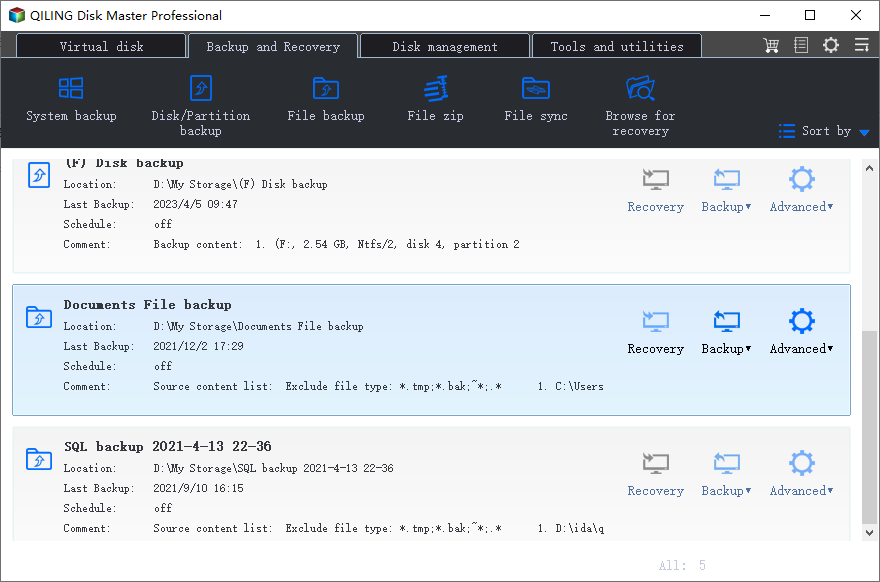
If you're unable to see a backup image in the list, go back and click Select Image File to manually locate and select the backup file you want to restore.
Step 4. Select the files you want to restore and click Next.
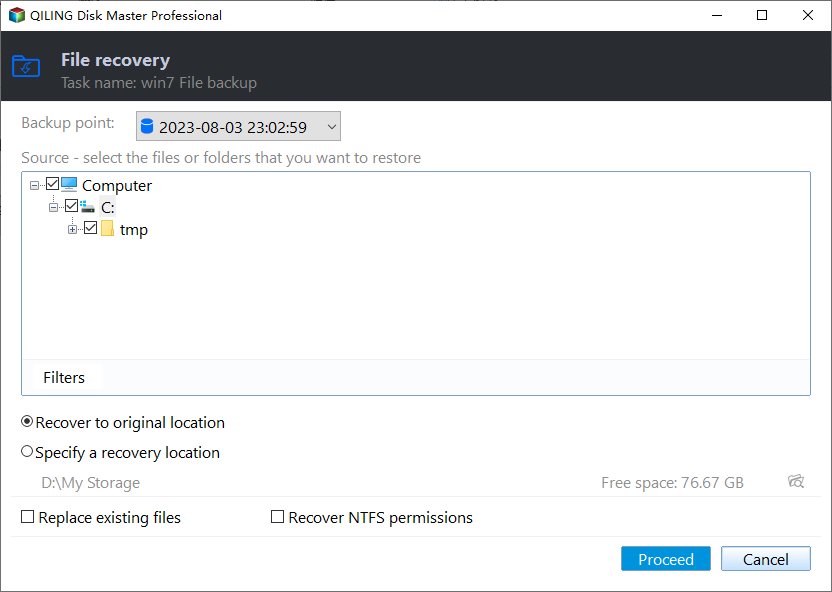
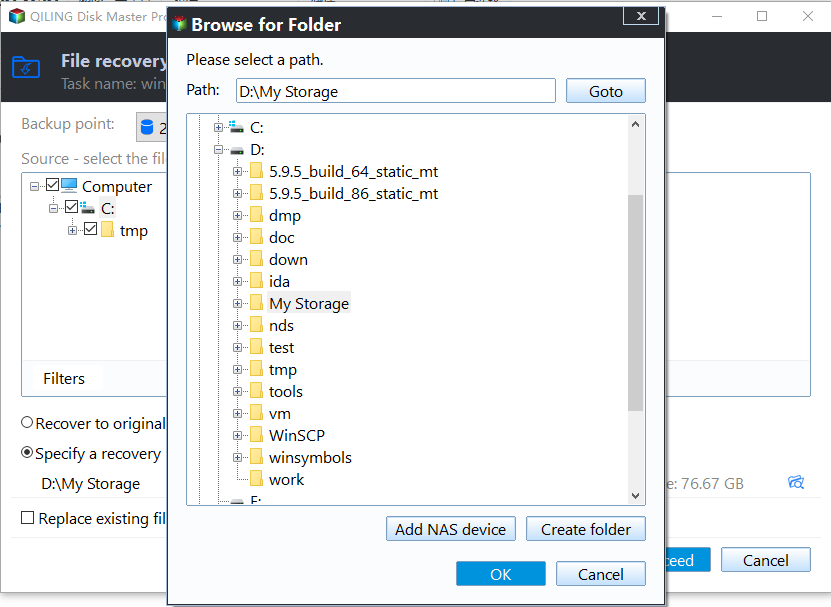
Step 5. Select Restore to a new location and choose a different location to save the deleted files. Then, click Proceed to restore them.
You can still restore files using the Explore Image feature under the Tools tab, which will save all files to their original location, or you can choose a new location to store them.
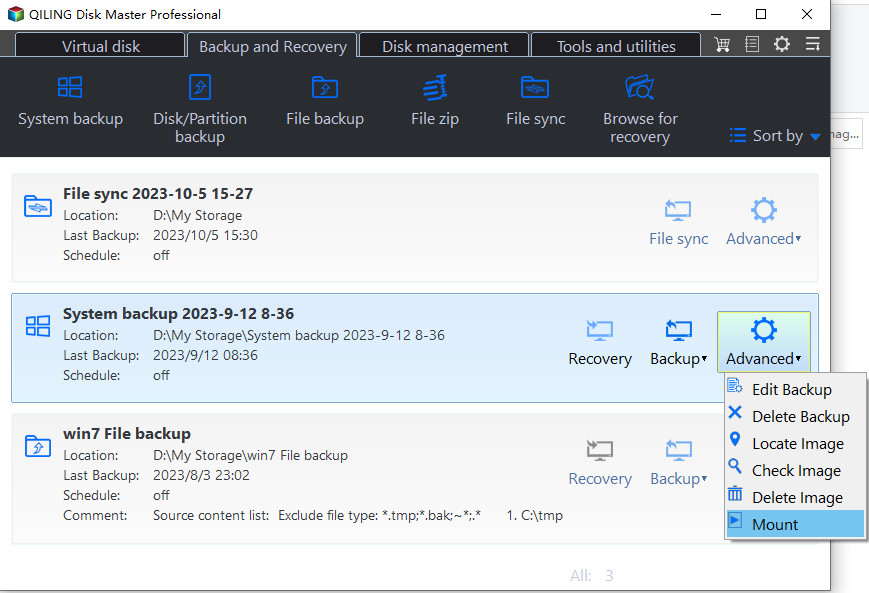
You can use a system backup to view and copy files from a system image without a file backup, by mounting all partitions on the system image and assigning a drive letter to them, allowing you to view them in Windows Explorer and manually copy desired files to another location.
Method 2: Recover files from a crashed hard drive with data recovery software
Here, you'll use hard drive data recovery software to recover data from a corrupted hard drive in Windows 7/8/10, but you'll install it on a different computer first, then connect the drive externally.
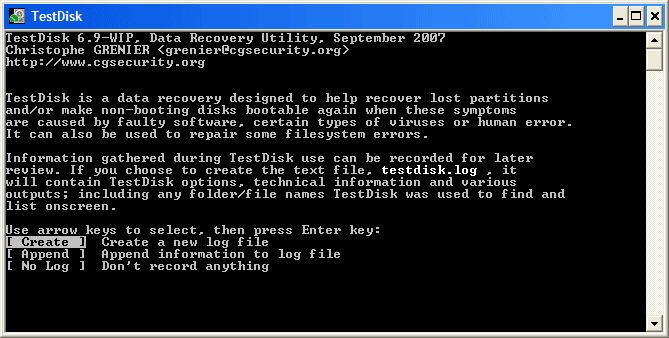
Step 1. Download the free data recovery software TextDisk, and open it. Click on "Create" to create a new log.
Step 2. Select the drive holding your files and click Proceed to scan.
Step 3. Select the partition table type: Intel.
Step 4. To proceed, select the Advanced option and then choose a partition from the available options, including NTFS, FAT32, FAT16, FAT12, and ext2 file system.
Step 5. Select the Undeleted option.
Step 6. Choose the lost files using : or a.
Step 7. Copy the files via c or C.
Step 8. To recover lost files, select a destination path for them, and then press 'q' to quit the existing window once the recovery is complete.
Useful tips: avoid data loss from hard drive
To avoid data loss from your hard drive, there are some useful tips to keep in mind. By using them in your daily life, you can prevent data loss and ensure that your important files and information are safe.
- Install and regularly update antivirus software to protect your device from malware, which can cause data loss and compromise your personal information.
- Always keep the computer hard drive in a cool state.
- Ensure your computer's power supply is uninterrupted.
- Always safely remove hardware before unplugging external devices, such as external hard drives, to prevent data loss or corruption.
- Before formatting or deleting a drive, always check if it contains important data. This can be done by using file recovery software or by physically checking the drive's contents.
- Schedule backups to protect data continuously, allowing for easy and quick restoration in case of a disaster.
- To prevent data loss due to computer failure, it's recommended to regularly backup important files to an external hard drive, USB drive, network drive, or NAS located far away from the computer. This way, even if the computer crashes or is damaged, the backed-up files will be safely stored and can be easily retrieved.
Knowing the signs of a hard drive crash can help you act quickly and potentially recover some or all of your data, reducing the risk of data loss.
- A weird sound comes from computer when it's started normally.
- You receive Boot failure like sector not found occurs.
- CHKDSK runs at startup automatically.
- When you format a partition, the operation may get stuck at a particular stage due to various reasons. This can cause frustration and delay the process of preparing the partition for use.
- When a file is being read or a program is running, a hard drive read error can occur, causing issues like file corruption, blue screens, or processes taking too long to complete.
- If your data disappears or you can't save documents, your hard drive might have a virus.
IMPORTANT: If you notice any signs of a hard drive crash, stop using the device immediately. It's crucial to back up your files if you can still access the drive. Disconnect the drive and connect it to a different computer as a secondary drive first to assess the damage.
How to fix a crashed a hard drive
If the hard drive itself has bad sectors or a file system error, you can try using the command line to run the chkdsk command or the sfc/scannow command to diagnose and potentially fix the issue. Detailed steps for these processes are available below.
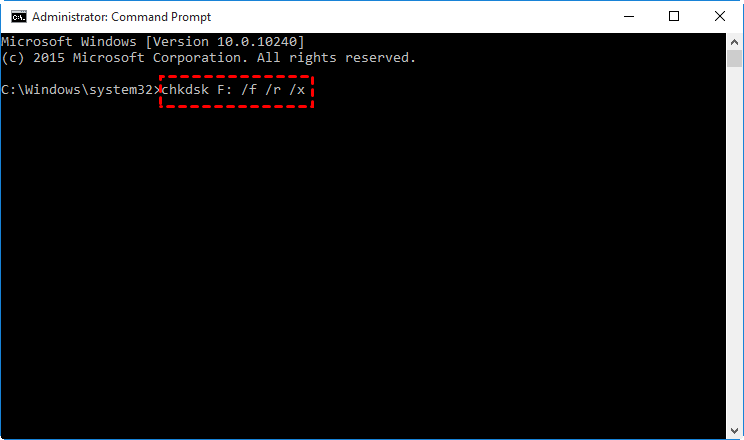
Step 1. Type cmd in the search box and then run as administrator.
Step 2. To fix errors on a hard disk with bad sectors, type the command `chkdsk [drive letter]: /f /r /x` (replace [drive letter] with the actual letter of the affected hard disk, e.g. `chkdsk C: /f /r /x`) and press Enter.
If you're experiencing issues with your Windows installation, you can try running the built-in System File Checker (SFC) or DISM (Deployment Image Servicing and Management) tools to scan and repair corrupted system files. Additionally, you can try using the System Restore feature to revert your system to a previous state when it was functioning properly.
Conclusion
To avoid irreversible data loss, it's essential to take important data seriously and schedule regular backups. This can be achieved by saving daily, weekly, or monthly backups to external storage. To optimize backup time and disk space, consider using incremental or differential backups, which only record changes since the last full backup, rather than backing up the entire dataset again.
If you don't have a backup system in place, you'll waste a lot of time searching for online solutions to recover files from a crashed hard drive, trying various methods that may or may not work. To avoid this, download the free backup software Qiling Disk Master Standard and back up your files immediately.
Related Articles
- Computer Crashed: How to Recover Files
Recovering files can be the only way to get your data back or greatly reduce loss after computer crashed. Please try all the possible ways. In addition, you still need to protect computer from crash by creating a disk backup immediately. - How to Recover Files from External Hard Drive without Formatting
Want to know how to recover files from external hard drive without formatting, see this article and find the solution. - Easiest Way to Recover Data after Initializing Disk
This guide explains Easiest Way to Recover Data after Initializing Disk with clear steps, key checks, and practical tips. - How to Retrieve Files from WD Passport Efficiently (3 Ways)
Learn how to Retrieve Files from WD Passport Efficiently (3 Ways) with clear steps, key checks, and practical tips. - How to Recover Lost/Deleted Files in Windows 10 (3 Ways)
Learn how to Recover Lost/Deleted Files in Windows 10 (3 Ways) with clear steps, key checks, and practical tips. - Move Windows 10 and its License to New Computer Easily
If you want to move Windows 10 to new computer easily without messing it up, continue to read on in this article for all the details and instructions about Windows transfer to a new computer.
Products
Articles & Tutorials
- Data Recovery
- Data Backup
- File Recovery
- File Backup
- File synchronize
- System Backup and Restore
- Disk and Partition Clone
- Technical articles
- Disk Master Help
- Windows Deleted File and Disk Recovery Tutorials
- Windows File and Data Recovery Tutorials
- More Windows Tutorials for Install, Security, Files, and PC Tips
- Windows Boot, Repair, and Recovery Environment Tutorials
- Windows Backup Tutorials
- Windows Restore Tutorials
- Windows Clone and Migration Tutorials
- Windows Server Backup, Recovery, and Management Tutorials
- Windows Disk, Partition, and Storage Management Tutorials