How to Recover Lost/Deleted Files in Windows 10 (3 Ways)
- Need to recover missing files in Windows 10
- 3 easy ways to recover lost files in Windows 10
- Solution 1: recover lost files with File History
- Solution 2: recover deleted files via Backup and Restore
- Solution 3: recover missing files by powerful recovery software
- More reliable way to protect your data from losing
- Conclusion
Need to recover missing files in Windows 10
We often save a lot of files and folders on our PCs, but it's not entirely safe to keep our data on them. There are several scenarios where we might lose our files, such as if our PC crashes, we accidentally delete them, or they get corrupted due to a software issue. To mitigate this risk, it's a good idea to back up our important files and folders to an external drive or cloud storage service, ensuring that our data is safe and recoverable even in the event of a disaster.
- If your computer suffers from system crash, hard drive failure, or other serious errors, you can try using a Linux live CD or USB to diagnose and potentially repair the issues. This can be done without booting into the existing operating system, which may be damaged or corrupted.
- You permanently delete your files by accident.
- You find files missing after Windows update.
Fortunately, it is possible to recover lost or deleted files in Windows 10.
3 easy ways to recover lost files in Windows 10
To retrieve lost or deleted files in Windows 10, you have three efficient solutions at your disposal. The first option is to check the Recycle Bin, which stores deleted files for a certain period.
- Solution 1: recover lost files with File History
- Solution 2: recover deleted files via Backup and Restore
- Solution 3: recover missing files by powerful recovery software
Solution 1: recover lost files with File History
If you've backed up your files with File History, you can easily retrieve your data by following these simple steps. Just navigate to the File History settings, select the date and time you want to restore from, and choose the files you want to recover.
1. To access File History, tap the Search button on the taskbar, type "file history" in the search box, and select "Restore your files with File History" from the search results.
2. To restore an item from the Recycle Bin, open the Recycle Bin, click on the item you want to restore, and then click on the "Restore" button. This will move the item back to its original location.
3. To restore a previous version of a Google Doc, you can move forward or backward in time to find the version you'd like to restore. This feature allows you to revert changes made to the document and restore a previous version.
4. Click the Restore button to restore your desired version.
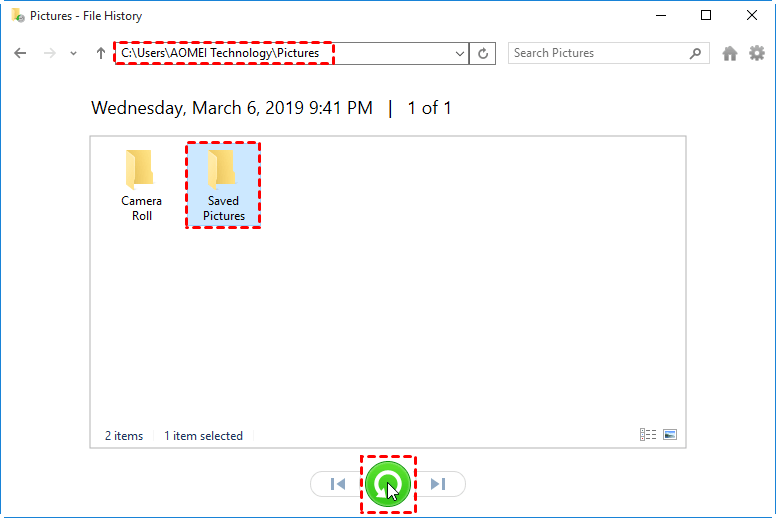
Note: If Windows detects a naming conflict with the item you're trying to restore, you'll have the option to choose how to handle the conflict, with the options being to replace the file in the destination folder, skip the file, or compare information for both files.
5. Close File History.
Solution 2: recover deleted files via Backup and Restore
If you've created a backup with Backup and Restore, you can retrieve deleted files in Windows 10 by following these steps: Go to Control Panel > System and Security > Backup and Restore (Windows 7). Click on "Restore my files" or "Restore all users' files" and select the backup you want to restore from.
1. To backup settings, search for "backup" from the taskbar and select Backup settings from the search results.
2. Click on Go to Backup and Restore (Windows 7) in the pop-up window.
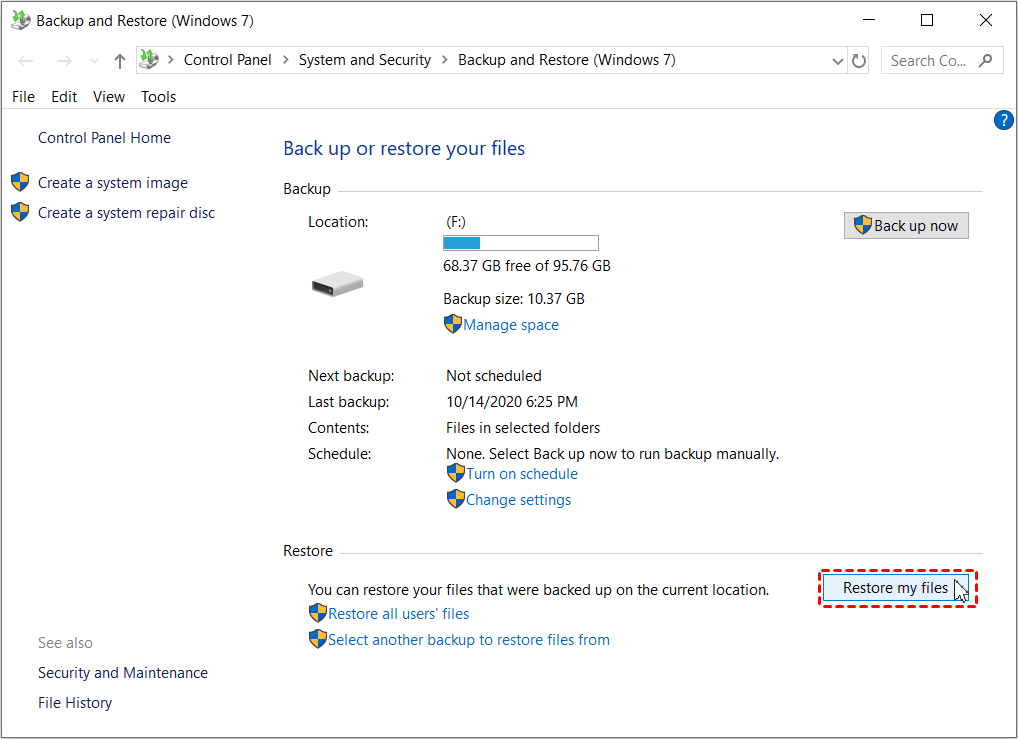
3. In the Backup and Restore window, click Restore my files in the Restore section.
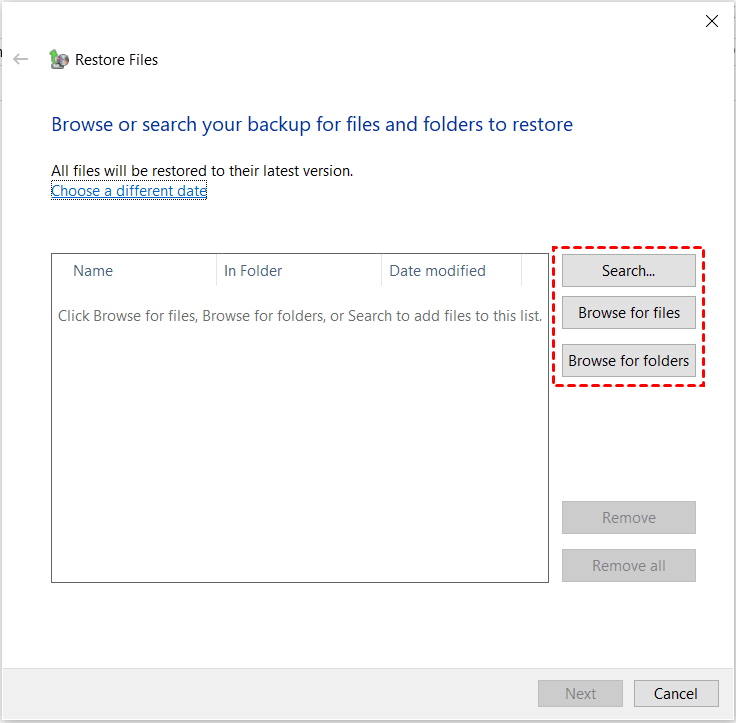
4. Click on "Browse for files" or "Browse for folders" to select the files or folders you want to recover, or click "Search" to search for a specific file or folder by name.
5. Choose to restore your files to the original location or a new location, and click "Restore" to start the process.
Solution 3: recover missing files by powerful recovery software
If you don't have a backup, you may need a powerful data recovery software like Deep Data Recovery, which offers comprehensive Windows data recovery solutions for all users, including deletion, emptying the Recycle Bin, disk formatting, or system crash.
This software can scan hard disks for over 200 types of files, including photos, videos, office files, zip files, and more.
To recover deleted or missing files in Windows 10, follow these steps: First, stop using the affected device and storage drive to prevent overwriting of the deleted files. Next, download and install a reliable file recovery software, such as Deep Data Recovery Wizard or Recuva, which can scan the storage drive and locate the deleted files.
Step 1. Download and run the program, select the source drive where your files were previously saved, and then click "Start Scan".

Step 2. Use filters like Type, Size, Date modified, etc., to quickly find and target specific files based on various criteria.

Step 3. To recover deleted files, go to the "Deleted files" section, navigate to the original location, select the files you want to recover, and click the "Recover" button.

More reliable way to protect your data from losing
You may find that recovering lost files with a backup is less time and energy-consuming than without a backup. Regular backups are crucial, and I recommend Qiling Disk Master Standard, a free backup software that outperforms File History and Windows Backup and Restore.
- It allows you to create backups of your system, disk, partition, or file based on your specific needs.
- With the Schedule Backup feature, you can set your backup tasks to run at fixed intervals, allowing you to maintain a consistent backup schedule.
- You are also allowed to create incremental backups or other backup options (such as automatic splitting) to improve the backup efficiency.
The software supports all Windows PC operating systems and can be downloaded for a free trial. It also offers a server version called Qiling Disk Master Server for server users.
You can choose one of the following methods to backup your important files: 1) External Hard Drive, 2) Cloud Storage, 3) USB Drive, 4) CD/DVD, or 5) NAS (Network-Attached Storage) device.
1. To create a safety net for your files, perform a file backup, which will allow you to restore them from a saved image in case of accidental deletion or loss.

2. To ensure your files are safe, perform a file sync to copy them to another location. If they're lost in the original place, you can simply copy them back from the synced location.

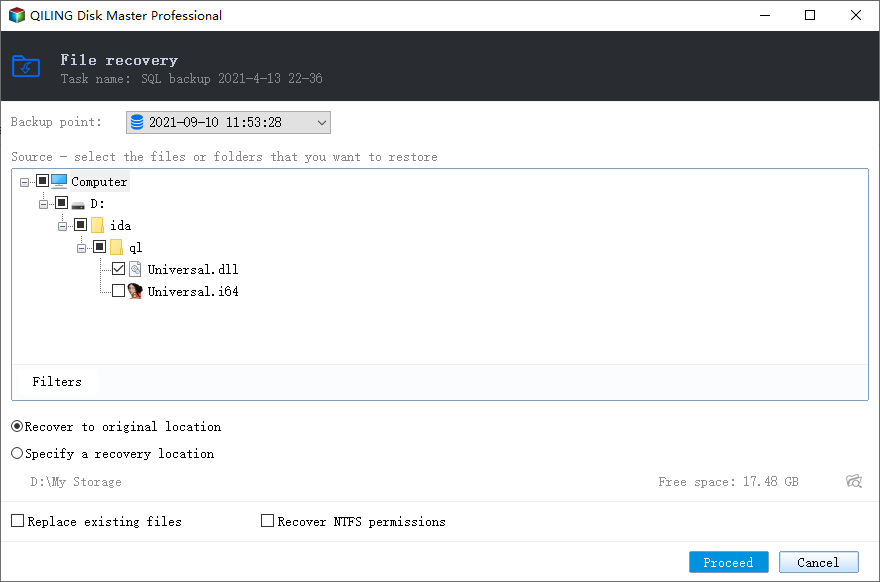
After backing up, you will get an exact copy of the files. But the previous one requires you to restore files from backup if you want to use or modify files in it. You have two ways in the following:
#1: Restore files from file backup. To backup and restore files, create a file backup in advance and choose to restore files to the original location or a new location.
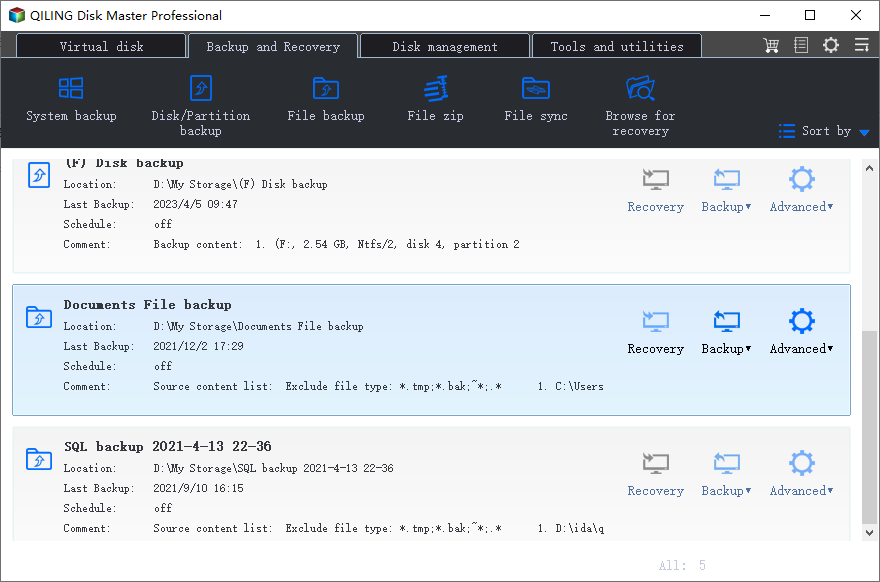
#2: Restore files using Explore Image. This software saves all files to the original location by default and maintains their original structure, making it suitable for file backup solutions.
Conclusion
You can recover lost files in Windows 10 using File History, Windows Backup and Restore, or the professional tool Recoverit. If you're unable to find a file, you may also be able to recover lost partitions in Windows 10, which can help you get missing files back.
To enhance data protection, you can create regular system backups for Windows 10 using Qiling Disk Master. Additionally, you can perform selective file restore in Qiling Disk Master, allowing you to recover only the specific files you need. This approach helps minimize data loss and ensures that you have a safety net in case of system failures or file corruption.
Related Articles
- Restore Deleted Files in Windows 10/8/7 for Free
If you find your important files deleted accidentally, don't stress out until you try these 4 methods to restore deleted files in Windows 11/10/8/7. - Solved: Automated Windows 10 Updates Deleted All My Documents and Files
This guide explains Solved: Automated Windows 10 Updates Deleted All My Documents and Files with clear steps, key checks, and practical tips. - Restore Files and Programs from Windows.old Folder
You will learn to restore files or Windows from Windows.old in Windows 10 as well as delete this folder for more space. Learn more below. - Backup Microsoft Office Before Reformatting Hard Drive
Learn how to Backup Microsoft Office Before Reformatting Hard Drive with clear steps, key checks, and practical tips. - How to Use Rsync in Windows 10 | Tutorial and Alternative
It's not easy to use Rsync in Windows 10. You must install WSL, set up Linux distribution and then install GIT. To make things easier, you could use an Rsync alternative for file backup and sync. - Windows 10 File History Backup Cannot Folders | Solved
This guide explains Windows 10 File History Backup Cannot Folders | Solved with clear steps, key checks, and practical tips.
Products
Articles & Tutorials
- Data Recovery
- Data Backup
- File Recovery
- File Backup
- File synchronize
- System Backup and Restore
- Disk and Partition Clone
- Technical articles
- Disk Master Help
- Windows Deleted File and Disk Recovery Tutorials
- Windows File and Data Recovery Tutorials
- More Windows Tutorials for Install, Security, Files, and PC Tips
- Windows Boot, Repair, and Recovery Environment Tutorials
- Windows Backup Tutorials
- Windows Restore Tutorials
- Windows Clone and Migration Tutorials
- Windows Server Backup, Recovery, and Management Tutorials
- Windows Disk, Partition, and Storage Management Tutorials