Windows 10 File History Backup Cannot Folders | Solved
Quick Navigation:
- The issue: cannot add certain folders in File History
- Fix “Windows 10 backup cannot Folders” in File History
- Let Windows 10 backup certain folders via a handy freeware
- Conclusion
The issue: cannot add certain folders in File History
Windows 10 File History - Cannot Folders located deeper than the Personal Folder (C:\Users\XXXX)
I want to backup some specific folders in my OneDrive, which are located in C:\Users\XXXX (XXXX = my user name). I don't want to backup my whole OneDrive because it is too large. However, I found that it was impossible to add specific folders which were in the OneDrive folder. After I selected a folder (e.g. C:\Users\XXXX\Onedrive\Lecture Notes), no error code was shown, just that the folder I just added didn't appear on the list no matter how many time I tried. Even I started a new backup, it still didn't work. I really want to backup the folders in OneDrive. How can I do it :(?
- Question from Microsoft.com
Windows 10 backup can be done using two tools: File History and Backup and Restore. File History is more effective for file backup, creating a complete history of files, allowing for recovery of lost, damaged, or deleted files, and reverting files to previous versions.
Unfortunately, File History has a limitation that prevents users from adding specific subfolders to be backed up, such as subfolders within the Documents, Pictures, or OneDrive folders in the C:\Users\Username directory. As a result, users can only choose to back up the entire parent folder, rather than selectively backing up specific subfolders. This can be frustrating for users who want to back up only certain folders or files. However, this limitation can be worked around by using alternative backup methods, such as external hard drives or cloud storage services, which offer more flexibility in terms of what can be backed up.
Fix “Windows 10 backup cannot Folders” in File History
If you encounter the issue of "Windows 10 backup cannot Folders", you can resolve it by excluding certain folders that you don't want to backup. For instance, if you have five folders in your Documents folder and only want to backup three of them, you can use the "Exclude these folders" feature in File History to exclude the other two folders, allowing you to customize your backup settings and avoid backing up unnecessary files.
1. Navigate to Settings > Update & Security > Backup.
2. Click More options in the "Back up using File History" section.
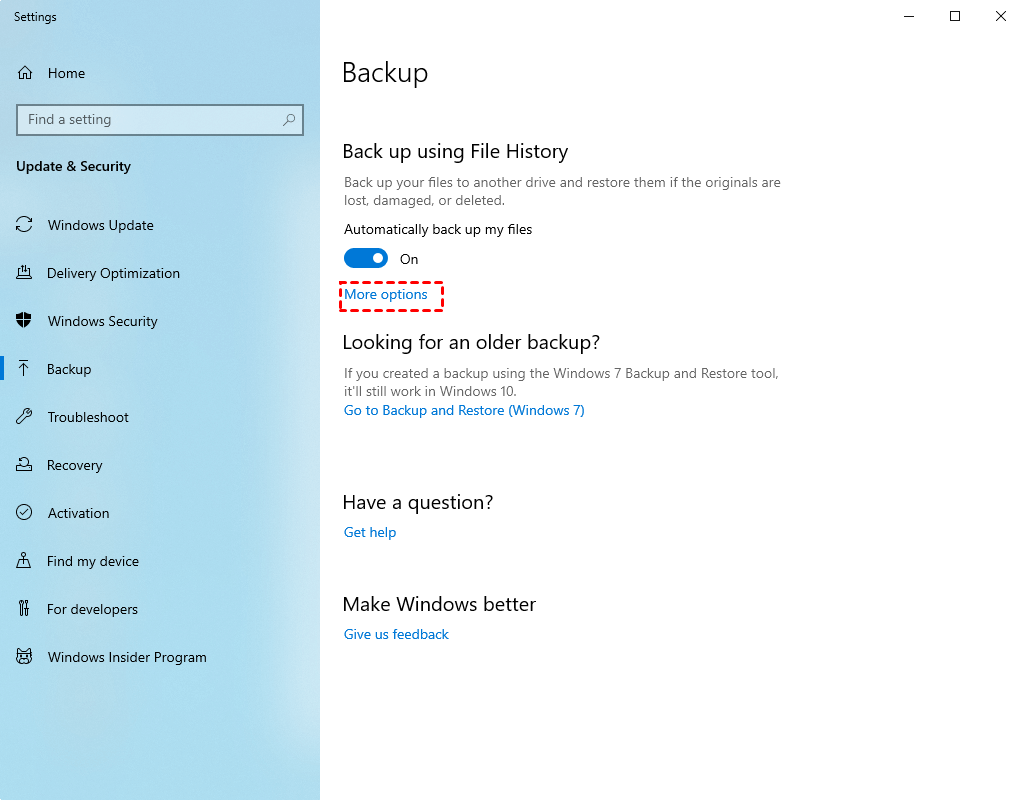
3. In the "Backup options" window, scroll down to the "Exclude these folders" section and click Add a folder.
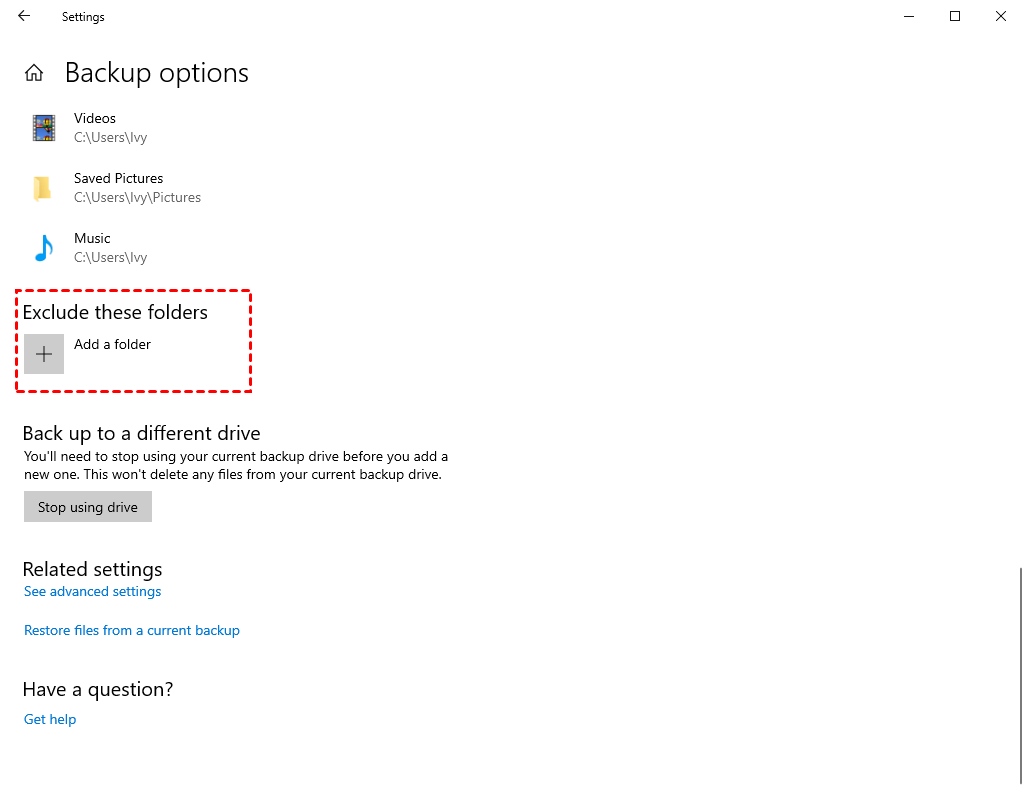
4. To exclude a folder from the sync process, browse to the folder you want to exclude and click Choose this folder.
Tip: To exclude a single folder, go to the "Exclusions" tab, click on "Add", select the folder you want to exclude, and then click "OK". To exclude more than one folder, just repeat these steps for each additional folder you want to exclude.
5. Close Settings when you are done.
To avoid the hassle of excluding subfolders one by one, you can consider using a superior backup tool that allows you to backup any folders as you like, eliminating the need for manual exclusion of subfolders. This can save you time and effort, and also ensure that your important files are safely backed up.
Let Windows 10 backup certain folders via a handy freeware
If you're disappointed with Windows 10's backup not working as expected, consider using Qiling Disk Master Standard, a top-rated free backup software. This tool offers a range of features, including (insert features here).
- Qiling Backup offers four backup types: System/Disk/Partition/File Backup. The File Backup feature allows you to add any folders, regardless of location, to be backed up.
- Qiling Disk Master supports various computer backup devices, including external hard drives, network locations, local disks, and cloud services like OneDrive and Google Drive.
- When you create a Qiling account, you can back up files to Qiling Cloud, which provides 1TB of free storage for 15 days after signing up.
- It runs smoothly on Windows 11/10/8.1/8/7/Vista/XP, both 32 and 64 bit.
Download Qiling Disk Master and learn how to backup certain folders on your PC by following the detailed instructions below:
Step 1. Install and launch Qiling Disk Master, then click Backup and select File Backup.

Step 2. To give the backup task a name based on your need, click on "Folders" to select the specific folders you want to backup.

Note: You can also click "Files" to select specific files to be backed up.
Step 3. Select a destination path to store the backup image.

Step 4. Confirm the operation and click Proceed.

You can configure your backup with the following options:
Options: You can enable email notifications, compress your backups, or split them for easier management.
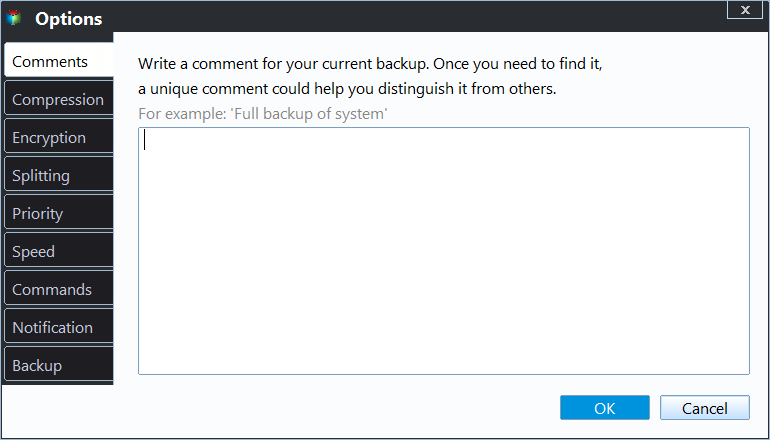
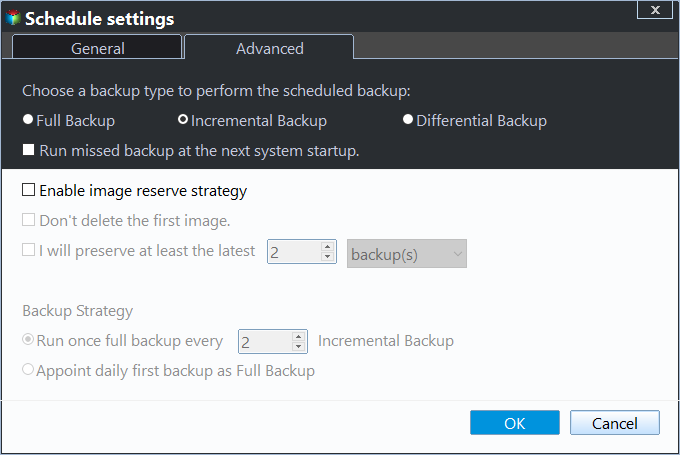
Schedule Backup: You can set up an automatic backup based on daily, weekly, or monthly mode, ensuring your data is safely stored and easily recoverable in case of any issues.

Backup Scheme: The feature allows you to choose a backup method and enable automatic backup cleanup, which is available in high editions.
Conclusion
The "Windows 10 backup cannot Folders" error can be resolved by excluding specific folders that you don't want to backup, but manually excluding each folder can be time-consuming. To simplify the process, you can use Qiling Disk Master, which enables you to backup any folders as desired, making it easier to backup subfolders in your user folder.
Qiling Disk Master is a versatile software that offers not only backup and restore functions but also serves as a superb USB bootable software, allowing you to create bootable media. Additionally, its disk clone feature is worth exploring. Download it now to experience its full capabilities.
Related Articles
- 2 Ways to Backup Specific Folders That Change Often in Windows 10
You will learn how to easily backup specific folders that change often in Windows 10 with File History or Qiling Disk Master Standard. Pick up one to protect your data now! - Top 3 Ways to Backup Windows 10 to Network Drive/NAS
You will learn 3 effective methods to backup Windows 10 backup to network drive or NAS easily, even run automatically with the best free auto backup software. - How to Move Folders to a Different Drive in Windows 11/10/8/7?
Learn how to Move Folders to a Different Drive in Windows 11/10/8/7 with clear steps, key checks, and practical tips. - How to Backup File Versions in Windows 7 with File History Similar
Previous Versions is a useful tool built in Windows 7 that works like Windows 7 version of File History - create an snapshot of files or view and restore earlier versions of files. - How to Fix Corrupted Files in Windows 7/8/10?
You can easily fix corrupted files in Windows 7/8/10/11 if you cannot open it or receive error message. And don't forget to protect data if you don't want this happening again.
Products
Articles & Tutorials
- Data Recovery
- Data Backup
- File Recovery
- File Backup
- File synchronize
- System Backup and Restore
- Disk and Partition Clone
- Technical articles
- Disk Master Help
- Windows Deleted File and Disk Recovery Tutorials
- Windows File and Data Recovery Tutorials
- More Windows Tutorials for Install, Security, Files, and PC Tips
- Windows Boot, Repair, and Recovery Environment Tutorials
- Windows Backup Tutorials
- Windows Restore Tutorials
- Windows Clone and Migration Tutorials
- Windows Server Backup, Recovery, and Management Tutorials
- Windows Disk, Partition, and Storage Management Tutorials