How to Fix Corrupted Files in Windows 7, 8, 10, 11
- What is a corrupted file?
- Why is the file corrupted?
- Fix corrupted system files in all Windows systems (4 Ways)
- #1: Repair corrupted files using Windows Properties
- #2: Fix corrupted system files in Windows 7 using SFC
- #3: Repair corrupted boot files in Windows with DISM
- #4: Change the file format to fix corrupted files
- Helpful hints: Prevent data loss due to file corruption
- Summary
What is a corrupted file?
Corrupted files are computer files that suddenly become inoperable or unusable due to a change in their structure or content, causing them to malfunction or become inaccessible. This can happen when the correct information is placed in the wrong part of the file, disrupting its functionality.
If the wrong information is written to a file, or the right information is written in the wrong place, the data will become garbled and scrambled, resulting in a corrupted file.
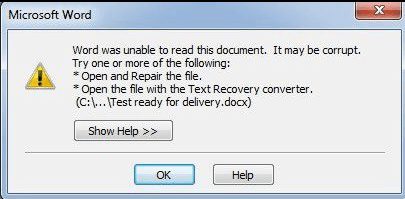
A corrupted file will not open or will show an error message, but it won't affect the original program, so you can still use the program normally even with a corrupted file.
Why is the file corrupted?
Here are the most common reasons for things going wrong, summarized with step-by-step methods:
1. Your files were corrupted during saving due to a loss of power or computer crash.
2. Bad sectors, viruses, or malware on a hard drive or other storage device can cause data corruption, loss, or inaccessibility. This occurs when the physical storage area on the drive becomes damaged, infected, or compromised, leading to errors and inconsistencies in the stored data.
3. Bad update on your computer.
Fix corrupted system files in all Windows systems (4 Ways)
After getting the reasons for corrupted files, you can try the given methods below to fix it. To prevent data loss due to file corruption, it's suggested to backup files automatically, which will be introduced in the next part.
#1: Repair corrupted files using Windows Properties
If your computer has bad sectors, you can use a disk check utility to repair corrupted system files. The steps to do this will vary slightly depending on the operating system you're using.
For Windows 7 users:
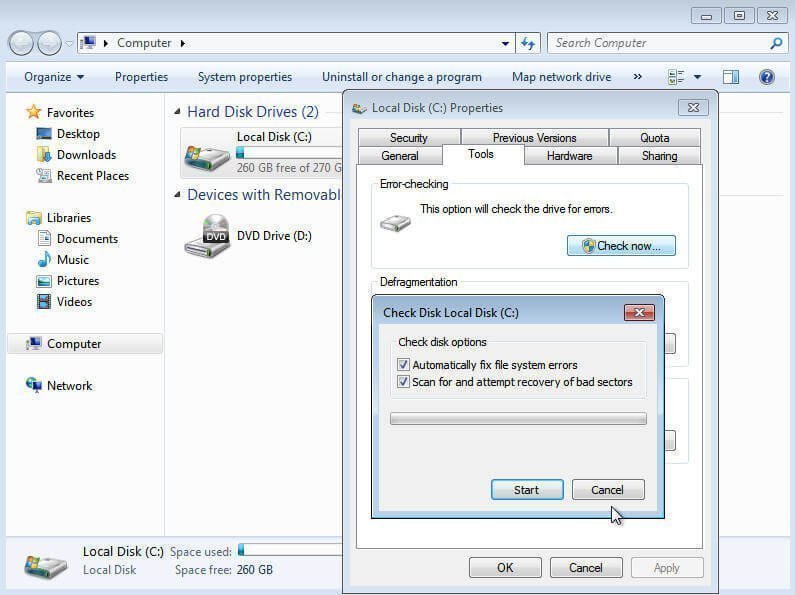
To check for bad sectors on a hard drive, open Computer, right-click the drive you want to check, select Properties, click Tools, then Check now, and choose Scan for and attempt recovery of bad sectors. Click Start to begin the process.
For Windows 8/10/11 users:
To run a disk check on your computer, go to the Properties of your computer, click on Tools, and then select the Check option under Error-checking. Review the scan results and click Scan and repair drive to initiate the process, allowing you to choose when to repair the file system.

Step 4. Review the scan result and click Scan and repair drive.
Step 5. Choose when to repair the file system and wait for the final result.
#2: Fix corrupted system files in Windows 7 using SFC
The System File Checker (SFC) is a command-line utility in Windows 7/8/10/11 that scans for missing or corrupted system files and repairs them. If your problem is related to system boot files, you can try using the SFC utility to fix it.
Step 1. Type cmd in the search box, right-click it and select Run as administrator.
Step 2. In the command prompt window, type sfc/scannow and hit Enter to excute this repair process.
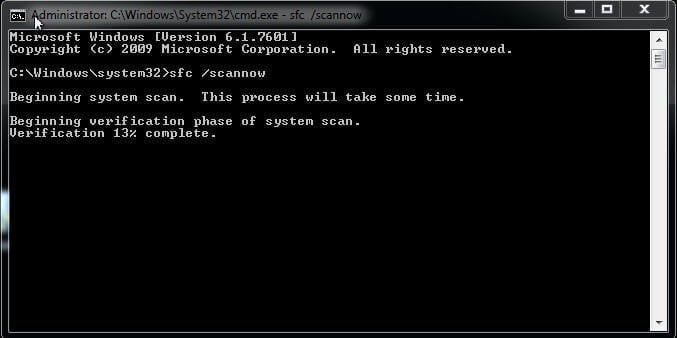
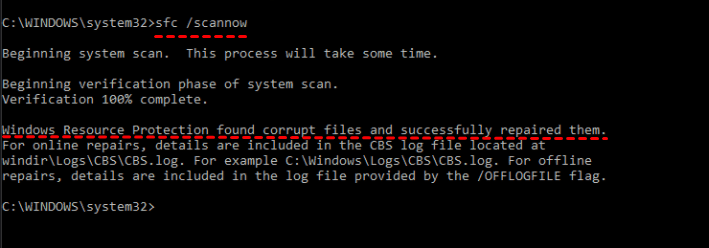
After scanning, you will receive one of the following messages, which will tell you if the corrupted boot files are repaired.
- Windows Resource Protection did not find any integrity violations. The system file check has completed successfully, indicating that all system files are present and intact.
- Windows Resource Protection could not perform the requested operation. To resolve the issue, run the SFC command in safe mode, ensuring that the PendingDeletes and PendingRenames folders exist under %WinDir%\WinSxS\Temp.
- Windows Resource Protection found corrupt files and successfully repaired them.
- Windows Resource Protection found corrupt files but was unable to fix some of them. The corrupted files need to be manually replaced with the right ones. To do this, check the CBS.log file located in the %WinDir%\Logs\CBS\CBS.log directory for detailed steps.
#3: Repair corrupted boot files in Windows with DISM
If you receive the "Windows Resource Protection found corrupt files but was unable to fix some of them" message, try using the DISM command line as a replacement for the SFC command line, which may be helpful when the SFC /scannow command is not working.
Step 1. Run cmd as administrator and type the following command in the command prompt window.
DISM /Online /Cleanup-Image /RestoreHealth
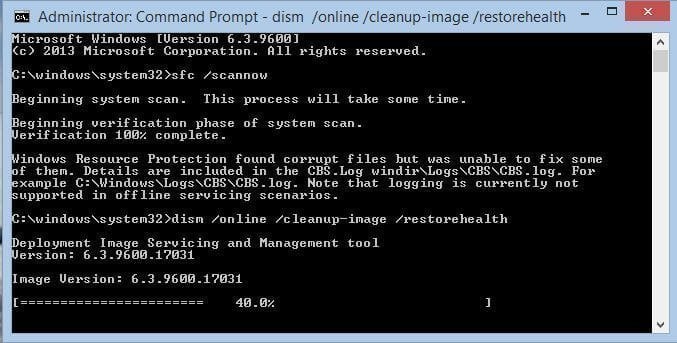
Step 2. Wait and restart your computer to make the change available.
#4: Change the file format to fix corrupted files
If you have corrupted Word or Excel files, you can try fixing them using the following steps.
Step 1. Open corrupted Word or Excel file, click Save As and select Web Page from the Save as type.
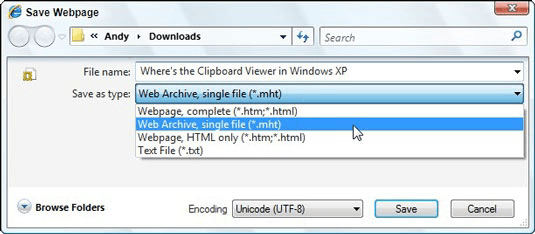
Step 2. Right-click on the previously saved files, select "Open with" > "Microsoft Office Excel". If it opens normally, go to "Save As" and select an Excel format (.xls or .xlsx) instead of the original format. This should recover the corrupted Excel file.
Helpful hints: Prevent data loss due to file corruption
If you're unable to open certain files, it can be frustrating. In such cases, you may need to either fix the corrupted files in Windows or use data recovery software, but this can come with the risk of losing your data. To avoid this situation altogether, the best course of action is to regularly backup your files to an external hard drive, USB drive, NAS, or network share, and use a reliable backup and restore software to ensure your data is safe.
I recommend using Qiling Disk Master Standard for continuous data protection, not just after repairing corrupted files. You can also choose different backup methods based on file types.
- For common files like music, videos, word and excel documents, consider creating a file backup with its file backup option. If the files are stored in a specific partition, select the partition backup option.
- For system or boot files like DLLs and CBS logs, it's best to perform a system image backup. Both system and disk backups can help and will automatically select system files.
You can automatically backup files with a schedule, choosing daily, weekly, or monthly backups, but be aware that this may lead to a full backup disk, so consider using features like incremental backup, compression, and automatic splitting to manage your disk space effectively.
Please download this software to have a try!
The free version of this software only supports Windows 7, 8, 10, and 11. For server users, the Qiling Disk Master Server is recommended instead.
Step 1. Launch Qiling Disk Master Standard, click Backup and File Backup.

Step 2. Click Files or Folder to select files or folders you want to backup.

Step 3. Set up a destination path for your backup and set advanced features. Then, click Proceed to backup files automatically.
✿ Schedule BackupYou can create a daily/weekly/monthly backup or enjoy Event triggers and USB plug in feature in the app.Professional version.
✿ Backup Scheme: You can set incremental or differential backup If you frequently modify your files, you can set up your backup to only save the changed files. Additionally, you can delete old backups to free up disk space using one of the cleanup methods - By quantity, By time, By daily/weekly/monthly. However, note that most features in the Backup Scheme are not free.

Summary
You can fix corrupted files in Windows 7/8/10/11 using the given solutions, but there's still a risk of data loss. If you can't afford to take that risk, the best way is to back up your files automatically to avoid any potential issues.
Qiling Disk Master Standard is a good option for minimizing disk space, offering multiple features. To further optimize, enable automatic backup cleanup methods and delete backup files automatically. For protecting files on multiple computers, Qiling Disk Master Technician is a suitable choice.
Related Articles
- Top 2 Ways to Fix a Corrupted User Profile (Windows 7)
Knowing the causes of a corrupt user profile can help you easily and quickly fix a corrupted user profile in Windows 7/8/10. Thus, please find your cause first and then try 4 FREE ways in this article. - Quick Fix to Startup Repair in Windows 7 not Working
This guide explains Quick Fix to Startup Repair in Windows 7 not Working with clear steps, key checks, and practical tips. - Fix Windows Automatic Repair Loop using Command Prompt
Learn how to Fix Windows Automatic Repair Loop using Command Prompt with clear steps, key checks, and practical tips. - Recover Files from Accidentally Formatted External Hard Drive
Learn how to Recover Files from Accidentally Formatted External Hard Drive with clear steps, key checks, and practical tips. - Fix: File History Doesn't Recognize This Drive
Learn how to Fix: File History Doesn't Recognize This Drive with clear steps, key checks, and practical tips. - Fix Annoying Error: Your File History Drive Is Disconnected
Try the following 5 ways to fix "Your File History drive is disconnected" error, or try the best free alternative for File History - Qiling Disk Master to auto backup your files easily.
Products
Articles & Tutorials
- Data Recovery
- Data Backup
- File Recovery
- File Backup
- File synchronize
- System Backup and Restore
- Disk and Partition Clone
- Technical articles
- Disk Master Help
- Windows Deleted File and Disk Recovery Tutorials
- Windows File and Data Recovery Tutorials
- More Windows Tutorials for Install, Security, Files, and PC Tips
- Windows Boot, Repair, and Recovery Environment Tutorials
- Windows Backup Tutorials
- Windows Restore Tutorials
- Windows Clone and Migration Tutorials
- Windows Server Backup, Recovery, and Management Tutorials
- Windows Disk, Partition, and Storage Management Tutorials