Fix a Corrupted User Profile in Windows 7, 8, 10 (4 FREE Ways)
- What causes a corrupt user profile in Windows?
- How to Fix a corrupted user profile in windows 7/8/10/11 quickly
- Method 1: Restart your computer to fix a corrupted user profiles
- Method 2: Use System Restore to fix a corrupted user profiles
- Method 3: Recreate user profile to fix corrupted user profiles
- Method 4: Restore registry settings in safe mode to fix corrupted user profiles
- Backup your system to prevent this error happening again
- Conclusion
What causes a corrupt user profile in Windows?
When you log on to Windows, if you get an error message saying "The user profile service failed the logon. User profile cannot be loaded," it means your user profile is corrupted or damaged, and this issue can occur on any Windows version, including Windows 7, Windows 8.1, or Windows 10.

Corrupt user profiles in Windows 7, 8, and 10 can be caused by various factors. These include software conflicts, registry issues, and hardware problems, but most often, it's due to a faulty or outdated user profile, a corrupted user profile cache, or a mismatch between the user profile and the Windows version.
- Failed Windows Update or Automatic Updates. The process of upgrading critical system files, typically through a service pack installation, is crucial as it updates user profiles. However, if this process fails, it can lead to user profiles not loading properly.
- Damaged hard drive file system due to write errors, power outages or virus attacks.
- Other causes, The issue could be related to hardware problems such as bad memory or hard drive failure, a force shutdown, or a malware infection.
How to Fix a corrupted user profile in windows 7/8/10/11 quickly
Once you understand the causes of corrupted user profiles, you can proceed to fix them using one of the four free and effective methods available. You can start the process now.
Method 1: Restart your computer to fix a corrupted user profiles
A Windows 7 user profile can't be loaded due to reasons such as a forced shutdown or malware infection, which can cause system instability and prevent the profile from loading properly.
When you get the error "The user profile service failed the logon. User profile cannot be loaded", try restarting your computer first, and if that doesn't work, check if your computer has any malware that might be causing the issue.
If this is not the reason why you receive this error message, you can try the second way.
Method 2: Use System Restore to fix a corrupted user profiles
System Restore can help you roll back Windows installation and essential system files, or undo changes after installing Windows Update, device drivers, or applications, or modifying system settings incorrectly using Registry or other tools. If the Windows update or Automatic Updates is the cause of a corrupt user profile, you can try to restore system from a restore point.
Step 1. Go to safe mode with command prompt. Then, type rstrui to open system restore window.
For Windows 7Restart your computer and press F8 repeatedly until the Advanced Boot Options window appears, allowing you to select Safe Mode with Command Prompt.
For Windows 10To access the Command Prompt in Safe Mode, press the Shift key while restarting your computer, then select Troubleshoot > Advanced options > Startup Settings > Restart and choose Enable Safe Mode with Command Prompt.
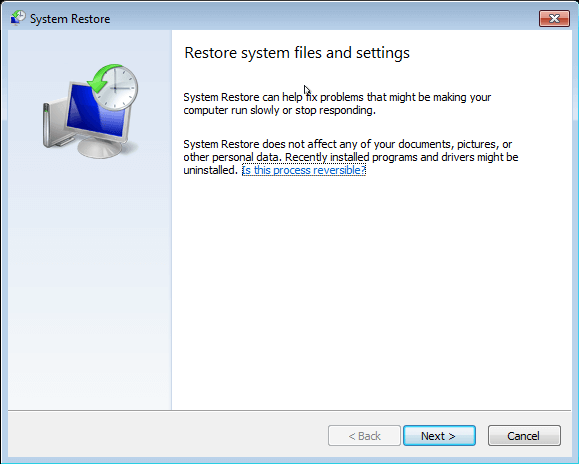
Step 2. Then, you will see restore system files and settings window below and click Next.
Step 3. Choose the lastest System Restore Point and click Next.
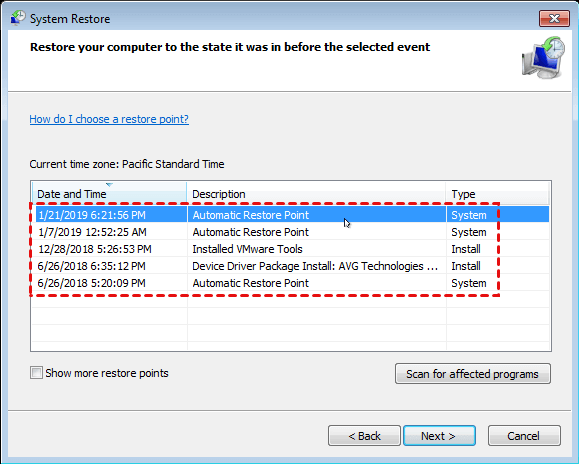
Step 4. Preview and confirm the restore point you are currently chosen, click Finish to recover user profile in Windows 7.
Method 3: Recreate user profile to fix corrupted user profiles
In order to resolve the issue, you need to check if the profile service is functioning correctly. If it is, you can follow a specific method to address the problem. The steps may vary slightly, but you can use Windows 7 as a reference.
To check the profiles service status, start your computer in safe mode with command prompt, create a new user named Ivy, restart, and log in as Ivy. If you successfully log in, the profile service is okay.
- Note:✎...
- You want to create a new user account with the username "Ivy" and the password "0".
Create a new account when user profile corrupt
Step 1. Boot your computer with administrator account.
Step 2. To create a new user account, navigate to the Control Panel, then select "User Accounts and Family Safety," followed by "User Accounts." Click on "Manage another account" and then select "Create a new account" at the bottom left.
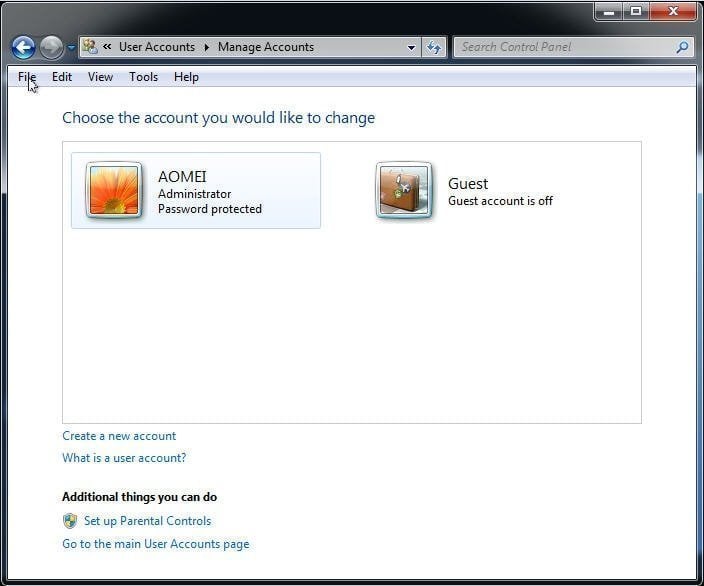
Step 3. In this window, type a name for your new account and select an account type. Then, click Create Account.
Copy user profile to new user account
Step 1. To access the Folder Options in Windows, click on "Tools" in the top menu bar, then select "Folder Options". In the resulting window, navigate to the "View" tab and check the box next to "Show hidden files and folders". Uncheck the box next to "Hide protected operating system files" and then click "Apply" and "OK" to save the changes.
Step 2. Go to C: \User\OLD_USERNAME, then right-click all files except for Ntuser.data, Ntuser.data.log, Ntuser.ini and select Copy.
- Note:✎...
- The "C:" parameter refers to the system drive, and OLD_USERNAME refers to the corrupted username of the user.
Step 3. Go to C: \User\New_USERNAME (the username you created just now)and paste all files in this folder.
Step 4. Restart your computer with the new username.
Method 4: Restore registry settings in safe mode to fix corrupted user profiles
To fix a corrupted user profile in Windows 7/8/10, first check the status of the profile service. Then, navigate to the Windows registry to find and correct the corrupted Profile Subkey. This method is applicable for Windows 7, 8, and 10 operating systems.
Find the corrupted user profile in Registry
Step 1. Start your computer in safe mode.
Step 2. To access the Registry window, press the Windows key + R to open the Run window, then type regedit.exe and click OK.
Step 3. Navigate to the following key from the left panel.
HKEY_LOCAL_MACHINE\SOFTWARE\Microsoft\Windows NT\CurrentVersion\ProfileList
Step 4. The task is to check the subkeys named S-1-5 followed by a long number and verify if there are duplicate subkeys with the same name, but one of them has a .bak extension.
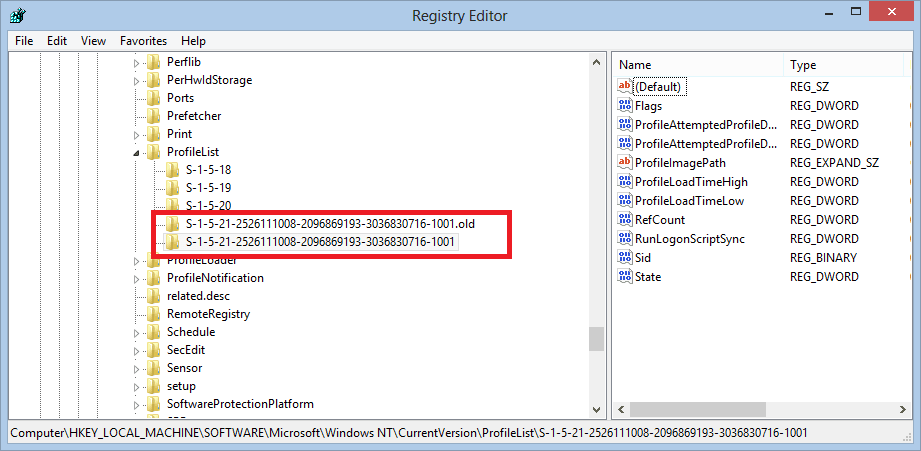
If your user profile is corrupted, you can fix it by using the .bak subkey in the registry, or if that's not possible, you can delete the corrupted profile from the registry.
Fix the corrupted profiles using .bak subkey
Step 1. Check the ProfileImagePath value of subkey S-1-5 with .bak extension, it should be "C: \Users\username".
Step 2. Go to the "C:\Users" folder in Windows Explorer and verify that the corrupted username matches the one shown in the ProfileImagePath value.
Step 3. To rename the subkey with a .bak extension to a .ba extension, right-click the subkey with .bak and select Rename, then change it to end with .ba instead.
Step 4. Rename the subkey without .bak to .bak extention.
Step 5. Remove the subkey with .ba extention to have no extention.
Step 6. Go to the subkey without the .bak extension and change the value data of the RefCount and State key to "0".
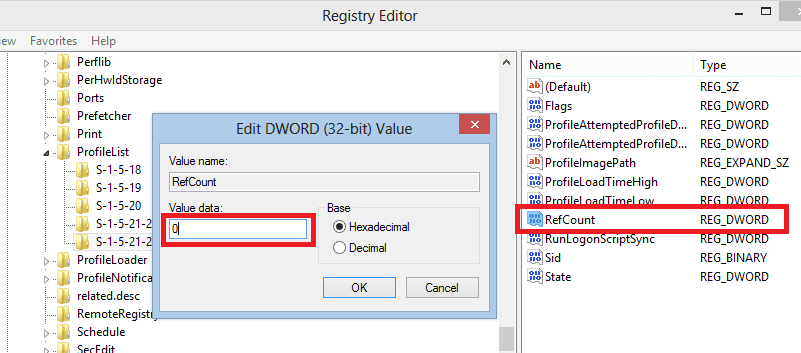
Step 7. Close the registry and restart your computer to log in with the corrupt user account.
Delete the corrupted user profile from registry
Step 1. Click each subkey named S-1-5 followed by a long number, and check the ProfileImagePath to find the profile subkey that has a corrupted user profile.
Step 2. At the left panel, right-click the subkey with corrupt user profile and select the Delete option.
Step 3. Close registry editor.
Step 4. Restart your computer and login to the account with corrupted user profile. (now, the profile should be clean)
Step 5. Log off and log on with Admin account.
Step 6. Navigate to the subkey below again and see the ProfileImagePath key. It should be named as "CorruptedProfileName. YourComputerName".
HKEY_LOCAL_MACHINE\SOFTWARE\Microsoft\Windows NT\CurrentVersion\ProfileList
Step 7. Double-click the ProfileImagePath key and remove ".ComputerName" in the Value data.
Step 8. Close registry editor.
Step 9. Go to Computer > C: \Users folder. Then, enable hidden files and folders using Folder Options.
Step 10. To fix a corrupted user profile, copy the files from a folder with "CorruptedProfileName.YourComputerName" to a folder with the corrupted user profile, then restart your computer and log on to the user account with the corrupted files.
- Ntuser.data
- Ntuser.data.log
- Ntuser.ini
Backup your system to prevent this error happening again
Fixing a corrupted user profile in Windows 7/8/10 can be a straightforward process, allowing you to use your computer again. However, when considering the underlying causes, such as failed Windows updates, damaged file systems, or hard disk failures, you may worry about potential issues like data loss and system crashes, highlighting the importance of addressing the root cause to prevent further problems.
To resolve the issue, make a system backup using a reliable software like Qiling Disk Master Standard, which allows you to restore system image to a new hard drive or achieve the same results with disk backup and restore.
- You can schedule a backup of your system from daily to monthly, and have your computer automatically wake up to run the task at the specified time and interval.
- You can enable incremental backup to save time and space by only backing up changed files, reducing the risk of backup disk full issues.
- Normal or high compression level: This method helps save disk space by compressing image files, but it requires more backup time and uses less disk space.
Here are the steps to take a system backup:
Step 1. Download Qiling Disk Master Standard and open it. Then, click Backup and System Backup in order.

Step 2. To save the backup image, select a destination path, as the system-related partitions are chosen by default. You can save the backup to a USB drive, external hard drive, or network location.

- ★Helpful tips:
- You can set Normal or High compression levels, schedule daily/weekly/monthly backups, and choose incremental backup in the options.
- Differential backup allows for backing up only changed files since the last full backup, requiring more backup time and disk space, but is a safer option than incremental backup.
- To avoid running out of space on the backup disk due to accumulated backups, you can choose to delete old backup images regularly using Backup Scheme, a feature supported by the professional version.
Step 3. Then, click Proceed to execute the backup task.
With a backup image in hand, you can easily restore your system image to a new hard drive or SSD. To avoid having an unbootable computer, it's recommended to create a bootable USB or recovery environment in Windows 7, 8, 10, or 11, which can help you boot your computer and perform a system restore.

Conclusion
To fix a corrupted user profile, try the following methods in order: attempt to log in with the built-in administrator account, use the System Restore feature, run a System File Checker (SFC) scan, and if all else fails, perform a System Restore to a previous point when the profile was working correctly. After resolving the issue, it's recommended to backup your system or disk using a free backup software, such as Qiling Disk Master, to prevent future data loss.
Creating a system image will make an exact copy of all your files, including the operating system, programs, user profile, and personal data. This image can then be used to restore your system or disk, saving your computer from any disaster. What's more, this image can even be used on a different computer, allowing for a dissimilar hardware restore while ensuring a successful boot.
This software has different versions, each with its own features and capabilities. To determine which version is best for you, please visit the edition comparison page for more information.
Related Articles
- 2 Ways to Recover Deleted User Profile in Windows 7
If your Windows 7 computer stuck on Welcome screen out of some reasons, you can refer to this article and find effective solutions. - Preparations for Windows Server 2016 in-Place Upgrade
This article focuses on how to prepare for Windows Server 2016 upgrade and upgrade Windows Server 2012 to 2016 step by step. No data loss. - Windows 10 Incremental Backup | Wise Backup Method
This guide explains Windows 10 Incremental Backup | Wise Backup Method and provides practical steps, tips, or recovery options to help you complete the task safely. - Tutorial: Windows 10 Offline Update Tips
If you're looking to update Windows 10 offline, it's a relatively simple process. This article provides a step-by-step guide to help you update your system to Windows 10 without an internet connection. With this tutorial, you'll be able to complete the update process easily and efficiently.
Products
Articles & Tutorials
- Data Recovery
- Data Backup
- File Recovery
- File Backup
- File synchronize
- System Backup and Restore
- Disk and Partition Clone
- Technical articles
- Disk Master Help
- Windows Deleted File and Disk Recovery Tutorials
- Windows File and Data Recovery Tutorials
- More Windows Tutorials for Install, Security, Files, and PC Tips
- Windows Boot, Repair, and Recovery Environment Tutorials
- Windows Backup Tutorials
- Windows Restore Tutorials
- Windows Clone and Migration Tutorials
- Windows Server Backup, Recovery, and Management Tutorials
- Windows Disk, Partition, and Storage Management Tutorials