Restore Windows 10 or 11 System Image to New Hard Drive (2 Ways)
The need to backup and restore Windows 10 /11 to new hard drive
To transfer Windows 10 to a new hard drive without reinstalling the operating system and programs, you can backup Windows 10 to an external hard drive or USB and then restore the system image to the new hard drive or SSD. This process saves time and effort compared to reinstalling everything from scratch.
Creating a system image with Windows 10's built-in backup utility is crucial, as the operating system still has many bugs despite its long release. This ensures that in the event of a hard drive failure or other unexpected errors, you can restore your system from a backup, minimizing data loss and hassle.

When migrating Windows 10 to a new hard drive, you can use the built-in Backup and Restore feature or a reliable backup and restore software like Qiling Disk Master Standard, which can create a Windows 10 backup image and a bootable USB to boot your computer, making the process simpler and more powerful.
Method 1. Restore Windows 10/11 system image to new hard drive with Backup and Restore (Windows 7)
To restore a Windows image backup from an external hard drive or USB drive to a new hard drive, prepare an external hard drive or USB flash drive to save the backup image and a CD/DVD for the system repair disc.
- Part 1: Create Windows 10/11 full system backup with Backup and Restore (Windows 7)
- Part 2: Restore Windows 10/11 system image to new hard drive
- Part 3: What to do after backup and restore Windows 10 image to new hard drive?
Part 1: Create Windows 10/11 full system backup with Backup and Restore (Windows 7)
Step 1. Go to Control Panel, click System and Security and Backup and Restore (Windows 7) in order.
Step 2. Click Create a system image in the left pane.
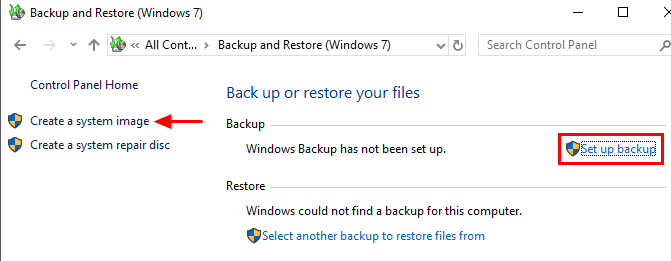
The option "Set up backup" is available at the right side, allowing users to backup files and include a system image backup during the process. This option can be accessed by clicking on it, and it enables users to add backup files, system, and other partitions by checking them in the last window.
Step 3. Choose the destination drive (external hard drive or USB flash drive) to save your backup.
Step 4. The drives that are required for Windows to run will be included by default and click Next to continue.
Step 5. Confirm the settings and click Proceed.
When the backup is complete, you'll be asked if you want to create a system repair disc (CD/DVD). This helps access recovery options if your computer can't boot. Click Yes to proceed. If you don't have a CD-ROM, you can create a Windows 10 recovery disk on a USB flash drive instead.
Part 2: Restore Windows 10/11 system image to new hard drive
We will use the Windows 10 system image recovery tool in the Windows recovery environment to help users restore a Windows 10/11 image backup to another drive and get their computer back to a normal state.
Step 1. Shut down the computer. Then, switch hard drive in Windows 10/11 with a new one and connect the backup disk containing Windows 10/11 backup image. Also, a system repair disc is required.
Step 2. To resolve the issue, boot your computer from the system repair disc and adjust the system's BIOS settings to enable booting from the CD/DVD. This typically involves hitting a specific key on the first screen to access the BIOS settings, where you can configure the system to prioritize booting from the CD/DVD drive.
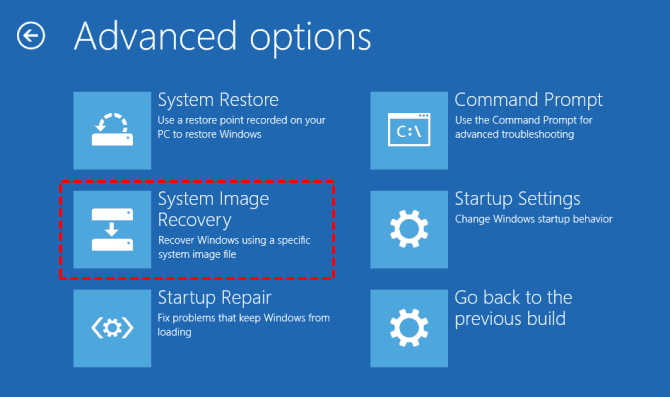
Step 3. Click "Next" when you see the Windows Setup interface for the first time, then select "Repair your computer" followed by "Troubleshoot", then "Advanced options", then "System Image Recovery", and finally choose "Windows 10" or "Windows 11".
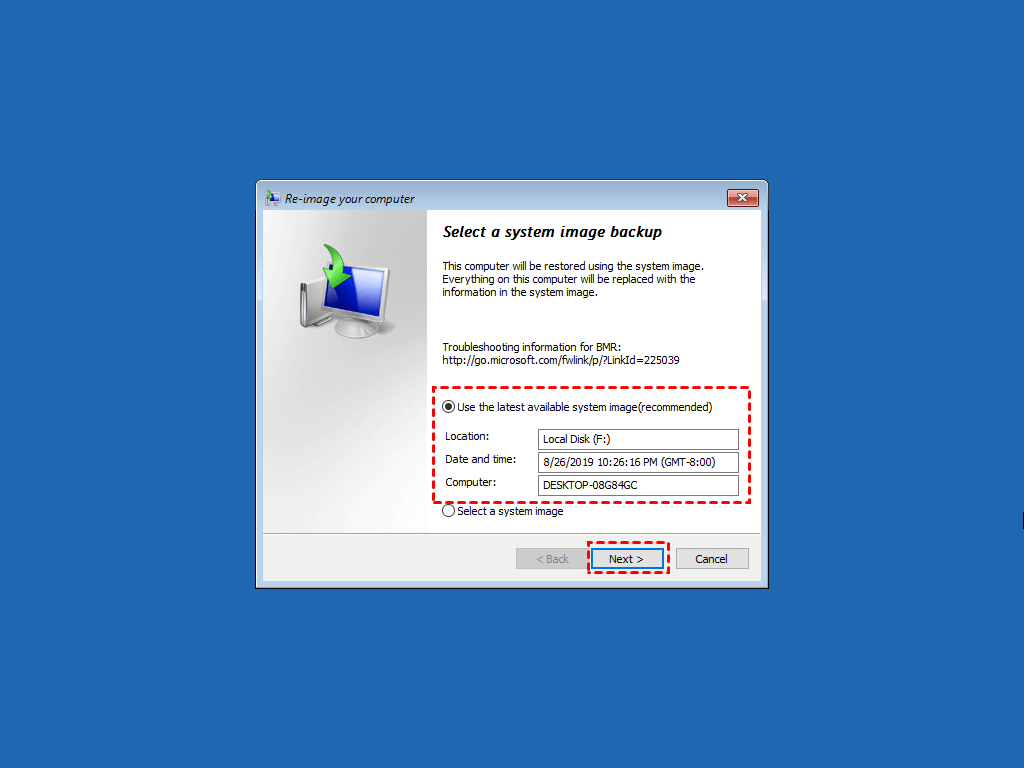
Step 4. In the Re-image your computer window, tick Use the latest available system image and then click Next.
Step 5. To restore a Windows image to another drive, select the "Format and repartition disks" option, then click "Next > Finish > Yes" in sequence.
Part 3: What to do after backup and restore Windows 10/11 image to new hard drive?
You still need to take some action based on your specific situation. There are two main scenarios to consider: one where you need to fully utilize your disk space on the new hard drive and another where you need to avoid system restore failed errors. Be sure to stay for a while and carefully check your situation to make the most of your disk space and prevent system restore failures.
Situation 1: Restore Windows 10/11 backup to larger hard drive
If the new hard drive is larger than the old one, there will be unallocated space at the end of the new disk. Thus, you need to extend the partition size, otherwise, you cannot use it to store data or do any operation. Here I'll show you the simple steps to extend partition.
Step 1. Press Win + R to open the run window and type diskmgmt.msc to open Disk Management in Windows 10/11.
Step 2. To extend the volume of a partition, right-click the partition at the left side of unallocated space and select Extend Volume. This will open the Extend Volume Wizard, where you can click Next to proceed.
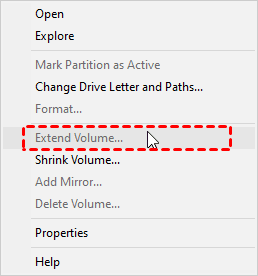
Step 3. To extend a partition, select the disk you want to extend the partition and click Next. This is usually done using unallocated space on the same disk, unless the disk is a dynamic disk.
Step 4. Click Finish to start this operation.
This method works in most cases, but there is an exception: if there is a 450MB recovery partition or other partition between the system partition and unallocated space, this method becomes invalid. In such cases, a professional feature like "Edit Partitions" in Qiling Disk Master is needed to resize partitions.
Situation 2: Restore Windows 10/11 image to smaller drive
Some users who restore a Windows 10/11 image to a smaller drive often encounter the issue that the backup and restore software does not support restoring to a partition layout that is smaller than the original disk.
If you try to restore a system image created on a 500GB hard drive to a 250GB SSD, the restore will fail due to the smaller disk size. This is because the system image was created on a larger disk and cannot be restored to a smaller one.
If you receive the error, the backup image is useless unless you replace the smaller hard drive with a larger one. Alternatively, you can use a third-party tool like Qiling Disk Master to backup and restore only used sectors on the old hard drive, or consider cloning Windows 10 directly to a new hard drive.
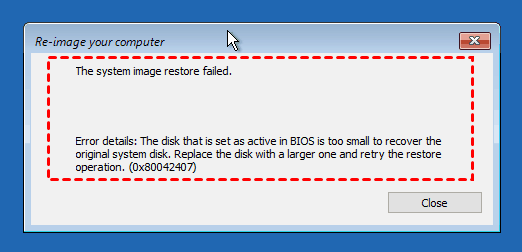
Besides the system image restore error, Windows built-in backup tool also encounters various backup errors, including system image backup failures due to issues like shadow copy storage, insufficient space, EFI or BIOS settings, and inability to use a specific disk, resulting in errors like 0x80070002.
Method 2. Restore Windows 10/11 image to new hard drive with Qiling Disk Master Standard
For a reliable and efficient Windows backup and restore solution, consider using Qiling Disk Master Standard, which allows you to easily backup and restore your Windows 10/11 system image to a new hard drive while your computer is running well.
This software allows you to restore Windows 10/11 system image to a smaller drive, and it reduces the size of the image file and backup time by only backing up used sectors of file systems. It also enables you to create bootable media and boot an unbootable computer.
You can restore a Windows 10 system image to a different computer, even with different hardware, using the "Universal Restore" feature in paid software like Qiling Disk Master Professional, which can also help reuse unallocated space after restoration.
Step by step guide: Perform Windows 10/11 system image restore to new hard drive
To avoid reinstalling Windows and losing data, it's recommended to create a system image backup in Windows 10/11. This allows you to restore the entire system, including programs and data, to a new hard drive using the built-in tool, similar to how you would restore a Windows image to a new hard drive. This way, you can keep your programs and data intact, and simply transfer them to the new hard drive.
Here you will use the System Backup feature of Qiling Disk Master to backup system, preferably to an external storage device, to avoid computer failure and data loss. Schedule backups daily, weekly, or monthly if your computer is working properly.

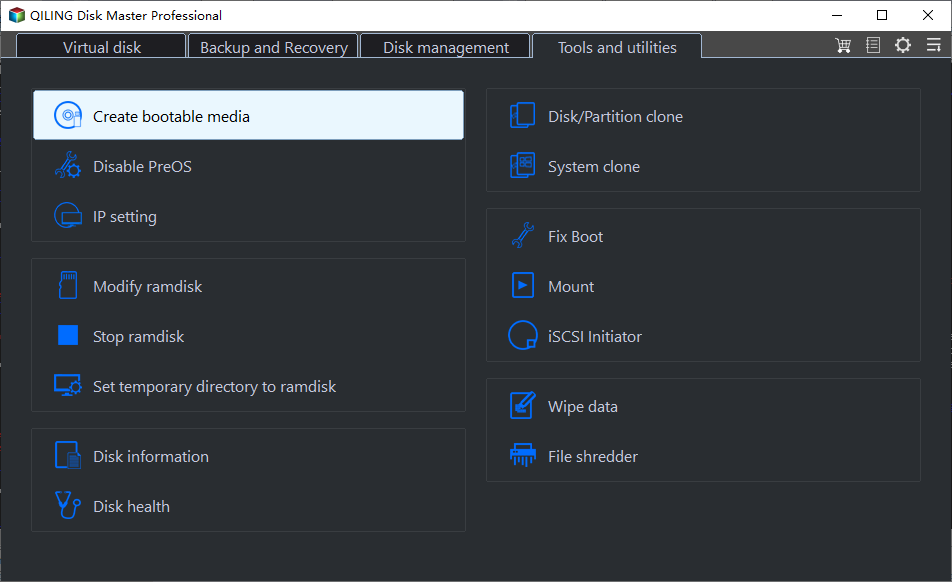
To create a bootable USB on a working computer, use Qiling Disk Master's "Create Bootable Media" feature, which can be used on any Windows computer, both 32-bit and 64-bit. If your computer is already bootable, consider creating a Windows recovery environment in Qiling Disk Master Professional.

To restore a system image in Windows 10/11 to a new drive, follow these steps. This process is also applicable for restoring a system image to a new SSD.
Step 1. To install a new hard drive in Windows 10/11, first install the new hard drive in your computer and connect an external drive containing a system image and bootable media to your computer. Next, boot your computer from the bootable media. This will allow you to install the new hard drive with a fresh copy of Windows, using the system image as a guide.
Step 2. After loading Qiling Disk Master Standard, you will see its main page. Click on "Select Image File" under the "Restore" tab and locate the image on your external drive.

Step 3. Click on "Restore this system backup" and then "Restore system to other location" and proceed with "Next" to continue. If a scheduled backup task was set, you will have multiple backup images to choose from.
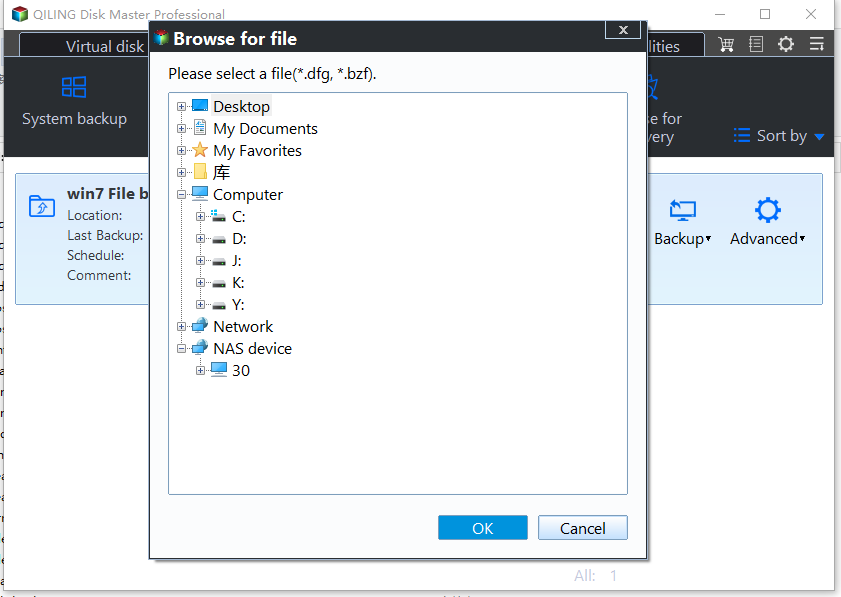
Step 4. Select your new hard drive as destination to restore the image and click Next.

To ensure a successful system installation, it's crucial to select the first partition on the target disk as the destination for the installation process. If the target disk's first partition is not chosen, the system may not be able to boot from the target disk, which could lead to installation issues.
Step 5. Click Proceed to install system image on new hard drive.

Tips:
◒ The Universal Restore feature will automatically install all necessary drivers for Windows to boot on a different computer during a Windows 10/11 system image restore, and will prompt you to upgrade to the professional version after clicking Proceed.
◒The SSD Alignment feature can speed up writing and reading speed on SSDs with its 4k alignment technology, making it a good choice when restoring a Windows 10/11 system image to a new SSD.
◒You can use the Windows 10/11 image restoration tool to restore not only Windows 10/11 images, but also Windows 7 and other operating systems to a new hard drive. This tool is versatile and can be used to restore different operating systems to a new hard drive.
◒ If your new hard drive is large enough, you can create a disk image of your old hard drive in Windows 10/11 and then restore the image to the new drive, effectively transferring everything to the new drive.
To restore a Windows system image on a different computer, you'll need to use the Windows Recovery Environment (WinRE) or a third-party tool like Qiling Disk Master. The process typically involves creating a bootable USB drive or CD/DVD with the WinRE or the third-party tool, then booting the target computer from it. You'll then follow the prompts to restore the system image from the backup. Note that this process may require some technical expertise and may not be as straightforward as restoring to the same computer.
Upgrading to Qiling Disk Master Technician allows creating a portable version on a USB drive with the "Create bootable media" feature, enabling the software to be run from the USB on any computer, thus utilizing all its features, such as automatic portable USB backup.
Frequently asked questions about Windows image backup restore to new drive
1. Can I restore Windows 10 system image to a new hard drive?
You can restore a Windows 10 system image to a new hard drive using a reliable backup and restore software, such as the built-in Backup and Restore (Windows 7) or third-party tool Qiling Disk Master Standard.
2. How do I restore a system image to another computer?
You can't normally restore a system image from one computer to another, due to the unique drivers required for each computer to start Windows. However, you can resolve the drive incompatibility issue, such as using the "Universal Restore" feature in Qiling Disk Master, to make the operation possible.
3. Does a system image save everything?
A system image is a snapshot of your system partition, including the operating system, system files, drivers, installed programs, and personal data.
Conclusion
Restoring a Windows 10/11 image to a new hard drive can be done easily using Windows' built-in tool or Qiling Disk Master Standard. Regardless of the method, bootable media is required, which can be an optical drive or a USB flash drive, in case your system crashes. This ensures that you can recover your system even if it fails to boot.
If you have to choose one of them, Qiling Disk Master Standard would be a good option, as it's simpler, compatible, and feature-rich. It allows for easy system image restoration to smaller drives and booting from it, as well as features like schedule backup, backup scheme, incremental and differential backup, which are also available in the professional version.
The software is a powerful tool for securing data and systems, and I encourage you to explore it for yourself.
Related Articles
- 2 Ways to Transfer System Image to New Hard Drive
- How to Move OS to Another Drive without Reinstalling
- How to Restore A System Image to New SSD
- How to Deploy Windows 10 System Image to New Hardware
- How to Repair Windows Server 2008 R2 using Command Prompt?
Learn the key steps, checks, and practical tips for this related guide.
Products
Articles & Tutorials
- Data Recovery
- Data Backup
- File Recovery
- File Backup
- File synchronize
- System Backup and Restore
- Disk and Partition Clone
- Technical articles
- Disk Master Help
- Windows Deleted File and Disk Recovery Tutorials
- Windows File and Data Recovery Tutorials
- More Windows Tutorials for Install, Security, Files, and PC Tips
- Windows Boot, Repair, and Recovery Environment Tutorials
- Windows Backup Tutorials
- Windows Restore Tutorials
- Windows Clone and Migration Tutorials
- Windows Server Backup, Recovery, and Management Tutorials
- Windows Disk, Partition, and Storage Management Tutorials