How to Deploy Windows 10 System Image to New Hardware
Quick Navigation:
- Why need to deploy Windows 10 system image to new hardware?
- Windows 10 deployment tools
- Restore Windows 10 to dissimilar hardware with Qiling Disk Master
- Deploy Windows 10 system image to new hardware with Qiling Image Deploy
- Verdict
Why need to deploy Windows 10 system image to new hardware?
A Windows 10 system image is a backup of the system drive that can be used to recover the system and data in case of a crash, and can even be used to restore the system to another computer with new hardware. This can be particularly useful when migrating the system to new hardware, which can be necessary due to hardware failures, upgrades, or changes in the system's configuration.
If your old hard drive is running out of space or slowing down your system, you can replace it with a new one, but keep your old Windows 10 system and applications by using the new hard drive as a secondary drive for storage, or by cloning the old drive to the new one. This way, you can maintain your existing setup while also benefiting from the increased storage and speed of the new drive.
Upgrading hardware while keeping the OS and applications can be done by deploying an old Windows 10 system image to the new hardware, which is the most effective way to achieve this.
Windows 10 deployment tools
Microsoft offers a range of tools to deploy Windows 10, including Windows Deployment Services (WDS), Windows System Image Manager (Windows SIM), User State Migration Tool (USMT), Volume Activation Management Tool (VAMT), Windows Recovery Environment (Windows RE), and Windows Preinstallation Environment (Windows PE). Learn more (link)
Some Windows 10 tools require installation before system deployment, and while they can be used individually, they are not complete solutions on their own and need to be combined to achieve the desired outcome.
You may encounter issues when restoring Windows 10 to different hardware using certain deployment tools due to computer compatibility problems. However, there are two alternative tools from Qiling that can aid in deploying Windows 10 to new hardware, offering a potential solution to these challenges.
Restore Windows 10 to dissimilar hardware with Qiling Disk Master
Qiling Disk Master Professional is a specialized software for backup and restore that can help deploy Windows 10/8/7 system images to dissimilar hardware easily. To use it, you must prepare the system image and hardware in advance, including ensuring the target hardware has the same or higher specifications than the original hardware, and configuring the BIOS settings to match the original hardware. This allows for a smooth and successful restore of the system image to the new hardware.
- To create a Windows 10 system image using Qiling Disk Master, you can store the image on an external hard drive, USB flash drive, or network drive, selecting a location accessible by another computer.
- To start the computer with new hardware, you need to create a bootable disc using Qiling Disk Master.
To deploy Windows 10 to new hardware, follow these steps: suppose you have stored the system image on a network shared folder. Then, you can use the Windows Deployment Services (WDS) to deploy the image to new hardware. First, add the system image to WDS, then create a new boot image and add it to WDS.
Step 1. Connect the bootable disk to the destination computer.
Step 2. Start the new hardware computer with bootable media, and Qiling Disk Master will launch automatically. A concise interface will appear, where you select Restore from the left pane and then choose Select Image File.

Step 3. To locate the system image file in the network path, select Share/NAS > Add Network Location in the pop-up window.
Step 4. Select Restore this system backup to restore the whole system and click Next. This will restore the system to its previous state.
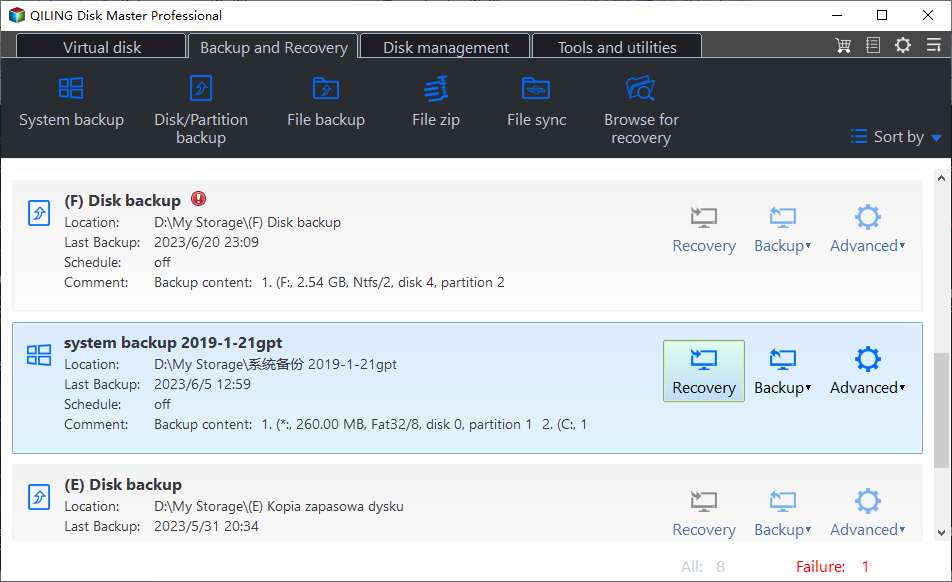
Step 5. Select the destination where you want to restore the system image, then click Next. Be aware that if the destination partition is not empty, it will be overwritten. Click Yes to proceed.
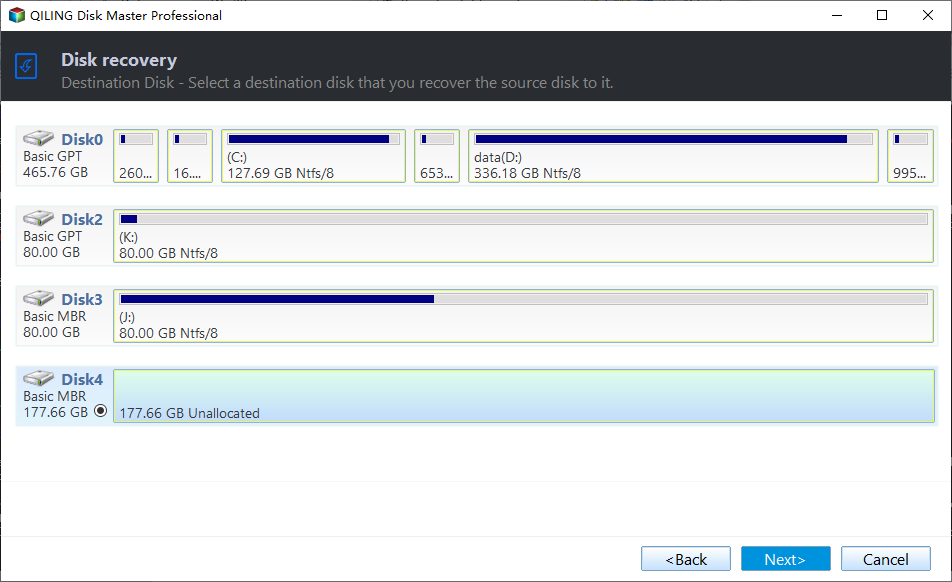
Step 6. At the Operation Summary page, you can check the Universal Restore option to ensure the system is bootable after restoring to dissimilar hardware. If there is no problem, click Proceed to do it.
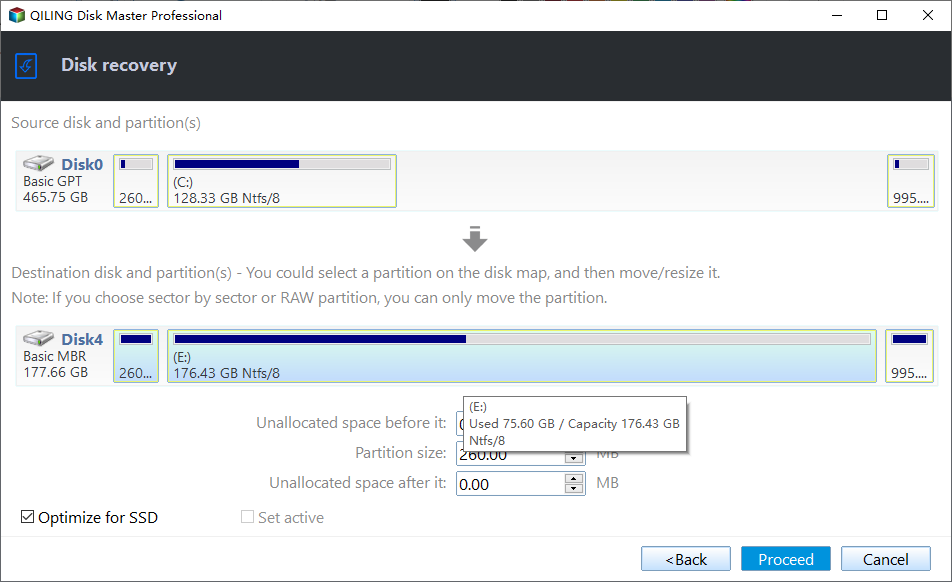
Tips: If the destination disk is an SSD, checking the box "SSD Alignment" can improve performance after the restore process.
Step 7. When the progress reaches 100%, click Finish to exit.
Deploy Windows 10 system image to new hardware with Qiling Image Deploy
Qiling Image Deploy is a free software that allows you to deploy or restore images to multiple computers over a network, making it easy to clone computers and deploy Windows system images to new hardware quickly and safely.
Before you start, please make sure:
- The source and target computer are on the same LAN.
- The Windows Recovery Environment (Windows RE) of the source computer is complete. If it is incomplete or the system is older than Windows 7, please download Windows AIK/ADK.
- The destination computer supports network boot (PXE boot).
To deploy Windows 10 to new hardware, start by preparing the necessary software and hardware components. This includes downloading the Windows 10 ISO file, creating a bootable USB drive or CD/DVD, and ensuring the new hardware meets the minimum system requirements for Windows 10.
1. To prepare the source computer for cloning, open the command prompt by pressing "Win + R" and typing "sysprep". Run Sysprep.exe and select the "Enter System Out-of-Box Experience (OOBE)" option, check the box next to "Generalize" and choose "Shutdown". This process removes the computer's SID, preventing compatibility issues during deployment.
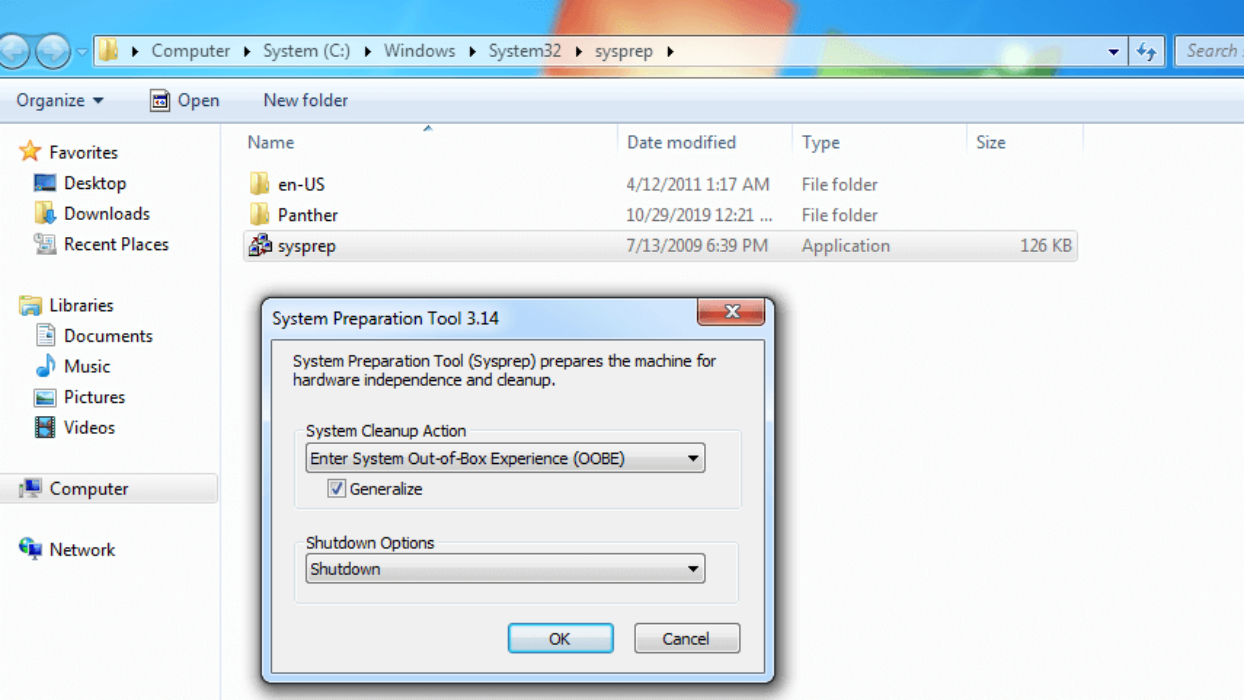
2. Boot the source computer from a bootable USB created by Qiling Disk Master, and create a full system image without including the SID. Save the system image to a network shared folder or NAS path.

3. Boot the source computer normally. Free download, install and launch Qiling Image Deploy.
4. Create a bootable WinPE ISO file for the destination computer. Select either "Create WinPE automatically" or "Create bootable WinPE ISO manually" and proceed with "Next".

5. Once Qiling Image Deploy shows "The service has started, waiting for connect...", start the destination computer from network boot.
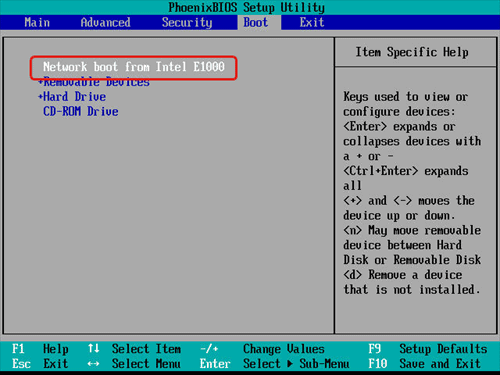
6. You will see the IP address and connection status of the destination computer. Tick the checkbox confirming all client computers are online and click Next.

7. Follow the wizard to finish the image deployment.

✍ Tips:
- To deploy an image over a network, a DHCP server is required on your local area network (LAN). If no DHCP server is present, you can enable the DHCP function in the deployment process. This will allow the deployment to proceed without a separate DHCP server.
- To deploy a system image to a computer with dissimilar hardware, upgrade to Qiling Image Deploy Technician and use the "Universal Restore" feature.
★ More advanced way to deploy Windows PC/Server system image to new hardware
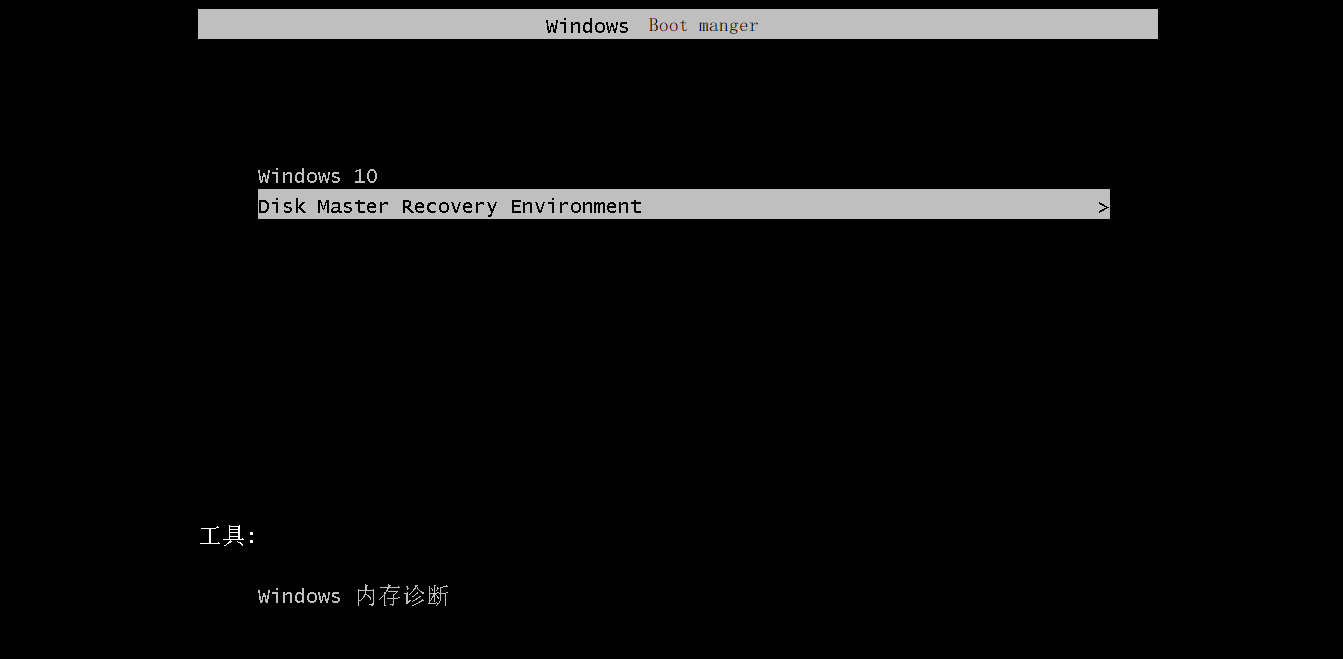
To simplify the image deployment process, you can use Qiling Disk Master Technician or Technician Plus, which both have the Qiling Image Deploy tool and backup function embedded. This integrated tool supports both BIOS and UEFI boot, unlike the standalone Qiling Image Deploy, which only supports BIOS boot.
Verdict
This article provides various tools to help deploy a Windows 10 system image to new hardware, with Qiling Disk Master being a convenient option for easier operations. In addition to its backup and restore functions, Qiling Disk Master also allows for syncing folders between computers and running disk or system clones.
Related Articles
- 2 Ways to Restore Windows 10 System Image to New Hard Drive
- 3 Ways to Transfer System Image to New Hard Drive
- 4 Steps to Clone Windows 10 Image to Multiple Computers
- The Power of Fast Cache, boost Your PC's Performance
In this article, we'll delve into what makes Fast Cache so effective and how it can transform your computing experience. - How to Schedule Defrag Windows 11, 10
Windows 11, 10 schedule defrag can improve device performance by running disk defragmentation at scheduled times, helping to maintain the health and speed of the device. This can be done via the Settings app or using a third-party tool. - Free SD Card Erase Tool: Securely Erase SD card in Windows
Here you can know how to clear, erase, or wipe an SD card, USB flash drive and hard drive. Try the best SD card eraser tool-Qiling Disk Master to erase hard drives easily and efficiently in Windows PC and Windows Server.
Products
Articles & Tutorials
- Data Recovery
- Data Backup
- File Recovery
- File Backup
- File synchronize
- System Backup and Restore
- Disk and Partition Clone
- Technical articles
- Disk Master Help
- Windows Deleted File and Disk Recovery Tutorials
- Windows File and Data Recovery Tutorials
- More Windows Tutorials for Install, Security, Files, and PC Tips
- Windows Boot, Repair, and Recovery Environment Tutorials
- Windows Backup Tutorials
- Windows Restore Tutorials
- Windows Clone and Migration Tutorials
- Windows Server Backup, Recovery, and Management Tutorials
- Windows Disk, Partition, and Storage Management Tutorials