Transfer/Move OS to Another Drive Without Reinstalling
Quick Navigation:
- Need help: how to transfer operating system to new drive
- Why transfer OS to new drive?
- Best OS migration software to clone OS to new drive
- How to move OS to another drive in Windows 10, 11
- Preparations
- Transfer OS to another hard drive via System Clone
- Transfer OS to new drive with Disk Clone
- Boot from the new hard drive
- Bonus tip: move OS to another drive for FREE
- Conclusion
Need help: how to transfer operating system to new drive
You want to upgrade your hard drive by transferring your operating system and all data to a new 120GB hard drive without reinstalling everything, so you can avoid the hassle of reinstalling your operating system and software. Is that correct?low disk space You're experiencing issues with your computer's performance, including slow speed and inability to store new data or install applications. You're wondering if it's possible to transfer your Operating System (OS) to a new hard drive without reinstalling everything. This would essentially be a fresh start without having to redo all your setup and installed programs. Is that correct?
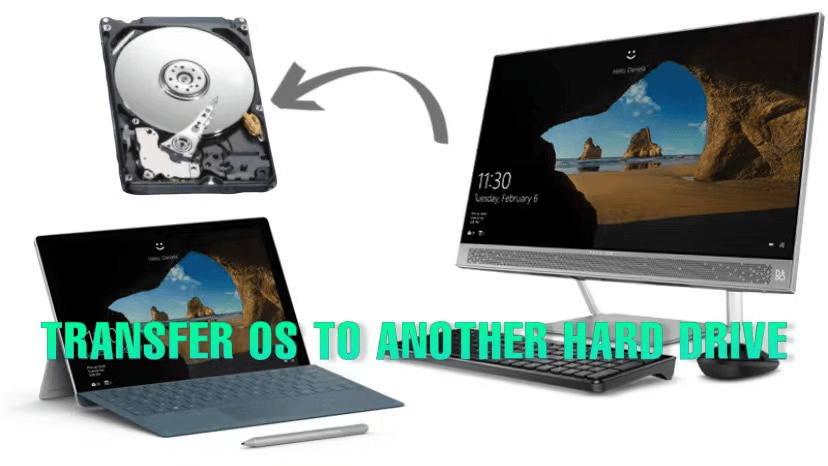
You can migrate your OS to a new drive without reinstalling Windows and applications by using third-party software to clone the entire OS to the new drive, which can provide a larger capacity or better performance.
Many users have reported the disk won't boot after cloning, and this isn't the only case you may encounter during the process. To transfer OS to a new hard drive while ensuring secure boot, you need professional OS migration software, such as Qiling Disk Master Professional.
Why transfer OS to new drive?
Before transferring OS to another hard drive with Qiling Disk Master, you still need to get the reasons why do this, so that you know exactly what you are doing. There are two main reasons in the following.
1. The system partition or entire disk is out of space, a common issue due to a smaller initial disk size and the accumulation of installed programs and files over time, resulting in a low disk warning message.
2. If your computer is running slowly, you can improve its performance by transferring the operating system to a new hard drive or directly moving it to a solid-state drive (SSD), which can provide better speed and efficiency.
Best OS migration software to clone OS to new drive
Qiling Disk Master Professional is a highly-regarded system clone software that allows users to clone their operating system to another hard drive, resolving cloning issues, and is used by over 50 million people.
Qiling Disk Master provides two cloning methods: System Clone and Disk Clone. You can choose the method that suits your needs, allowing for successful cloning of an OS.
✦ System Clone
Clone OS allows you to transfer only the operating system to a new drive, such as cloning from GPT to GPT or between GPT and MBR disk. This process also clones system-related drives, including system reserved partitions and UEFI partitions. Additionally, system customized settings, personal files, and installed programs on the system drive are copied to the target drive, resulting in a similar Windows operating environment.
✦ Disk Clone
This software enables you to transfer your operating system to a new drive by cloning the entire disk. It employs an "intelligent clone" feature as the default, which facilitates the cloning of large hard drives to smaller ones, provided the target space is sufficient to hold the copied data. If desired, a sector-by-sector clone can be specified to copy every sector of the selected system drive (usually C: drive) to the target.
With the help of a powerful cloning tool, you can easily accomplish the task of moving an operating system to a new device.
How to move OS to another drive in Windows 10, 11
Transferring an operating system to another drive is a straightforward process when using the best OS migration software, such as Qiling Disk Master Professional. The software can be used to transfer the OS to a new drive, as demonstrated in a video example where the OS is transferred to an SSD. Alternatively, a graphic tutorial is available for reference, providing a step-by-step guide on how to transfer the operating system to a new drive.
Preparations
1. Connect your new hard drive for cloning
Before moving your operating system to a new drive or SSD, ensure the target hard drive is connected to your computer and recognized by the system.
- If the computer is a desktop computer, you can install the graphics card internally using the available slot.
- If your computer is a laptop, you'll need a USB cable, adapter, or enclosure to connect the target drive for cloning.
In most cases, the hard drive uses a SATA slot, but it's always a good idea to check before getting a new one, as there are other disk interfaces like M.2, PCIe, IDE, and SCSI.
2. Download Qiling Disk Master
The Professional edition supports Windows 11/10/8/7/XP/Vista, and a server version called Qiling Disk Master Server is available for server users.
Transfer OS to another hard drive via System Clone
Step 1. Launch Qiling Disk Master Professional, select Clone and System Clone in order.

Step 2. The program will automatically select source partitions including the OS drive and other boot-required partitions. To proceed, select another hard drive as the destination location and click Next.

♥ Note: If the destination disk is partitioned, a window will pop up warning that the partition will be deleted or overwritten, so please back up any important data in advance.
Step 3. On the Operation Summary window, you can preview the operation, including the source partitions and target hard drive, and customize settings as needed. Once you're satisfied, click "Proceed" to clone the OS to the new drive.
- Make full use of disk space: If you're cloning your OS to a larger hard drive, you can extend the size of your system partition by utilizing adjacent unallocated space.
- SSD Alignment: When upgrading to an SSD, it's a good idea to check a few things to ensure optimal performance and extend the lifespan of your new solid-state drive. This includes verifying that the SSD is properly recognized by the operating system, checking for any firmware updates, and ensuring that the operating system is configured to take advantage of the SSD's capabilities.
- Sector By Sector Clone: The software will copy all sectors of the hard drive, including those that are not currently in use, when you choose the "intelligent" mode. If you only want to copy sectors that are being used, you can stick with the default mode, which will migrate the operating system to a new drive without copying unused sectors.

♥ Note: To transfer an operating system from one computer to another with dissimilar hardware, you can refer to the process of cloning an old PC to a new one.
Transfer OS to new drive with Disk Clone
Step 1. Run Qiling Disk Master. Click Clone > Disk Clone.

Step 2. Select the current system disk as the source disk and the new HDD/SSD as the destination disk successively.

Step 3. Confirm the operation and click Proceed to transfer the operating system, installed programs, and personal data from the old drive to the new drive.
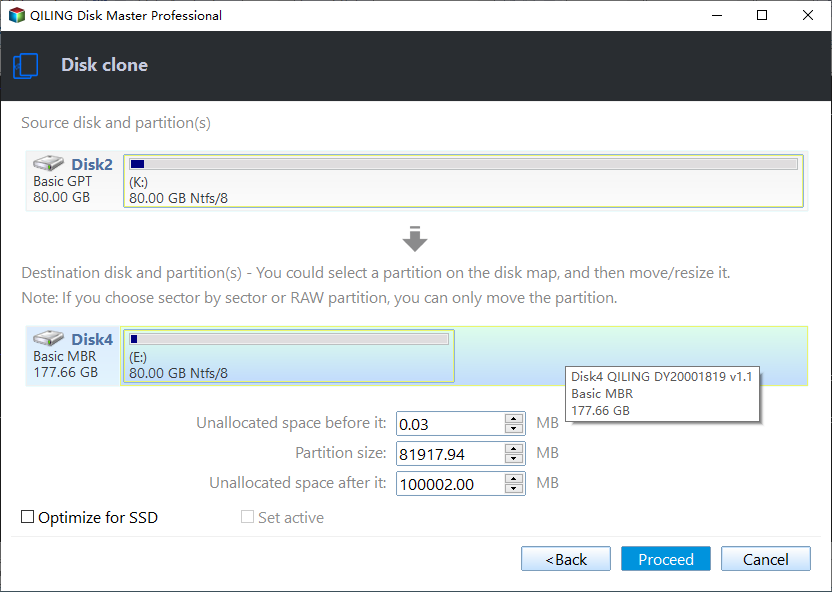
Note: If the target disk is larger, you can either add unused space to all partitions or manually adjust partition size to clone and resize hard drive without leaving unallocated space at the end of disk, and you can also convert the destination disk from MBR to GPT if needed.

Boot from the new hard drive
Step 1. Shut down your computer completely.
Step 2. Install the new hard drive at the location of the original drive using screwdrivers.
Step 3. Then, replace the computer back cover and connect the power cable.
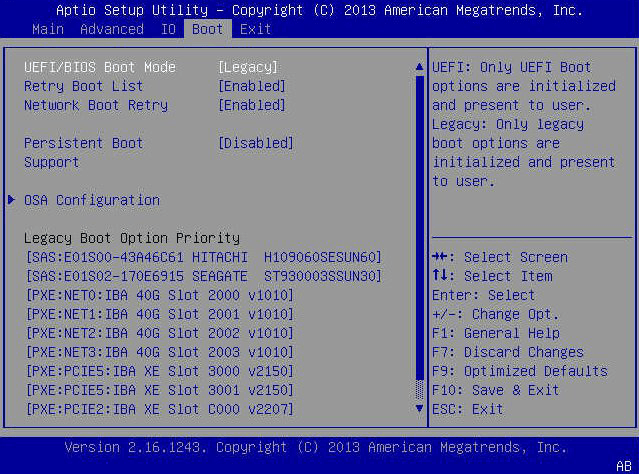
Step 4. Start your computer and press the specific key to enter BIOS, you will see it at the initial screen.
Step 5. Go to the Boot tab, change the boot order to prioritize the new hard drive, save the changes, and restart the computer to see if it boots from the new drive.
Bonus tip: move OS to another drive for FREE
Cloning is the easiest way to move an OS to a new drive or SSD, but some users prefer a free alternative. In this case, using the Backup and Restore feature in the free version of Qiling Disk Master is an option.
To move an operating system from one hard drive to another on the same computer, follow these steps:
1. Create a system image backup with Qiling Disk Master Standard.
Go to the Backup tab, select System Backup, choose a destination path, and click Proceed. For more detailed steps, see the create system image guide.

2. Create a bootable USB or CD/DVD to boot your computer.
Go to Tools and select Create Bootable Media, select bootable disc type and media, then click Next. For a step-by-step guide, refer to the Windows 10/11 repair boot USB tutorial.

3. Boot your computer from the bootable media, then follow the on-screen instructions to restore the system image to the new drive.
Open the software, select "Restore" and either "Select Task" or "Select Image File" to find the backup image and restore it to another hard drive. For detailed steps, see the article on restoring Windows 10/11 to a new hard drive.

Conclusion
Qiling Disk Master Professional is a powerful tool that makes OS or disk transferring easier for common users, providing features like SSD Alignment and Sector by sector clone. It ensures successful booting from the cloned hard drive and can even move the system reserved partition to another drive, making it a reliable solution for moving your OS to another hard drive.
For advanced users, the software provides a command line clone feature, allowing for unattended hard drive cloning from the command prompt. Additionally, the Server edition supports OS migration to a new drive on Windows Server operating systems, making it suitable for administrators of companies. The TechPlus edition is available for unlimited servers.
Related Articles
- SSD Clone VS Fresh Install, Which Is Better?
This guide explains SSD Clone VS Fresh Install, Which Is Better with clear steps, key checks, and practical tips. - How to Clone C Drive to SSD/HDD in Windows 10/8/7 Easily?
Learn how to Clone C Drive to SSD/HDD in Windows 10/8/7 Easily with clear steps, key checks, and practical tips. - How to Use Samsung Data Migration on Windows 10 to Clone a Hard Drive
Learn how to Use Samsung Data Migration on Windows 10 to Clone a Hard Drive with clear steps, key checks, and practical tips. - How to Transfer Windows 10 from One SSD to Another (2 Ways)
This article illustrates how to transfer Windows 10 from one SSD to another, as well as an easier way to migrate OS than using the built-in system image recovery. - How to Transfer Windows 10/11 from One SSD to Another
To transfer the operating system from one SSD to another using Qiling Disk Copy, follow these steps. First, download and install Qiling Disk Copy on your computer. Then, launch the software and select the source SSD that contains your operating system. - Tutorial | How to Transfer Windows 10 from HDD to SSD Without Losing Data
To transfer Windows 10 from an HDD to an SSD without losing data, you can use Qiling Disk Copy. This process allows you to move your operating system and all your files to a new solid-state drive (SSD) while keeping everything intact.
Products
Articles & Tutorials
- Data Recovery
- Data Backup
- File Recovery
- File Backup
- File synchronize
- System Backup and Restore
- Disk and Partition Clone
- Technical articles
- Disk Master Help
- Windows Deleted File and Disk Recovery Tutorials
- Windows File and Data Recovery Tutorials
- More Windows Tutorials for Install, Security, Files, and PC Tips
- Windows Boot, Repair, and Recovery Environment Tutorials
- Windows Backup Tutorials
- Windows Restore Tutorials
- Windows Clone and Migration Tutorials
- Windows Server Backup, Recovery, and Management Tutorials
- Windows Disk, Partition, and Storage Management Tutorials