Create a System Image in Windows 10 or 11 Even for Another Computer
What is a Windows system image?
A Windows system image is a complete copy of the system partition or entire hard drive, including the operating system, recovery partition, boot sectors, and all installed programs and saved files.
You can quickly restore your computer to an earlier date, even when it fails to boot, bringing everything back to normal without needing to reinstall Windows and programs or lose any data.
In Windows 10 or 11, you can create a system image for another computer, which ensures your computer is bootable after restoration, making it the greatest advantage of this feature.
When should I create a system image backup?
Creating a system image backup is essential for various reasons, including OS development, hard drive upgrade, and performance optimization. It's necessary to create a system image backup in Windows 11/10/8/7, as it provides a useful tool for these tasks.
▶ Create an initial backup after getting a new computer or clean install OS and commonly used programs. It's a good idea to create a system image when your computer is running smoothly and everything is clean, so you can easily restore it to its original state if something goes wrong later.
▶ You want to replace your slower mechanical hard drive with a speedy SSD. You can create a system image, swap the hard drive for an SSD, and then restore the system image to the SSD. Alternatively, if your hard drive and SSD can be connected to your computer at the same time, you can use software like Qiling Disk Master Professional to clone the OS from the HDD to the SSD, saving time and effort.
▶ Backup system before your disk fails. When you receive error warnings like "SMART failure predicted on hard disk", "Hard disk failure is imminent", or "Windows detected a hard disk problem", it's essential to create a system image or disk image immediately, as these messages signal that your hard disk is failing.
Best software to create Windows system image
Windows comes with a built-in tool called Backup and Restore (Windows 7), which is a system image software that allows users to back up and restore their Windows operating system and data. It was first introduced in Windows 7 and later inherited in Windows 8, 10, 11. The software supports backing up internal, external, or network drives.
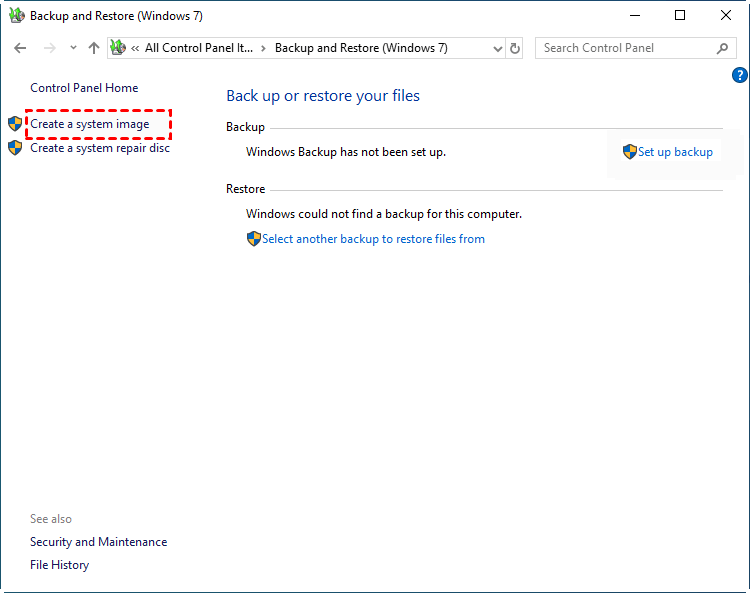
While Backup and Restore is a viable option, it does have some compatibility issues that can be frustrating for users.
- The disk saving system image must be formatted as NTFS, FAT32, or exFAT.
- The "Create a system image" feature is not functioning properly when attempting to use a USB drive as the backup location, resulting in an error message stating that the drive is not a valid backup location.
- The system image is not compressed, which means it will occupy a significant amount of disk space.
- Unfortunately, the built-in software lacks the ability to schedule system image backups, requiring users to manually create them. This not only wastes time but also increases the risk of data loss if the last backup is not the latest version.
In addition, The system image restore only works on the same computer or one with similar hardware, and fails if used on different hardware. It also requires the destination disk to be equal to or larger than the backup drive.
It's worth trying if you only have one computer and don't want to reinstall Windows, but third-party backup software is recommended for multiple computers or to minimize image size and data loss risk.
Create system image on Windows 10 or 11 (Universal)
Before creating a Windows 10 system image, it's essential to gather all the necessary tools and information, such as a blank USB drive or CD/DVD, a reliable internet connection, and a clear understanding of the backup process, which can be done using Qiling Disk Master Standard or other systems.
- System Backup: It can back up the entire system partition, including the operating system, drivers, programs, and data, in one go.
- The Schedule Backup feature enables you to automate daily, weekly, or monthly backups of any changes, ensuring regular data protection. It also allows you to schedule the backup to run 2 minutes before it starts, providing a seamless experience.
- Incremental Backup: This software uses a default backup system that only saves changed files since the last backup, utilizing incremental backup.
- Compression: This software can compress backups to a smaller size using either normal or high compression levels, with normal compression being the default. This process creates multiple backups and reduces disk usage.
The system image created by this software can be used to restore a computer with different hardware, as long as the "Universal Restore" feature is checked during the restore process, and this feature is only available on the professional version of the software.
Download Qiling Disk Master Standard and install it on your computer. Prepare an external hard drive that can be detected by Windows to store the system image. Server users can use Qiling Disk Master Server.
Step 1. Open the software, move your mouse pointer to the "Backup" tab, click on it, and then choose "System Backup" from the list.
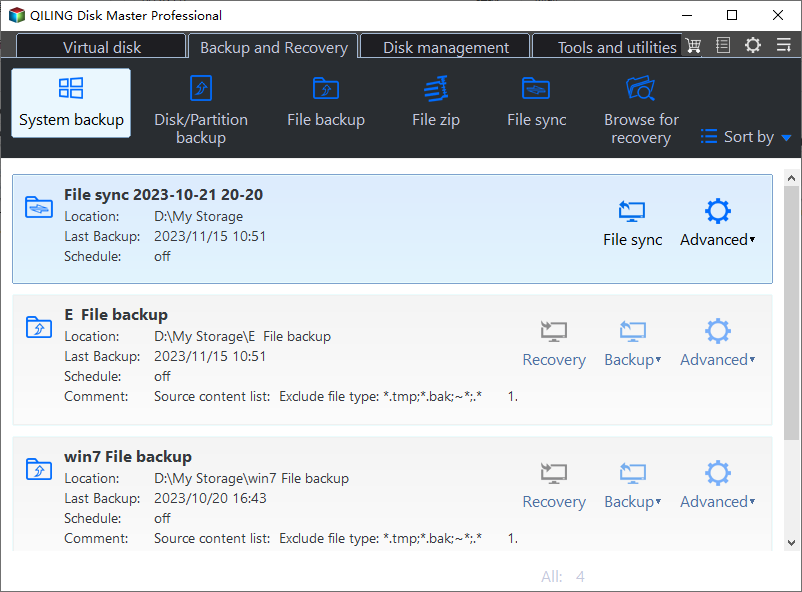
Step 2. You can edit the default "Task Name" and the system will automatically select the system partition and boot-related partitions, ensuring your computer remains bootable, which is especially helpful for those who are new to the process.

Step 3. To choose a destination location for creating a system image in Windows 10, click the second column and select a destination location. This can be a USB drive or other devices such as an external disk, network drive, or NAS.

Note: To backup Windows 10 to a network drive or NAS, share the folder with everyone and add it by clicking "Add Share" or "NAS Device".
Step 4. To ensure the system image is up-to-date, select the desired backup frequency - Daily, Weekly, or Monthly - from the "Schedule Backup" option.

Tips:
- If you want to create a system image in Windows on USB, the premium feature of USB plug in will automatically backup the system when the USB is connected, this feature is available on the professional version.
- The default backup method is incremental, which saves only changes since the last backup, reducing backup time and disk usage. However, for data integrity and independence, differential backup, supported by the professional version, may be a better option.
- On the professional version, you can automatically delete old backups to free up disk space using one of the automatic backup cleanup methods.
- You can still click on "Options" to write a comment, enable normal or high compression, intelligent sector backup, etc.
Step 5. After completing your settings, click "Proceed" to start creating a system image in Windows 10 on a USB drive. Wait for the backup process to finish, as the speed depends on the data amount and the reading and writing speeds of both the source and target disks.

Creating a Windows 10 system image allows you to easily restore your system to a new hard drive in case of a disaster. Additionally, with the "Universal Restore" feature (available in the professional version), you can restore your system to different hardware. To do this, follow these steps:
If your computer is still bootable, To restore your system, click "Restore", then select "Select Task", followed by "System Image" and "Restore this system backup" and "Restore system to other location". Next, choose the new hard drive or SSD and click "Proceed".
If you can't see any backup image using the "Select Task" option, try manually choosing the system backup image using the "Select Image File" option instead.

If your system crashes or the disk fails, To create a Windows PE bootable USB or CD, you can use the "Create Bootable Media" feature. This allows you to start your computer, and then perform system image recovery, following the same steps as when your computer is bootable.
If you don't have a USB or CD/DVD, you can create a recovery environment in Windows 10 using the "Recovery Environment" feature, which can be easily selected at the next system startup.

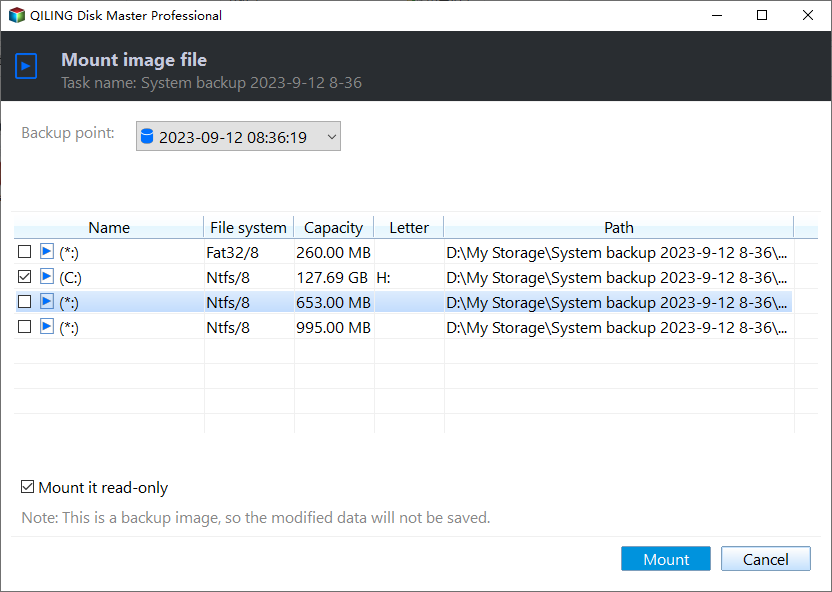
If you only want to restore individual files from the system image, you can use "Explore Image" to mount the system image as a virtual partition and copy data to a new location.
If you want to deploy a system image to multiple computers simultaneously, you can use Qiling Image Deploy, supported by Qiling Disk Master Tech or TechPlus edition, to perform system deployment instead of manual restoration one by one.
Qiling Disk Master still supports creating a portable version of itself to a removable device, allowing it to be used on any computer without the need for reinstallation, as long as you click on Tools and select Create bootable media.
Backup and restore your computer OS in a more efficient way:
Qiling Disk Master is a one-key backup and restore software that allows creating a bootable system image and setting schedule settings for automatic backup tasks.
The software allows for specifying a fast recovery key, launching at system startup, and performing system restore from Windows PE, even if the computer is slightly damaged, eliminating the need for a separate bootable device.
Wrapping things up
Creating a system image in Windows is crucial for protecting system and data, significantly reducing the risk of data loss. The backup settings in Windows make this task easy and efficient, offering various options such as daily, weekly, monthly, and incremental backups.
You can use this software to create a disk image in Windows 11/10/8/7 with its "Disk Backup" feature, backup specific partitions with "Partition Backup", or directly backup files with "File Backup". Its features go beyond these and it's one of the most powerful software to protect your computer, offering much more than just these options. Download it to explore its capabilities yourself.
Related Articles
- 6 Ways to Fix OneDrive Error Code 0x8004de40 in Windows
This guide explains 6 Ways to Fix OneDrive Error Code 0x8004de40 in Windows with clear steps, key checks, and practical tips. - Top 10 Forensic Imaging Tools in 2022 (Best Free Digital Forensic)
Sometimes, in the face of some emergency or legal dispute, we need to conduct digital forensics. This article will introduce the top 10 free forensic imaging tools. Among them, Qiling Backup can work well. - 5 Solutions to Fix How to Free Up Space on C Drive Windows Server 2008 (R2)
This guide explains 5 Solutions to Fix How to Free Up Space on C Drive Windows Server 2008 (R2) with clear steps, key checks, and practical tips. - 5 Best Ways: How to Free Up Space on C Drive in Windows Server 2016
This page covers five most efficient ways to help you free up space on C drive in Windows Server 2016, 2019, and 2022. For detailed guidelines, follow this page and learn how to free up c drive space in your Sever computer with success. - (Fixed)Windows Server Backup Keep Only One Copy
This guide explains (Fixed)Windows Server Backup Keep Only One Copy with clear steps, key checks, and practical tips. - Windows Server Backup Not Doing Incremental Backup? Solved Now!
Set up windows Server Backup Not Doing Incremental Backup Solved Now with practical backup or sync options, storage checks, and safer ways to protect files.
Products
Articles & Tutorials
- Data Recovery
- Data Backup
- File Recovery
- File Backup
- File synchronize
- System Backup and Restore
- Disk and Partition Clone
- Technical articles
- Disk Master Help
- Windows Deleted File and Disk Recovery Tutorials
- Windows File and Data Recovery Tutorials
- More Windows Tutorials for Install, Security, Files, and PC Tips
- Windows Boot, Repair, and Recovery Environment Tutorials
- Windows Backup Tutorials
- Windows Restore Tutorials
- Windows Clone and Migration Tutorials
- Windows Server Backup, Recovery, and Management Tutorials
- Windows Disk, Partition, and Storage Management Tutorials