Save Much Disk Space: Incremental vs. Differential Backup
Overview of 3 Backup Types
When creating a backup for data, there are generally three types of backup images:full backup, incremental backup, and differential backup.
In a nutshell, they are different but indivisible. Note that A full backup will be created first, regardless of the type of backup you choose. Full backup is the basis of all backup types. Here is a simple understanding.
- Full backup refers to back up files completely, each backup is a complete backup and can be restored separately.
- Incremental backup means to backup files that are changed since the last backup (full or incremental). Recovery requires ALL linked incremental backups, and the full backup.
- Differential backup means to backup files that are changed since the last full backup. Recovery requires the latest differential backup and the full backup.
The difference between incremental and differential backup lies in their backup basis and recovery requirements, with incremental backup focusing on backing up only changed files. If you're interested in learning the detailed steps of this process, you can continue reading, but if you'd like to delve deeper into the specifics of these backup methods, you can skip the step-by-step guide and proceed with further reading.
How to Backup Only Changed Files with Incremental Backup (3 Steps)
Software that supports full backup, incremental backup, and differential backup can be called professional backup software. Qiling Disk Master Standard is an example of such software, capable of creating these three types of backup images, and supports various backup types including System Backup, Disk Backup, Partition Backup, and File Backup, compatible with Windows operating systems from XP to Windows 11.
By default, it backs up only changed files with an incremental backup, but you can upgrade to differential backup if needed. This includes all changes since the last full backup, reducing the risk of data loss, and for recovery, you only need one full backup and the latest differential backup.
To create an incremental backup, you have two options: In the first place, download this free incremental backup software on your computer. For server users, try Qiling Disk Master Server.
- Manually create incremental backup.
- Create incremental backup automatically.
When creating a backup, whether incremental or differential, the first backup will be a full backup. Let's consider a system backup as an example to illustrate the process.
1. Launch Qiling Disk Master Standard, click Backup and then System Backup.

2. The system drive is selected by default, but you can change it by clicking the folder-shaped button.choose a destination path.

3. Click Schedule Backup > Enable Schedule Backup and choose Daily, Weekly, Monthly schedule backup. Afterward, click Proceed and Add the schedule and Proceed now.
The system will automatically create a full system image backup and then 6 incremental backups by default, allowing for customization of the number of incremental backups in the Backup Scheme.
The schedule backup will run a full backup at 6 p.m. on the first day and incremental/differential backups at 6 p.m. on subsequent days.

The default backup method can be changed to differential backup by selecting it and clicking OK. However, this feature is only available on the professional version, prompting the user to upgrade.
In addition to incremental or differential backups, you can also set up automatic backup cleanup to remove old backup images on a regular schedule through the Backup Scheme. This can be done by quantity, time, or frequency (daily, weekly, monthly).
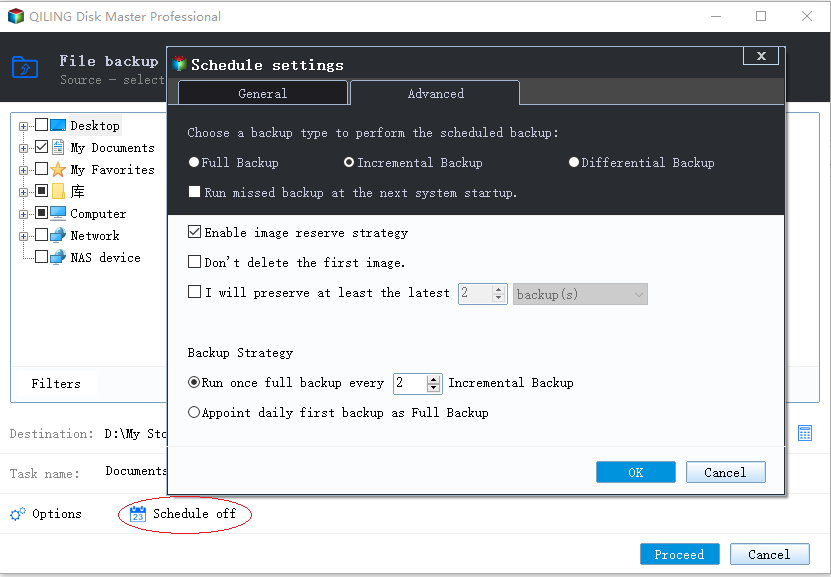
Besides Schedule Backup and Backup Scheme, you can also password protect images, compress and split images, etc in the Backup Options.
While automated incremental backups are convenient, they can be inconvenient to set up and may require manual intervention at other times, such as after a backup or at a specific time.
- Go to the Backup and recovery tab, select the backup task you want to set for incremental backup.
- To create an incremental backup, click the Backup button, then select Incremental Backup from the dropdown menu. Alternatively, you can choose Differential Backup.
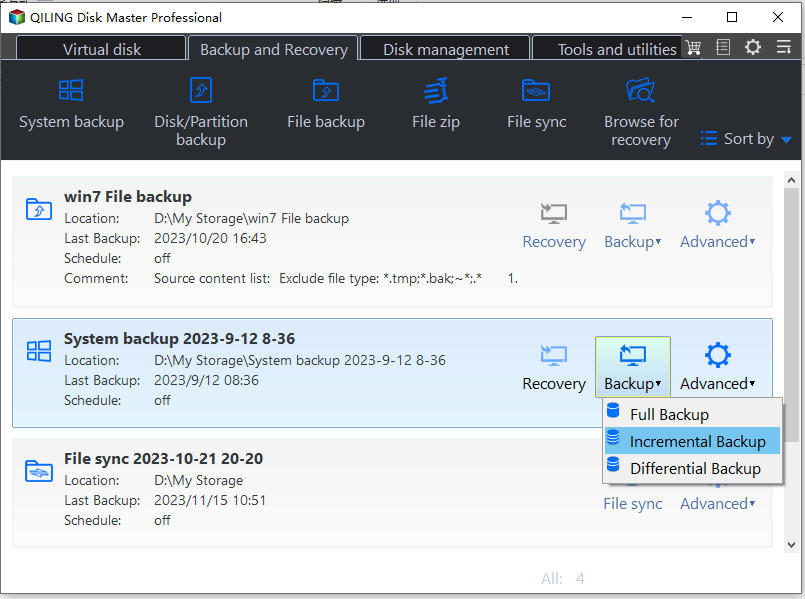
- Then, you will see the Comment window, write some comments for clear distinguish and click OK to start incremental backup. Next, you will see the Backup window, where you can choose the backup location, file name, and other options. After that, the backup process will start, and you will see the progress in the Backup window.
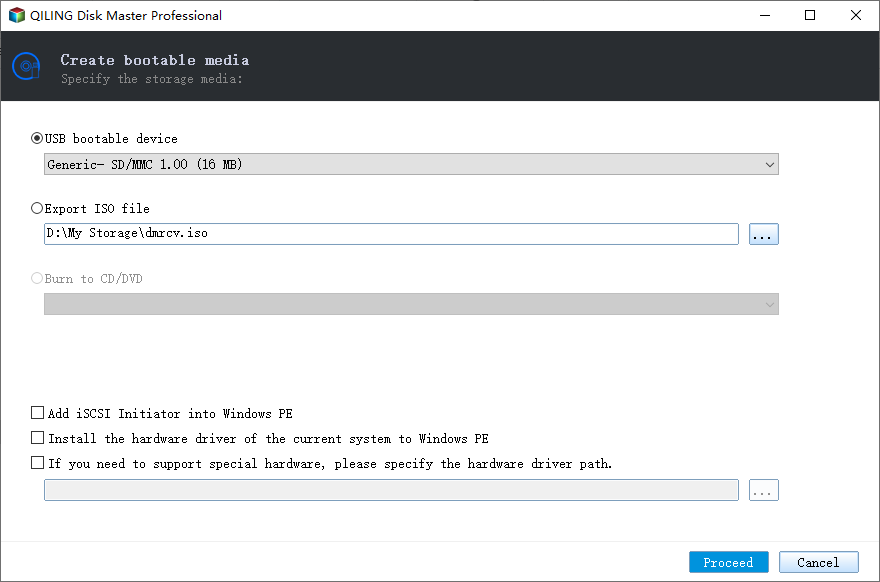
You can restore your system at any time using a backup image. To do so without booting into Windows, you can create bootable media with a USB or CD/DVD, or create a recovery environment that allows you to boot your computer from it, adding a boot menu to your current computer without needing any storage device.
Full vs Incremental vs Differential: Advantages and Disadvantages
If you're still unsure about choosing a backup type, you can continue reading to learn more about incremental and differential backups. Once you've selected one, you can go back to the step-by-step guide and create a backup.
★ Full Backup Advantages and Disadvantages
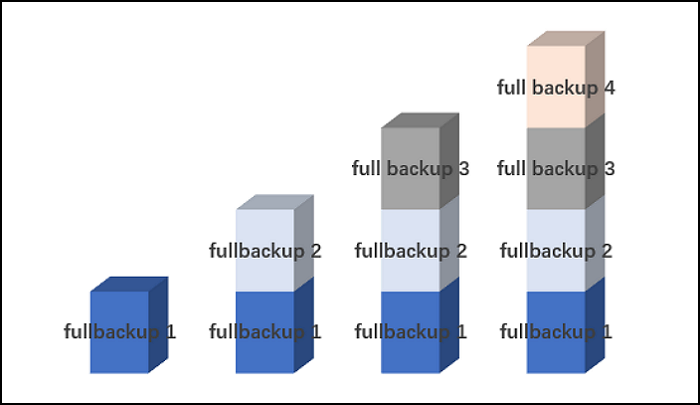
A full backup is a complete copy of all valid data, including both new and existing data, created to ensure that all information is preserved in case of data loss or system failure.A full backup does not rely on the file's Archive Attribute to determine which files to include in the backup. Instead, it typically includes all files and folders in the specified backup scope, regardless of their Archive Attribute status.During a full backup, all existing marks will be cleared and marked as "backed up", effectively removing their Archive Attribute.
To create a full backup of selected files or applications means to create an identical duplication of these data at a particular time point, allowing for a complete restoration of all data with just one backup. This dramatically decreases the recovery time.
To create a full system backup image, we use full backup software after installing an operating system, such as backing up a 12GB system with all system files and applications. This allows for a complete system restore using the full backup, and can also be applied to backing up a data partition, a file folder, or the entire disk.
Full backup has a fatal disadvantage: to keep the backup up to date, it is unavoidable to constantly overwrite the backup with new data, which can lead to data loss if something goes wrong during the overwrite process. To create more than one full backup would be a waste of time and storage. This is especially true for large datasets, where the redundant data can take up a lot of storage space.
The emergence of incremental and differential backup has provided a solution to the problems associated with traditional full backups.
★ Incremental Backup Advantages and Disadvantages
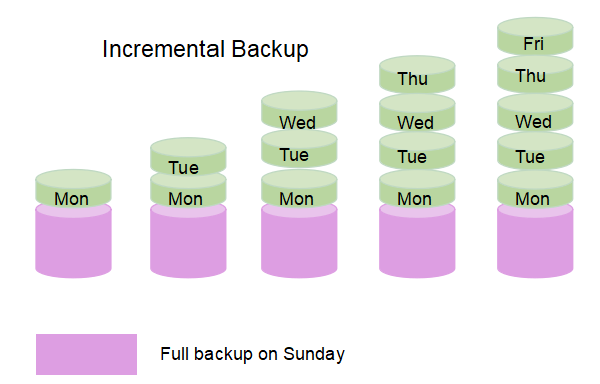
Incremental backup involves backing up all changed data based on the last backup, whether it was a full backup or an incremental backup. During this process, all marked files and folders will be backed up, and the file's Archive Attribute will also be cleared.
The first incremental backup should be based on a full backup, as it relies on the last backup to create the incremental backup, creating a mutual dependent relationship between them.
That is to say, with incremental backup software, each backup will create an image file of only the modified or newly added files, rather than a full image of the entire system. This approach helps to reduce the size of the backup and makes it more efficient to store and transfer. All of them are linked together. Deleting a previous image file can render subsequent image files invalid, as they may rely on the deleted file for reference or context.
Here is an example of creating incremental backup. Suppose that D Drive has data as follows:
| File name | File size |
| D:\file1.txt | 5GB |
| D:\file2.txt | 10GB |
First, let's make a full backup of your D Drive. Once the backup is complete, you'll have a 15GB image file that contains a snapshot of your entire D Drive, including all files, folders, and settings. This will provide a complete and reliable copy of your D Drive, which you can use for disaster recovery, data migration, or simply as a safeguard against accidental data loss. We'll call this file Full1.fvd, which includes file1.txt and file2.txt.
Then, add two files, file3.txt and file4.txt, to D Drive.
| File name | File size |
| D:\file1.txt | 5GB |
| D:\file2.txt | 10GB |
| D:\file3.txt | 2GB |
| D:\file4.txt | 1GB |
If we make an incremental backup of drive D for this time, only the newly added files, file3.txt and file4.txt, will be backed up and generated as a separate backup file. This means that only the changes made since the last backup will be included, and the existing files, file1.txt and file2.txt, will not be backed up. We'll call this incremental backup Incr1.fvd. No changes were made to file1.txt and file2.txt, so they won't be backed up.
If we add new files (file5.txt and file6.txt) and keep the existing files (file1.txt to file4.txt) unchanged, the incremental backup will only include the new files (file5.txt and file6.txt), leaving the unchanged files (file1.txt to file4.txt) out. We'll call this Incr2.fvd. Surely, if any file in file1-4.txt has changed, it will be backed up as well.
The biggest advantage of incremental backup is that there is minimal data loss in case of a disaster, as only the changes made since the last backup are stored, making it a time and storage-efficient method. No identical backup image is created during the process, which is time-saving and storage-saving.
However, restoring incremental backups can be tricky. You need to prepare the last full backup (Full1.fvd) and all subsequent incremental backups (Incr1.fvd and Incr2.fvd), then restore them in the order they were taken, which can be time-consuming and requires careful planning. This inadvertently increases the recovery time. If you lost any of them, the recovery will not succeed.
★ Differential Backup Advantages and Disadvantages
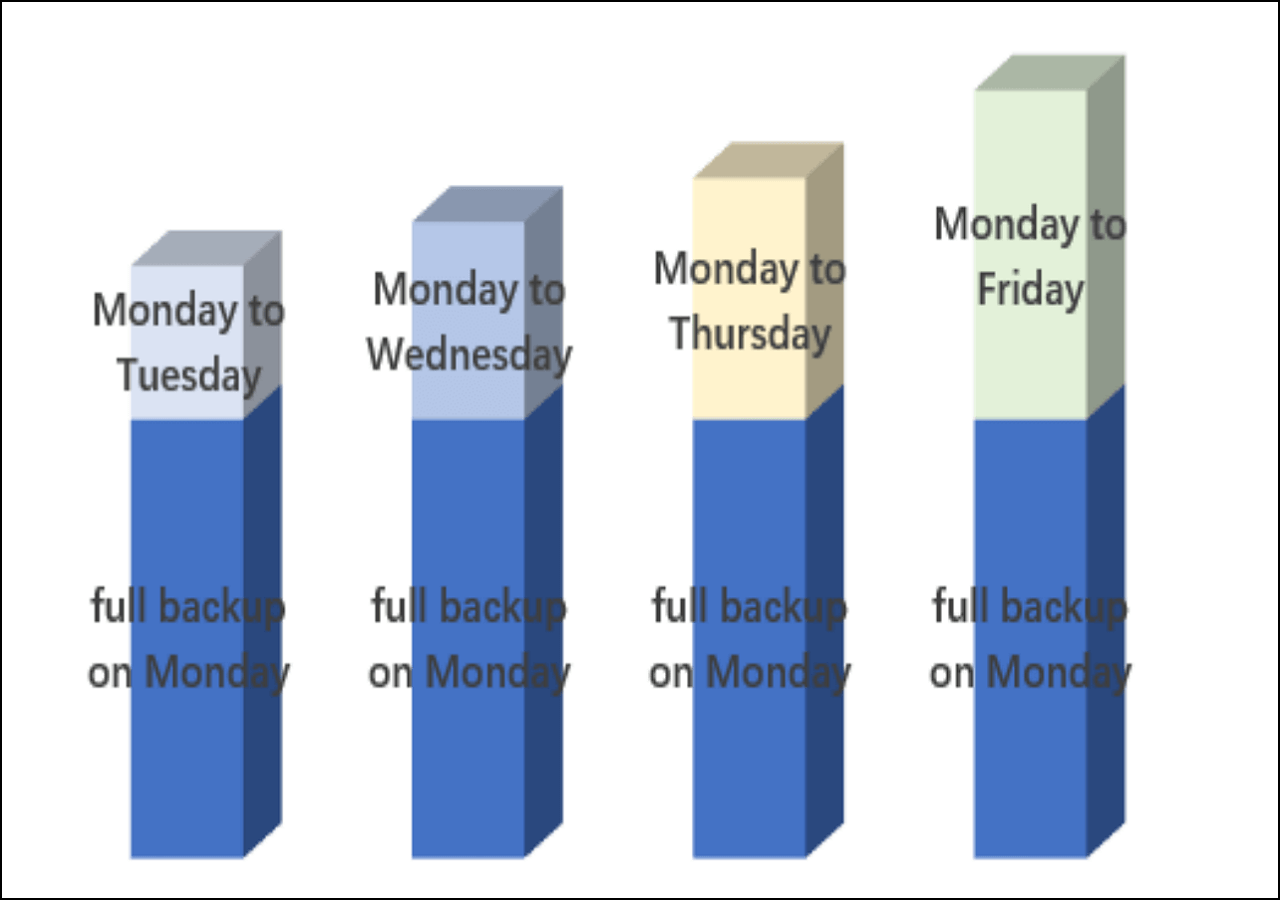
Differential backup will back up changed files based on the last full backup, requiring a full backup to exist. All differential backups are based on the full backup, so they are dependent on it. However, each differential backup is relatively independent from the others.
During a differential backup, only marked files and folders will be backed up and the Archive Attribute will not be cleaned. The files will not be marked as "backed up" after the differential backup.
In terms of recovery, you just need the last full backup and the latest differential backup to perform a complete restore. This makes differential backup faster to restore than incremental backup.
Suppose that E Drive has the following data:
| File name | File size |
| E:\file1.txt | 2GB |
To create a full backup of file1.txt, you can use Qiling Disk Master to generate Full1.fvd.
After adding file1.txt to the E drive, run a differential backup. Then add file2.txt and file3.txt to the E drive, and run another differential backup, resulting in Diff1.fvd that contains file2.txt and file3.txt.
Then add file4.txt and file5.txt to E drive, run differential backup, you'll get Diff2.fvd that contains file2-5.txt.
The theory remains the same, where backups are made based on the last full backup, allowing for the restoration of all files even if the Diff1.fvd file is lost. In such a scenario, one can still recover using the Full1.fvd and Diff2.fvd files. This method ensures that backups are comprehensive and can be relied upon in case of data loss. Backing up data requires a significant upfront investment of time, but it can save a substantial amount of time in the long run when it comes to recovery.
Summary
When deciding between incremental backup and differential backup, consider starting with System Backup for incremental backups of the entire system, or File Backup for incremental backups of specific files like documents, photos, or music. For partition or disk backups, you can use Partition Backup or Disk Backup respectively.
Both incremental and differential backups only save changed files, but differ in their basis. Incremental backup is based on the last backup (full or incremental), while differential backup is based on the last full backup. This means incremental backups are faster and use less storage, but differential backups are easier to restore since they only require the last full backup and the latest differential backup. For recovery, incremental backups require all linked incremental backups, while differential backups only need the last full backup and the latest differential backup.
Related Articles
- How to Do Incremental and Differential Backup in Windows 10
- Windows Server Backup: Differential & Incremental Backup
- Windows Server 2016 Incremental & Differential Backup Guide
- How to Backup Computer to SanDisk Extreme Portable SSD [Windows & Mac]
Here is a guide to tell you how to back up computer to SanDisk Extreme Portable SSD. This guide will explain why we should do an external drive backup. Of course, it will give you five easy methods to back up an external hard drive. Hoping these methods can fix your issues. - [Solved] Windows Server Backup Schedule Not Running Error
This guide explains Windows Server Backup Schedule Not Running Error with clear steps, key checks, and practical tips. - Windows Server Backup Schedule to Remote Shared Folder-Overcome the Limitation
Learn how to use Windows Server Backup for schedule to remote shared folder in Windows Server 2008/2012/2016 and overcome the limitations.
Products
Articles & Tutorials
- Data Recovery
- Data Backup
- File Recovery
- File Backup
- File synchronize
- System Backup and Restore
- Disk and Partition Clone
- Technical articles
- Disk Master Help
- Windows Deleted File and Disk Recovery Tutorials
- Windows File and Data Recovery Tutorials
- More Windows Tutorials for Install, Security, Files, and PC Tips
- Windows Boot, Repair, and Recovery Environment Tutorials
- Windows Backup Tutorials
- Windows Restore Tutorials
- Windows Clone and Migration Tutorials
- Windows Server Backup, Recovery, and Management Tutorials
- Windows Disk, Partition, and Storage Management Tutorials