Restore System to Dissimilar Hardware with Secure Boot
When Do You Need Dissimilar Hardware Restore?
Dissimilar hardware restore, also known as universal restore, is a process of restoring a system image from one computer to another with different or dissimilar hardware, such as a different CPU, motherboard, or chipset. This can be achieved using various software tools designed for universal restore.
You would need this type of system restore most when your system becomes unstable or unbootable due to a recent software installation, a Windows update, or a driver update, and you don't have a System Restore point created recently. This type of system restore is also useful when you're troubleshooting a problem and you want to roll back your system to a previous state without affecting other users on the same machine.
Scenario 1: Transfer Well-adjusted and Stable OS
Many users face the challenge of transferring their well-running OS and applications to a new computer with different hardware, making it difficult to simply clone the system disk from the old computer to the new one.
After setting up a new computer, you might encounter the blue screen of death (BSOD) with a stop error message: Stop 0x0000007B Inaccessible_Boot_Device. This is often caused by driver issues.
You can create a system image backup on your current computer and then restore Windows to a new computer with different hardware using a bootable media. This allows you to transfer the OS to the new computer.
Scenario 2: Deploy the Same Operating System to Multiple Computers
Many companies are upgrading their operating systems on a large scale or purchasing new computers, and they want to install a customized software and operating system configuration on all devices.
If you're an enterprise administrator, you may know many ways to install operating systems on new computers or bare metal machines. When dealing with computers built with the same hardware, hard drive cloning software can be a huge time-saver. However, if the computers have dissimilar hardware, such as different motherboards or CPUs, you may need to consider alternative methods like using a master image or a virtualization solution. These approaches can help you deploy a standardized operating system across multiple machines, even if they have varying hardware configurations.
You can create a master system image on a source computer and save it to a NAS or network. This image can then be deployed to multiple destination computers with different hardware configurations using PXE network booting, allowing for bare-metal restores to dissimilar hardware.
Scenario 3: Instant Disaster Recovery in Case of System Hardware Failures
To ensure smooth operation and minimize downtime, it's crucial to maintain the availability of computer systems and perform a bare metal recovery to different hardware in case of a software or hardware failure.
Besides the three scenarios mentioned, dissimilar hardware restore also applies to virtual-to-physical and physical-to-virtual migration, upgrading computer hardware before it dies, and other similar situations.
Professional Universal Restore Software for Windows OS
Qiling Disk Master is a powerful Windows backup software that provides comprehensive backup and recovery solutions.
- 4 backup types are offered, including System Backup, Disk Backup, Partition Backup, and File Backup, to cater to various needs.
- The Universal Restore feature enables you to restore a system image backup created on one computer to another with different hardware, allowing for a seamless transition between systems.
- Qiling Disk Master has different editions for Windows PC and Server systems, with the Professional edition suitable for Windows 10/11 and other PC OS, and the Server edition applicable for Windows Server 2022 or previous versions.
You may want to download a free trial version to try it out.
How to Do Dissimilar Hardware Restore Step by Step
Before you do:
- Prepared a system image backup and saved it to a NAS or network drive (first choice) or an external drive that can be accessed.
- Start up destination computer(s).
Qiling Disk Master allows simultaneous booting of multiple client computers within a LAN through network booting, or you can create a bootable CD or USB with the software in advance if only one or two computers need to be booted.
Detailed steps to migrate operating system to dissimilar hardware on Windows 10:
With all the preparations done, the process of restoring dissimilar hardware is straightforward and easy to follow.
Step 1. To start up destination computers for system restore, you can either use PXE network booting or bootable media. The process of dissimilar hardware restore remains the same, regardless of the chosen method. For example, using PXE network booting, you can boot the destination computers.
Tip: If you're not familiar with PXE boot, please refer to the guide on how to boot from the network using PXE.

Step 2. After booting into the recovery environment, Qiling Disk Master will automatically pop up, prompting you to find the system image you previously created.

The system image is stored on a NAS/network. To access it, click 'Share/NAS', input the required information, and then click 'OK' to proceed.
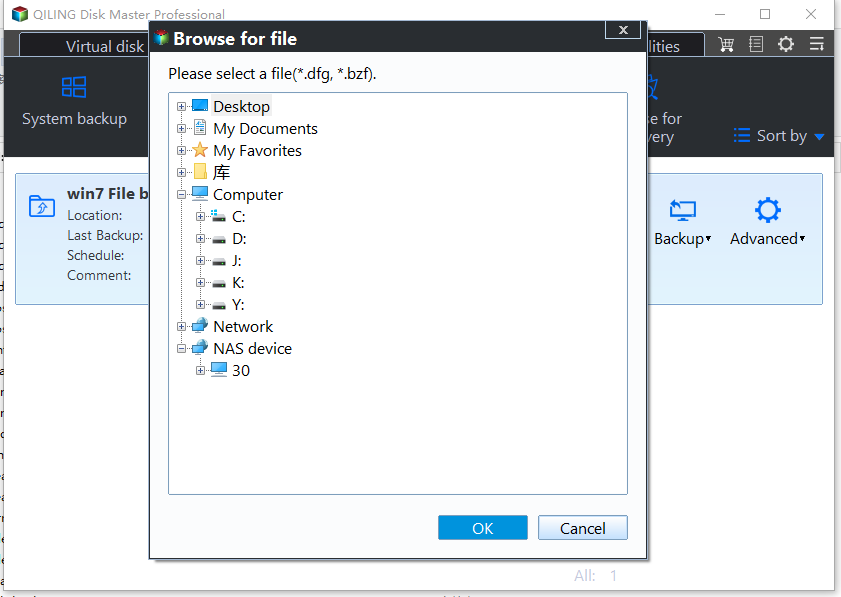
After adding the network path, navigate to the system backup image you need, select it and click "OK".
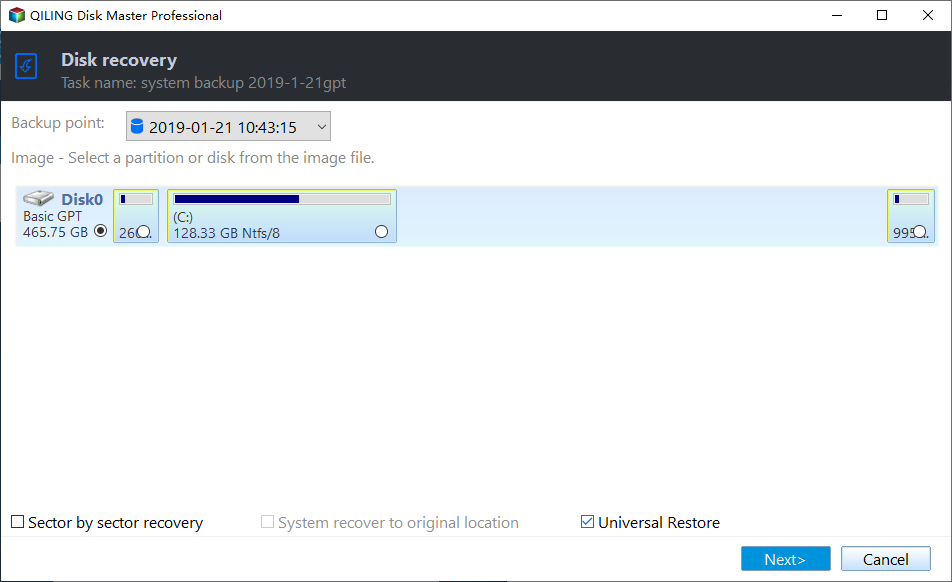
Step 3. When restoring a system, you can choose to tick the "Universal Restore" option, but be aware that this may cause boot issues afterwards. Alternatively, you can select to restore the entire system or just a part and proceed with the "Next" option.

Step 4. Select a drive on the destination computer to receive the restored data and click "Next".

Step 5. Now you can preview the restore operation. Click "Proceed" to start system restore on the same hardware.
Notes:
- Some drivers, like video/sound card and NIC drivers, are not installed by Qiling Universal Restore, but they can be manually installed in Windows after a successful restore without affecting system startup.
- When restoring a Windows system to a computer with different hardware, Microsoft or third-party software may prompt for reactivation or a second registration code. Familiarize yourself with your software vendor's license agreement beforehand to avoid issues.
Related Articles
- How to Clone Dynamic Disk in Windows 11 (2 Ways)
To clone dynamic disk in Windows 11, you can learn 2 useful ways in this article including the easier way. Please read on. - Best Way to Clone Windows 11 to NVMe SSD
This article provides the best way to clone Windows 11 operating system to NVMe SSD drive in order to gain faster transfer speed and better performance. - How to Convert MBR to GPT during Windows Installation
Learn to convert MBR to GPT during Windows installation via Command Prompt and a handy tool to convert the disk without losing data. - How to Deploy Window 11 Image via WinPE USB Disk
The tutorial teaches you how to deploy Windows 11 image by WinPE USB disk. And methods of creating Windows 11 WinPE USB drive are also provided. Please read on. - Safely Backup Hard Drive from Command Prompt | 4 Ways
To backup a hard drive from the command prompt in Windows 10, 8, or 7, there are four ways to do it easily. - How to Backup Hidden Recovery Partition in Windows 11/10/8/7
The recovery partition is useful when you want to factory reset your computer, but it is usually hidden and cannot be backed up in the usual way.
Products
Articles & Tutorials
- Data Recovery
- Data Backup
- File Recovery
- File Backup
- File synchronize
- System Backup and Restore
- Disk and Partition Clone
- Technical articles
- Disk Master Help
- Windows Deleted File and Disk Recovery Tutorials
- Windows File and Data Recovery Tutorials
- More Windows Tutorials for Install, Security, Files, and PC Tips
- Windows Boot, Repair, and Recovery Environment Tutorials
- Windows Backup Tutorials
- Windows Restore Tutorials
- Windows Clone and Migration Tutorials
- Windows Server Backup, Recovery, and Management Tutorials
- Windows Disk, Partition, and Storage Management Tutorials