How to Clone Dynamic Disk in Windows 11 (2 Ways)
About Dynamic Disk and Basic Disk
In Windows 11, there are two types of computer hard disks: basic disk and dynamic disk. The basic disk, which is the most common storage type, uses partitions such as primary and logical drives that can be formatted with a file system, making it suitable for most personal users and home computer users.
Dynamic disks use Logical Disk Manager (LDM) or Virtual Disk Services (VDS) to manage dynamic partitions, making them a preferred choice among IT professionals for their enhanced functionality, stability, and speed.
Advantages of dynamic disk over basic disk:
- Dynamic disks allow for the creation of volumes that span multiple disks, enabling better use of available disk space by combining unallocated space across multiple disks.
- You can create fault-When using dynamic disks, you can create tolerant volumes (either RAID-5 or mirrored) to ensure data safety. This means that even if one disk fails, the data will still be accessible.
- You can save data to different hard disks and create striped volumes, which improve disk performance by allowing multiple disks to read and write data simultaneously.
Why Clone Dynamic Disk in Windows 11?
Cloning a dynamic disk is often necessary due to various reasons. The most common reasons include the need to create a backup copy of the original disk, which is essential for data protection and disaster recovery.
- You need to clone your dynamic disk to a larger disk because it doesn't have enough space.
- Cloning a dynamic disk to an SSD can improve performance by replacing the slower dynamic disk with a faster solid-state drive, reducing boot times and improving overall system speed.
- Cloning a dynamic disk can protect your system and data by allowing you to use the system and access all data as before, and also boot your computer directly from the cloned disk.
How to Clone a Dynamic Disk in Windows 11
If your computer has cloning software, you can convert a dynamic disk to a basic disk and then clone it. Alternatively, if your computer doesn't have cloning software or you prefer an easier method, you can use a professional third-party disk cloning software to directly clone dynamic disks without conversion.
Way 1. Clone Dynamic Disk after Converting Dynamic Disk to Basic Disk
To clone a dynamic disk in Windows 11, first convert the dynamic disk to a basic disk using Disk Management, and then use cloning software to clone it.
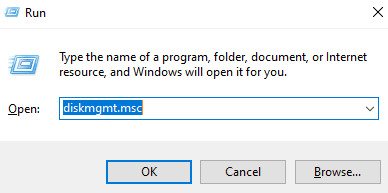
Step 1. Press Win+R together to open the Run window and type diskmgmt.msc, then hit Enter.
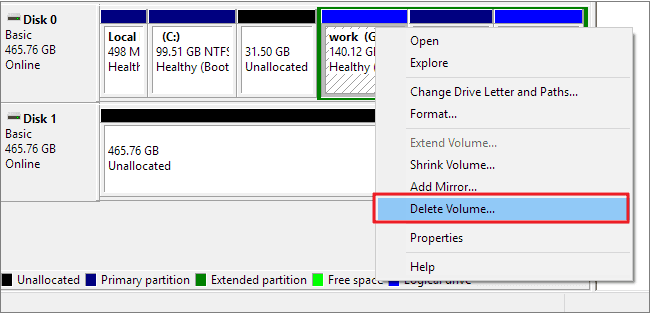
Step 2. In the Disk Management page, right-click on each dynamic disk volume and select Delete Volume, repeating this for every volume available on the disk drive.
Note:
When deleting all volumes of a dynamic disk, be aware that the data on the volumes will be irretrievable, so it's crucial to back up important files beforehand to avoid data loss.
Step 3. After deleting all volumes on a disk, select the disk and click "Convert to Basic Disk". Then, when prompted, assign a new volume label.
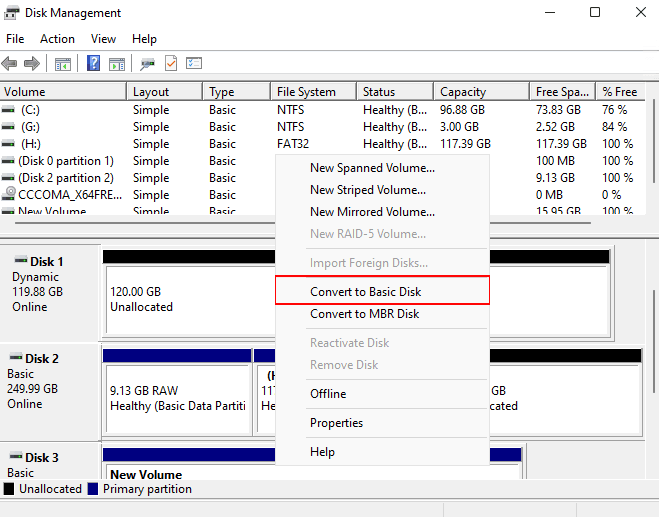
After converting a dynamic disk to a basic disk, you can use the cloning software that comes with your disk to finish the clone task, such as Samsung Data Migration Tool.
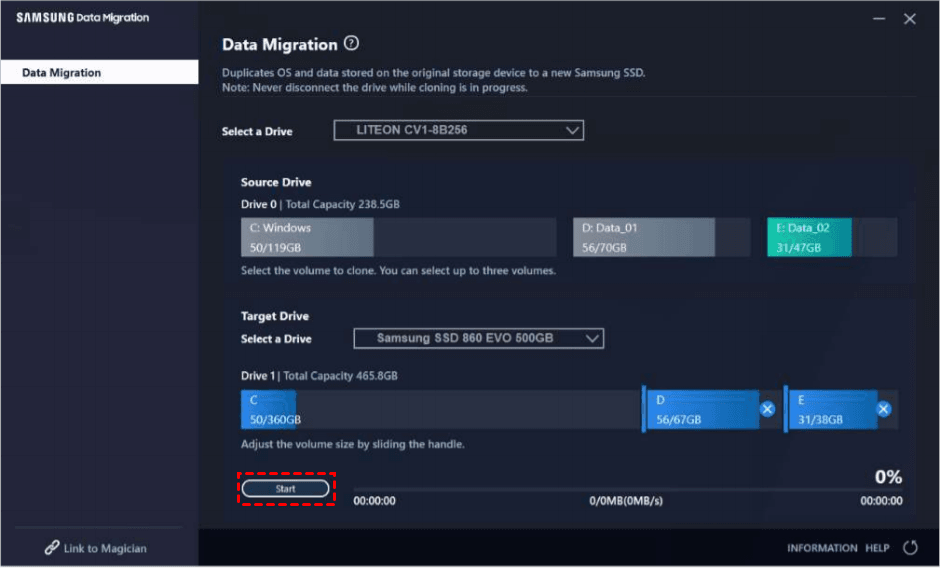
If you want to clone a dynamic disk in Windows 11, you can use a software that specializes in cloning disks, but these programs usually only support their own brand of disks. Alternatively, you can use a different method to clone your dynamic disk.
Way 2. Clone Dynamic Disk in Windows 11 without Converting Dynamic Disk
To clone a dynamic disk, you can use professional cloning software like Qiling Disk Master Professional, which supports all brands of computers and disks, allowing you to clone the dynamic disk without converting it to a basic disk and without losing any data.
Qiling Disk Masteroffers three cloning solutions: Disk Clone, System Clone, and Partition Clone. The latter two enable cloning dynamic disks in Windows 11, allowing you to clone just the system, a single volume, or the entire dynamic disk. This flexibility lets you choose the cloning method that suits your needs.
When cloning a dynamic disk system or volume, you can choose between System Clone and Partition Clone, depending on your specific needs. If you only want to clone the dynamic system or volume, these options are suitable. However, if you need to clone the entire dynamic disk, you can start by cloning the system using System Clone, followed by cloning the data volume using Partition Clone. This approach offers additional benefits.
- Secure boot: After cloning your computer, you can boot it directly with the cloned disk, eliminating the need for a separate boot device.
- Intelligent clone: Qiling Disk Master can clone a larger HDD to a smaller SSD easily by only cloning the used sectors, making it a convenient option for users who need to transfer data from a larger drive to a smaller one.
- SSD alignment: To clone a dynamic disk to an SSD, you can utilize the feature that accelerates the reading and writing speed of the SSD, making it ideal for dynamic disk cloning.
- Sector by sector clone: The command will clone all sectors of the hard drive, including those that are not currently being used, resulting in a complete copy of the drive's contents.
- Multiple disk types: This software supports cloning a hard disk to an external device, such as a USB drive, solid state drive, or hard disk drive, among others.
- Different systems: The software supports all PC operating systems of Windows, including Windows 11, 10, 8, 7, XP, and Vista.
To clone a dynamic disk in Windows 11, you need to prepare the disk by converting it to a basic disk first. This can be done by going to Disk Management, selecting the dynamic disk, and then clicking on the "Convert to Basic Disk" option.
- Backup files: To avoid losing your files, back up any important data on the target disk before starting the cloning process. This ensures that your files are safe and can be easily restored if needed.
- Connect disk properly: Connect your target disk to your computer properly and ensure it can be detected to proceed with the process.
- Download software: Download and install the safe and professional disk cloning software, Qiling Disk Master Professional.
To clone a dynamic disk, follow these steps: First, ensure the disk you want to clone is not in use by any applications or services. Then, open the Disk Management console, right-click on the dynamic disk you want to clone, and select "Copy".
Clone the Dynamic System with System Clone
Step 1. Open Qiling Disk Master Professional. Select Clone > System Clone.
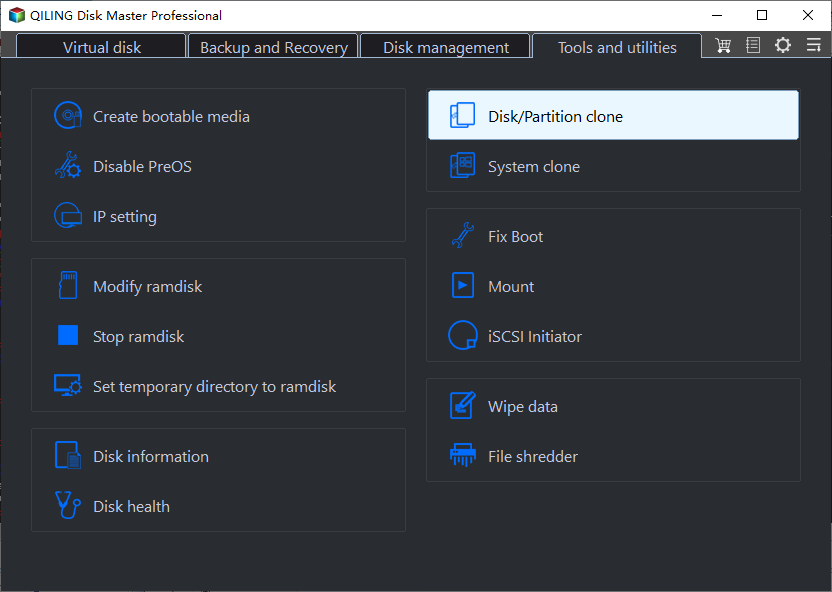
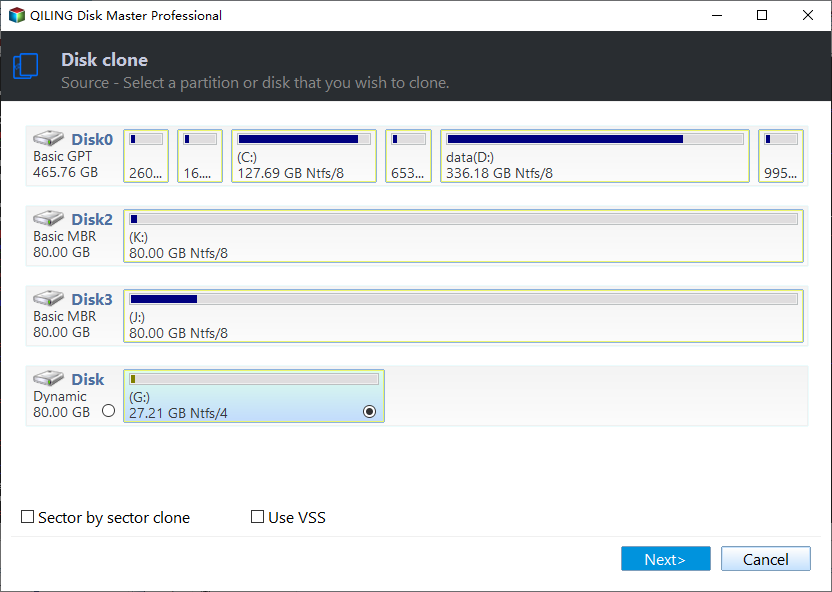
Step 2. The source drive is your dynamic disk and it's selected by default, you just need to choose a disk as the destination disk.
Step 3. If your destination disk is an SSD, please select the "SSD Alignment" option to enhance reading and writing speed. Confirm the operation and click "Proceed".
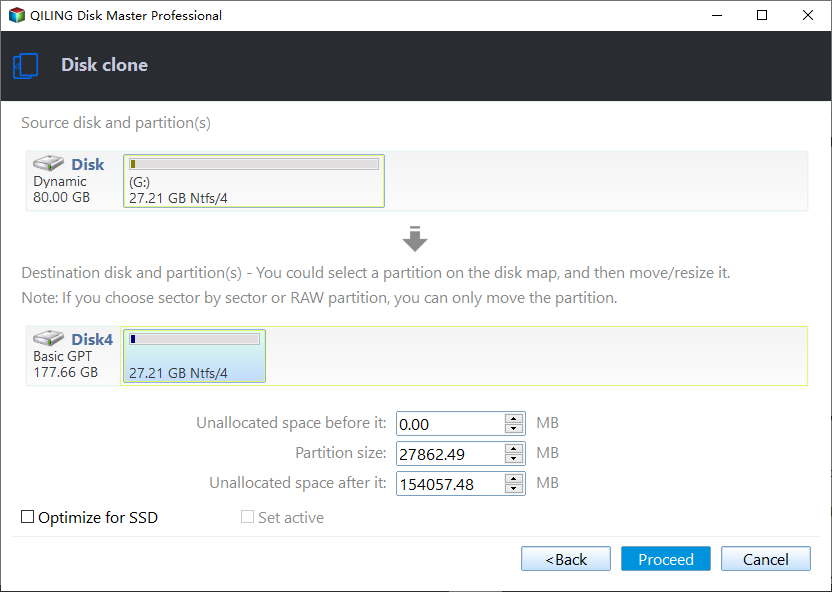
Note:
Sector by sector clone: If the destination disk is the same size or larger than the dynamic disk, you can select this option. It will clone all sectors, including unused ones.
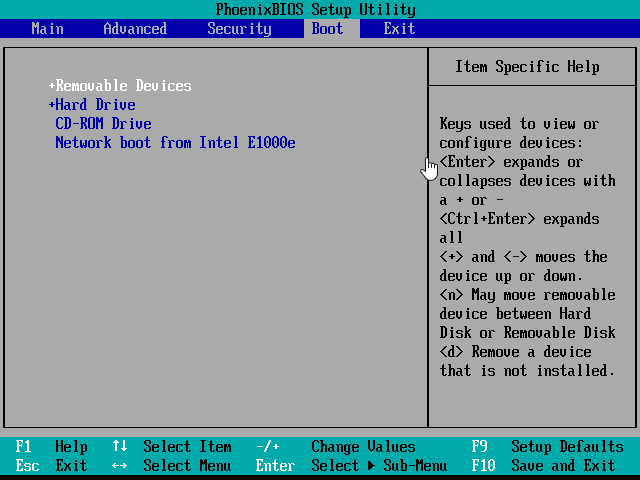
After completing the cloning process, you can boot your computer from the cloned disk. To do this, restart your computer, enter the BIOS settings by pressing a specific key (usually F2/Del), modify the boot order to prioritize the target disk, and save the changes by pressing F10. This will allow your computer to boot from the cloned disk.
Clone Data Volume with Partition Clone
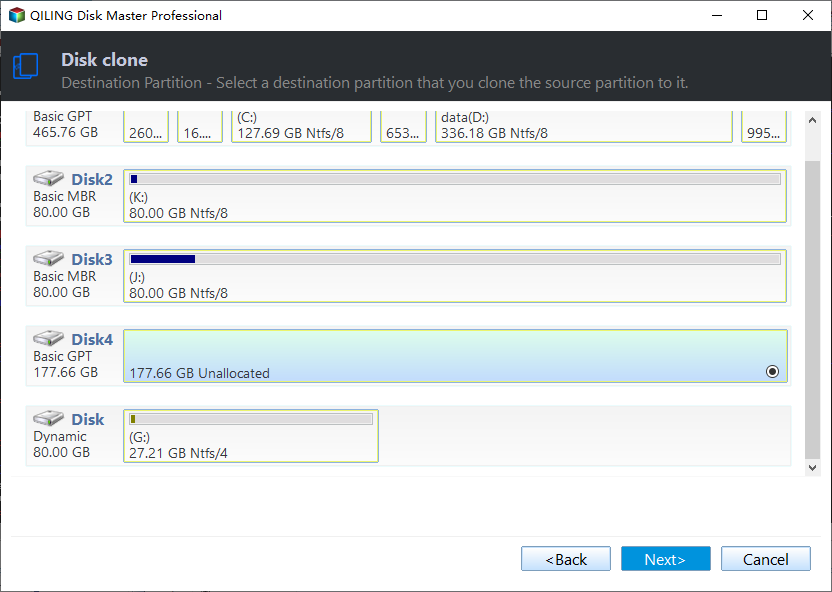
Clone the dynamic volume to the target disk by selecting Partition Clone and choosing the data partition, then following the on-screen instructions.
Congratulations! After cloning the partition, you have successfully cloned the entire dynamic disk without converting it. You can now use the system and installed software, and access all data at any time.
Summary
You can clone a dynamic disk in two ways. If your computer has its own cloning software, you can convert the dynamic disk to a basic disk first, allowing for a direct clone. However, this process will result in the loss of all data on the original disk. Alternatively, you can clone the dynamic disk without converting it, but this may not be supported by all cloning software.
We recommend using professional third-party disk cloning software, such as Qiling Disk Master Professional, to clone dynamic disks in Windows 11. This allows you to clone just the dynamic disk system, dynamic disk volume, or the entire dynamic disk, depending on your needs.
After cloning, you can boot your computer directly from the cloned disk, allowing you to use your computer and software as before, with access to your data whenever you want. This process supports all Windows PC operating systems.
If you're a Windows Server user, you can try Qiling Disk Master Server, which offers additional features that can be explored by downloading the software.
Related Articles
- How to Clone Dynamic Disk in Windows 10 Without Converting to Basic
- How to Clone Dynamic Disk in Windows 7, 8, 10, 11 Effortlessly
- How to Copy Dynamic Volumes to Basic Disk in Windows 10/8/7?
- How to Convert Dynamic Disk to Basic without Data Loss in Windows
Learn the key steps, checks, and practical tips for this related guide. - XCopy Does Not Copy All Files in Windows 7/8/10(Solved)
This article will show you how to solve the problem that XCopy does not copy all files. Also, you can try to backup files with easier way. - Top 4 Fixes to Error 0xc000000e in Windows 11—No Data Loss
Tackling the error code 0xc00000e on Windows 11 can be a challenge, but this article provides straightforward solutions to help you resolve the issue.
Products
Articles & Tutorials
- Data Recovery
- Data Backup
- File Recovery
- File Backup
- File synchronize
- System Backup and Restore
- Disk and Partition Clone
- Technical articles
- Disk Master Help
- Windows Deleted File and Disk Recovery Tutorials
- Windows File and Data Recovery Tutorials
- More Windows Tutorials for Install, Security, Files, and PC Tips
- Windows Boot, Repair, and Recovery Environment Tutorials
- Windows Backup Tutorials
- Windows Restore Tutorials
- Windows Clone and Migration Tutorials
- Windows Server Backup, Recovery, and Management Tutorials
- Windows Disk, Partition, and Storage Management Tutorials