Top 4 Fixes to Error 0xc000000e in Windows 11—No Data Loss
- What causes the 0xc000000e error code?
- How to fix the error code 0xc000000e in Windows 11
- Fix 1. Check physical device connections
- Fix 2. Reset BIOS configuration
- Fix 3. Use Windows 11's built-in automatic startup repair utility
- Fix 4. Manually attempt to rebuild boot configuration data file
- Bonus tip: backup your system before the 0xc000000e error occurs
- Wrapping things up
What causes the 0xc000000e error code?
The 0xc000000e error in Windows 11 is typically caused by a corrupted system file, a boot issue, or a hardware problem. It can occur due to various reasons such as a faulty hard drive, a malfunctioning BIOS, or a corrupted Windows installation.System Restore, you may encounter an error message indicating that the system files are corrupted or missing. This can be caused by a variety of factors, including a failed Windows update, a virus or malware infection, or a hardware issue.recovery toolThe error code 0xc000000e is typically displayed on a Windows system when it encounters a fatal system error, often due to a problem with the operating system's boot process. This can be caused by a variety of factors, including hardware issues, software conflicts, or corrupted system files.
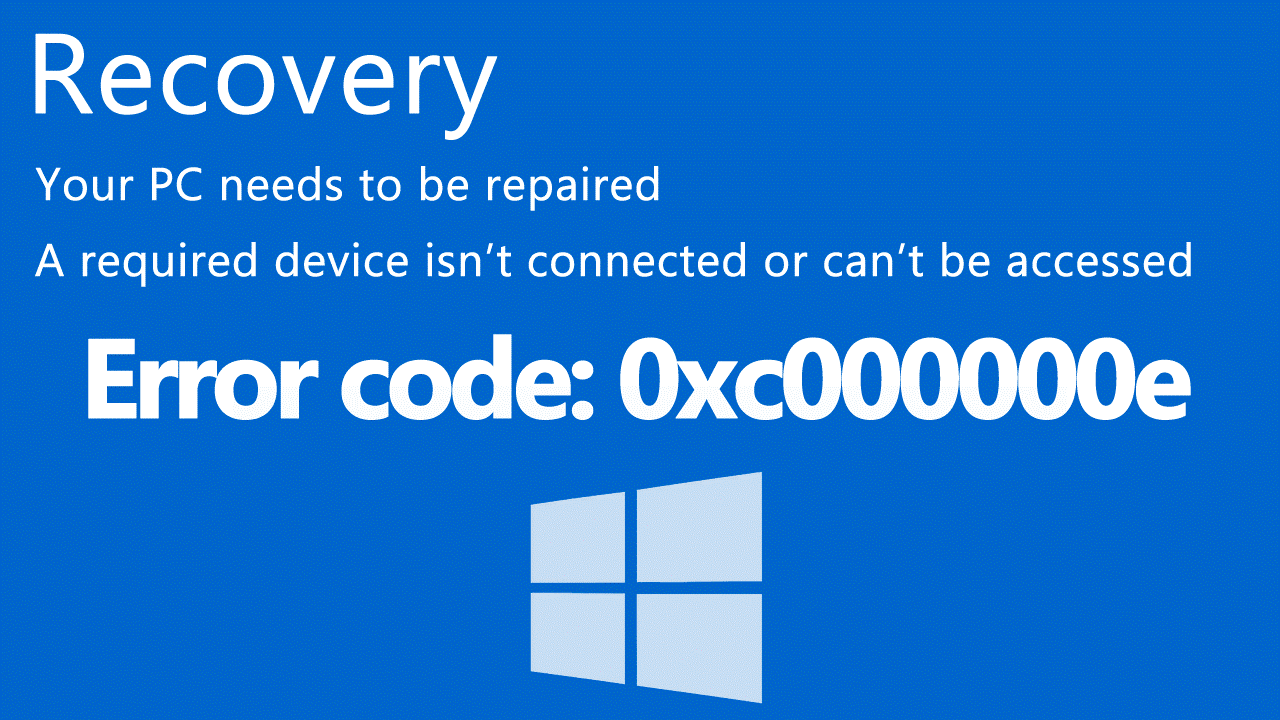
Windows 11 boot error can be caused by a variety of factors, including corrupted system files, driver issues, firmware problems, and hardware malfunctions. It can also be triggered by software conflicts, such as incompatible software or drivers, and by issues with the boot configuration. Additionally, Windows 11 boot errors can be caused by hardware issues, such as a failing hard drive or a faulty power supply, or by firmware problems, such as a BIOS or UEFI issue.
Invalid BCD
The Boot Configuration Data (BCD) file is a crucial Windows configuration file that determines how the computer boots. However, it can become invalid due to various reasons such as disk write errors, power failures, or even a virus infecting the boot sector.
Incorrect BIOS configuration
If the user has recently deleted the C drive system files or modified the BIOS settings, it may cause issues with the new settings being incompatible with the hard drive. This could be due to the Legacy BIOS boot mode and UEFI boot mode settings, where the operating system was installed using Legacy BIOS boot mode, limiting the boot mode to only Legacy BIOS.
Driver incompatibility
Installing a custom driver on a computer can lead to compatibility issues with the current operating system or hardware.
To fix Windows error code 0xc000000e, you can try the following steps. First, restart your computer in safe mode and see if the error persists. If it does, try to boot in a different mode, such as the last known good configuration or a previous restore point.
How to fix the error code 0xc000000e in Windows 11
If you're experiencing Windows 11 boot error problems, there are several solutions you can try. Refer to the following approaches when you encounter such issues, as any one of them may be effective in resolving your problem.
- Fix 1. Check physical device connections
- Fix 2. Reset BIOS configuration
- Fix 3. Use Windows 11's built-in automatic startup repair utility
- Fix 4. Manually attempt to rebuild boot configuration data file
Fix 1. Check physical device connections
When troubleshooting error code 0xc000000e in Windows 11, start by checking the physical device connections on your computer system, as the issue may be related to a faulty or improperly connected hardware component.
Windows machine selects boot devices based on priority, so if another device is connected, it may try to boot from that instead of the system hard disk.
In such case, you should:
1. Before booting the machine, disconnect all external storage devices like external hard drives, CDs, and USB drives to prevent any potential issues or data corruption.
2. Turn off your computer, ensure your keyboard, mouse, and other peripherals are securely connected, and then turn on the machine.
Fix 2. Reset BIOS configuration
If the SATA disk controller mode was changed in the BIOS settings before the problem started, you can try reverting it to its original settings.
Please follow these steps:
1. Press the restart button on your computer. When it boots up, you will see a message on the screen asking you to press a key to enter the BIOS menu.
Tip: The shortcut keys for various computer models may differ and can include Esc, Del, F2, F8, F10, or F12.
2. To find the hard drive controller mode setting option in the BIOS, look for setting options that contain the words SATA, IDE, or AHCI. This will typically be found in the advanced or hardware settings section of the BIOS.
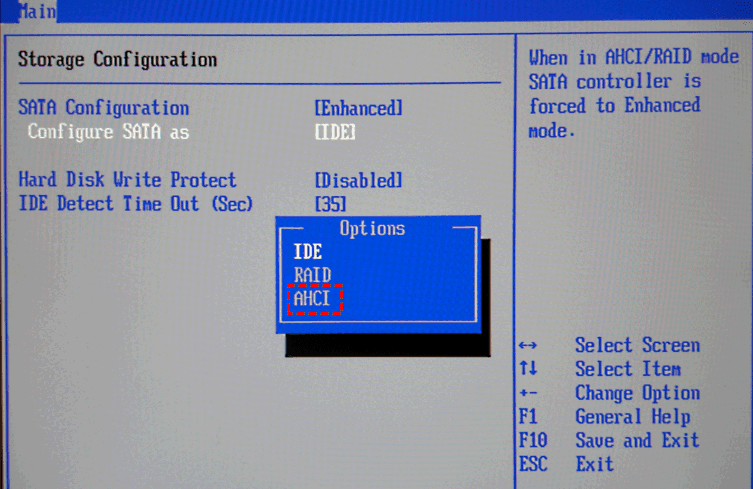
You can try to switch between these three modes until the computer can boot successfully. If it cannot boot successfully, you can continue to try the following solutions.
Fix 3. Use Windows 11's built-in automatic startup repair utility
Startup Repair WinRE (Windows Recovery Environment) can be used to solve some common startup problems in Windows. If you cannot start your computer properly, you can try this feature of WinRE.
1. To completely shut down your system, turn it off, then turn it back on. Immediately press and hold the power button again to force it to shut down. Repeat this process twice. This will help to clear out any temporary data and refresh your system.
2. On the third time, allow your computer to boot normally. Your system will automatically go into Automatic Repair mode.
3. Click Troubleshoot>Advanced Options>Startup Repair, wait for the repair to complete.

If the repair still doesn't boot properly, you can try rebuilding the Boot Configuration Data (BCD) using the bootrec command.
Fix 4. Manually attempt to rebuild boot configuration data file
When encountering boot errors, try rebuilding the Boot Configuration Data (BCD) to resolve the issue, as it's often caused by a corrupted BCD.
1. Insert the Windows installation disc into the computer and boot the PC from it.
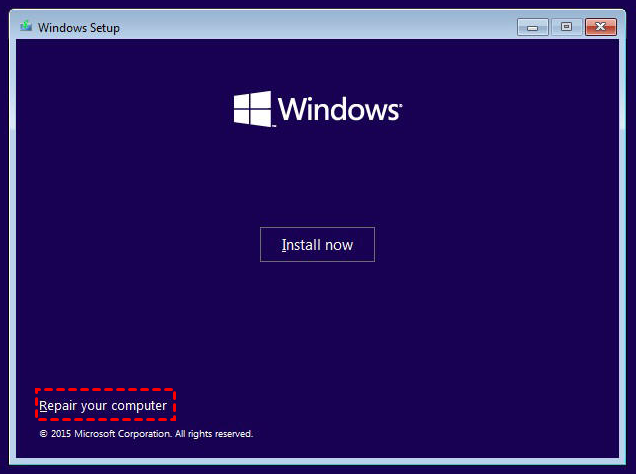
2. Click the "Repair your computer" option from the Windows Installation Setup window, select the operating system partition from the available options, and then click "Next".
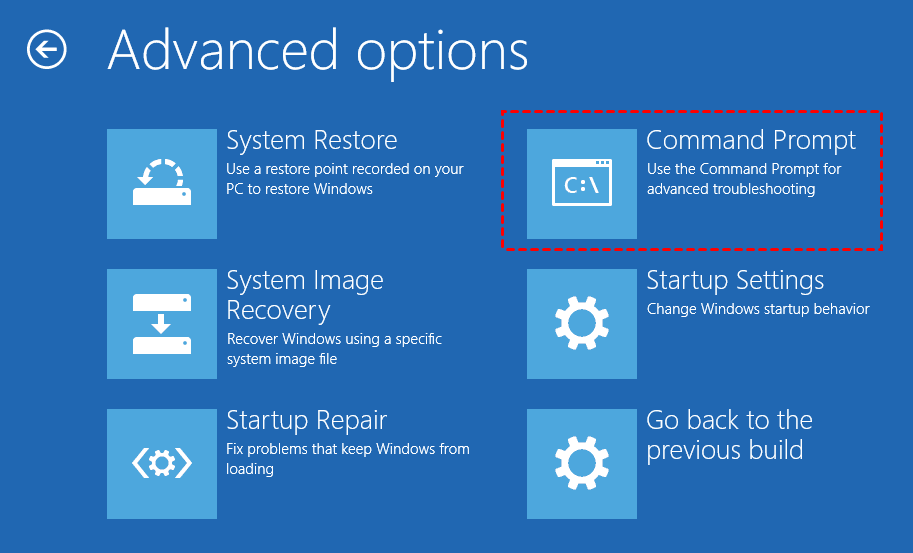
3. Select Troubleshoot>Advanced Options>Command Prompt.
4. The command to fix the Master Boot Record and boot sector is not provided in the given snippet. However, the general command to fix the Master Boot Record and boot sector is `bootrec /fixmbr` or `bootrec /fixboot` depending on the specific issue, but the exact command should be provided by the user or the system's documentation.
bootrec /fixmbr
bootrec /fixboot
bootrec /scanos
5. To resolve the issue, run the command `bootrec /fixmbr` to repair the Master Boot Record, followed by the command `bootrec /rebuildbcd` to rebuild the Boot Configuration Data (BCD), and then restart the computer. The `bootrec /rebuildbcd` command will scan for and add missing Windows installations to the BCD.
Bonus tip: backup your system before the 0xc000000e error occurs
When you encounter issues, using the fixes may help, but they might not always work. It's better to get into the habit of backing up your data to prevent system failure or data loss. This way, you can avoid the stress and hassle of dealing with such problems.
I recommend Qiling Disk Master Standard, a free backup software that supports Windows operating systems, allowing you to backup your system, files, and partitions.
If you are using server computers, then Qiling Disk Master Server is recommended for you.
Here's how to create a full backup of your PC in Windows 11:
Step 1. Download and install Qiling Disk Master Standard Edition, then launch the software.
Step 2. To backup your system, click on Backup and then select System Backup. Follow the on-screen instructions to complete the system backup process. Once you have a backup image, you can easily restore your PC to a previous date.

Wrapping things up
To fix the 0xc000000e error in Windows 11, you can try the four approaches: running the System File Checker (SFC), checking for corrupted system files, using the System Restore feature, or booting in Safe Mode and then running a System File Checker (SFC) scan to identify and replace corrupted system files. Regularly backing up important files or data is also crucial to prevent data loss in case of system problems. This approach can help you easily restore to a previous state, minimizing the impact of unexpected errors like 0xc000000e.
The freeware Qiling Disk Master is a reliable tool that helps you backup important files and prevent data loss. It allows you to create a backup in advance, which can be used directly when needed. In addition to its backup feature, it also serves as an excellent clone tool, enabling you to clone SSD to SSD in Windows 11, among other functions. Download and try it out!
Related Articles
- [Solved] Winload.efi Missing After Clone | 4 Ways + 1 Tip
This guide explains Winload.efi Missing After Clone | 4 Ways + 1 Tip with clear steps, key checks, and practical tips. - How to Fix Cloned Drive Won't Boot Windows 11 Easily (5 Ways)
This article provides you with five solutions about your cloned drive won't boot windows 11, including a built-in tool as well as a reliable third-party software - Qiling Disk Master. - 2 Common Ways | Backup Outlook Emails to USB
Learn how to backup Outlook emails to USB easily on this page. This article provides you with 2 ways, one is to use its built-in function, and the other is to use reliable third-party software. If you are interested, keep reading! - Backup Outlook Emails with Attachments: A How-To Guide
Learn how to Backup Outlook Emails with Attachments: A How-To Guide with clear steps, key checks, and practical tips. - Best Tool for SSD Speed Test Windows 10
You can easily test your SSD speed on Windows 10 by trying out two simple methods. To find out your SSD's read and write speed, you can follow the steps outlined in this article and complete the process on your own. - How to Sync Two External Hard Drives in Windows 10/8/7? (2 Ways)
Set up sync Two External Hard Drives in Windows 10/8/7 (2 Ways) with practical backup or sync options, storage checks, and safer ways to protect files.
Products
Articles & Tutorials
- Data Recovery
- Data Backup
- File Recovery
- File Backup
- File synchronize
- System Backup and Restore
- Disk and Partition Clone
- Technical articles
- Disk Master Help
- Windows Deleted File and Disk Recovery Tutorials
- Windows File and Data Recovery Tutorials
- More Windows Tutorials for Install, Security, Files, and PC Tips
- Windows Boot, Repair, and Recovery Environment Tutorials
- Windows Backup Tutorials
- Windows Restore Tutorials
- Windows Clone and Migration Tutorials
- Windows Server Backup, Recovery, and Management Tutorials
- Windows Disk, Partition, and Storage Management Tutorials