Auto Sync Two External Hard Drives in Windows 11/10/8/7
Scenario
How do I sync two external hard drives?
To move your music files from one external hard drive to another, you can use the following steps: 1. Connect both external hard drives to your computer. 2. Open File Explorer (Windows) or Finder (Mac) and navigate to the music files on the original external drive.
- Question from Cnet.com
External hard drives are portable devices that store data like photos, videos, and documents. They can be connected to different computers via USB ports, making them a good choice for transferring files between computers. Additionally, they allow you to back up computer data, preventing data loss due to system crashes or other errors.
What's the situation with the external hard drives that you want to sync? Are they identical in terms of storage capacity and contents, or are they different in some way?
- Make an extra backup for important data.
- Transfer files Transferring data from an old hard drive to a new one or from a smaller drive to a larger drive is a straightforward process. You'll need to connect the old drive to your computer, open a file explorer, and select the files or folders you want to transfer.
- Share files by syncing files to someone else's drive.
If you are in one of the above cases, you may read on to find effective solutions to sync files between two external hard drives.
How to sync two external hard drives in Windows 11/10/8/7
To sync two external hard drives in Windows 11/10/8/7, you can use either xcopy or Qiling Disk Master. For a simple sync, use xcopy, while Qiling Disk Master offers more advanced sync options, including automatic sync. If you want more control over your sync process, Qiling Disk Master is the recommended choice.
Sync two external hard drives via xcopy
The Windows Dos Box xcopy command is a simple solution for syncing one directory to another. You can run the xcopy command directly from a Command Prompt window, or create a batch file to simplify the process. To sync files between two external hard drives using a batch file, you can follow the steps to create a batch file that runs the xcopy command, which can save you the hassle of retyping commands.
- Connect the two external drives to your computer and ensure they are detected by the system.
- To start Notepad, search for it in the taskbar's search box and click the top result to open the app.
- Type the following lines to create a batch file:
- @echo OFF
- echo XCOPY Batch Process Started
- xcopy g: e: /e /d /c /y The command to copy files from the source drive (g:) to the destination drive (e:) is `copy g:*.* e:*.*`.
- echo XCOPY Batch Process Complete
- pause To prevent the console window from closing after executing a command, you can use the `pause` command in Windows. This will keep the console window open until you press a key. You can add the `pause` command at the end of your batch file or script, like this: `echo Press any key to continue.
✍ The xcopy command has various parameters that can be used to customize its behavior. These parameters include /D, /X, /Y, /C, /I, /L, /N, /R, /S, /T, /W, and /Z.
● /e: copy directories and subdirectories, including empty ones.
● /d: Copy files from the source path to the destination path, only transferring files that have been modified or added since the last copy, to ensure that the destination path stays up-to-date with the source path.
● /c: The command `copy` is used to copy files or directories from one location to another. It can be used with or without the `/y` option, which suppresses the prompt to confirm the overwrite of existing files. If the `/y` option is used, the command will automatically overwrite any existing files without prompting the user.
● /y: suppress prompting to confirm you want to overwrite a file.
- Save the batch file by pressing Ctrl + S and name it with a ".bat" extension, such as "xcopy_sync.bat", then place it in a convenient location.
- Double click the "xcopy_sync.bat" file to sync one external hard drive to another, and a Command Prompt window will appear showing the sync result. Press any key to close the window.
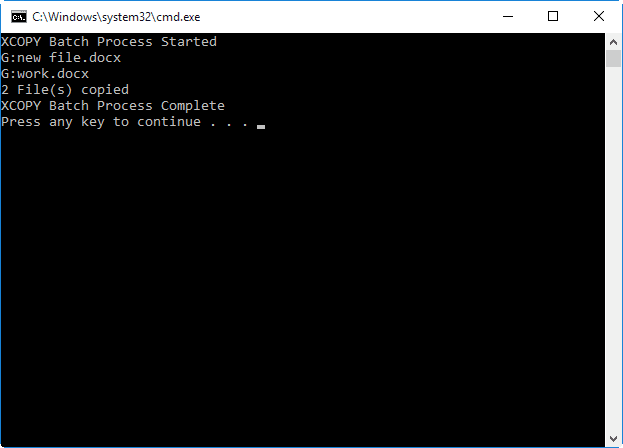
✎To sync your two external hard drives, simply double-click the batch file each time you want to initiate the sync process. If you need to make any changes to the batch file, you can right-click on it and select the "Edit" option.
The process of syncing two external hard drives via xcopy is relatively straightforward, but it has its limitations, such as not being able to delete files that exist in the destination but not in the source, and requiring manual execution through Task Scheduler for auto-sync.
Sync one external hard drive to another with Qiling Disk Master🔥
Qiling Disk Master Professional is a powerful file sync software that allows you to sync files from one folder, disk, or computer to another. It supports all editions of Windows, from Windows 11 to XP, and offers four sync modes, providing a convenient and efficient way to manage your files across different devices.
◑ Basic Sync: It will sync files from the source directory to the destination directory.
◑ Real-Time Sync: Files changed in the source directory are synced to the destination directory almost immediately, providing a seamless and up-to-date synchronization experience.
◑ Mirror Sync: The rsync command will preserve the exact file structure and contents from the source directory to the destination directory, and remove any files in the destination directory that are not present in the source directory.
◑ Two-Way Sync: Any changes made to the source or destination directory will be automatically synced to the other side.
Qiling Disk Master supports various NAS devices and cloud drives, allowing you to sync QNAP to OneDrive, among other options. This means you can keep two external hard drives in sync using Qiling Disk Master, making it a useful tool for maintaining data consistency across different storage devices.
- Connect the two external drives to your computer and ensure they are recognized. Next, download, install, and open Qiling Disk Master to proceed with the task.
- To delete extra files on the destination drive, go to Backup and recovery, select File Sync, and it will delete the excess files. This makes up for the limitation of the xcopy command.

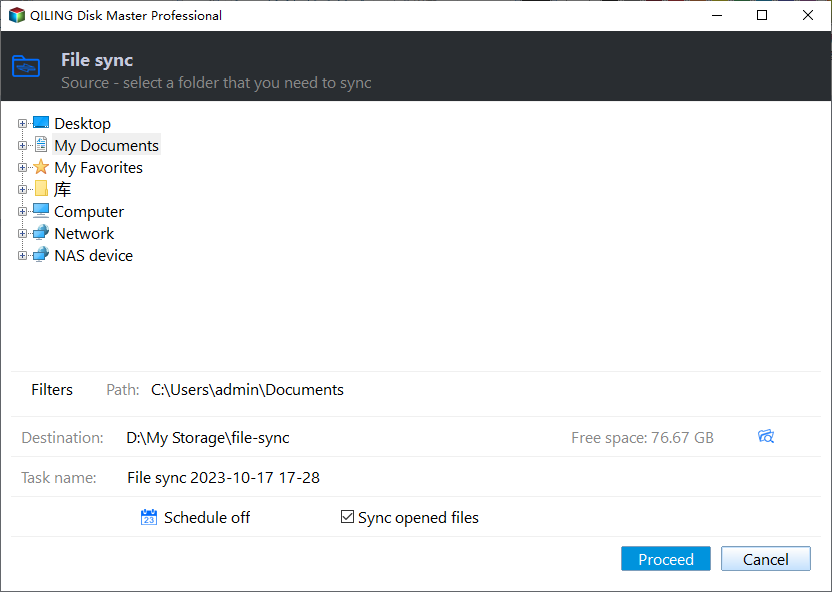
- To sync files, click Add Folder to select the source folder and then click the second bar to select the destination folder.

- To sync two external hard drives automatically, click on the "Schedule Sync" option to select a suitable synchronization frequency.

- Confirm the operation and click Proceed to begin.
Conclusion
You can sync two external hard drives in Windows 11/10/8/7 using either the Windows xcopy command or Qiling Disk Master. Qiling Disk Master offers more advanced sync options, including the ability to set up automatic synchronization tasks, ensuring that all changes to your files are captured.
Qiling Disk Master offers a range of features beyond sync, including disk clone and system clone. This allows you to transfer your operating system or data to a new hard drive, replacing or upgrading your old one, without losing data or experiencing boot issues.
Related Articles
- Sync Folders between Drives in Windows 10/8/7 (with Video)
- Best Way to Sync Files to External Hard Drive in Windows 10/8/7
- How to Use Dropbox to Mirror Folders in Windows 10/8/7?
- Install a Second Hard Drive in Windows 10 (One-Stop Wizard)
This is a one-stop wizard for installing a second hard drive in Windows 10, whether it's external or internal, and migrating system or data afterward. - What to Do after Accidentally Marked Drive C Active in Windows 10
This guide explains What to Do after Accidentally Marked Drive C Active in Windows 10 with clear steps, key checks, and practical tips. - Alternative to Windows Easy Transfer Windows 10
Refer to this article to get the best alternative to Windows Easy Transfer Windows 10 when you meet the problem of Windows Easy Transfer not available in Windows 10.
Products
Articles & Tutorials
- Data Recovery
- Data Backup
- File Recovery
- File Backup
- File synchronize
- System Backup and Restore
- Disk and Partition Clone
- Technical articles
- Disk Master Help
- Windows Deleted File and Disk Recovery Tutorials
- Windows File and Data Recovery Tutorials
- More Windows Tutorials for Install, Security, Files, and PC Tips
- Windows Boot, Repair, and Recovery Environment Tutorials
- Windows Backup Tutorials
- Windows Restore Tutorials
- Windows Clone and Migration Tutorials
- Windows Server Backup, Recovery, and Management Tutorials
- Windows Disk, Partition, and Storage Management Tutorials