Free Alternative to Windows Easy Transfer Windows 10
Is there an Easy Transfer in Windows 10?
Unfortunately, Windows Easy Transfer is not available in Windows 10. However, you can use the built-in Backup and Restore feature or third-party software like Qiling Disk Master or PCmover to transfer your personal data to the new hard drive. Alternatively, you can also manually copy and paste your files and settings from the old hard drive to the new one. If you need further assistance, feel free to ask!
- Windows Easy Transfer is missing/not available in Windows 10
- Windows 10 Easy Transfer free alternative - Qiling Disk Master
- How to transfer files from PC to PC in Windows 10
Windows Easy Transfer is missing/not available in Windows 10
Windows Easy Transfer is a Microsoft program that helps transfer files, settings, and more from an older Windows version to a newer one, starting with Windows Vista. It was also included in Windows 7, 8, and 8.1.
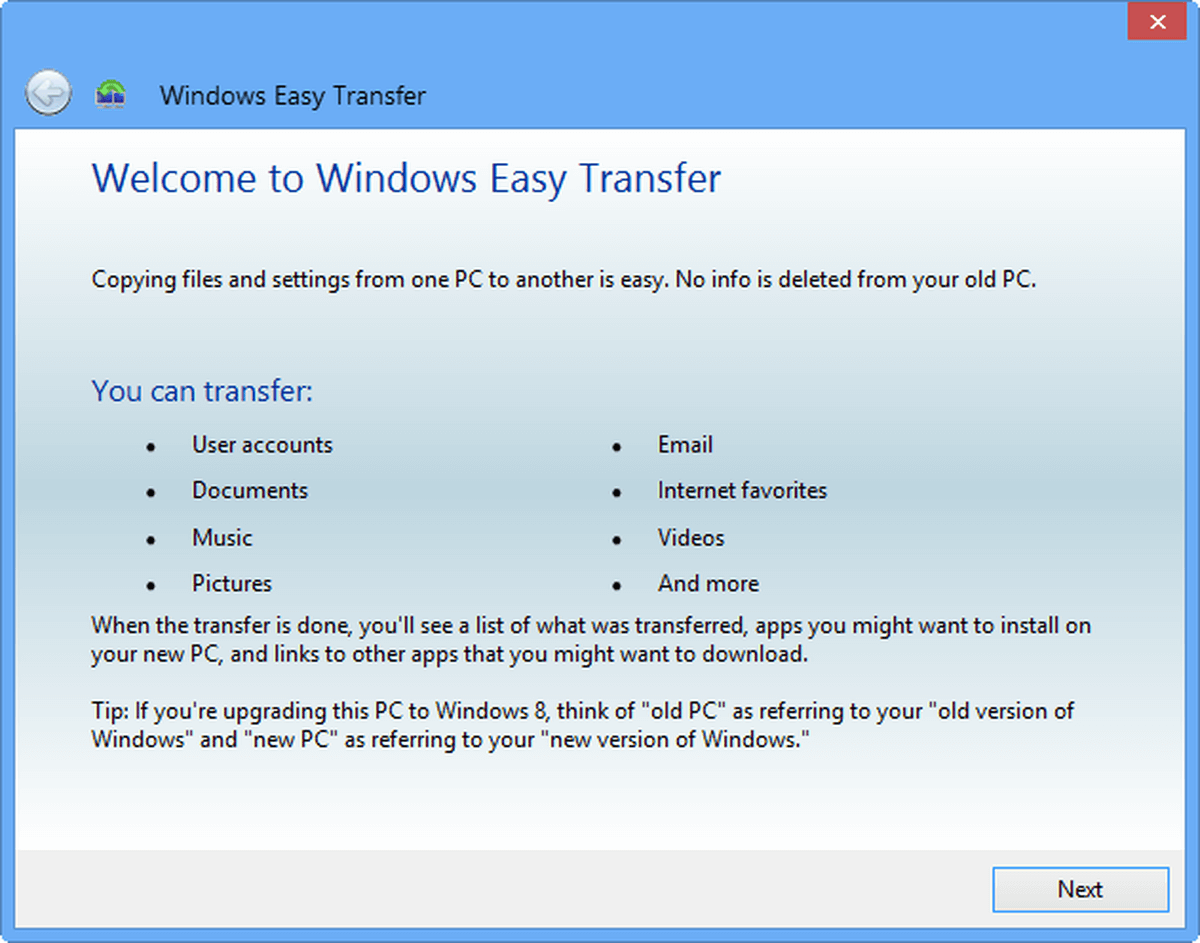
Windows Easy Transfer is not available for transferring data from a Windows 10 computer to another, and it doesn't support migrating installed programs, so a third-party program is needed as an alternative.
Windows 10 Easy Transfer free alternative - Qiling Disk Master
I highly recommend the Qiling Disk Master Standard software, which is free and supports Windows 11/10/8.1/8/7/Vista/XP, to transfer data between devices.
💜 File Sync
With the Sync feature, you can transfer files, pictures, music, and more to another folder, partition, or hard drive, and also transfer files between computers over a network.
💜 Backup & Restore
Qiling Backup allows you to perform various backup tasks, including system, disk, partition, and file backup, as well as cloud backup. You can select System Backup to backup installed programs, and then restore your system, programs, and files from the backup images whenever needed.
Wanna have a try? Download and install it now!
How to transfer files from PC to PC in Windows 10
To transfer files between computers through a network, ensure that both computers are connected to the same network. This allows you to access and share files between the two devices. Once connected, you can use built-in file sharing features, such as Windows File Sharing or Apple's AirDrop, to transfer files between computers.
Step 1. Launch Qiling Disk Master on the source computer, click "Backup" and select "File Sync" to transfer files from PC to PC.

Step 2. Name the task so that you can distinguish it from other sync tasks. Click "Folder" to select the folder(s) which you want to transfer.

Tips: To exclude certain file types from the sync task, you may upgrade to Qiling Disk Master Professional and use "Filter settings" after selecting source folder(s).
Step 3. To add a share or NAS device, first expand the second bar's drop-down menu and select the option that says "Add Share or NAS Devices".
Step 4. In the Add Share or NAS Devices window, enter the IP address of the source computer and click the blue button on the right. If prompted, enter the username and password.

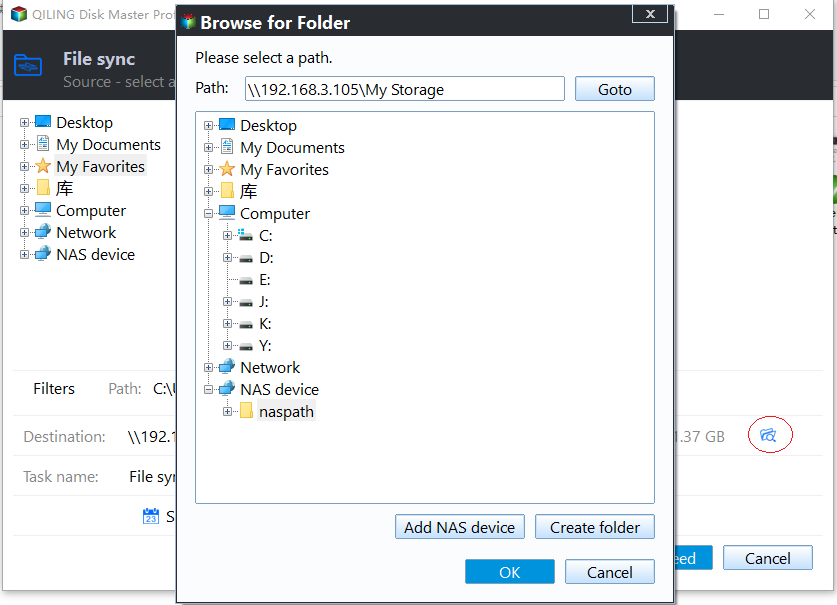
Step 5. After adding the IP address, all network-shared folders on the computer will be listed. Choose one folder to store the folder(s) you plan to transfer and click "OK".
Step 6. Click on "Proceed" button to perform the operation.
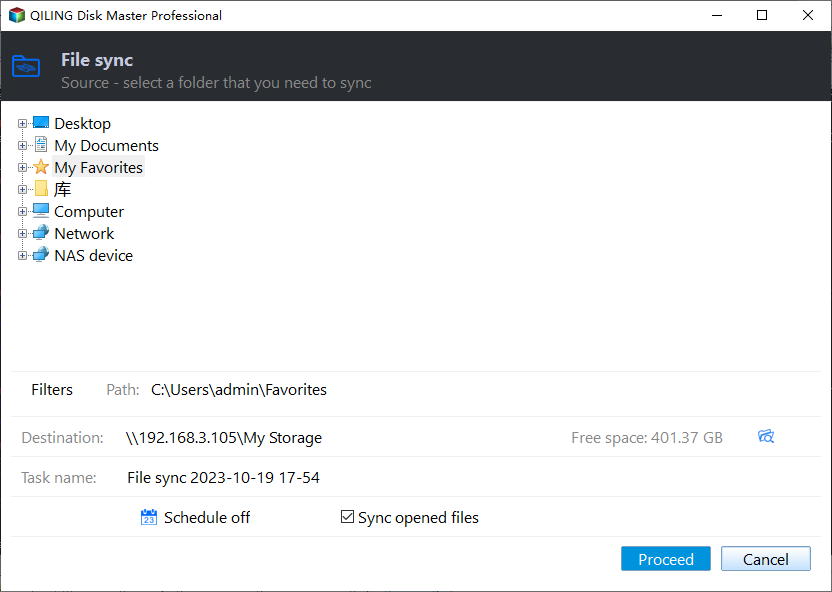
>>Options: To add a comment for your sync task and enable email notification, you can write a brief description of the specific sync contents in the comment field, allowing you to easily identify the contents of the sync. This feature also enables you to receive email notifications, keeping you informed about the sync process.
>> Schedule Sync: The sync task can be set to run periodically in five modes: Daily, Weekly, Monthly, and two additional modes, Event triggers and USB plug in, which are available in the paid version.
Step 7. After the sync process is finished, go to the destination computer, tap the Search button on the taskbar, type "\\(IP address of the source computer)" in the search box, and press Enter. The shared folder(s) will be displayed immediately.
Note: Shared items will be inaccessible when the source computer is asleep or closed. To access them at any time, copy files to the local disk of the destination computer.
Bonus tip: how to transfer programs from one computer to another
To transfer programs from one computer to another, you need a system backup image and a bootable USB, which can be created by clicking "Tools" and then "Create Bootable Media". You can also save the system image on the bootable USB for easy access on the target computer.

Boot the target computer from the bootable USB, and Qiling Disk Master will load up automatically. Click "Restore" and select the task or image file to complete the recovery process, ensuring the target computer is bootable afterwards by upgrading to a higher edition and enabling Universal Restore.

Conclusion
Qiling Disk Master is a free alternative to Windows Easy Transfer in Windows 10 that allows you to transfer not only files but also system and programs between computers. Additionally, it is a powerful disk cloning software that can be used to clone an SSD to another SSD.
Related Articles
- [Solved] Windows Easy Transfer Is not Available in Windows 10
This guide explains Windows Easy Transfer Is not Available in Windows 10 with clear steps, key checks, and practical tips. - PCmover Express Free Alternative in Windows 7/8/10 (100% Work)
You will find the best free PCmover Express alternative for you to transfer files from one computer to another with simple clicks. Let's find out. - How to Transfer Files from Old PC to New PC on Windows 7/8/10
This article will show you 5 methods to transfer files from old PC to new PC in Windows 7/8/10. Scroll down to learn more. - How to Backup C Drive on Windows 11 | 2 Ways
This article explains the necessity and reasons to backup C Drive on Windows 11, and also presents 2 feasible ways to perform such execution. - How to Install Windows 11 – Easiest Guide for Beginners
As Windows 11 is set to be released on June 24, many are wondering how to install it for free. This tutorial will guide you through the process, making it easy to get the latest operating system without any cost. - Create Windows 10 Full Backup Easily (2 Free Ways)
This article tells you how to make full backup in Windows 10 and provides you with 2 helpful ways. Click on this article and learn more.
Products
Articles & Tutorials
- Data Recovery
- Data Backup
- File Recovery
- File Backup
- File synchronize
- System Backup and Restore
- Disk and Partition Clone
- Technical articles
- Disk Master Help
- Windows Deleted File and Disk Recovery Tutorials
- Windows File and Data Recovery Tutorials
- More Windows Tutorials for Install, Security, Files, and PC Tips
- Windows Boot, Repair, and Recovery Environment Tutorials
- Windows Backup Tutorials
- Windows Restore Tutorials
- Windows Clone and Migration Tutorials
- Windows Server Backup, Recovery, and Management Tutorials
- Windows Disk, Partition, and Storage Management Tutorials