[Solved] Windows Easy Transfer Is not Available in Windows 10
Note: Windows Easy Transfer is not available in Windows 10
Windows Easy Transfer is a utility that helps transfer files and settings from an older Windows version to a newer one, specifically from Windows XP or Vista to Windows 7.
Windows Easy Transfer allowed the transfer of selected files in batch using a USB cable, removable media, or across a network, making it more convenient than manual copying. However, its functionality is not available in Windows 10, which may disappoint users looking to migrate data between different operating systems.
- Best free Windows Easy Transfer alternative in Windows 10
- Tutorial | How to transfer files from earlier Windows PC to Windows 10 PC?
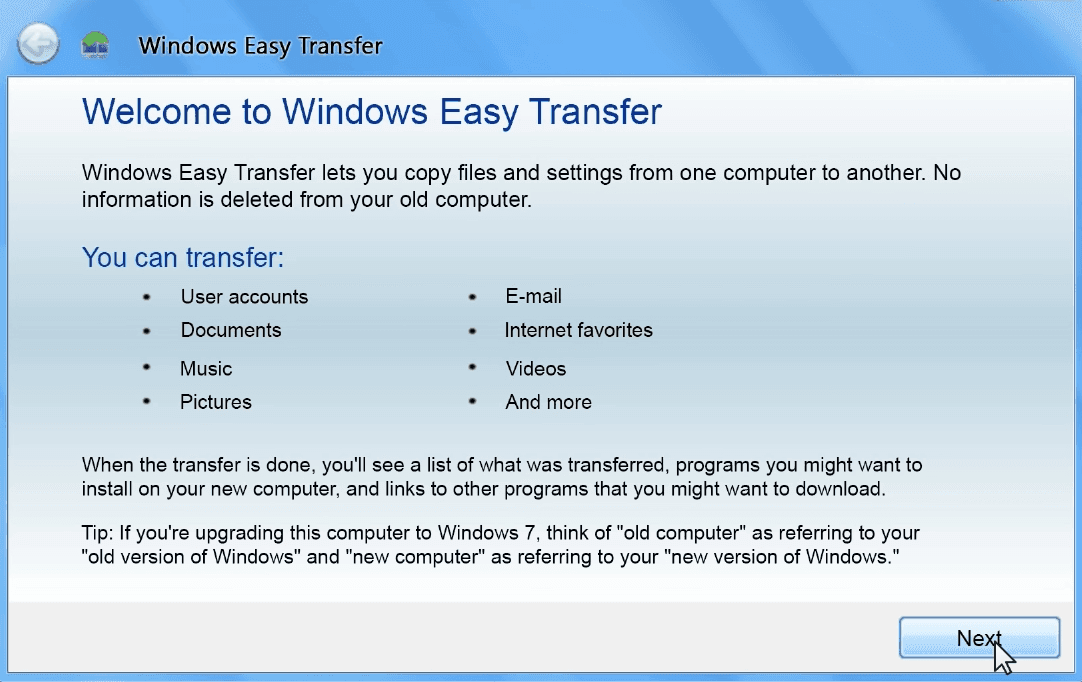
Best free Windows Easy Transfer alternative in Windows 10
Windows Easy Transfer is a user-friendly tool, but it has some limitations, including the inability to transfer installed applications and a lack of support for transferring files between 64-bit and 32-bit versions of Windows. Furthermore, it does not support recent Windows versions.
To find an alternative to Windows Easy Transfer in Windows 10, you can use the built-in feature called "Settings" to transfer your files, settings, and other data from an old Windows XP or Windows 7 computer to a new Windows 10 computer. This feature is accessible from the "Settings" app, and it allows you to transfer your files, settings, and other data from an old computer to a new one.
Microsoft has partnered with Laplink to offer PCmover Express, a Windows 10 tool that transfers selected files, folders, and settings from an old PC to a new Windows 10 PC, but it's not free and has limited functionality.
Personally, I prefer a tool with fast transmission speed and convenient process in addition to reasonable price. And that makes a freeware stand out from similar products on the market - Qiling Disk Master Standard. It has many advantages, which I summarized as follow:
- Compatibility:It can transfer all kinds of files, including programs, between PCs running Windows 10/8.1/8/7/Vista/XP.
- Flexibility: It offers various modes and settings to cater to your needs, including the option to set up automatic backups.
- Usability: The operation is straightforward and user-friendly, with a simple interface that makes it easy to navigate, and it completes tasks quickly, providing a sense of satisfaction.
- Price: it's a completely freeware.
For these reasons, I consider Qiling Disk Master Standard as the best free Windows 10 Easy Transfer alternative, and would like to introduce its workflow below.
How to transfer files from earlier Windows PC to Windows 10 PC?
Qiling Disk Master Standard offers an alternative to Windows Easy Transfer in Windows 10, providing two basic approaches to transfer data between computers: file sync and file backup.
The two options are creating a copy of the files with original format, allowing direct access and use on the destination computer, and creating a compressed backup image of the files, requiring restoration to the destination computer.
You should download and install the software first.
Case 1. Sync files to Windows 10 PC from an earlier PC
Syncing files can be done in various ways, including via removable media, NAS, cloud drives, and more. However, the simplest method is to sync folders directly between computers over a network.
To transfer files from an older operating system computer to a newer one, ensure both computers are on the same network. Create a shared folder on the source computer, and enable network discovery on both devices. If you're unsure how to do this, click here for instructions. Once network discovery is enabled, you can proceed with the file transfer.
Steps:
1. Launch Qiling Disk Master Standard, navigate to Backup and choose File Sync.

2. Click Folder to select the folders you want to sync.

3. Select the "Shared/NAS" option from the dropdown menu.
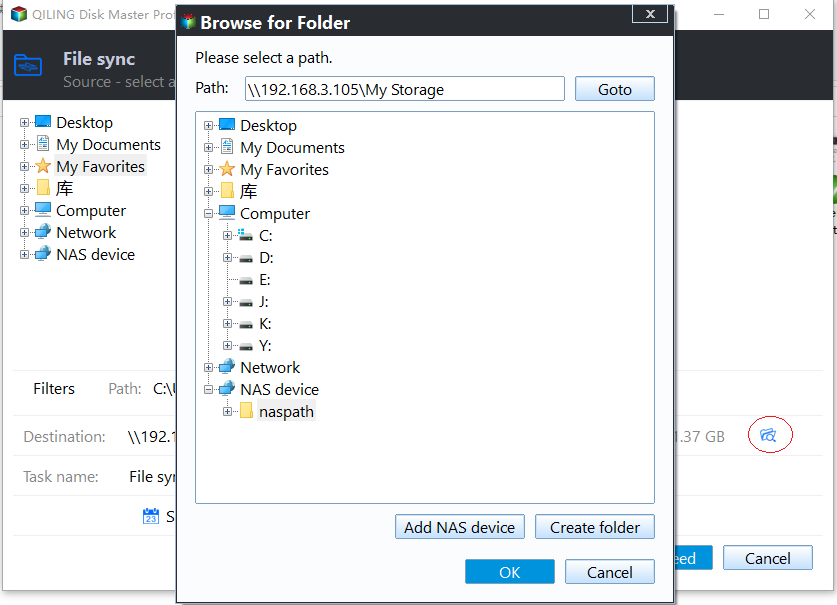
4. To add a network location, click on "Add Network Location" and enter the IP address of the source computer, then click "OK" to confirm.

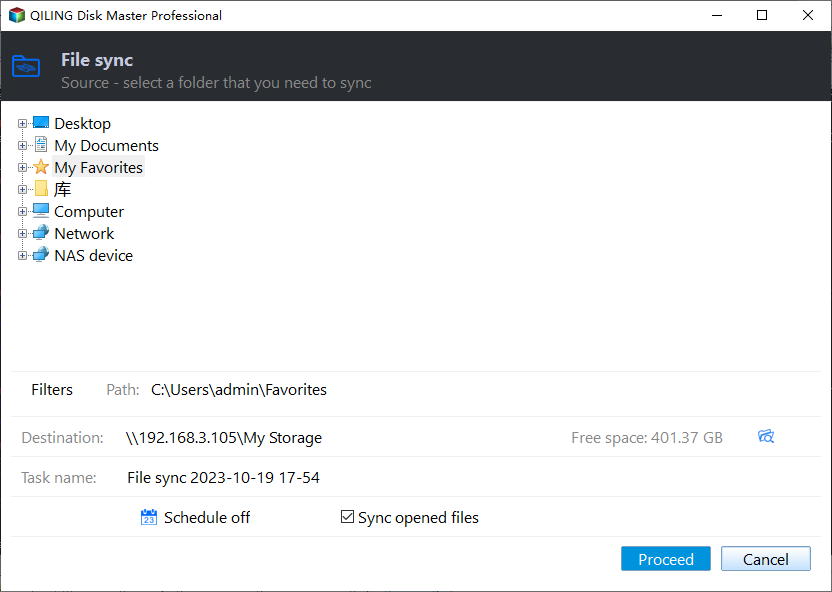
5. You can choose a shared folder as the destination path of synchronization, and click Proceed to begin, or click Options to manage more settings or set up a Schedule for automatic sync.
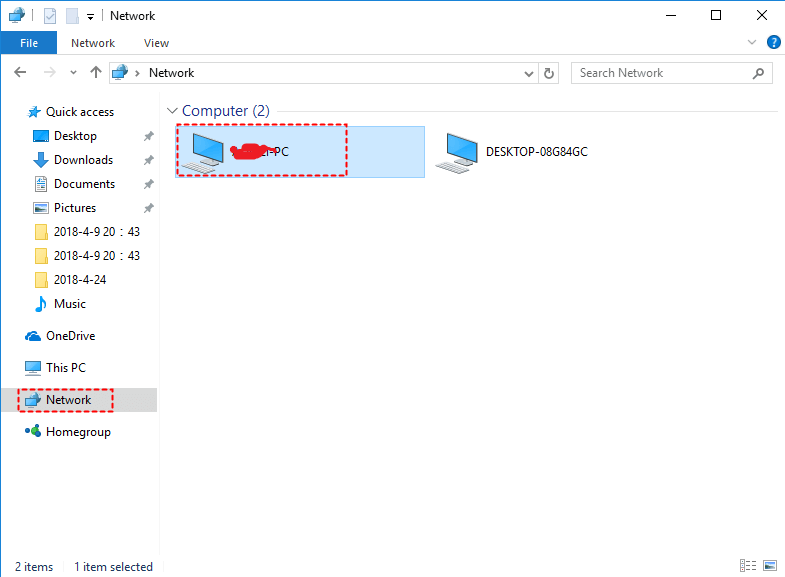
6. When the process is complete, open This PC in the destination computer running Windows 10, and find the source computer's name under Network, allowing access to synchronized files.
Unlike Windows Easy Transfer, you can also use Qiling Disk Master Standard to transfer programs, but some paid programs may need to be reactivated on the destination PC after the transfer process.
Tips:
◉ If you want to keep your data up to date on your Windows 10 computer, it's recommended to set up a schedule for syncing your data, which can be set to sync daily, weekly, or monthly, or even triggered by specific events or when you plug in a USB device, depending on your edition.
◉ 3 advanced sync modes are available in higher editions like Qiling Disk Master Professional. These modes may suit your further requirements. Upgrading to a higher edition will provide access to these features.
File Sync: Automatically sync changed files from the source directory to the destination directory in real-time.
File sync: Sync changed files in either the source directory or the target directory to the other side.
File Sync: The script keeps the target directory consistent with the source directory by deleting any files in the target directory that are not present in the source directory. This ensures that the target directory always reflects the exact contents of the source directory, maintaining consistency between the two. If any new files are added to the target directory that are not in the source directory, they will be automatically deleted during the next sync.
Case 2. Backup files to a new PC running Windows 10
This approach is less straightforward, but more flexible in choosing what to transfer. You can create an image file of specific files, partitions or the entire disk, and then restore it to the destination computer. Additionally, you can perform incremental and differential backup to save only changed files each time, and keep different versions of data for accurate recovery.
Now I'll take file backup as an example.
Steps:
1. Launch Qiling Disk Master Standard, go to Backup, and then select File Backup.

2. Click "Folder" or "Files" to select the files you want to transfer.

3. Select the backup destination, such as an external hard drive, USB, NAS, or cloud drive, then click "Start Backup". You can also edit the task name, adjust backup options, set up a schedule, and more before initiating the backup.
4. After completing the backup, restore the image to the Windows 10 computer using the chosen media.

Tips:
- If you create a Qiling account, you can backup old PC files to Qiling Cloud and restore them on the new PC, with 1TB free storage for 15 days after signing up.
- You can transfer a Windows system from one computer to another using this software, but make sure to select the "Universal Restore" option (available in advanced editions only) to enable the system to be restored on a different computer, allowing the destination PC to boot successfully after recovery.
Conclusion
Windows Easy Transfer is no longer available in Windows 10, but Qiling Disk Master Standard offers a free alternative to transfer files between computers running different operating systems, providing flexible management options for the transferring process.
It has the ability to clone hard drive to SSD, migrate OS to another hard drive, or even transfer Windows Server to new hardware with Qiling Disk Master Server.
Related Articles
- 5 Ways to Easily Transfer Files from Old PC to New PC
This article will show you 5 methods to transfer files from old PC to new PC in Windows 7/8/10. Scroll down to learn more. - Top 3 Free File Transfer Software for PC for Windows 10, 8, 7
In this post, you will get multiple free file transfer software for PC to transfer files to new computers easily in Windows 11, 10, 8, 7. And the thorough usage instructions are in each method. You can check the comparison table and choose one that suits you best! - PCmover Express Free Alternative in Windows 7/8/10 (100% Work)
You will find the best free PCmover Express alternative for you to transfer files from one computer to another with simple clicks. Let's find out. - How to Extend Dynamic System Volume in Windows Server 2003?
To extend the dynamic system volume in Windows Server, you can utilize the flexible methods provided by Qiling Dynamic Disk Manager, which offers various ways to expand your system partition. - How to Make the Best Use of Windows 10 Previous Versions?
Windows 10 Previous Versions allows you to restore files like word documents easily to earlier versions. Learn to configure and restore previous versions. - Reimage Windows 10—the Always-Work Way to Repair Windows 10
If you want to reimage Windows 10 when the system is infected or damaged, you can find the complete guide in this article. Remember to back up your data before reimaging.
Products
Articles & Tutorials
- Data Recovery
- Data Backup
- File Recovery
- File Backup
- File synchronize
- System Backup and Restore
- Disk and Partition Clone
- Technical articles
- Disk Master Help
- Windows Deleted File and Disk Recovery Tutorials
- Windows File and Data Recovery Tutorials
- More Windows Tutorials for Install, Security, Files, and PC Tips
- Windows Boot, Repair, and Recovery Environment Tutorials
- Windows Backup Tutorials
- Windows Restore Tutorials
- Windows Clone and Migration Tutorials
- Windows Server Backup, Recovery, and Management Tutorials
- Windows Disk, Partition, and Storage Management Tutorials