Two-Way Data Synchronization Meaning and Best Practices
One-Way vs Two-Way Data Synchronization
One-way sync: This script will sync newly added or changed files from the source directory to the destination directory, but not the other way around. This means that any changes made to files in the destination directory will not be synced back to the source, protecting the source files from accidental deletion or modification.
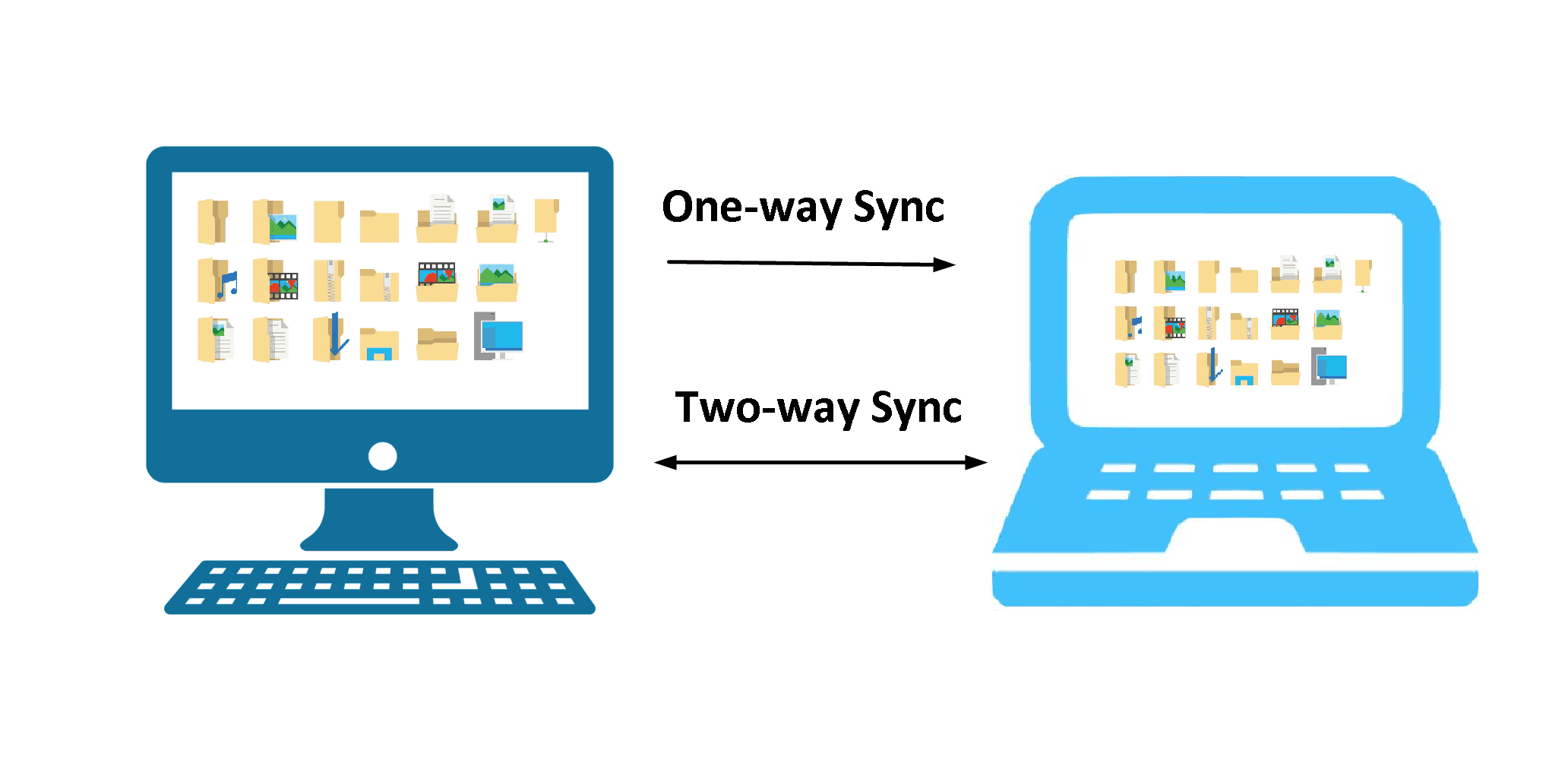
Two- Way Sync A bidirectional sync will synchronize files in both directions, ensuring that any newly created, deleted, or changed files in the source are synced to the destination, and vice versa. This means that both the source and destination will have identical files, with any changes made in one location being reflected in the other.
Differences between One-way Sync and Two-Way Sync
From one-A one-way sync allows data to be copied from one device to another in one direction, typically from a primary device to a secondary device. This means that any changes made to the data on the secondary device will not be reflected on the primary device. In contrast, a two-way sync allows data to be copied in both directions, with changes made on either device being reflected on the other. This means that both devices will have the same data, with any changes being synchronized in real-time.
One-Way sync is divided into three methods: Basic Sync, Real-Time Sync, and Mirror Sync. The choice of method depends on the desired sync frequency (schedule sync or real-time), data security, and deletion handling. This allows users to select the best option for their needs.
- Basic Sync: The purpose of this feature is to periodically synchronize files, typically on a daily, weekly, or monthly basis, while excluding deletions by default.
- Real-Time Sync will sync files in real-time, detecting any changes, including deletions, as they happen.
- Mirror Sync copies files from a source to a destination, creating a duplicate and keeping both locations identical, with no changes allowed in the destination, ensuring a complete backup of the source files.
Two-Way sync is typically used with schedule sync, and the fastest method is to sync files every hour. This process automatically syncs all files, including new, deleted, or modified files on both sides, by default.
Why Need Bidirectional sync?
The bidirectional sync method creates two duplicate copies that are exactly the same, making it useful in situations where identical versions of data are needed.
-
Bidirectional sync between two different databases for easy access.
- To sync two NAS devices from different brands (Synology or QNAP), you can use the built-in synchronization feature called "Sync" or third-party apps like Resilio Sync (formerly Bittorrent Sync), Synology's own "Sync" app, or QNAP's "Hydra" app. These tools allow you to select the folders you want to sync and set up a connection between the two NAS devices.
- Syncing files to a cloud drive allows you to access them from any computer, making it easy to work on projects across multiple devices. This process involves uploading files to the cloud, which are then stored securely and can be accessed from anywhere with an internet connection. By syncing files, you can work on a document on your home computer, save it to the cloud, and then access it on your work computer or even a tablet, making it a convenient way to stay organized and productive.
Two-way data synchronization is a process where data is shared and updated in real-time between two or more systems, applications, or devices. This is commonly used in scenarios such as syncing contacts between a phone and a computer, or updating a calendar across multiple platforms. It ensures that all connected systems have the same information, eliminating the need for manual updates or potential data discrepancies.
Two Way Data Synchronization Best Practices
To ensure a seamless bi-directional sync, it's essential to choose a reliable two-way sync software that can quickly and accurately sync files between devices or locations, minimizing the risk of data loss or corruption. This software should be able to handle large file transfers, support multiple file systems, and provide real-time syncing capabilities. Additionally, it should have features such as conflict resolution, file versioning, and data compression to ensure a smooth and secure syncing experience.
Qiling Disk Master Professional is a tool designed for Windows XP, Vista, 7, 8, 8.1, and 10 (both 32-bit and 64-bit), offering various features such as disk cloning, backup, and recovery.
- Sync only changed files to save time and space: This software creates a full copy of files initially and then only syncs newly created, deleted, or modified files, allowing for efficient and time-saving file synchronization, especially when used in scheduled tasks, while also conserving disk space.
- The complete and safest sync devices: This software supports syncing files between local disk, external hard disk, USB flash drive, network share folder or NAS, and even cloud services like Google Drive, OneDrive, and Dropbox. To ensure data security, it's recommended to follow a backup strategy, preferably using network or cloud storage, to prevent data loss in case of computer failure or disk crashes.
- The fastest way to sync files and changes: To set up a two-way sync task, use the Schedule Sync feature to run automatically daily, weekly, monthly, or via specific events or USB drive. For maximum sync, set up hourly sync under daily.
How to Perform Two-way File Sync Easily
To set up a two-way data synchronization task using Qiling Disk Master Professional, follow these best practices. For example, when syncing data between two NAS devices, first ensure both NAS devices are connected to the same network.
To try the best two-way sync software, download a 30-day free trial. For server users, you can also try Qiling Disk Master Server.
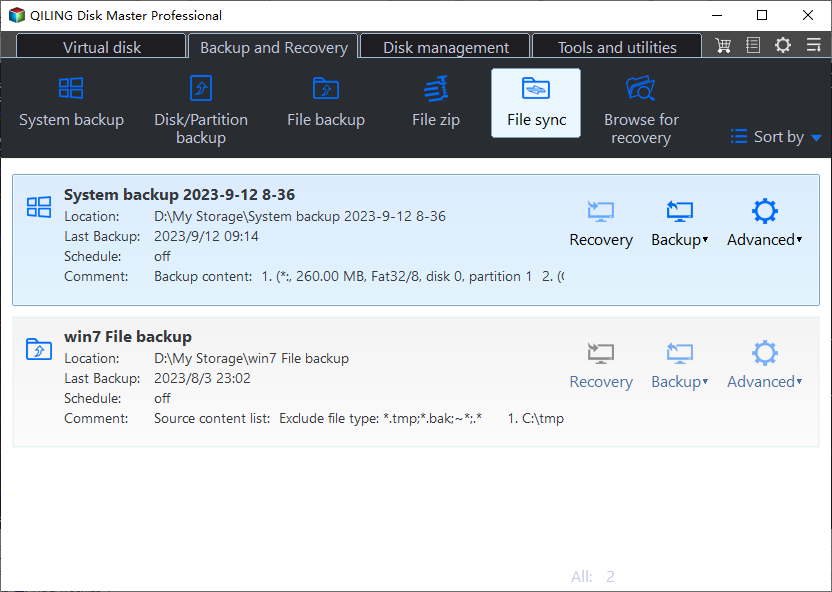
Step 1. Launch Qiling Disk Master Professional, go to Sync > Two Way Sync.
Step 2. Click + Add Folder > Share/NAS.

Step 4. Click "Add Share or NAS Device" in the pop-up window, input the display name and network path (IP address of the source NAS), then hit OK to add the source NAS and choose the folders you would like to sync.

Step 5. To add a share or NAS device, click the inverted triangle icon, select "Add Share or NAS Devices", and input the network path, which is the IP address of the destination NAS. Then, choose a folder on the destination NAS to save the folders from the source location. After that, tap "Proceed" to run the two-way data synchronization task.

There are some optional settings you could customize:
✍Options: This setting enables commenting on sync tasks, running specific programs or scripts before or after sync tasks, and sending email or SMS notifications.
✍Schedule Sync The setting allows you to schedule the sync task automatically, with options for once, daily, weekly, monthly, and via USB plug-in, which copies files to a USB drive when connected. The fastest sync method is hourly under the daily option.
To perform a two-way data synchronization task, you can use various methods and tools, depending on the nature of the data and the systems involved. For example, you can use cloud-based services like Google Drive or Dropbox, which allow you to sync data across multiple devices and platforms.
How does Two Way Sync Work?
The two-way sync algorithm in Windows computers involves synchronizing data between two devices or folders by comparing the contents of both and updating each other in real-time. This process ensures that both devices or folders have the same files and folders, while also maintaining any changes or additions made on either side.
The source directory and target directory will compare with the previous synchronization result during synchronization, and get the changed files. Then, they will compare with the files changed in the other directory, and sync files based on the changed files.
1. When both directories change:
- If two directories modify the same file, the system compares the update times of both directories and the one with the newer update time overwrites the old file.
- If one directory modifies a file and the other deletes the file, the modified file will be overwritten by the deletion, resulting in a loss of the modifications. The file will be deleted in the first directory, and the deletion will be synchronized to the other directory.
2. When only one directory changes:
- If one directory deletes a file, the other directory will also delete the file, as they are synchronized.
- If one directory makes changes to a file, the other directory should also update the file to maintain consistency.
- If one directory adds a certain file, the other directory will also add the same file.
The Epilogue
With the help of Qiling Disk Master Professional, two-way data synchronization is a breeze, ensuring that your files are always up to date and reducing the risk of data loss if you follow best practices.
Qiling Disk Master offers additional features such as transferring files between computers, migrating Windows 10 to an SSD without reinstalling, and providing command-line backup, restore, and cloning options for advanced users, as well as dynamic disk volume backup, restore, and cloning.
Related Articles
- Top Two Ways to Synchronize Files between Windows Servers
- 3 Ways to Make Windows Sync Folders between Computers
- 2 Easy Ways to Sync Files between Computers without Cloud
- Easiest Real-time File/Folder Sync Software for Windows 10/8/7
- How to Move Files to Google Drive with Ease
You will learn 8 practical ways and how to move files to Google Drive easily, even in different situations. - Quickly Move My Documents to Another Drive in Windows 10
This tutorial demonstrates how to move My Documents to another drive in Windows 10 with two easy ways, both Windows inbuilt feature and Qiling Disk Master.
Products
Articles & Tutorials
- Data Recovery
- Data Backup
- File Recovery
- File Backup
- File synchronize
- System Backup and Restore
- Disk and Partition Clone
- Technical articles
- Disk Master Help
- Windows Deleted File and Disk Recovery Tutorials
- Windows File and Data Recovery Tutorials
- More Windows Tutorials for Install, Security, Files, and PC Tips
- Windows Boot, Repair, and Recovery Environment Tutorials
- Windows Backup Tutorials
- Windows Restore Tutorials
- Windows Clone and Migration Tutorials
- Windows Server Backup, Recovery, and Management Tutorials
- Windows Disk, Partition, and Storage Management Tutorials