Best Free One-way File Sync Software for Windows 7, 8, 10, 11
What is one-way file sync?
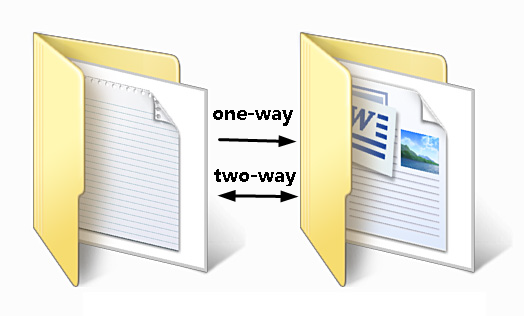
File synchronization, also known as file sync, is the process of creating an exact copy of files in different locations, such as external hard drives, cloud storage, or NAS devices. This process also reflects any newly added, changed, or deleted files in the original location to the synchronized location, allowing for real-time updates. File sync can be either one-way, where changes are only synced from one location to another, or two-way, where changes are synced in both directions.
One-way file sync You can only sync changes from the source to the destination, meaning any changes made manually in the destination won't be transferred back to the source.
Two-Data synchronization refers to the process of keeping two or more sources of data identical by updating them in real-time. This means that any changes made to the data in one source will be automatically reflected in the other sources, ensuring that the data remains consistent and up-to-date. For instance, if a file is added, edited, or deleted from the source, the same changes will be made to the target, and vice versa.
Why do you use one-way file sync?
We choose one-way file sync over two-way file sync because it provides users with up-to-date files, but also offers a more controlled approach to file management. By syncing files in one direction, we can ensure that users have access to the latest versions of files without risking conflicts or overwrites that can occur with two-way syncing. This approach allows for a more streamlined and organized file management system, which is particularly useful in scenarios where multiple users or systems need to access and update shared files.
- Provide the latest files for users who need to work at home. Users may need to bring work home to finish tasks and avoid delays in using documents.
- Avoid conflict and improve work efficiency. To avoid conflicts and ensure everyone has the most up-to-date information, it's best to keep files in sync with the source directory rather than maintaining multiple copies. This approach minimizes the risk of outdated files and ensures that team members have access to the most accurate version.
What is the best FREE one-way file sync software?
The built-in tool Sync Center may be a viable option for many users, especially novices, who don't want to invest in software that's only used once. It's widely used in Windows 7/8/8.1/10/11 to sync network files locally by enabling offline files on the local computer, and can be done manually or automatically.
Some users experience issues with Sync Center, such as the "always available offline" option not appearing in the context menu when right-clicking files or folders on a network drive.
Qiling Disk Master Standard is the best free one-way file sync software, strongly recommended due to its clean interface and user-friendly design, making it easy for all users, even novices, to understand and use like a professional.
- Sync files with multiple storage, Cloud storage services, such as Google Drive, Dropbox, and OneDrive, allow users to store and access their files from anywhere, using devices such as computers, smartphones, and tablets. They can also be accessed through web browsers, making it easy to share files with others.
- Support various operating system, including Windows 7/8/10/11/XP/Vista. Also, its server edition can synchronize files between Windows Servers 2012/2012 R2/2016/2019/2022 and the previous version.
- Set and forget schedule settings. To perform automatic file sync, set a backup interval, such as daily, weekly, or monthly, and schedule it for off-peak hours, like midnight.
- Get the final result without waiting. The system will send you an email notification if you leave early.
How to set up one-way file sync in Windows
To transfer files unidirectionally in Windows 7/8/10/11, you can use the built-in Sync Center tool or the free file sync software Qiling Disk Master. These tools allow you to synchronize files between two locations, but keep in mind that they might not be suitable for bidirectional syncing or complex file transfer scenarios.
- Method 1: One-way file sync with Sync Center
- Method 2: Schedule one-way file sync with Qiling Disk Master
Method 1: One-way file sync with Sync Center
Step 1. Go to Start Menu > Control panel > Sync Center, and click it to open a new window.
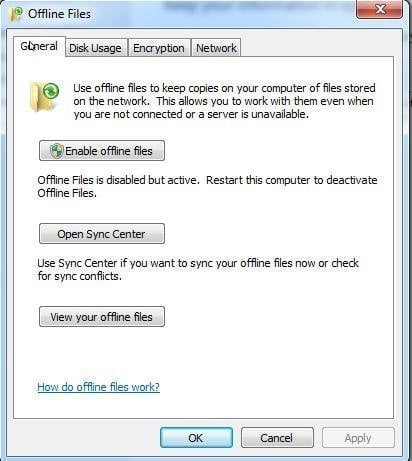
Step 2. To activate offline files, click on "Manage offline files", enable offline files, and then restart your computer, ensuring the feature is enabled and ready for use.
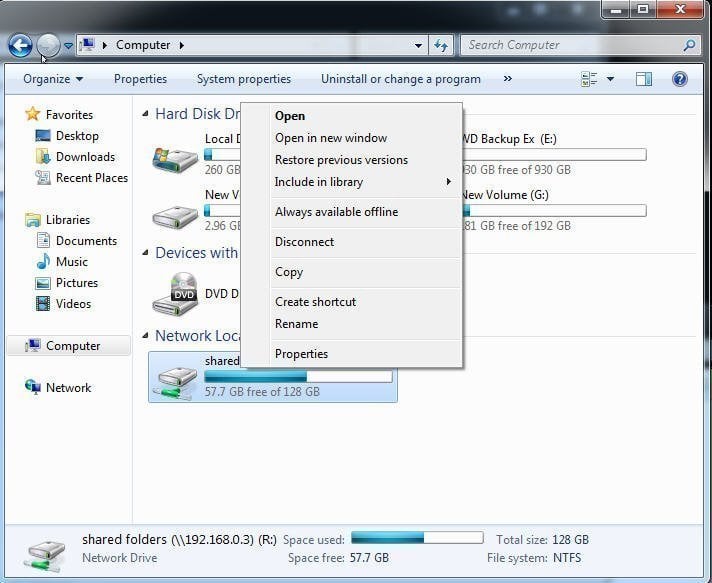
Step 3. To make your files available offline, right-click on the mapped network drive or select the files and folders you want to sync, then click "Always available offline" and "Sync selected offline files".
Step 4. To check if offline files are synced intact, navigate to the Sync Center and click on "View your offline files" or access them via the offline files folder.
Notes:
• Offline files must be available offline at all times to enable syncing.
• If you prefer to use the command prompt, you can sync changes only with robocopy.
Syncing offline files involves several steps, including selecting files to sync, choosing a sync location, and setting up a sync schedule. However, some users may need to sync files with another file sync software, such as Qiling Disk Master Standard, for example, to make copies of local files on a computer and carry them everywhere. To do this, users may need to use different storage devices, such as USB drives, external hard drives, cloud storage like OneDrive, or NAS.
Method 2: Schedule one-way file sync with Qiling Disk Master
Qiling Disk Master does not come pre-installed on computers, so it needs to be downloaded and installed on the computer intended for file syncing. Server users should consider Qiling Disk Master Server instead.
Step 1. Launch Qiling Disk Master, click Sync and Basic Sync.

Step 2. Select the files or folders you want to sync and choose a destination path, adding a folder by clicking + Add Folder to select data on your computer and then selecting a destination path.
- To share it with your team member, To sync files to a network location, click the inverted triangle, select Add Share or NAS Device, and enter the network path, then choose a shared folder.
- To take it home, To sync files, click the folder-shaped button to select the external device, such as an external disk or USB flash drive, or choose cloud storage.

Step 3. To set up schedule settings and start the first file sync, click Schedule Sync and enable it, then select the desired schedule frequency such as Daily, Weekly, or Monthly. After that, click Proceed to initiate the scheduled one-way file sync.

More advanced features on the professional version:
• Event triggersIt enables file synchronization at specific events like system shutdown or startup.
• USB plug in: It helps to automatically sync files to USB flash drive You can plug in the device and it will remember the connection, so you don't need to reconnect it every time before starting a task.
• Filter settingsIt allows syncing files with specific extensions, reducing sync time and space usage.
• Different sync methods: This software also provides you with "Two-Way Sync", "Real-Time Sync" and Mirror SyncYou can select the sync methods based on the sync direction, frequency, or synced files in the destination folder. This allows for tailored synchronization options.
Wrapping things up
Sync Center and Qiling Disk Master are both file syncing tools, but they serve different purposes. If you need to sync network files to a local drive, Sync Center is a good option. However, if you're looking to sync local files for backup or use a different storage device, Qiling Disk Master is a better choice, especially with its schedule file sync feature that ensures you always have up-to-date files.
It's recommended to keep Qiling Disk Master installed on your computer after synchronization, as it still offers free backup software with various solutions to protect your computer and data, including system backup, disk backup, file backup, incremental & differential backup, event triggers, and more.
When you create a Qiling account, you get to back up your files to Qiling Cloud, which comes with 1TB of free storage for 15 days after signing up.
Related Articles
- The Most Useful Way to Do File Synchronization during Shutdown
- How to Sync Local Folder to Dropbox (3 Ways Included)
- Sync Files to Google Drive Automatically | 4 Ways Included
- How to Sync Two Folders on Same Computer Easily
- Sync Folders between Drives in Windows 10/8/7 (with Video)
- Easiest Way to Backup Buffalo LinkStation NAS to another NAS
This tutorial will show you how to backup Buffalo LinkStation NAS to Buffalo NAS or another NAS with reliable and professional backup solution in Windows in a few steps.
Products
Articles & Tutorials
- Data Recovery
- Data Backup
- File Recovery
- File Backup
- File synchronize
- System Backup and Restore
- Disk and Partition Clone
- Technical articles
- Disk Master Help
- Windows Deleted File and Disk Recovery Tutorials
- Windows File and Data Recovery Tutorials
- More Windows Tutorials for Install, Security, Files, and PC Tips
- Windows Boot, Repair, and Recovery Environment Tutorials
- Windows Backup Tutorials
- Windows Restore Tutorials
- Windows Clone and Migration Tutorials
- Windows Server Backup, Recovery, and Management Tutorials
- Windows Disk, Partition, and Storage Management Tutorials