File Sync to OneDrive during Shutdown and Operating Steps
Many users are confused about cloud storage services like OneDrive, Dropbox, and Google Drive, which can automatically sync files even after the system is shut down. This can be frustrating if users only want to copy data to the cloud for backup or easy access, but don't want the files to sync continuously.
To ensure file sync during shutdown without losing data, follow this automatic process. By clicking on the provided link, you can learn more about file sync and the step-by-step guide, which will help you perform this task seamlessly.
- Delay laptop shutdown during file sync
- How does file synchronization work?
- Best software to perform file sync during shutdown
- Sync files to OneDrive during system shutdown without data loss
Delay laptop shutdown during file sync
I save files in the OneDrive Business folder, but the laptop shuts down immediately after syncing, preventing the files from being uploaded before it turns off.
You can add a delay to your laptop's shutdown process by using the "shutdown" command with a time parameter. For example, to add a 5-minute delay, you can use the command "shutdown +5" in the Command Prompt or Terminal. This will give you a few minutes to save any unsaved work and close any open applications before the shutdown process begins. Just type the command and press Enter to add the delay.
How does file synchronization work?
File sync, whether one-To maintain accessibility and flexibility, it's beneficial to have multiple copies of files stored in different locations. This ensures that files can be accessed or edited at any time from anywhere. Additionally, you can schedule or network sync files according to your preferences, such as syncing files during system shutdown. This approach helps to keep your files organized and up-to-date, reducing the risk of data loss.
- One-way Sync: Sync files can be categorized based on sync methods, including syncing files with changes from source to destination, considering sync deletions, frequencies, and data safety.
- Two-way Sync: The system continuously monitors changes in both the source and target locations, automatically updating the target location with the changes made to the source location, with updates occurring at scheduled intervals.
- Schedule Sync: Files can be synced on a regular basis, such as daily, weekly, or monthly, or in real-time, and also at specific events like system shutdown. Additionally, syncing files with a USB thumb drive is supported.
- Network Sync: Syncing files between computers, or to a network drive, NAS, or cloud storage like OneDrive, allows for seamless sharing of files with team members or others, making it easy to collaborate and access files from anywhere, not just limited to external disks or local disks.
Best software to perform file sync during shutdown
If you're concerned about data loss during shutdown due to file sync, consider using Qiling Disk Master Professional, a top-rated file sync software.
File sync during shutdown in this software allows for automatic syncing of files before the computer shuts down, ensuring data safety and eliminating the wait time for file syncing to complete.
To ensure a seamless sync process, utilize the "System Shutdown" option in the "Event triggers" Schedule Sync feature, allowing the system to shut down automatically on completion. Additionally, you can still set "Shut down PC on completion" during the sync process for added security. Other features to consider include:
- During system shutdown, file sync can be performed using various sync methods, including basic sync, mirror sync, real-time sync, and two-way sync.
- You can sync files to OneDrive, Google Drive, Dropbox, external hard drive, network drive, computer, or NAS during shutdown.
- The tool syncs files not only during system shutdown, but also at system startup, user logon, and user logoff.
- Besides, it still has a wizard-To simplify the file sync process for users, even those with limited technical expertise, the interface should be redesigned to be user-friendly and intuitive. This can be achieved by creating a clean and straightforward design that guides users through the syncing process with minimal steps. The interface should be compatible with various Windows versions, including Windows 7, 8, 8.1, 10, and 11, ensuring a seamless experience for users across different operating systems.
Sync files to OneDrive during system shutdown without data loss
Searching keyword "file sync during shutdown", many users want to perform this operation in OneDrive. So here I'll take file sync to OneDrive during system shutdown as an example to show you the entire process.
To sync files to OneDrive.com, download the Qiling Backuper Professional and OneDrive desktop app on your computer, ensuring your network is well connected to avoid syncing issues. These steps can also be applied to sync local folders to Dropbox and Google Drive.
The software only supports file sync during system shutdown in Windows 7/8/8.1/10/11 and does not support other operating systems. For server users, Qiling Disk Master Server is recommended.
Step 1. Launch Qiling Disk Master Standard, click Sync and Basic Sync in order.

Step 2. Click Folder to select the one or more folders containing files you want to sync before shutdown.

Step 3. To sync local folders to OneDrive, click the inverted triangle, select a cloud drive, choose OneDrive, and confirm by clicking OK.
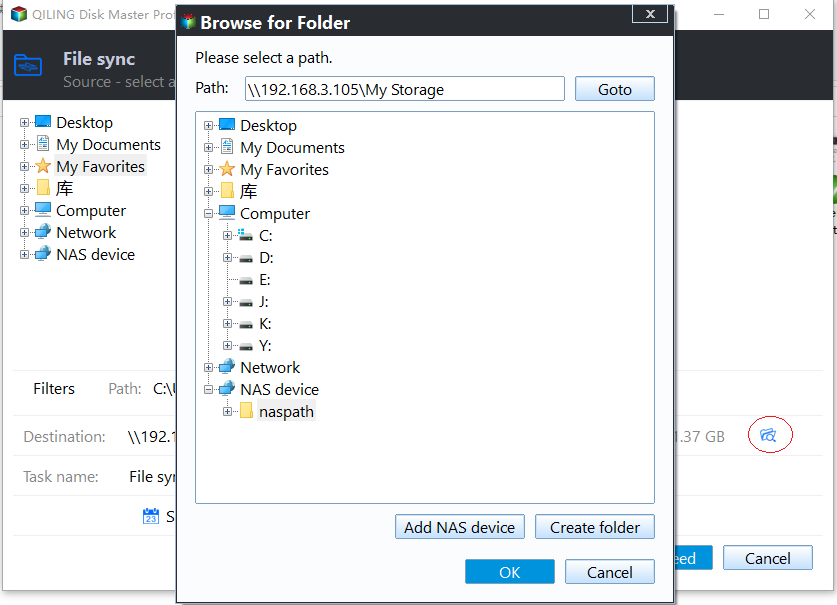
Step 4. To schedule file sync before shutdown, click Schedule Sync -> Enable Schedule Sync -> Event triggers -> System shutdown, and also select "Run one time everyday" to sync files daily.

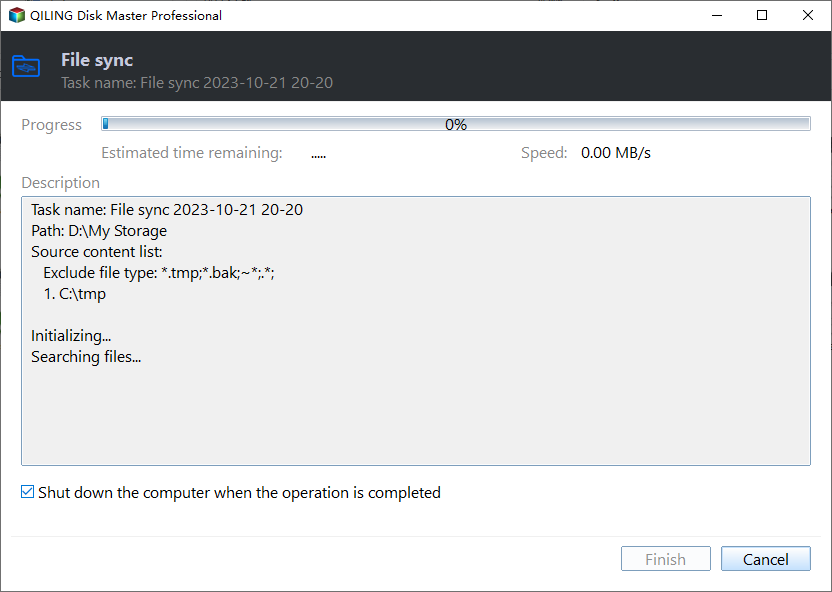
Step 5. To ensure file syncing during system shutdown, click "Proceed" to sync the file. For added security, go to Settings, then select "On completion" and choose "Shut down PC".
Notes:
- To avoid issues with syncing files, make sure to keep the folder name of the sync task unchanged. This will ensure that the files are correctly synced without any issues.
- The sync method cannot copy files over 4GB to a FAT32 formatted disk. To copy larger files, use the File Backup feature in this software.
- To backup large files, consider using the Cloud Backup feature, which allows you to select files or folders and comes with 1TB of free cloud storage for 15 days.
Summary
With Qiling Disk Master Professional, you can easily perform file sync during system shutdown without losing data, and the sync destination can be any storage, including cloud storage like OneDrive, Dropbox, Google Drive, or external disk, network drive, etc.
Cloneit is a professional disk clone software that allows users to copy data from one hard drive to another, replace laptop HDD with SSD, clone larger drive to smaller drive or SSD, and more. To access advanced features, users can upgrade to a professional version or higher.
Related Articles
- How to Synchronize Two Directories at Shutdown in Windows 10
- How to Sync Folder to Network Drive in Windows 7/8/10
- Windows 10 Sync Center not Working-How to Fix it or Sync Files
- How to Sync Data between 2 Servers Automatically
- Top Two Ways to Synchronize Files between Windows Servers
- How to Copy Files Using Command Prompt in Windows 7?
Learn how to copy files using Command Prompt in Windows 7 with simple steps from this page. Also, you can use an easier way to transfer files.
Products
Articles & Tutorials
- Data Recovery
- Data Backup
- File Recovery
- File Backup
- File synchronize
- System Backup and Restore
- Disk and Partition Clone
- Technical articles
- Disk Master Help
- Windows Deleted File and Disk Recovery Tutorials
- Windows File and Data Recovery Tutorials
- More Windows Tutorials for Install, Security, Files, and PC Tips
- Windows Boot, Repair, and Recovery Environment Tutorials
- Windows Backup Tutorials
- Windows Restore Tutorials
- Windows Clone and Migration Tutorials
- Windows Server Backup, Recovery, and Management Tutorials
- Windows Disk, Partition, and Storage Management Tutorials