Sync Local Folder to Dropbox Easily Even Outside Folder (3 Ways)
Content of this article:
- About Dropbox
- How to sync local folder to Dropbox automatically
- Easier way to sync changes or folder outside Dropbox folder
- Wrapping things up
About Dropbox
Dropbox, one of the famous cloud storage services, is widely used in storing data in the cloud, syncing files to multiple devices and platformsWhen you sync a local folder to Dropbox or its desktop folder, all the folders will be automatically synced across all your devices - including Windows, Mac, iPhone, iPad, and Android - as long as there's an internet connection. To do this, simply log in with the same account on each device. This seamless syncing ensures that your files are always up-to-date and accessible from anywhere.
You can sync folders outside of Dropbox by copying and pasting the desired folder into Dropbox, or by creating a symbolic link between Dropbox and the original folder, or by using a third-party sync software.

How to sync local folder to Dropbox automatically
Dropbox's traditional method of syncing only allows synchronization between the local desktop folder and cloud files, and only updates changes made within this specific folder, making manual copying and pasting necessary if modifications are made in the original folder.
To avoid repeatedly syncing files between two locations, consider using a third-party file sync software or creating a symbolic link between them. This can help streamline the process. For cloud files, you can use Selective Sync or Smart Sync mode to sync only the necessary files.
Sync local folder to Dropbox via Dropbox folder
To set up Dropbox for the first time, you need to download and install the Dropbox desktop app on your computer, and then follow the steps provided.
Step 1. Click the Dropbox icon on the taskbar and sign in with your Dropbox account.
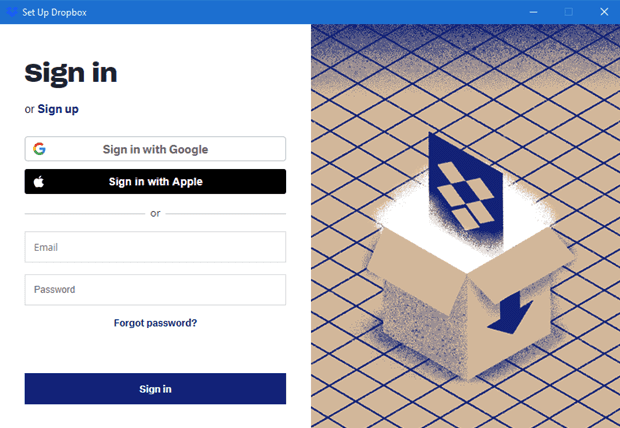
Step 2. Click Next and Continue with Basic in the pop-up window.
Step 3. Choose the PC folder or click Add folders to select it manually, then click Setup below.
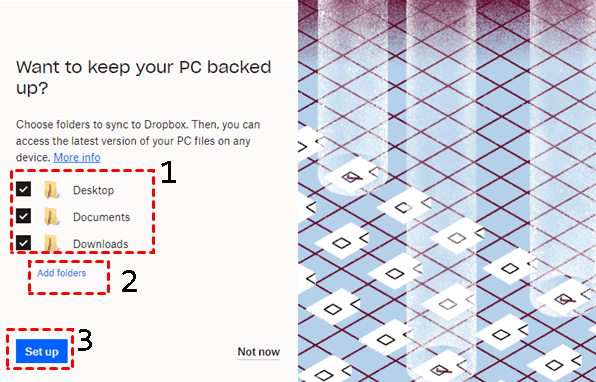
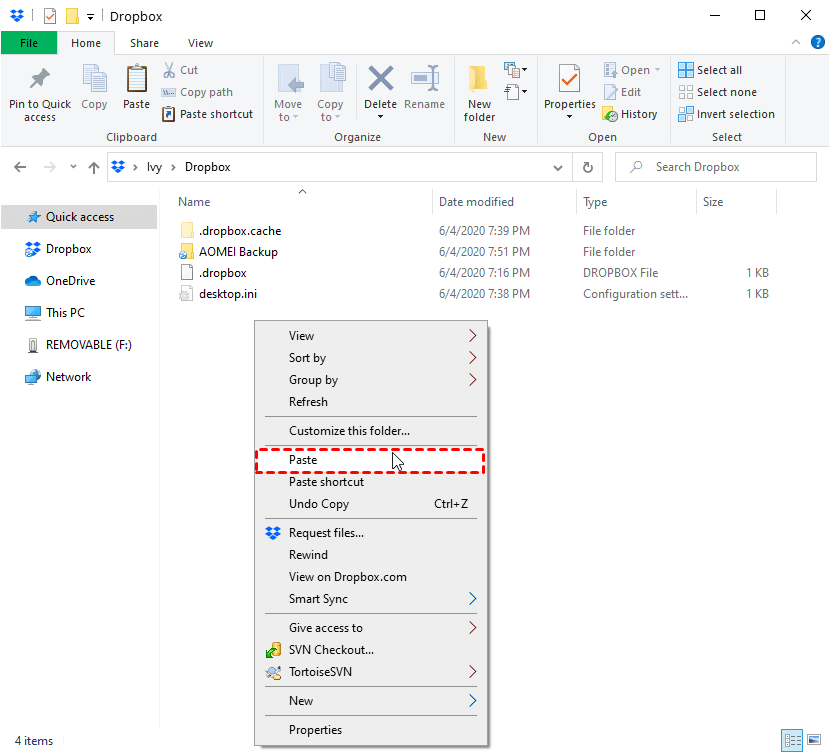
After configuring, all selected folders will be automatically synced to Dropbox, and a Dropbox folder will appear on your local computer. This folder looks like a normal one, but it will sync any files you copy or paste into it to Dropbox, allowing you to access your Dropbox files through this local folder.
Sync local folder with Dropbox using Smart Sync
Dropbox's Smart Sync feature automatically saves space on your hard drive after using Selective Sync, a feature that allows you to choose which files and folders to sync. This feature is designed to help users manage their storage space more efficiently.
- Selective Sync: To sync a folder from Dropbox to your local computer, you can choose to sync the folder you often use, but any files not synced will be hidden from view, and can be accessed through the steps outlined or in Dropbox Preferences.
- Smart Sync: You can access Dropbox cloud files from dropbox.com as long as you have an internet connection, and it won't take up space on your local disk until you download or use the files online.
Step 1. Open the Dropbox folder on your computer.
Step 2. Select the folders you want to make online-only, right-click it, and then choose Smart sync and Online-only option.
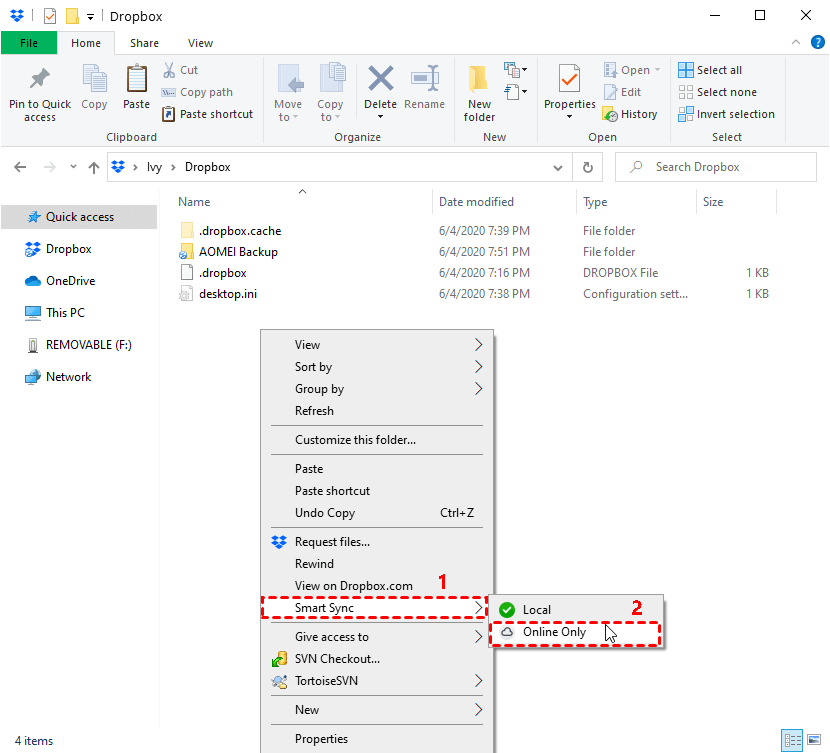
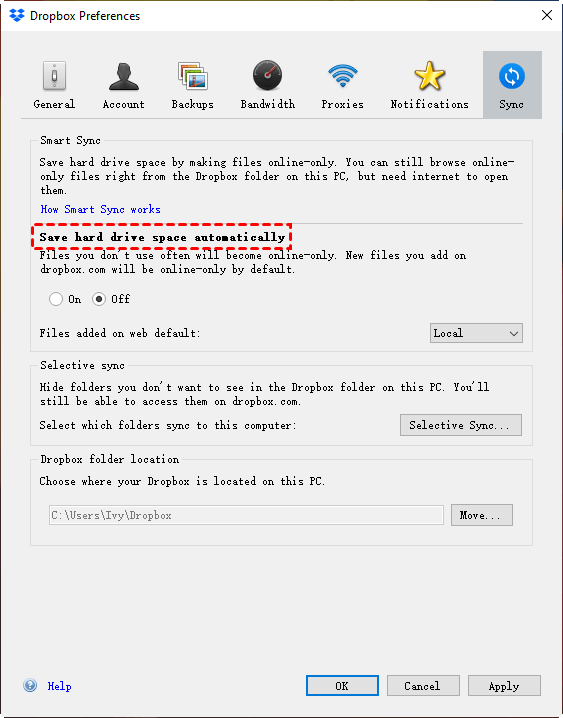
Step 3. To save hard drive space automatically, enable Smart Sync in Dropbox Preferences, go to the Sync tab, and toggle Smart Sync to On, then set the file added to web default to Local or Online Only.
Notes:
✔ To sync folders across all devices, ensure you're logged in with the same email address and password on each device.
✔ Dropbox continuously monitors the Dropbox folder on your computer and other devices, automatically syncing any changes as long as there is an internet connection.
✔ When your computer or other devices are offline, all the changes will be saved locally, and then synced again with the cloud or other devices when it connects to the internet.
Easier way to sync changes or folder outside Dropbox folder
Dropbox's desktop folder only syncs files and changes made within it automatically. If you make changes in the original folder or outside the desktop folder, they won't sync unless you manually add them. To sync files or folders automatically, you can create a symbolic link or use third-party file sync software.
To simplify the process, we recommend using Qiling Disk Master Standard as a middle-man between your local computer and Dropbox folder. This allows you to set different schedule sync settings, such as daily, weekly, or monthly, making it easier to manage your files.
This software allows you to sync local folders to cloud drives, set email notifications for task status, and sync to various storage devices.
Step 1. Launch Qiling Disk Master, and then click File Sync under the Backup and recovery tab.

More advanced sync method in the professional or higher version:
✔ Real-Time SyncIf enabled, changes will be synced to Dropbox as soon as they're detected.
✔ Mirror SyncThis sync method focuses on syncing files in Dropbox, ensuring that any newly added files are deleted and changes made to files, whether modified or deleted, are undone.
✔ Two-Way SyncThe new sync method will automatically sync changes between your local computer and Dropbox, ensuring that any edits made on either device are reflected on the other.
Step 2. Click Folder and click Desktop, Libraries or This PC to find the local folder you want to sync.

Tip: To sync specific file types, click the funnel button and enter the desired file extensions, such as .doc, .xls, .ppt, .temp, .tmp, .bak, and ~, to include or exclude them. This feature is available on the professional version or higher.
Step 3. Click the drop-down menu and pitch on Select a cloud drive.

Step 4. Select Dropbox or its subfolder and then click OK to exit this window.
Note: To sync a local folder to Google Drive or OneDrive, click on the corresponding drive icon.
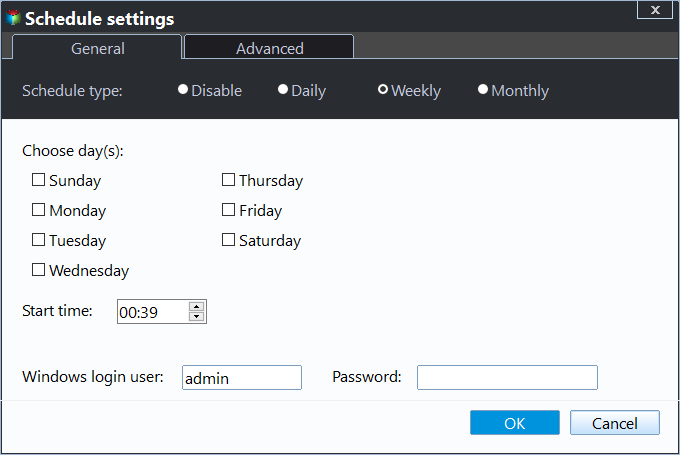
Step 5. To sync changes or folders outside the Dropbox folder, click Schedule Sync, enable it, and select any desired settings, then click Proceed to sync the local folder with Dropbox.
Notes:
✔ Daily, Weekly, MonthlyThe best sync setting for syncing files with cloud drives like Google Drive is hourly, which is the fastest frequency.
✔ Event triggersIt's a tool that synchronizes files at specific events, like system shutdown or startup.
✔ USB plug in: It is only useful to copy files automatically when USB drive connectedThat's correct! The device can be used without being connected to the internet. It's a standalone device that can be used offline. You can use it without any internet connection.
Safer way to protect your local folders:
This software allows you to backup files to Dropbox using File Backup, which compresses data into an image file, and supports scheduled settings, except for sync methods.
The software is still able to minimize disk usage with various features, including normal compression, automatic splitting, incremental or differential backup, and automatic backup cleanup, among others.

Wrapping things up
To sync a local folder to Dropbox, consider using the Dropbox app or its desktop folder, or take advantage of Smart Sync, which automatically saves hard drive space while allowing local viewing when connected to a network.
Dropbox's syncing issues can be frustrating, especially when changes made in the original folder or outside the desktop folder aren't synced. However, Qiling Disk Master Standard can help with its schedule sync settings, allowing you to automatically sync files and avoid this problem. The premium version also offers additional features, such as different sync methods and filter settings, to help save disk space. With Qiling Disk Master Standard, you can say goodbye to syncing headaches and enjoy a more streamlined experience.
Related Articles
- How to Backup Data on External Hard Drive to Dropbox
- Backup PC Files to DropBox for Free in Windows 10/8/7
- Dropbox Not Syncing in Windows 10 - Fix or Replace It!
- Sync Two Folders with Robocopy Command Line in Windows 11, 10, 8, 7
You will learn more about Robocopy and examples to perform Windows sync two folders via command line - Robocopy. Meanwhile, this article offers an easier way. - What Is File Level Backup and How to Do It in Windows 10/8/7?
You will get the file-level backup meaning and how to backup your crucial data with this method in Windows 11, 10, 8, 7. Block-level file backup supported. - Solved | File is too Large to Copy to External Hard Drive (4 Ways)
You will learn how to fix "the file is too large for the destination file system" easily or directly backup large files to external hard drive without converting file system.
Products
Articles & Tutorials
- Data Recovery
- Data Backup
- File Recovery
- File Backup
- File synchronize
- System Backup and Restore
- Disk and Partition Clone
- Technical articles
- Disk Master Help
- Windows Deleted File and Disk Recovery Tutorials
- Windows File and Data Recovery Tutorials
- More Windows Tutorials for Install, Security, Files, and PC Tips
- Windows Boot, Repair, and Recovery Environment Tutorials
- Windows Backup Tutorials
- Windows Restore Tutorials
- Windows Clone and Migration Tutorials
- Windows Server Backup, Recovery, and Management Tutorials
- Windows Disk, Partition, and Storage Management Tutorials