3 FREE Ways to Backup External Hard Drive to Dropbox
Backup or sync external hard drive to Dropbox with given solutions:
- Need help: Uploading large folders to Dropbox from external hard drive
- What is the best way to backup an external hard drive?
- How to backup data on external hard drive to Dropbox
- Conclusion
Need help: Uploading large folders to Dropbox from external hard drive
I've got a puzzling dilemma that I've been trying to solve for weeks. I want to backup about 500 GBs from an external hard drive to my Dropbox Pro account.
- Your computer's hard drive is smaller than your external hard drive (EHD), so you can't move the file to the Dropbox folder because it won't fit.
- I've tried using MacDropAny by Zibity to create a symbolic link, but when my EHD is no longer connected, Dropbox seems to assume these files have been deleted, and propagates the deletion to the cloud.
- I've also tried using GoodSync to do a one-way sync to the cloud, but the upload speeds seem to be so slow that this is turning out to be impractical. (Dropbox's own streaming upload seems to be orders of magnitude faster.)
- Considering moving your Dropbox folder to an external hard drive (EHD) but concerned about the inconvenience of not having access to it when the EHD is not plugged in. You're right, it's not ideal to have a folder that's meant to be accessible from anywhere, tied to a physical device that might not always be available.
I've been trying to find other options, and I just haven't found anything that would seem to suit my needs. Can anyone suggest a solution that will allow me to upload this folder in a convenient and relatively speedy manner? Thanks!
What is the best way to backup an external hard drive?
In the past, external hard drives were widely used as a physical storage device to safeguard data from disasters due to their portability and large storage capacity.
Some users may find that carrying data with them has its downsides, such as the risk of losing or stealing it, or even having it destroyed by accidents like floods. Additionally, the data can become damaged over time with prolonged use.
To protect data on an external hard drive, consider using cloud storage like Dropbox, which allows you to sync local folders and access files from any computer without needing to carry a storage device. This approach also stores data in a remote location, making it safer. Additionally, you can easily upgrade storage if your files exceed available space, providing a convenient and secure solution for data management.
How to backup data on external hard drive to Dropbox
Backing up an external hard drive to Dropbox can be done through the Dropbox folder or website, but it's not ideal for uploading large amounts of data, as it's a time-consuming and tedious process that may lead to forgotten files. Additionally, the Dropbox folder only syncs local folders within it, requiring you to add external folders first if you want to sync them.
To upload large files or sync items outside the Dropbox folder, you can use a symbol link or a free file sync software like Qiling Disk Master Standard, which can also copy files from an external hard drive to Dropbox.
Method 1: Sync external hard drive to Dropbox via the Dropbox app
This method is useful for syncing a small amount of files or folders, or only the important folders on the computer, such as Desktop, Documents, Downloads, Music, Pictures, and Videos, which can be set to sync when first installing the desktop app or in its Preferences setting.
To sync your OneDrive files, start by installing the OneDrive app on your computer. Once installed, open the app and follow the prompts to sign in with your Microsoft account. Next, navigate to the Preferences settings and select the important folders you want to sync.
Step 1. Download the Dropbox desktop app by clicking the download link and launching the DropboxInstaller.exe.
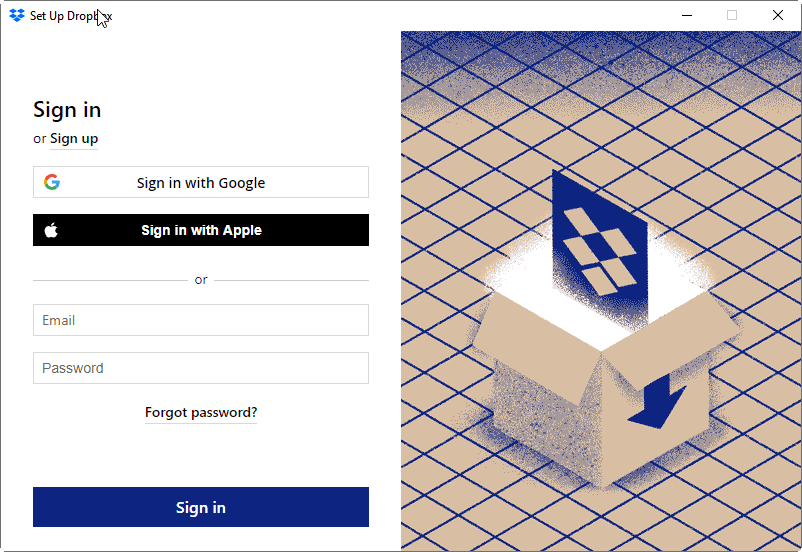
Step 2. In the Set Up Dropbox window, sign in with email and password or use other options.
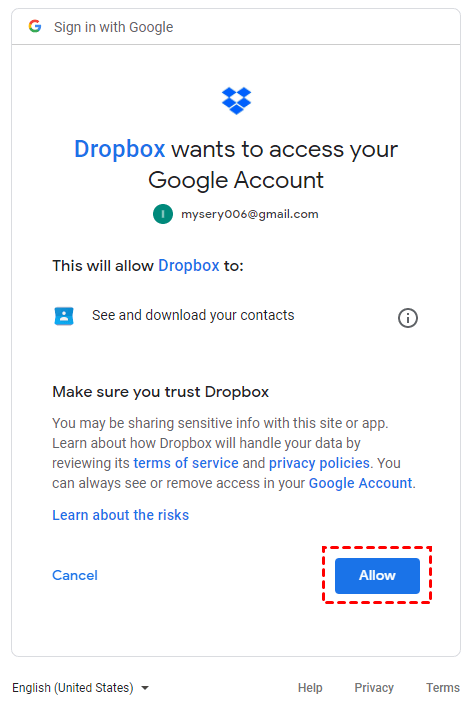
Step 3. Click Allow if you are asked to authorize this app to access your files.
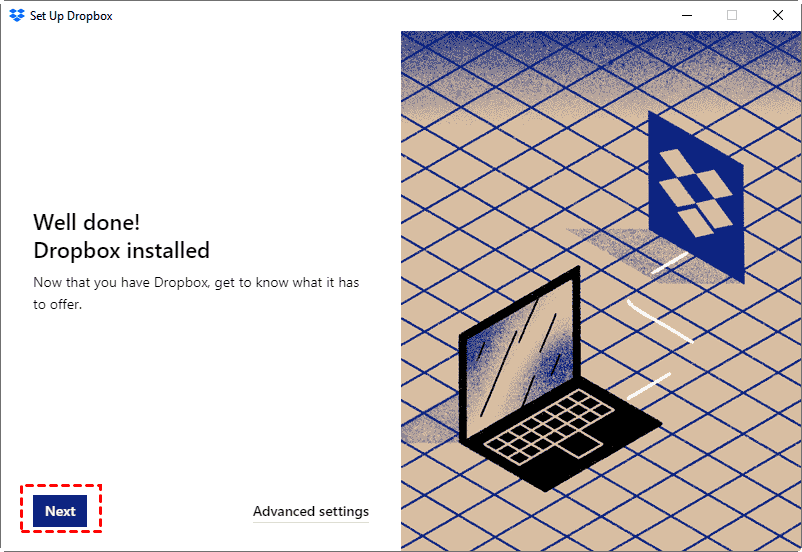
Step 4. Click Next. If you want to change Dropbox Location or selective sync folders to local computer, click Advanced settings and set it up.
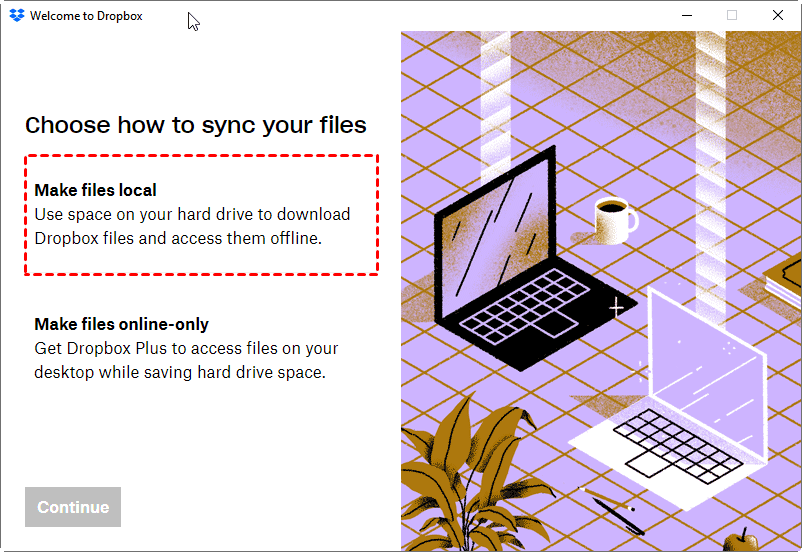
Step 5. In the "Choose how to sync your files" window, select "Make files local" and click "Continue with Basic" or choose "Make files online-only" and click "Save space with Plus".
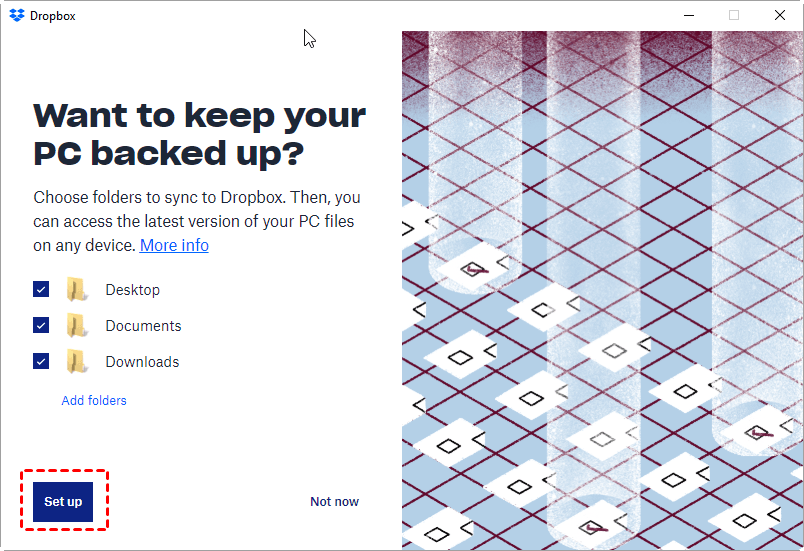
Step 6. In the "Want to keep your PC backed up" window, keep the default folders checked and click "Setup". You can also add other folders by clicking "Folders".
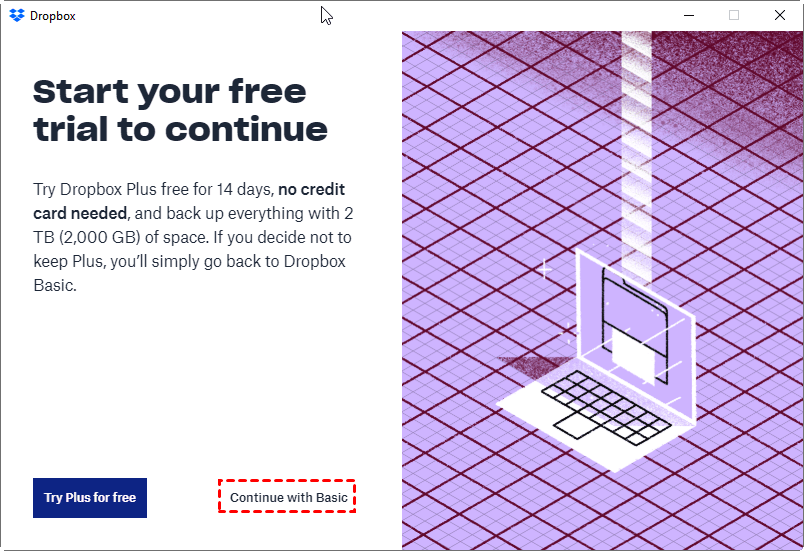
Step 7. To choose between the free trial of Plus and the Basic account, click "Try Plus for free" or "Continue with Basic". Confirm your choice by clicking "Yes" when prompted. Be aware that the Basic account comes with limited storage, only 2GB of free space.
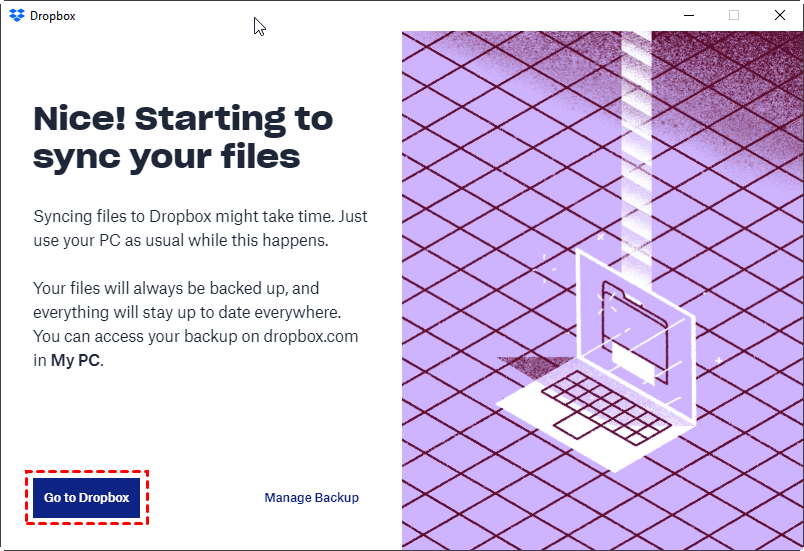
Step 8. Click Next and Go to Dropbox after setting your files up.
To set up important folders on your computer, you can follow these steps:
Step 1. Click the Dropbox icon at the taskbar.
Step 2. Select the drop-down arrow next to your account and select Preferences.
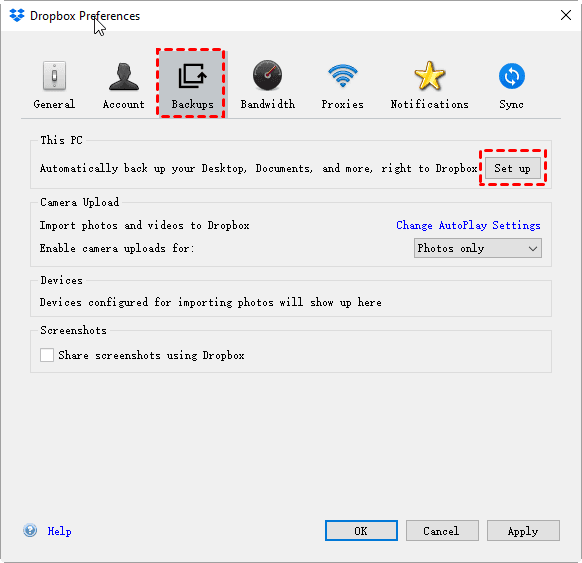
Step 3. Click the Backup tab and Set up in the This PC section.
Step 4. Keep the default folders checked and click Setup.
Step 5. Click "Try Plus for free" or "Continue with Basic" based on your needs, then click "Next" and "Go to Dropbox" after setting up your files.
Other methods to sync external hard drive to dropbox:
- To sync files outside the Dropbox folder, copy and paste the files or folders you want to sync into the Dropbox folder, and Dropbox will automatically sync them to dropbox.com.

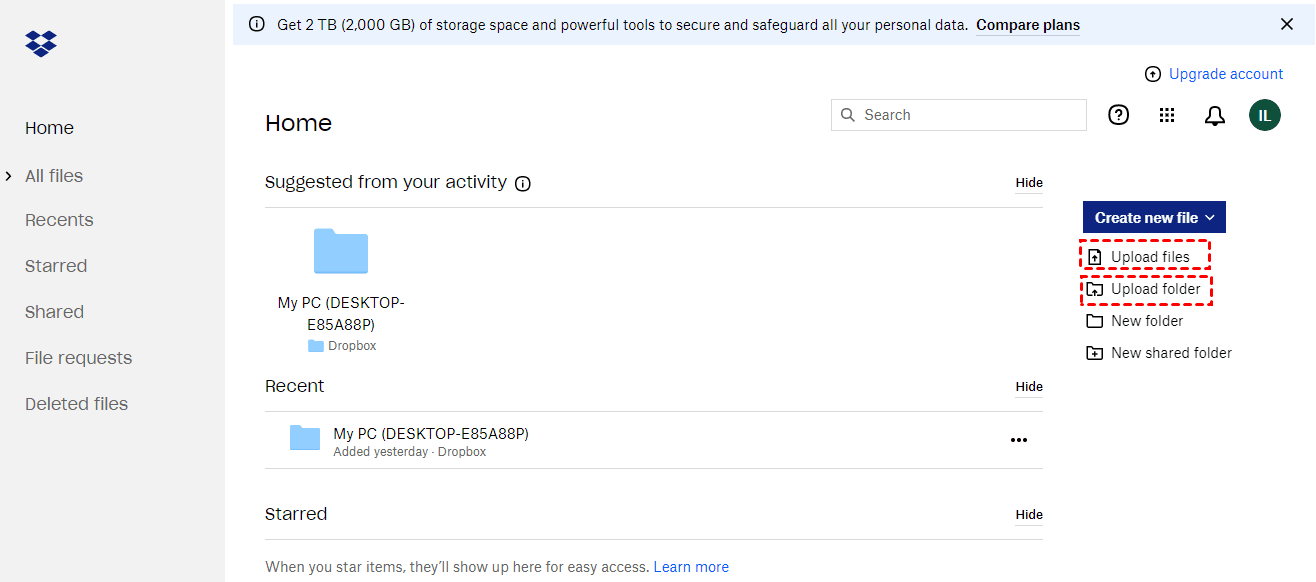
- To upload files or folders using the Dropbox website, open dropbox.com and select Home, then choose Upload Files or Upload Folder to select what you want to backup.
Method 2: Backup external hard drive to Dropbox using Symbol link
If your internal hard drive is smaller and can't hold all the data from your external hard drive, try the following steps.
Step 1. Open your Dropbox folder, copy the location and paste it into a word document, typically found at C:\Users\YourUserName\Dropbox.
Step 2. Copy and paste the location you want to sync to Dropbox, here is E:\folder.
Step 3. Type cmd and select it. Then, Select Run as administrator.
Step 4. In the command prompt window, type the following command and hit Enter.
mklink /d "C:\Users\YourUserName\Documents\My Dropbox" "E:\folder"
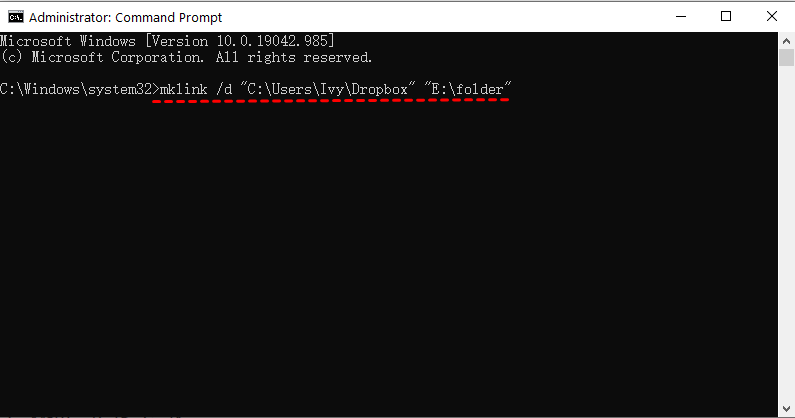
Step 5. Wait until the process is complete, then check Dropbox for synced files and folders. A message like "Symbolic link created for C:\path1".
Step 6. Remove the external hard drive from your computer and then Dropbox will remove all of your data.
Step 7. Delete the linked folder as a normal folder.
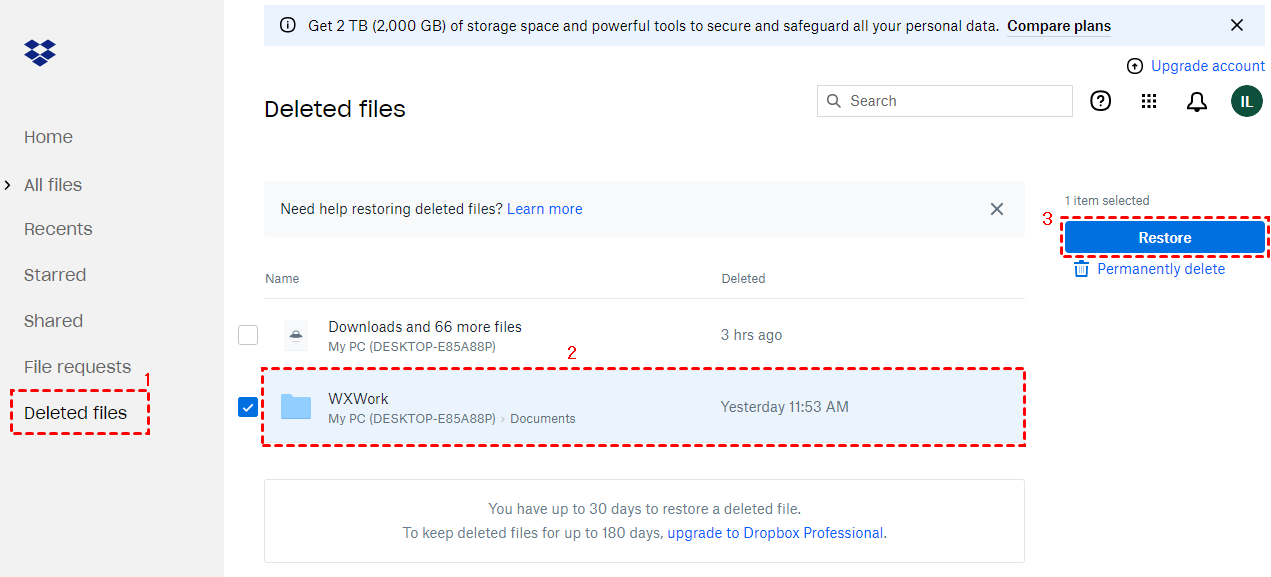
Step 8. Go to dropbox.com, select Deleted files, choose the folder containing your files, and click Restore.
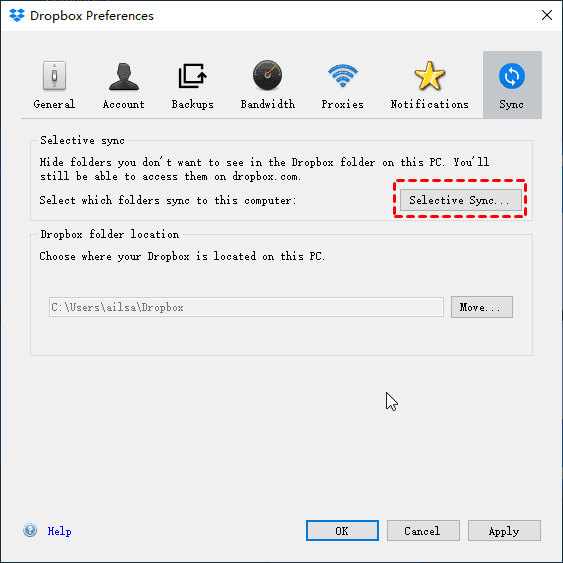
Step 9. To hide a folder on your computer using Dropbox, go to the app's Preferences, click on Sync and Selective Sync, and uncheck the folder you want to hide. This will remove it from your computer's Dropbox folder.
Method 3: Backup external hard drive to Dropbox automatically with Qiling Disk Master Standard
To backup external hard drive to Dropbox without human intervention, consider using free backup software like Qiling Disk Master Standard. This software offers two methods to backup files or folders on external disks: File Backup and File Sync, allowing you to automate the process.
The first option creates an image file to prevent unauthorized access and requires you to restore to view your files, while the second option displays synced files as a regular file or folder, making them easily accessible. If you frequently need to use your files, the second option is a better choice, and you can still set up automatic sync to keep your files up to date.
The software allows you to backup files to an external hard drive, as well as specific partitions or the entire disk, provided the Dropbox has sufficient space to accommodate the backup.
Please download Qiling Disk Master, and try it for yourself.
This free version only supports backing up files on an external hard drive to Dropbox in Windows 11, 10, 8, 7, XP, and Vista. If you need to perform this operation on a server computer, you may want to try Qiling Disk Master Server instead.
To backup data on external hard drive to dropbox:
Step 1. Connect the external hard drive to your computer and make sure it can be detected by Windows.
Step 2. Launch Qiling Disk Master, in the main page of Qiling Disk Master, click Backup and recovery and File Sync.

Step 3. Click Folder and select folders from your external hard drive.

Step 4. To access Dropbox, click the inverted triangle at the second box and select a cloud drive. This will open the Select Cloud window, where you can choose Dropbox and click OK.
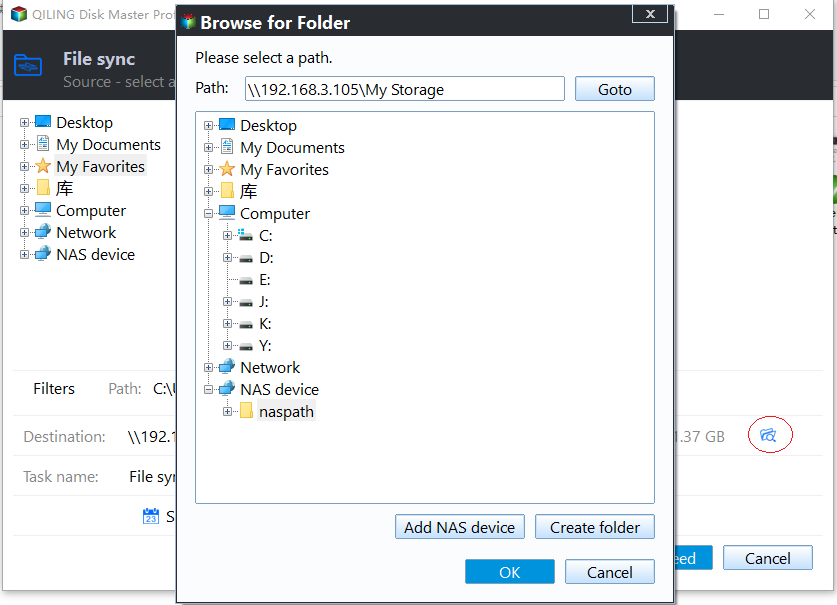
Step 5. Click Schedule Sync and select Daily/Weekly/Monthly. Confirm the start and finish times, and the items to sync, then click Proceed.
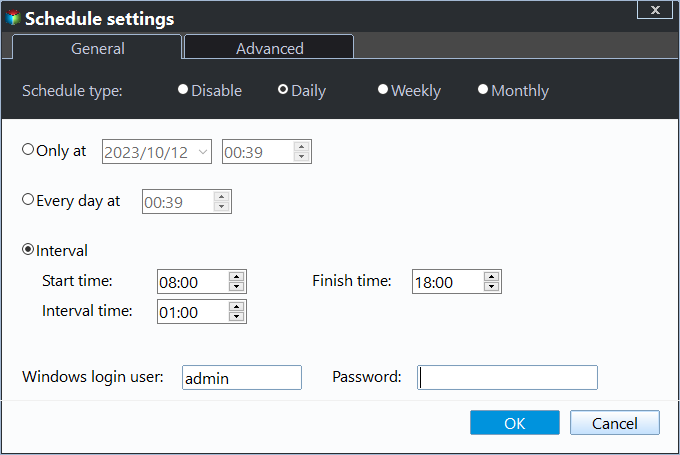
Notes:
◉ In the free version of Qiling Disk Master, Event triggers and USB plug in features in the Schedule Sync are not available and can only be accessed by upgrading to Qiling Disk Master Professional.
◉ To save sync time and space, use the Filter Settings option, which can be found as a funnel button at the end of the selected folders, to sync files with specific file extensions.
◉ The software will not sync changes anymore if the source folder name is modified.
◉ File Sync offers one-way file sync functionality, where files are synced from a source directory to a destination directory, with the option to reverse the process by switching the source and destination directories, allowing users to also backup Dropbox files to an external drive.
Conclusion
Backing up your external hard drive to Dropbox is a safe way to protect your data, as it keeps your files away from computer failure, theft, fire, and other risks that may cause data loss, and allows you to access your files anywhere without needing the drive.
Using free backup software to backup an external hard drive to the cloud is a straightforward approach. The software typically has an intuitive interface that makes it easy for users, even those who are new to backup, to understand and operate. Additionally, it allows users to schedule syncs to track changes on a daily, weekly, or monthly basis. This makes it a convenient option for those looking to keep their files up to date and secure.
Related Articles
- How to Backup Files to Cloud?
- Backup Hard Drives to Cloud - How to Make It Easily
- Backup PC to DropBox for Free in Windows 10/8/7
- Backup External Hard Drive to Google Drive Efficiently (3 Ways)
- 2 Workarounds That Let File History Backup to OneDrive
Normally, you cannot use OneDrive for File History, but you can trick File History to backup to OneDrive. Here is a step by step guide to show you how. - File Transfer Stops/Freezes in Windows 10 | Solved
This guide explains File Transfer Stops/Freezes in Windows 10 | Solved with clear steps, key checks, and practical tips.
Products
Articles & Tutorials
- Data Recovery
- Data Backup
- File Recovery
- File Backup
- File synchronize
- System Backup and Restore
- Disk and Partition Clone
- Technical articles
- Disk Master Help
- Windows Deleted File and Disk Recovery Tutorials
- Windows File and Data Recovery Tutorials
- More Windows Tutorials for Install, Security, Files, and PC Tips
- Windows Boot, Repair, and Recovery Environment Tutorials
- Windows Backup Tutorials
- Windows Restore Tutorials
- Windows Clone and Migration Tutorials
- Windows Server Backup, Recovery, and Management Tutorials
- Windows Disk, Partition, and Storage Management Tutorials