File Transfer Stops/Freezes in Windows 10 | Solved
- Need help: file transferring pauses/freezes
- How to fix file transfer stops in Windows 10 easily
- Solution 1: Disable antivirus software
- Solution 2: Run chkdsk on both disks
- Solution 3: Convert FAT/FAT32 to NTFS
- Solution 4: Transfer files in Safe Mode
- Easily transfer data with a free file transfer tool
- Verdict
🌟 Key Takeaways:
|
Causes |
Solutions |
|
🙁Transfer blocked by antivirus software |
|
|
🙁File system errors on the source or destination disk |
|
|
🙁File size limitation of a certain file system |
|
|
🙁Excessive CPU or RAM usage |
Need help: file transferring pauses/freezes
"I'm moving a large file from an SSHDD to an SSD. It will either crawl at kbps speeds, go up to 50mbp and max out at 260 before coming to a screeching halt. I'll wait a few minutes and it will repeat the cycle. Also does this on smaller files too.
It sounds like the issue might be related to the specific software or application that's causing the problem, rather than the computer itself. Have you tried closing and reopening the application, or updating it to the latest version? Sometimes, a simple restart or update can resolve the issue. If the problem persists, it might be worth considering reinstalling the software or seeking further technical assistance."
– Tenforums.com
In Windows 10, file transfer speed may drop to zero due to various reasons, including transferring files between internal hard drives, internal and external hard drives, or over a network, etc. This can occur due to issues such as disk errors, driver problems, or network connectivity issues, among others.
- Transfer blocked by antivirus software
- File system errors on the source or destination disk
- File size limitation of a certain file system
- Excessive CPU or RAM usage
Regardless of your specific situation, you can find a solution that suits your needs in the next section.
How to fix file transfer stops in Windows 10 easily
When you encounter file transfer freezes in Windows 10, try pausing and resuming or canceling and restarting the transfer process. If that doesn't work, you can try restarting your computer, checking for disk errors, running a virus scan, disabling any recently installed software, or updating your Windows 10 to the latest version. Additionally, you can also try checking for corrupted system files, running a disk cleanup, or adjusting your network settings.
 Qiling Disk Master
If you need to transfer a large number of files quickly, consider using the best free file transfer software for Windows PC. This can be a faster alternative to traditional methods.
Solution 1: Disable antivirus software
Antivirus software may block file transfers, so temporarily disabling it and re-enabling it after the transfer can resolve the issue.
Solution 2: Run chkdsk on both disks
CHKDSK is a Windows utility that checks the integrity of your hard disk and fixes various file system errors. It can be run on both the source and destination disk to resolve issues that may cause a Windows 10 file transfer to get stuck.
1. Type cmd into the search box. When Command Prompt shows up, click Run as administrator.
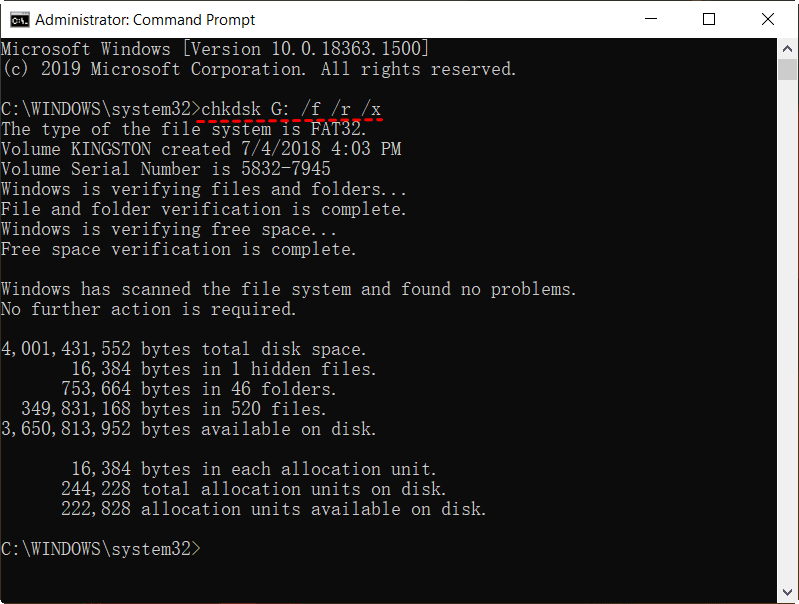
2. In the Command Prompt window, type `chkdsk G: /f /r /x` and press Enter, replacing "G:" with the drive letter of your source and destination disk.
Tips:
● The "/f" parameter tells chkdsk to fix any errors it finds, "/r" locates bad sectors and recovers readable info, and "/x" forces the drive to be dismounted before scanning.
● If you're checking disk errors on the C drive, you'll be asked to run a scan at your PC's next restart. Type 'y' to confirm, then exit Command Prompt and restart your computer.
3. Close Command Prompt and start file transfer again.
Solution 3: Convert FAT/FAT32 to NTFS
You may encounter Windows 10 large file copy fails when transferring files to a USB drive due to size limitations, but converting the drive from FAT/FAT32 to NTFS can resolve the issue.
1. Press Win + E keys to open File Explorer.
2. Right-click on the USB drive and choose Format.
3. In the pop-up window, select NTFS from the file system dropdown list and click Start.
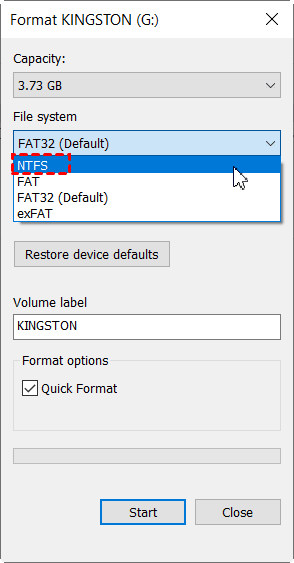
4. If you get a warning of data loss, click OK to convert to NTFS and then try transferring files again.
Solution 4: Transfer files in Safe Mode
Safe mode starts Windows in a basic state, using a limited set of files and drivers, and can help solve file transfer slow issues caused by excessive CPU or RAM usage.
1. To restart Windows, choose Power from the Start menu, hold down the Shift key, and click Restart.
2. Click the "Troubleshoot" option, then select "Advanced options", and finally "Startup Settings" successively.
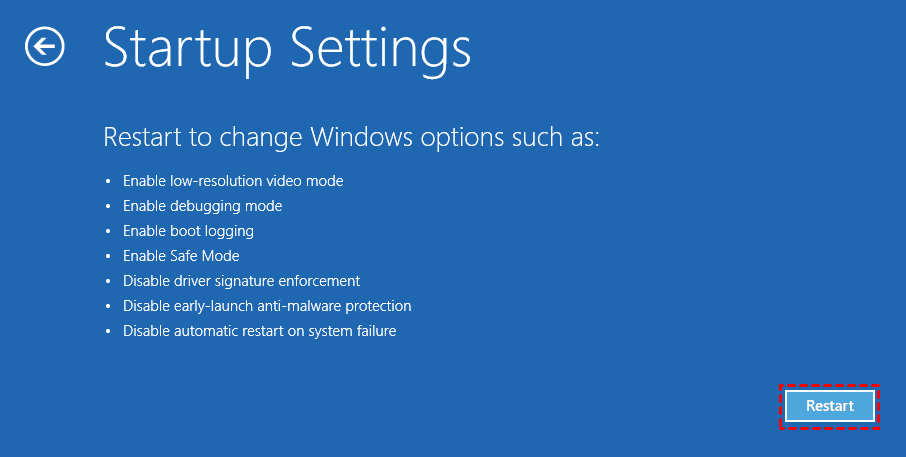
3. Under Startup Settings, click Restart.
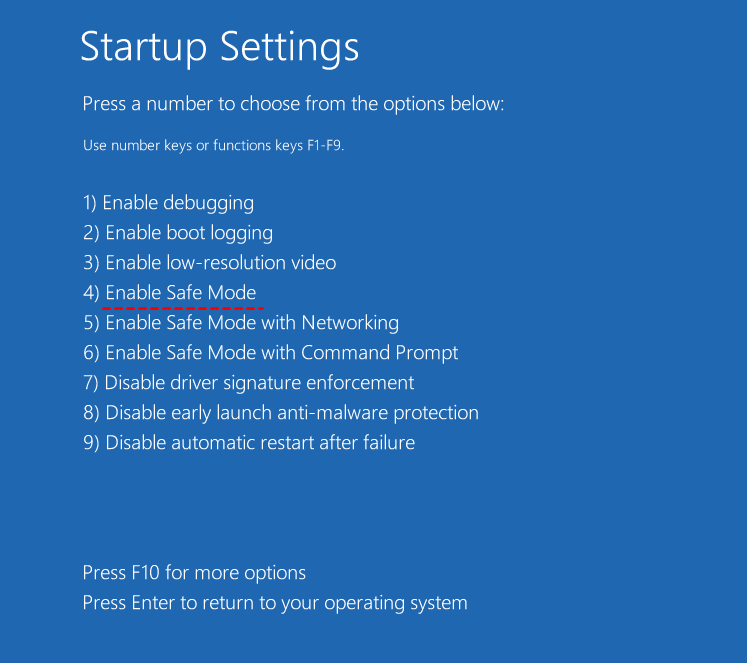
4. Press 4 or F4 to choose Enable Safe Mode.
5. To resolve the issue, log into Windows 10 Safe Mode with an administrator account, then attempt the file transfer again. This will isolate the problem and potentially identify the root cause of the issue.
Easily transfer data with a free file transfer tool
If you're fed up with trying multiple solutions, you can transfer files from one location to another with the best free file sync software - Qiling Disk Master Standard.
- This software can help transfer files between different locations, such as from a PC to a USB drive, from an external hard drive to a PC, or from a laptop to a desktop, and so on.
- It allows for automatic file updates using the Schedule Sync feature.
- It runs well on Windows 11/10/8.1/8/7/Vista/XP.
To get started, click the button below to download Qiling Disk Master and install it on your PC.
After launching Qiling Disk Master, you'll see a concise interface. Click Sync > File Sync, configure the source and destination directory, and click Proceed to begin file transfer with this free file transfer tool.

Tip: If you need more advanced sync modes, such as File Sync, please upgrade to a higher edition.
Verdict
You can fix file transfer stops in Windows 10 using four effective solutions. If you prefer an easier way of data transfer, Qiling Disk Master can help, offering a sync feature and additional functionality such as replacing the C drive with an SSD and running a bootable disk wipe.
Related Articles
- Solved: External Hard Drive Freezes When Copying Files
This guide explains Solved: External Hard Drive Freezes When Copying Files with clear steps, key checks, and practical tips. - How to Transfer Files in Safe Mode Windows 10/8/7
Here you can learn how to transfer files in safe mode of Windows 10/8/7 when Windows fails to boot. Follow the steps and try to copy files to external hard drive in safe mode. - Quick Fix: SD Card Copy Hangs While Copying Files to Computer
This guide explains Quick Fix: SD Card Copy Hangs While Copying Files to Computer with clear steps, key checks, and practical tips. - Best Free Second Copy Alternative - Qiling Disk Master
In this article, you will learn more about Second Copy and the best free Second Copy alternative, which helps you copy files automatically even when it can't copy files. - How to Create Daily Differential Backup in Windows 11/10/8/7
Daily differential backups are an efficient way to protect your data while minimizing storage space. However, Windows built-in tools don't support this feature. To overcome this limitation, you'll need an alternative solution. - How to Delete File History Backup in Windows 10?(4 Ways included)
You will learn 4 ways to delete file history backup in Windows 10 or 11 and how to backup files without occupying much disk space.
Products
Articles & Tutorials
- Data Recovery
- Data Backup
- File Recovery
- File Backup
- File synchronize
- System Backup and Restore
- Disk and Partition Clone
- Technical articles
- Disk Master Help
- Windows Deleted File and Disk Recovery Tutorials
- Windows File and Data Recovery Tutorials
- More Windows Tutorials for Install, Security, Files, and PC Tips
- Windows Boot, Repair, and Recovery Environment Tutorials
- Windows Backup Tutorials
- Windows Restore Tutorials
- Windows Clone and Migration Tutorials
- Windows Server Backup, Recovery, and Management Tutorials
- Windows Disk, Partition, and Storage Management Tutorials