2 Workarounds That Let File History Backup to OneDrive
Can File History backup to OneDrive?
File History is a built-in file backup tool in Windows 10 and Windows 8.1 that automatically backs up data to a specified storage device once a backup location is added.
You can choose to include or exclude specific folders in the backup, and OneDrive users may also consider backing up to their OneDrive cloud storage, especially those with OneDrive for business accounts.
You can't directly set OneDrive as the backup destination in File History, but there are workarounds to trick File History into saving file versions to OneDrive. Normally, you can only use removable storage devices like external hard drives or USB flash drives, or network drives, as backup destinations in File History. However, if you want to use File History to backup to OneDrive, you can use one of the available workarounds to achieve this.
Two ways to select OneDrive as File History backup location
You can trick File History to regard OneDrive as a network drive, allowing it to backup to OneDrive. There are two ways to achieve this: you can choose either method.
- Share local OneDrive folder
- Map OneDrive as a network drive
- An alternative to run Windows 10 backup to OneDrive
Share local OneDrive folder
The OneDrive Desktop app automatically syncs files between the OneDrive cloud and the OneDrive local folder, making it possible for File History to backup to the OneDrive local folder and then sync the files to the cloud.
1. Share the OneDrive local folder and create a folder named File History Backup. Right click it and select Properties.
2. To share a document, go to the Sharing tab, click Share…, and follow the prompts to complete the sharing process.
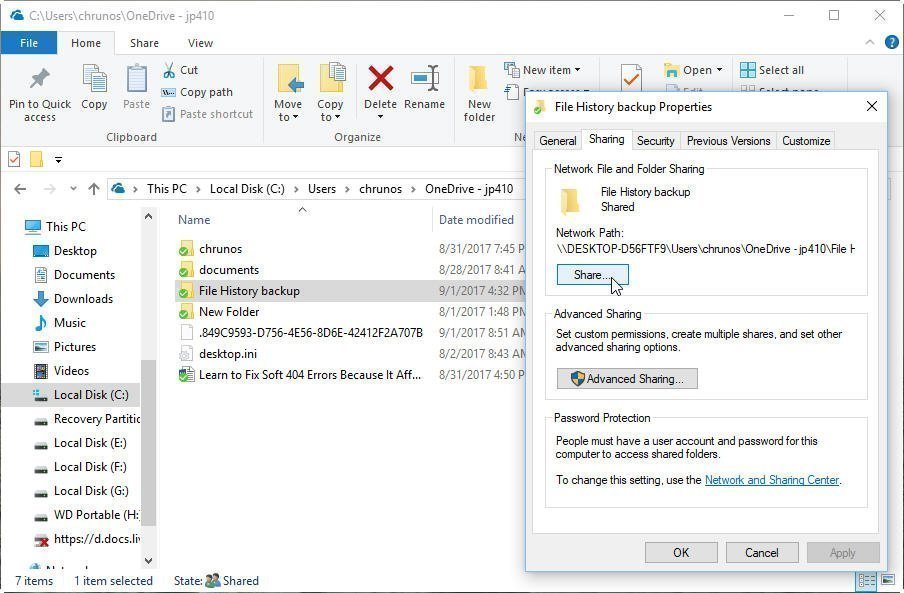
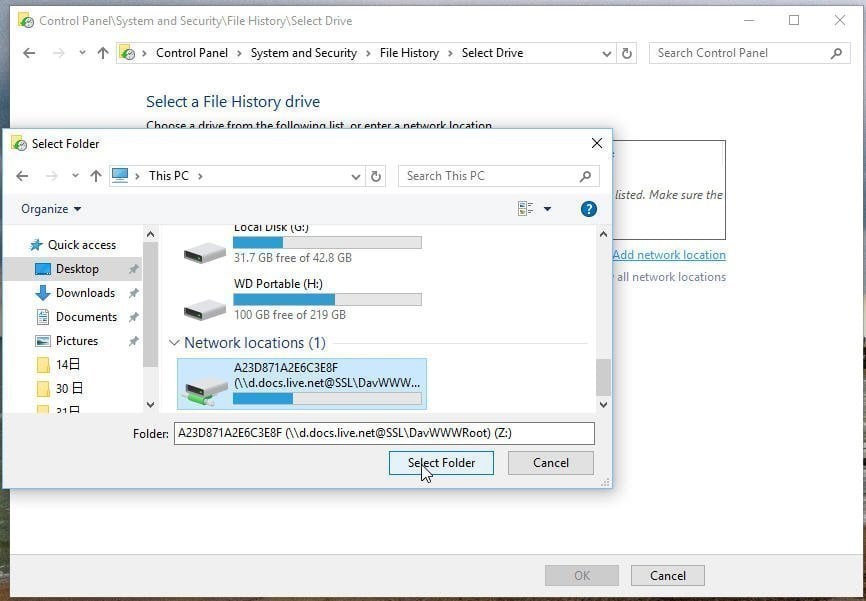
3. To add a network location to File History, locate the shared folder's network address, which is like //your IP address/the folder name. Then, open File History, click "Select a network location" and finally click "Add network location".
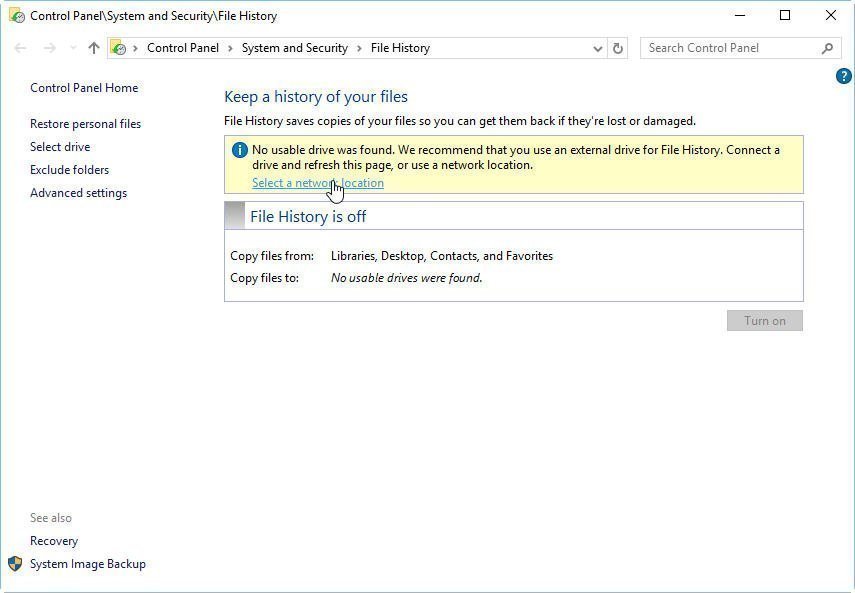
4. Type the shared folder location here and click Select Folder.
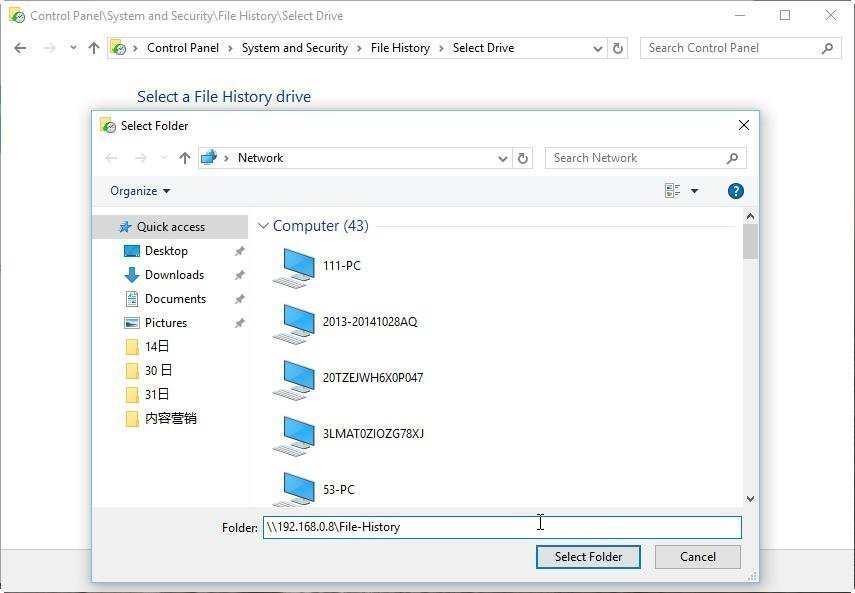
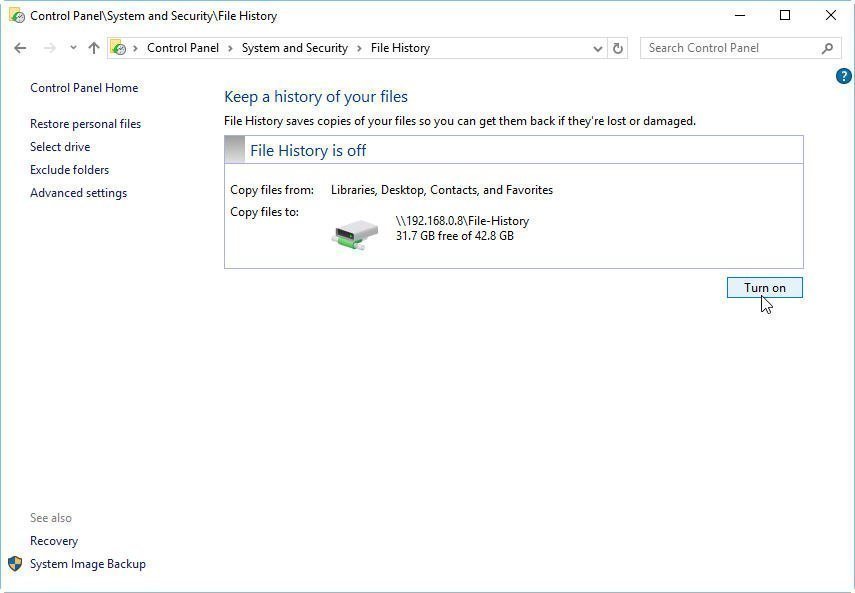
5. To confirm the operation, click OK, then it will return to the File History screen, click Turn on and you have configured Windows 10 File History for OneDrive backup.
The script first backs up files to the OneDrive local folder, allowing you to also use this method to have File History backup to a local drive.
Map OneDrive as a network drive
To backup OneDrive, you can map it as a network drive and then easily select it for backup. To do this, you can follow the steps to map OneDrive or OneDrive for business as a network drive, allowing you to directly access and select it for backup.
1. To access OneDrive, sign in with your account and navigate to the root folder. Then, copy the number that appears after "CID=" in the URL.
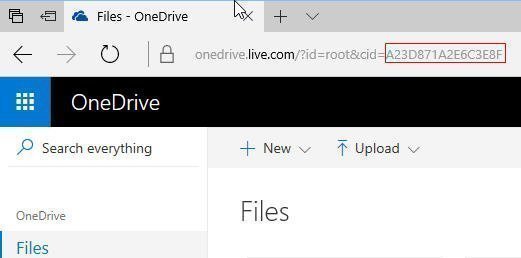
2. To map a network drive, open Windows File Explorer, select 'This PC', and then click 'Map Network Drive' under the Computer tab.
3. Enter https://d.docs.live.net/ followed by the CID number in the Folder field.
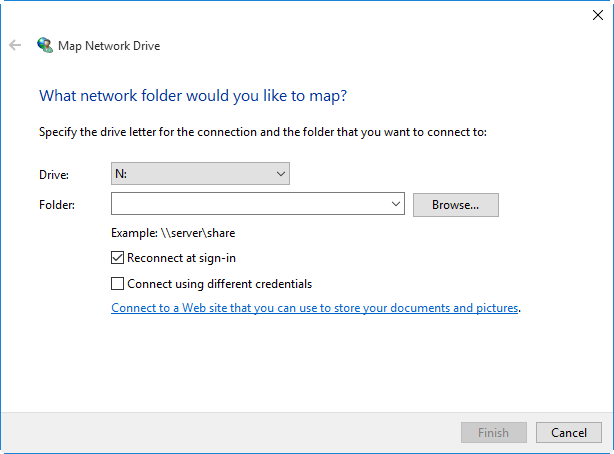
4. Check the option "Connect using different credentials" and then click on the Finish button.
5. Wait for the program to connect. Then it will pop out a window to ask you to enter your OneDrive account and password. Fill it out.
To map OneDrive as a network drive, wait for the process to complete. Once done, open File History, select the mapped OneDrive drive as the backup drive, and you're set.
An alternative to run Windows 10 backup to OneDrive
You can also use free third party backup software like Qiling Disk Master Standard to backup your files and folders to OneDrive, offering more options and faster performance compared to File History.
- The software provides File Sync and File Backup features to help users backup files and folders to OneDrive. File Sync does not generate an image file, whereas File Backup does. However, users must perform file restore before using the files in the image file if they choose File Backup.
- Besides OneDrive, users can backup files to other cloud storage services such as Google Drive, Dropbox, Box, SugarSync, hubiC, and Cloudme, as well as Qiling Cloud if they have a Qiling account.
- To create an automatic backup to OneDrive, use the Schedule Sync/Schedule Backup feature.
Learn how to backup files and folders to OneDrive with Qiling Disk Master, using File Sync as an example. With Qiling Disk Master, you can easily backup your files and folders to OneDrive, ensuring your important data is safely stored and accessible from anywhere.
1. Free download, install and launch this freeware.
2. Click the Backup and recovery tab and select File Sync.

3. In this screen, click "Folder" to specify the folder(s) that you want to sync, and you can also set up a filter to exclude files from the backup, which is available in Qiling Disk Master Professional.

4. To select OneDrive as the destination location, click the second bar's drop-down menu, select "Select a cloud drive", and then choose OneDrive in the pop-up window, which requires having the OneDrive desktop app set up beforehand.
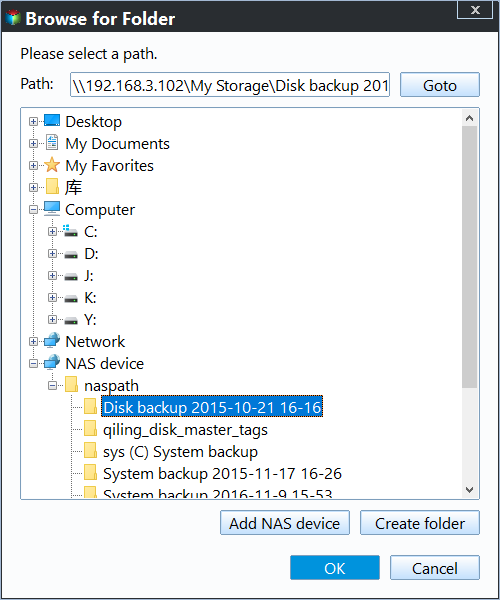
5. Click Schedule Sync to specify how often you want the folder(s) to be synchronized, setting a specific time in a day, a week, a month, or setting up event triggers or USB plug in.

6. Click Proceed to start the sync task.
Summary
If you're having trouble with File History backing up to OneDrive, two workarounds are offered in this article. Alternatively, you can use the free tool Qiling Disk Master to backup to OneDrive, which also allows you to create system image backups, make bootable media, and perform hard drive clones to SSD.
To protect unlimited computers within your company, you can use Qiling Disk Master Technician, which allows you to deploy or restore system image files on server-side computers to multiple client-side computers over a network using its built-in Qiling Image Deploy tool.
Related Articles
- Windows File History VS Backup: Which One to Choose?
This guide explains Windows File History VS Backup: Which One to Choose with clear steps, key checks, and practical tips. - How to Backup to OneDrive for Business in Windows 10/8/7?
OneDrive for business allows you to make an exact copy of your original files by syncing it, as it is a sync tool. But you can still backup to OneDrive for business using backup tools. - Windows 10 File History Backup Cannot Folders | Solved
This guide explains Windows 10 File History Backup Cannot Folders | Solved with clear steps, key checks, and practical tips. - Fix Annoying Error Your File History Drive Is Disconnected
Try the following 5 ways to fix "Your File History drive is disconnected" error, or try the best free alternative for File History - Qiling Disk Master to auto backup your files easily. - How to Schedule a Weekly Backup to Microsoft OneDrive?
- Backup User Profile Windows 10 and Move it to Another Computer
You will learn how to backup and restore user profile in Windows 10/11, without spending hours customizing the new computer.
Products
Articles & Tutorials
- Data Recovery
- Data Backup
- File Recovery
- File Backup
- File synchronize
- System Backup and Restore
- Disk and Partition Clone
- Technical articles
- Disk Master Help
- Windows Deleted File and Disk Recovery Tutorials
- Windows File and Data Recovery Tutorials
- More Windows Tutorials for Install, Security, Files, and PC Tips
- Windows Boot, Repair, and Recovery Environment Tutorials
- Windows Backup Tutorials
- Windows Restore Tutorials
- Windows Clone and Migration Tutorials
- Windows Server Backup, Recovery, and Management Tutorials
- Windows Disk, Partition, and Storage Management Tutorials