Enable Event-triggered Backups Upon Specific Events
Qiling Disk Master Professional can create backups based on specific events, such as user logon, logoff, system startup and shutdown, in addition to basic schedule backups.
The benefits of event triggers backups
- User logon: To prevent system failure or data loss, it's a good idea to schedule an automatic backup when a user logs on to the computer, especially in a shared computer environment where multiple users may use the same computer with different user accounts. This way, data and installed programs for each user can be safely backed up, protecting against potential system crashes or disasters.
- User logoff: The exact opposite of "User logon" is "User logoff". This process can be a concern for users who worry about losing data and installed programs caused by other users or unexpected disasters after they log off the computer. To mitigate this risk, it's advisable to schedule an automatic backup when a user logs off from the computer.
- System startup: Before making any changes to your computer after startup, it's a good idea to schedule an automatic backup to be done a certain number of minutes after system startup.
- System shutdown: System failures resulting in data loss often occur when shutting down the computer. To prevent this, backing up data immediately after finishing work or before shutting down is a good solution. However, scheduling a fixed time for this backup can be challenging due to unpredictable work completion times. A better approach is to schedule an automatic backup to run when the user shuts down the computer.
How to create an auto backup upon events
1. To create a system image backup using Qiling Disk Master Professional, download, install, and launch the software, then click on the "Backup" tab and select "System Backup" from the options on the right.

2. You can edit the default "Task Name" and the program will automatically select system and boot-related partitions as the source. To save the backup image, simply choose a destination. For event-triggered system backup, click "Schedule Backup" at the bottom.

3. Click on "Enable Schedule Backup" and select "Event triggers" from the dropdown menu.

There are four event types to choose from, and you can select one to automatically perform the current backup when a specified event occurs, such as system shutdown. To continue, click "OK".
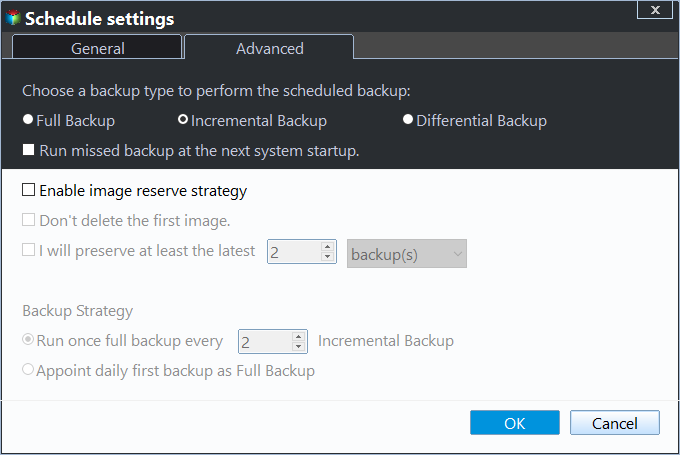
Tip: The event-triggered system backup can be performed in different ways, with the default option being incremental backup, which only saves newly added, changed, or deleted data based on the last backup. Alternatively, users can choose full backup or differential backup.
4. Now you can confirm the source data and destination path. After clicking "Proceed", there are two options available.
- Add the schedule and Proceed now: The program will add the schedule and immediately perform a full system backup. It will then perform a full, incremental or differential backup based on the specified "Backup Scheme" when the computer is shut down.
- Only add the schedule: The program will initially only add a schedule, but will perform a full system backup when you shut down the computer for the first time. Subsequent shutdowns will trigger either a full, incremental, or differential backup, depending on the backup scheme you specified.
During the shutdown process, a message is displayed saying the backup is not required and you don't have to wait for it to finish.
How to change an event-triggered backup
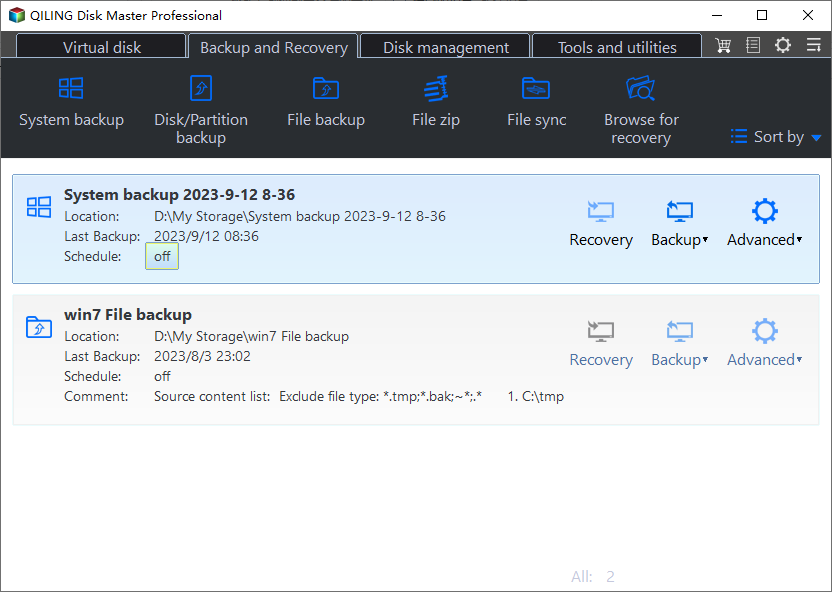
1. Qiling Disk Master allows you to easily change the event-triggered backup you have already added. To do this, go to the "Home" tab, where all backup tasks are listed, find the event-triggered backup, and select "Schedule" from the expanded menu.
2. To change the schedule settings, open the Schedule Settings window, make the desired changes, and then click "OK" to confirm the changes.
Creating a backup automatically based on a specific event is particularly useful in companies with an irregular work cycle, where planning a suitable backup time in advance is challenging. This solution also benefits when ensuring a computer is secured daily without disrupting office hours, as performing backups during this time can increase network load and impact employee productivity.
Related Articles
- Fixed: Windows 11 Go Back to Windows 10 Not Working
This guide explains Fixed: Windows 11 Go Back to Windows 10 Not Working with clear steps, key checks, and practical tips. - Complete Guide to Windows 11 NVMe Installation - Without Any Boot Problems
Read this article to help you with Windows 11 NVMe installation and boot successfully from them with the most secure and convenient software available. - Windows 11 NVMe Not Detected? Top Ways to Fix It Now!
Resolve windows 11 NVMe Not Detected Top Ways to Fix It Now with focused Windows checks and practical repair options. - Best Free Backup Software for Windows 7 (32/64 Bit)
The best free backup software for Windows 7 - Qiling Disk Master can help you protect system and data with no effort. Supports both 32 and 64-bit system. - Backup SQL Server Database and Restore to Another Server | Guide
Here's a simple guide to backup SQL Server databases and restore to another server. In addition, you can also migrate databases via Copy Database Wizard, or try a centralized backup solution. Keep reading to learn the details. - [Free] Backup SSD to HDD Partition in Windows 10/8/7
Learn how to backup an SSD to internal or external hard drive (HDD) partition to keep OS safe in case the SSD fails for Windows 10/8/7 with free SSD/HDD backup software.
Products
Articles & Tutorials
- Data Recovery
- Data Backup
- File Recovery
- File Backup
- File synchronize
- System Backup and Restore
- Disk and Partition Clone
- Technical articles
- Disk Master Help
- Windows Deleted File and Disk Recovery Tutorials
- Windows File and Data Recovery Tutorials
- More Windows Tutorials for Install, Security, Files, and PC Tips
- Windows Boot, Repair, and Recovery Environment Tutorials
- Windows Backup Tutorials
- Windows Restore Tutorials
- Windows Clone and Migration Tutorials
- Windows Server Backup, Recovery, and Management Tutorials
- Windows Disk, Partition, and Storage Management Tutorials